Sign in to iManage Control Center.
In the left navigation pane, select Extensions and then select Insight+ Curation.
Select the library in which you wish to create a new form and then select Workflow forms.
Figure: Library selection
Select Create New Form.
In the Edit: New form dialog, drag the required Generic, Curation, or Extended Metadata fields on the right-hand side, to the form canvas.
NOTE: Select Add next to a field to add it to the form canvas.Figure: Adding fields to a form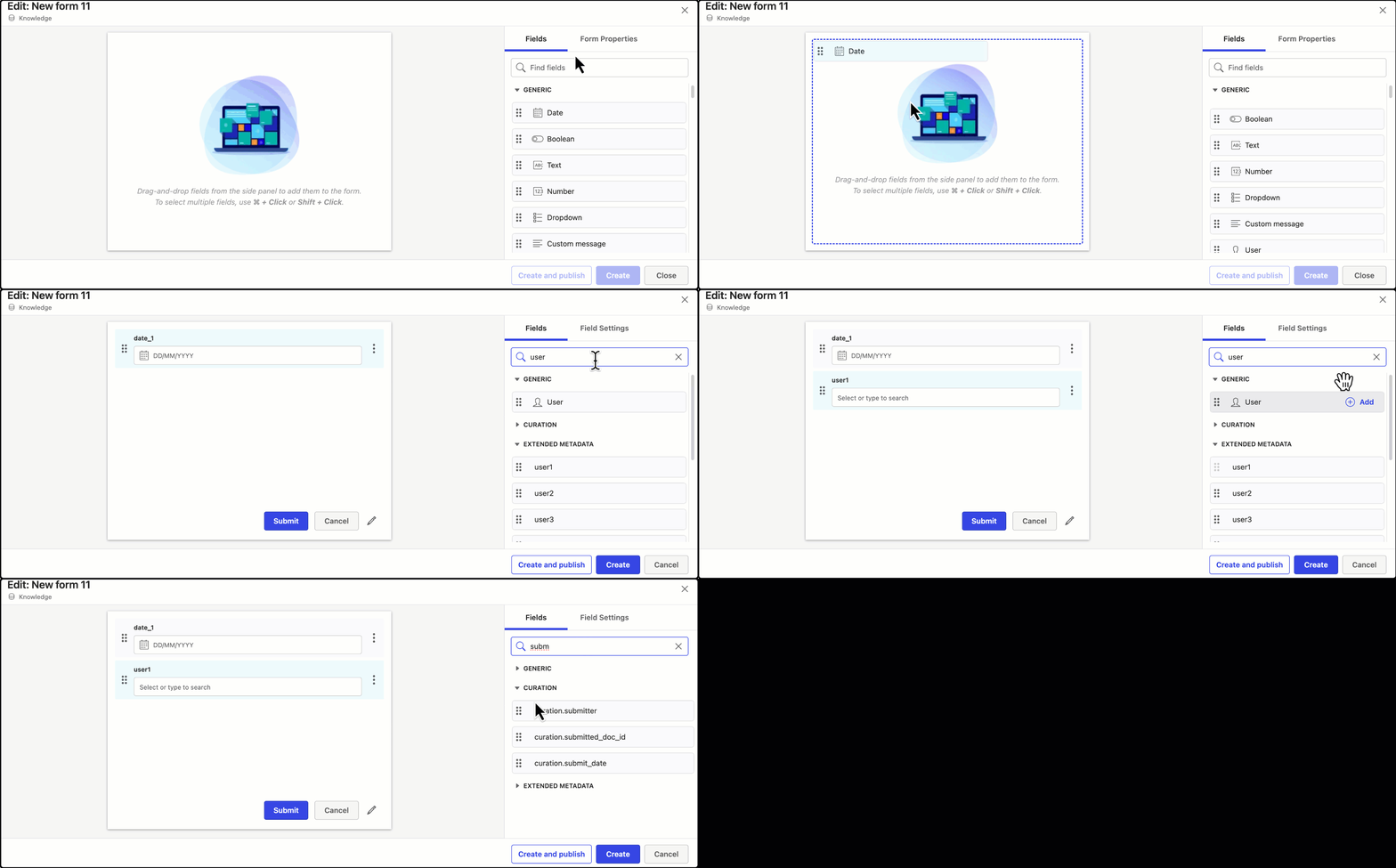
(Optional)
Use the Find fields search box to search for a particular field type.
Use the Ctrl+Click (or Cmd+Click for macOS) shortcut to select multiple fields.
Select:
Create: Creates a new form which won’t be available in Microsoft Power Automate until it's published.
Create and publish: Publishes a new form, which will be available for selection in an iManage trigger in Microsoft Power Automate.
You can also add conditional logic to your workflow forms. With conditional logic, forms can dynamically display or hide fields based on user inputs. This feature empowers you to create more interactive and efficient workflows by customizing the form experience to align with each user's unique responses.
To know more about adding conditional logic to forms, refer to Using Conditional logic for forms in the iManage Workflow Manager Help.