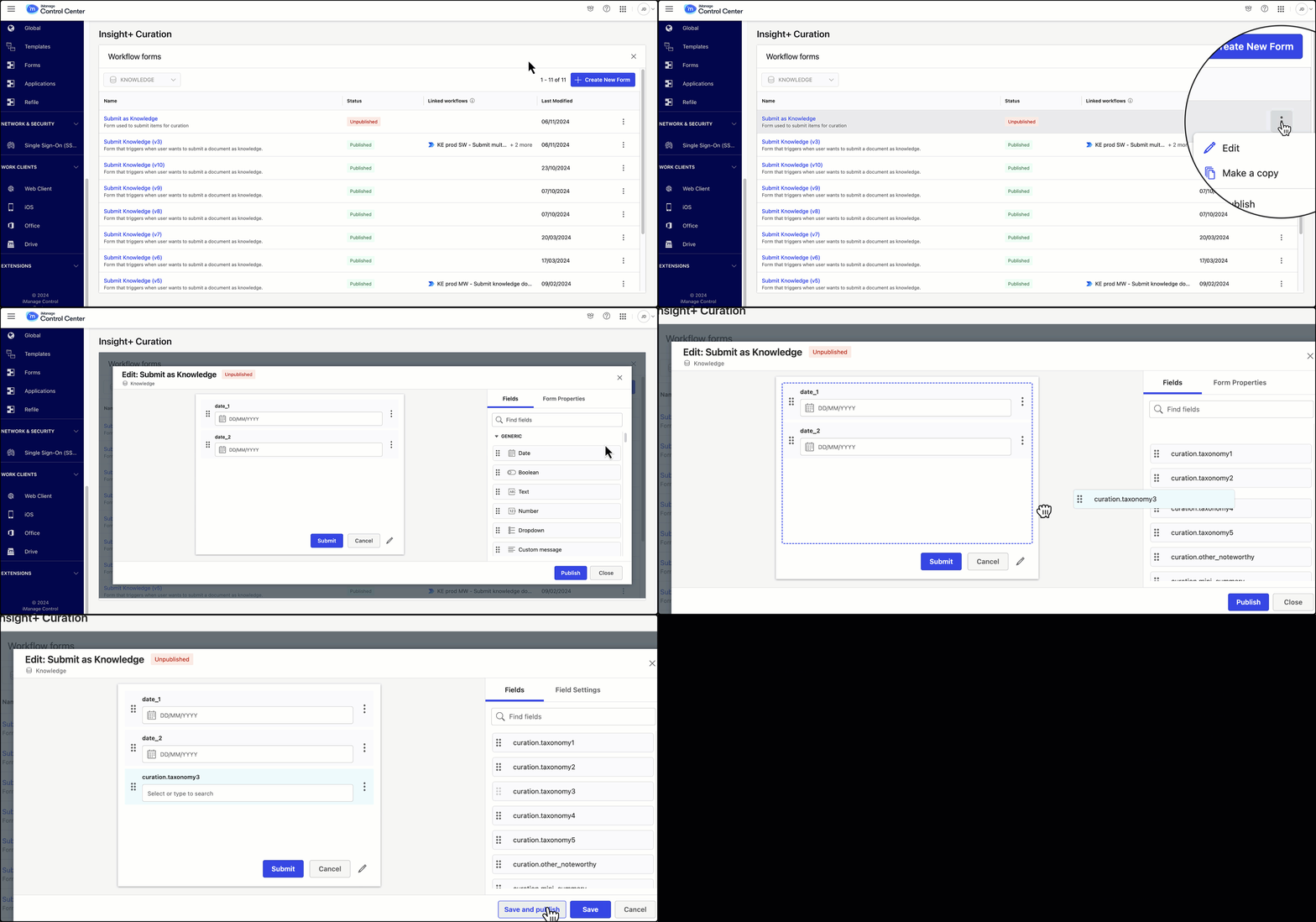
After you’ve created and saved a form or created and published a form, you can edit the form later, if required.

  1. Select Edit from the kebab menu for the required form or by directly clicking on the form name on the landing page.

  2. Perform the required changes.

    Publishing an unpublished form.gif

  3. Based on the current status of the form being edited, the options to proceed vary as explained in the table below.

    Table: Edit options based on form status

Form status

Option available in the Edit dialog

Published

  • Save: Changes won’t be visible in Microsoft Power Automate until the form is republished.

  • Save and Publish: Makes the changes visible in iManage triggers within Microsoft Power Automate.

Unpublished

  • Publish: Makes the changes visible in Microsoft Power Automate.
    If you make further changes to the form, then the following options are available to you:

    • Save: Changes won’t be visible in Microsoft Power Automate until the form is republished.

    • Save and Publish: Makes the changes visible in iManage triggers within Microsoft Power Automate.

    If you wish to leave the form’s status as Unpublished, select Cancel.

Not published

  • Publish: Makes the form available for selection in an iManage trigger within Microsoft Power Automate.
    If you make further changes to the form, then the following options are available to you:

    • Save: Changes won’t be visible in Microsoft Power Automate until the form is republished.

    • Save and Publish: Makes the changes visible in iManage triggers within Microsoft Power Automate.

If you wish to leave the form’s status as Not published, select Cancel.

Updates not published

  • Publish: Makes the changes visible in Microsoft Power Automate.
    If you make further changes to the form, then the following options are available to you:

    • Save: Changes won’t be visible in Microsoft Power Automate until the form is republished.

    • Save and Publish: Makes the changes visible in iManage triggers within Microsoft Power Automate.

    If you wish to leave the form’s status as Updates not published, select Cancel.

NOTE: Editing a form already being used in a workflow could break the workflow. We recommend testing the workflow after republishing the form.