Select Edit from the kebab menu for the required form.
Every field available in the form has the following options available in the kebab menu:
Edit Properties: Provides all possible options the further customize the field.
Remove: Removes the field from the form.
Figure: Editing Field Settings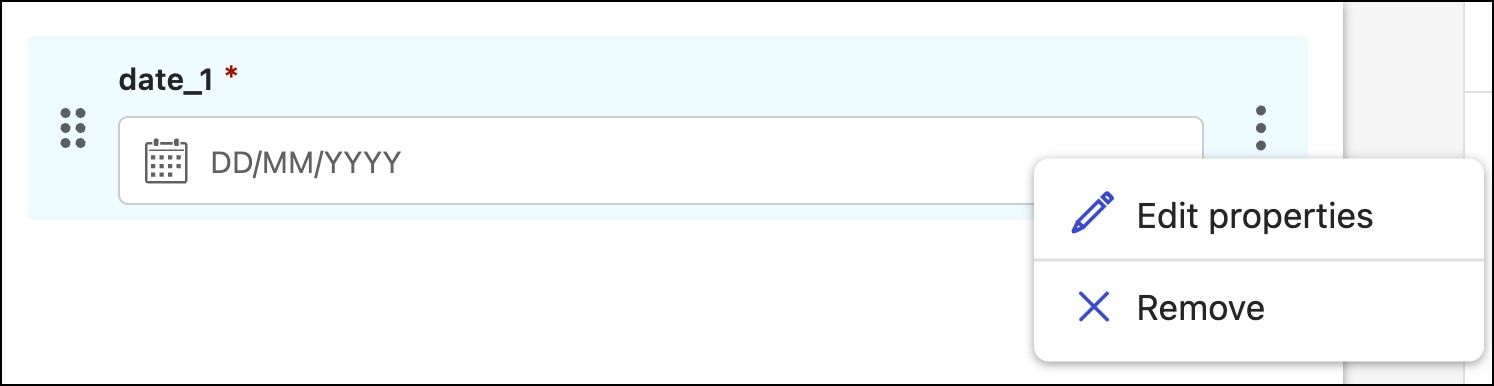
Based on the current status of the form being edited, the options to proceed vary as explained in the Edit options based on form status table.
Workflow forms support three types of fields to be added onto the form canvas:
Generic
Curation
Extended Metadata
NOTE: Customizing Field ID isn't supported for Curation and Extended Metadata fields.
To customize generic fields, refer to Customizing Generic fields section in the iManage Workflow Manager Help.
In general, Curation fields have four options that can be edited:
Name: Will be visible to the user of the form and in the Microsoft Power Automate designer.
Required Field:
Turn on to ensure users must provide a field value to submit the form.
orTurn off to allow users to submit the form without providing a field value.
Inherit Values from: Use this option to pre-populate the value for a field from the existing property value.
For example, you can set the value to be inherited from the Author, Operator or Logged In User for the curation.submitter field, as shown below.Figure: Editing Curation field settings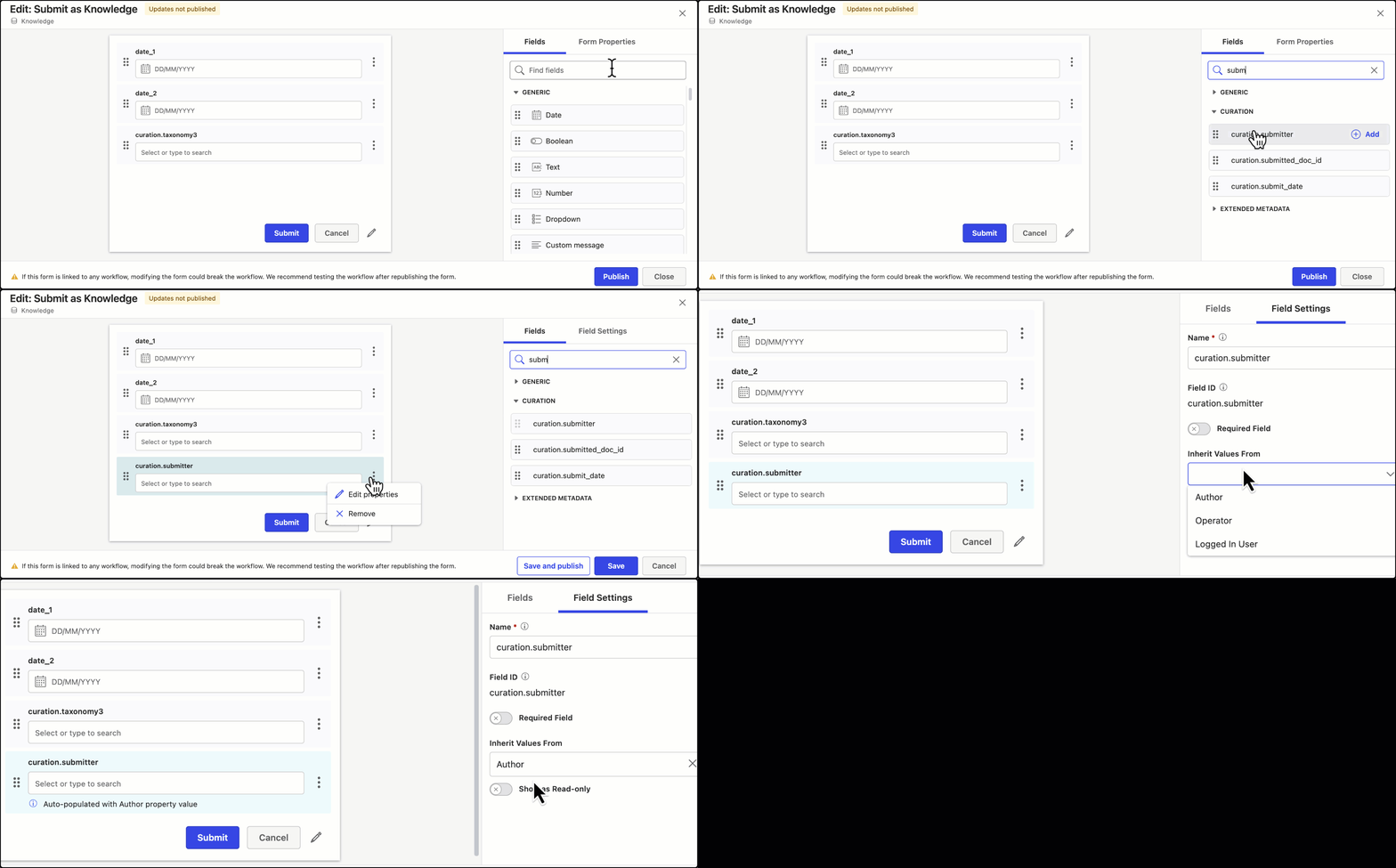
If the value is set to be inherited from an existing property value, then the following indication appears below the field on the form canvas:
”Auto-populated with the <name> property value.”Show as Read-only: Turn on when you don’t want users to modify the auto-populated fields when the form renders.
For the Extended metadata fields, the number of options that can be edited depends on the field selected.
When a field value such as long or mv_url is selected, there are two options that can be edited:
Name: Will be visible to the user of the form and in the Microsoft Power Automate designer.
Required Field:
Turn on to ensure users must provide a field value to submit the form.
orTurn off to allow users to submit the form without providing a field value.

When field values such as user, mv_user, lookup, mv_lookup, mv_taxonomy and so on are selected, there are four options that can be edited:
Name: Will be visible to the user of the form and in the Microsoft Power Automate designer.
Required Field:
Turn on to ensure users must provide a field value to submit the form.
orTurn off to allow users to submit the form without providing a field value.
Inherit Values from: Use this option to pre-populate the value for a field from the existing property value.
For example, you can set the value to be inherited from the Author, Operator or Logged In User for the user field, as shown below.Show as Read-only: Turn on when you don’t want users to modify the auto-populated fields when the form renders.
Figure: Editing Extended metadata field settings
If the value is set to be inherited from an existing property value, then the following indication appears below the field on the form canvas:
”Auto-populated with the <name> property value.”