When a particular user is no longer a part of the company, it's important to reassign data to another user. As an iManage Share administrator, you must reassign user content using one of the following methods:
Manual content reassignment: To manually reassign user content from one user to another during user account deletion.
Automatic content reassignment: To set one user as the default content assignee to whom content is reassigned whenever any other user account is deleted in iManage Share. The default consent assignee is remembered unless changed by you again.
Manual content reassignment
Select the
 icon next to your name at the top.
Select Settings.
On the Users tab, select the user account for which you want to reassign the content.
On the User Information screen, select Delete User.
In the Delete User dialog, enter the email address of the user to whom the content must be reassigned and select Continue.
Select Reassign & Delete.
Figure: Reassigning user content during user deletion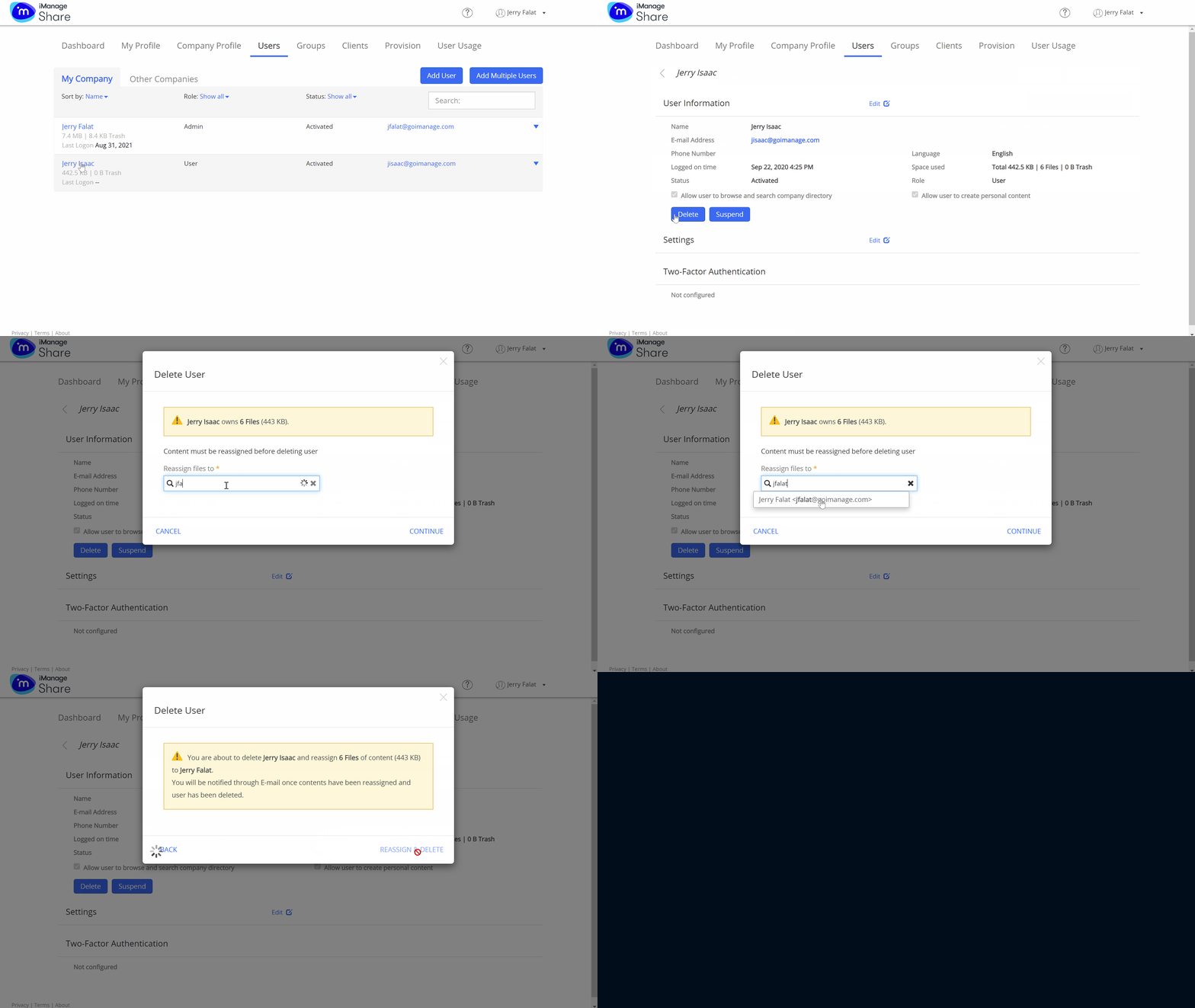
Automatic content reassignment
Select the
icon next to your name at the top.Select Settings, then select the Company Profile tab.
Select
 and scroll to the bottom of the page.
 Select the Default Content Assignee field below Content Administration, and enter the name of the user to whom you want content to be reassigned automatically when you delete any other user account.
Select the default content assignee from the list and then select Save.
Figure: Setting the default content assignee in iManage Share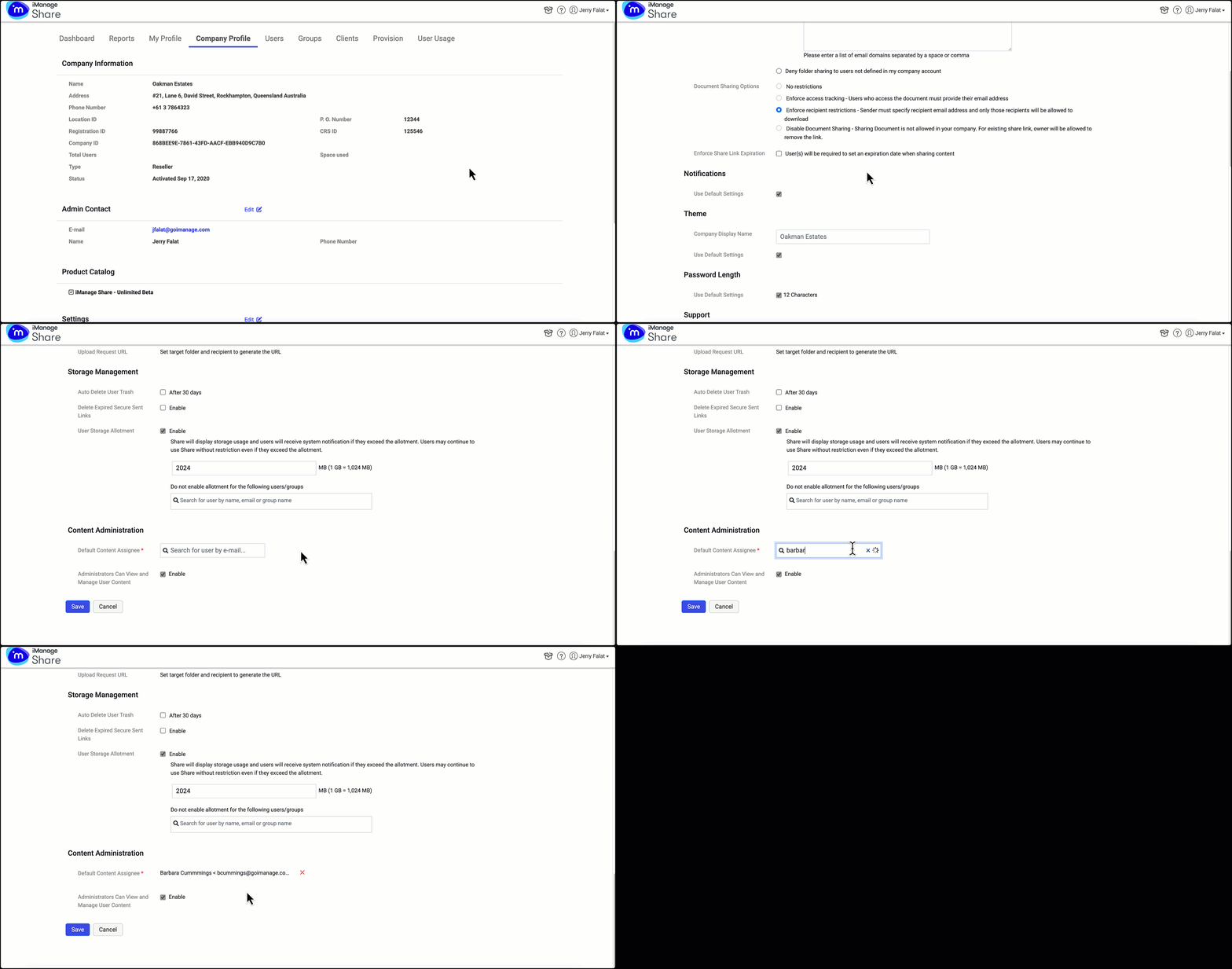
All the content from the previous user is reassigned and displayed as  on the sidebar of the assigned user's Company View screen.
NOTE:
The administrator who started the content reassignment receives an email notification.
The user to whom the content is reassigned also receives an email notification.