To compare two versions of documents:
In iManage platform, browse to the folder in which the documents you want to compare are saved.
(Optional) Select the three dots and select Versions in the right-click menu to view all the versions of the document or email.
Alternatively, select the checkbox provided next to the Type column and select Versions displayed in the right navigation bar to open the Versions pane.Select Compare
 in the right navigation bar to open the Compare pane.
 Drag the documents which you want to compare to the Revised Document and Original Document fields.
Alternatively, select Add Document in both the Revised Document and Original Document fields. In the Add Document dialog that opens, browse and select the documents you want to compare.Figure: Comparing documents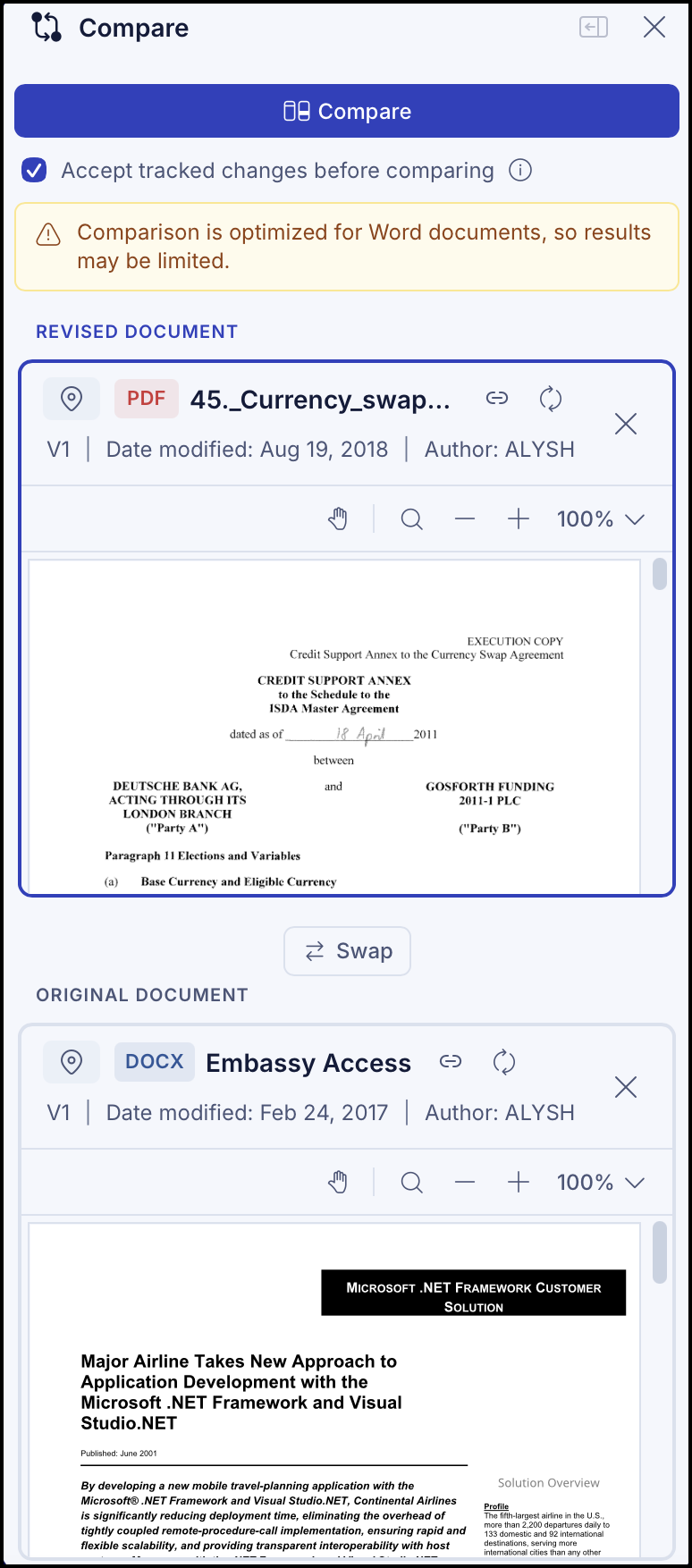
(Optional) Select Accept tracked changes before comparing checkbox, if you want the all the track changes to be accepted temporarily before comparison.
(Optional) Select Swap if you want to swap the documents to be compared.
Select Compare to start comparison. The comparison progress is displayed and the redline is displayed by default.
Select:
Change Summary from the drop-down to view the change summary.
Redline from the drop-down to view the redline of the compared documents.
Document name from the drop-down to view the document (original and revised documents).
Select
 to start a new comparison. Repeat step 4 to step 8 for another comparison.
NOTE:
When trying to compare the same versions of the document, a message, "Select a different document or version to compare" is displayed and the Compare button isn't enabled.
When comparing two non-Microsoft Word documents, the results may be limited as the comparison is optimized for Microsoft Word documents.