All conversations are saved in iManage platform by default and can be accessed from either Search panel or from the Ask panel. For more information, refer View existing conversations.
However, you can save these conversations to be accessed from Search panel or a quick access by doing the following,
Browse and access Ask panel. For more instructions on how to access Ask, refer to View existing conversations
Do one of the following:
If you've opened the main panel, select Search in the left panel. All the conversations are displayed under Recent. Select Ask and select
 Options next to the conversation you want to save and select Save chat.Figure: Saving a conversation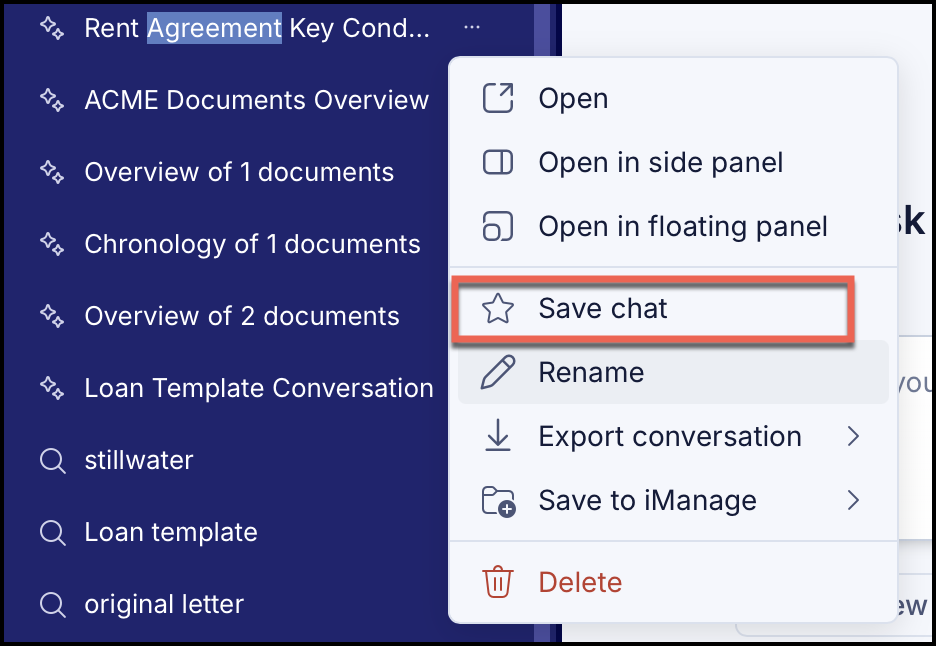
Alternatively, select View All to open all the conversations on the History page. On the History page, select
 Actions next to the conversation you want to save and then select Save chat. Figure: Saving a conversation from History page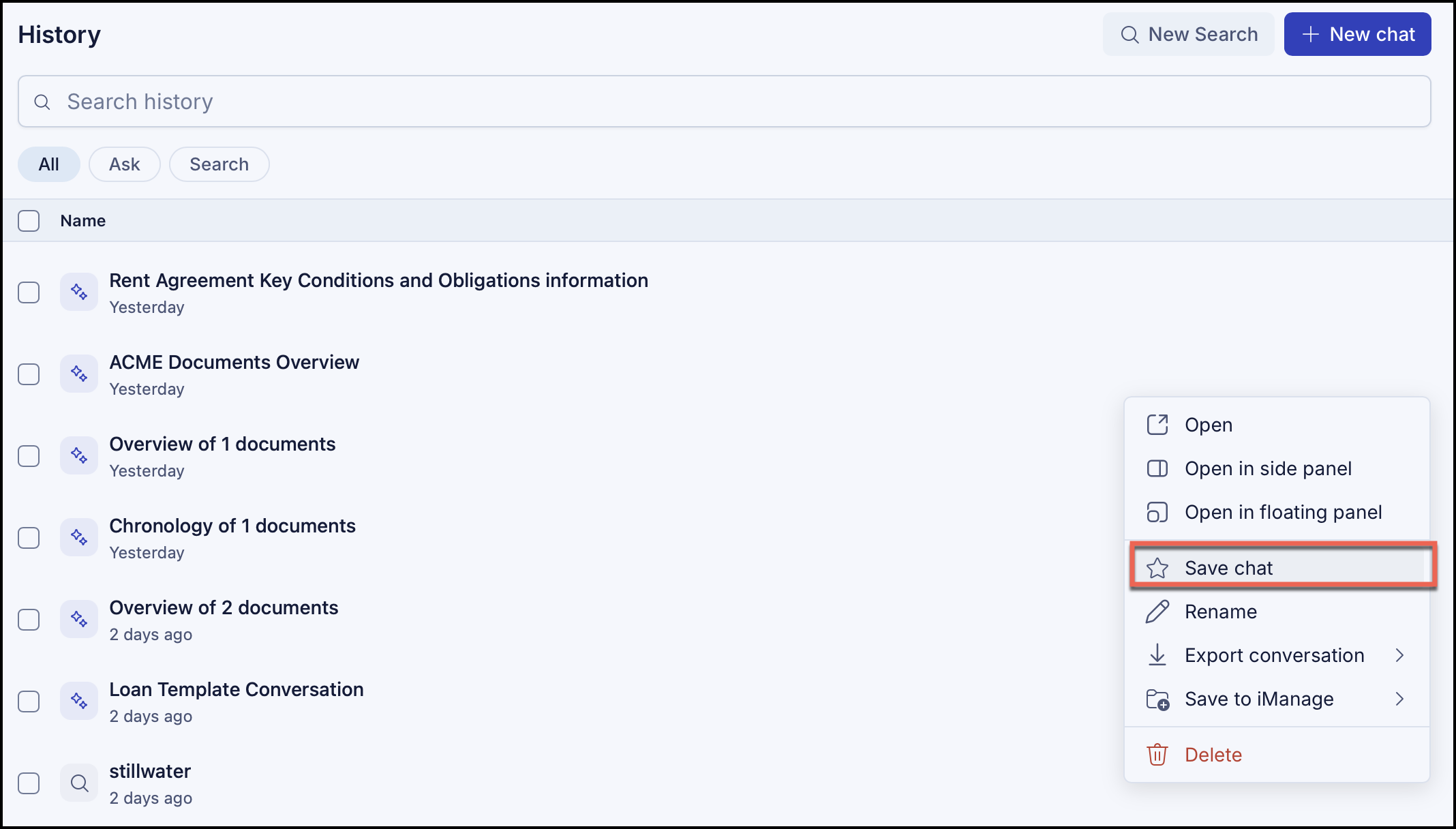
If you’ve opened the side panel or floating panel, select Menu
 in the Ask side panel or floating panel to display all the existing conversations. Select Actions next to the conversation you want to save and then select Save chat. Figure: Saving conversations from Ask side or floating panels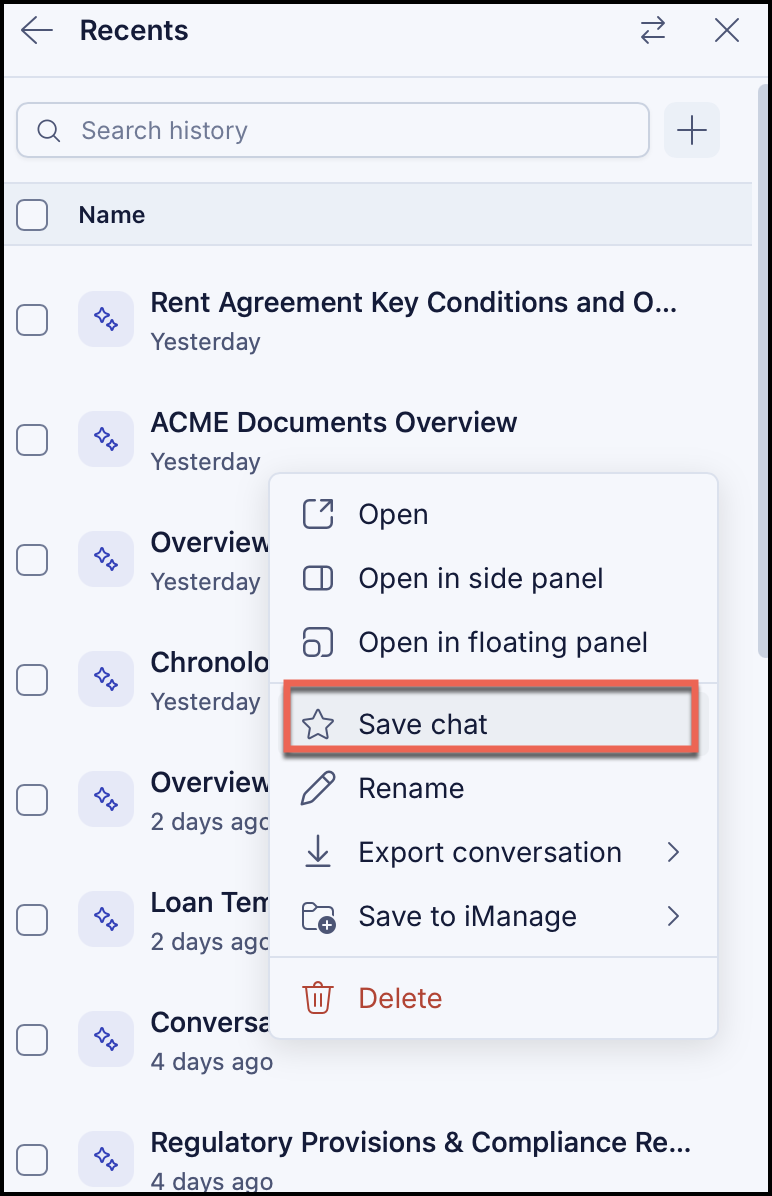
All the saved conversations can be accessed by browsing Search in the left navigation panel and under Saved.
To remove a conversations from saved chats, select the conversations and then select Unsave chat. Alternatively, you can access the conversation in the History panel, Ask side or Ask floater panels and select Unsave chat.