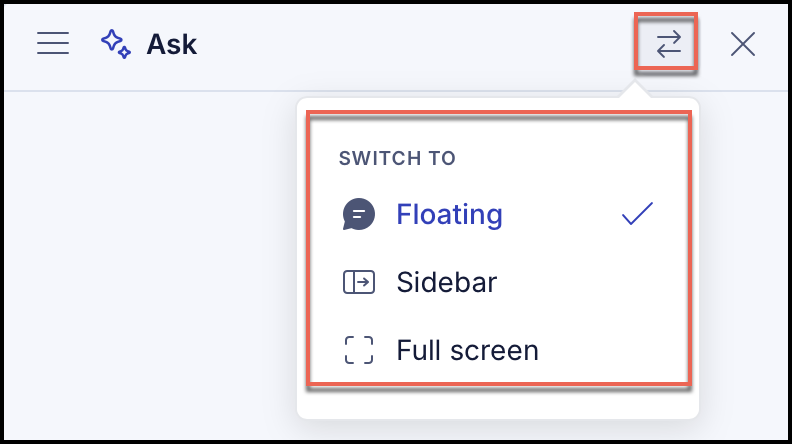
When you start a conversation, all the conversations are available in the Search panel or in the Menu options in Ask side panel or Ask floating panel, by default. You can view the conversations in Ask page, Ask side panel, or floating pane. However, you can also switch from one panel to another. For more information, refer to the following sections:
Viewing existing conversations
Browse and access Ask panel, and do one of the following. For more instructions on how to access Ask, refer to Access Ask panel.
Select Search in the left panel. All the conversations are displayed under Recent. All the saved conversations are displayed under Saved.
Figure: Viewing existing conversations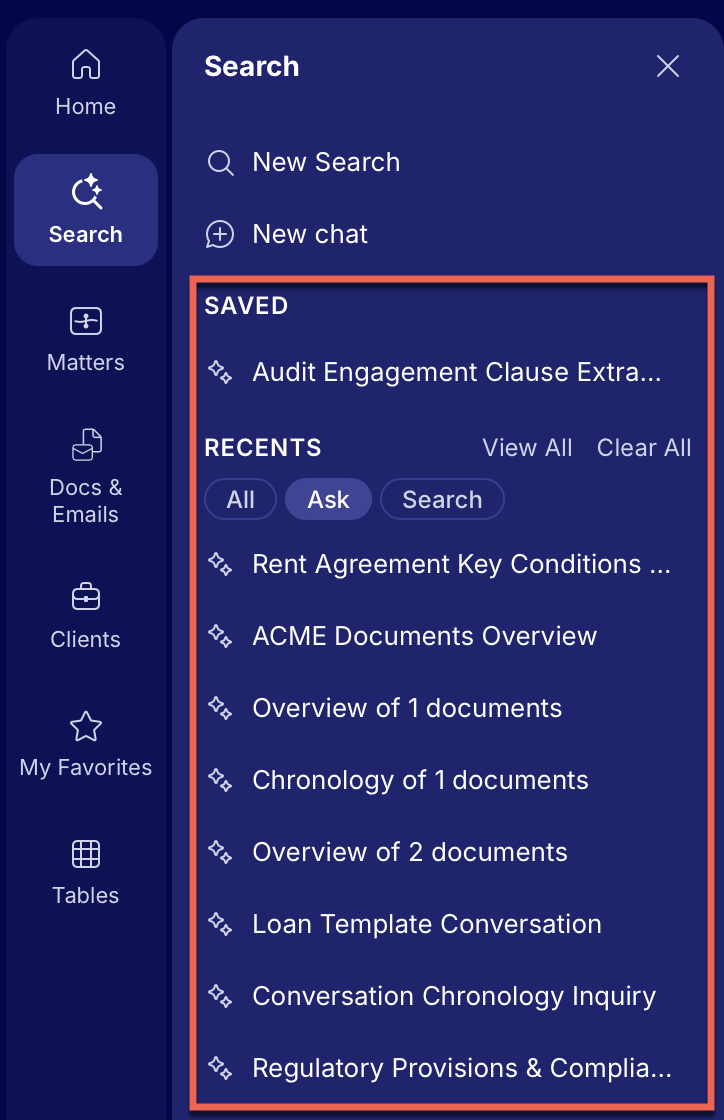
You can select Ask in the Search panel to narrow your results to just Ask based conversations.
Figure: Viewing conversations using Ask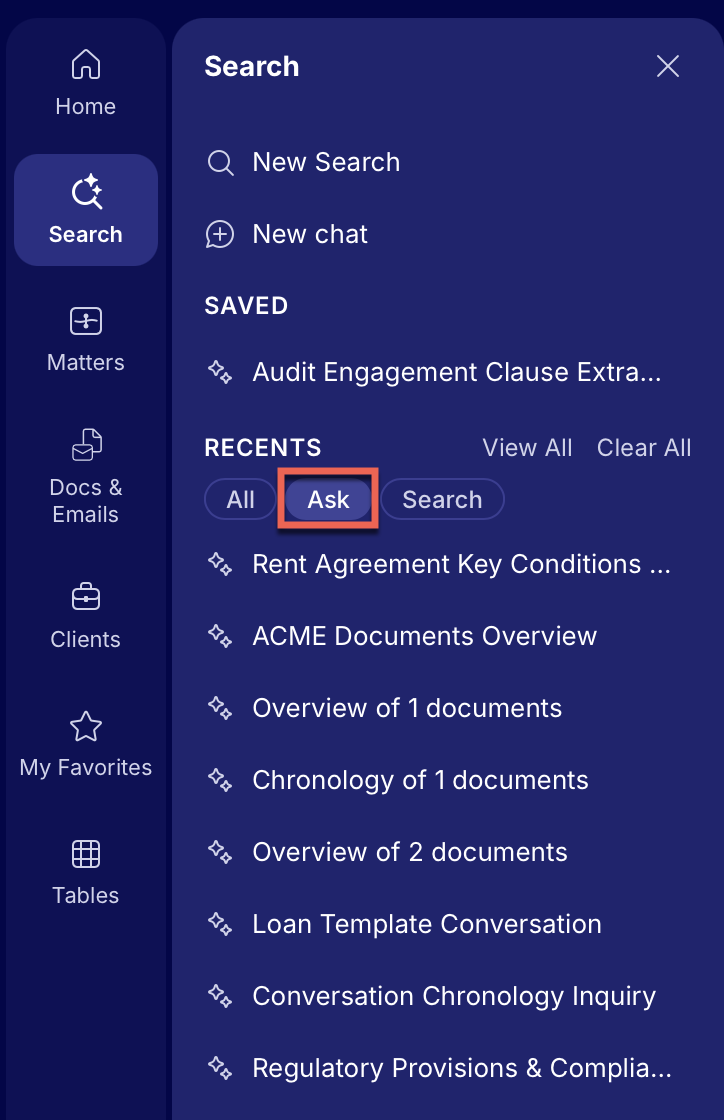
Select the conversation you want to view. It opens in Ask page.
Select
 Options next to the conversation you want to view and select one of the following options:
 Open to view the conversation on Ask page.
Open in side panel to view the conversation in the Ask side panel.
Open in floating panel to view the conversation in the Ask floating panel.
Figure: Selecting an option to view a conversation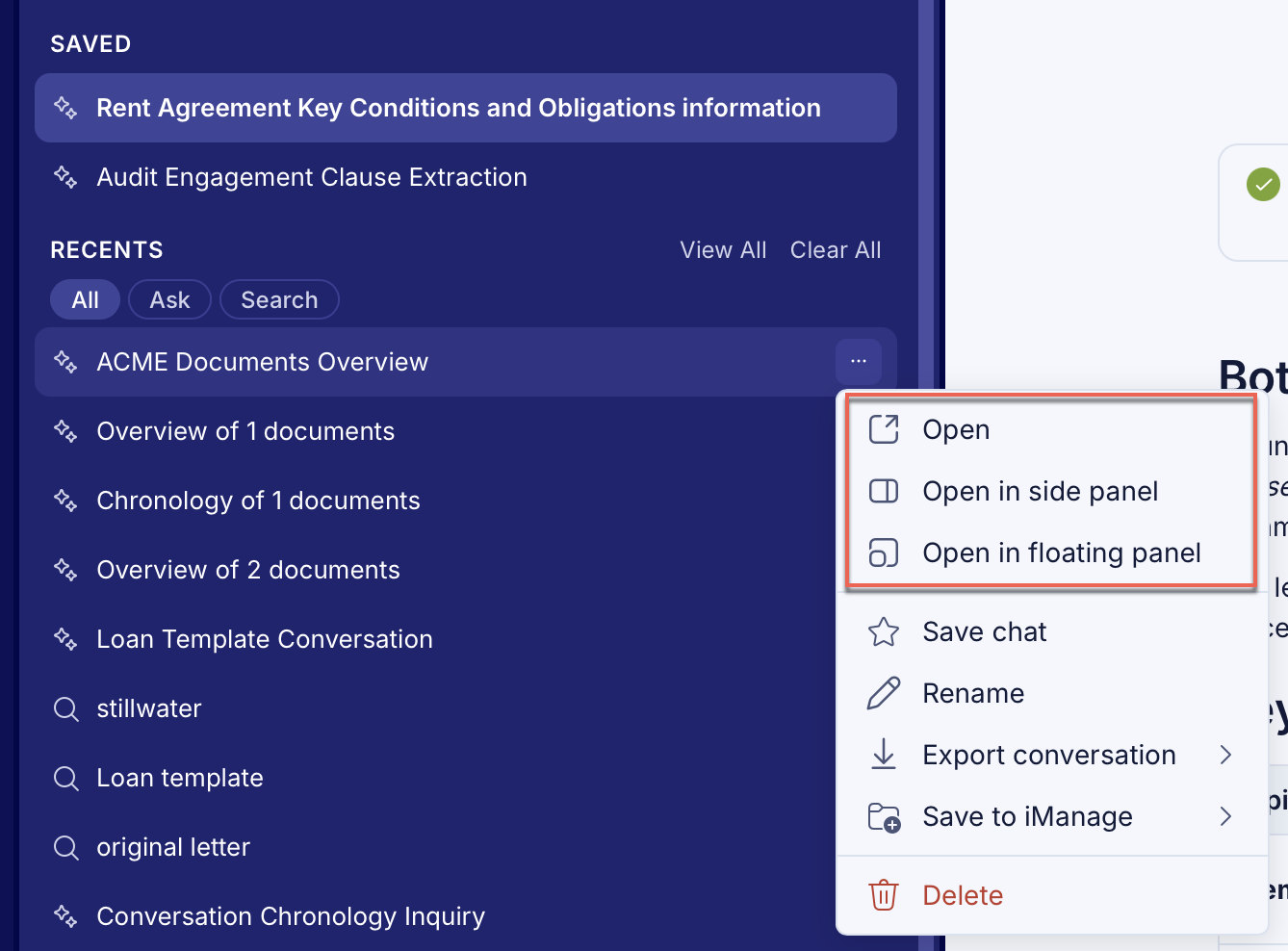
Select View All to open all the conversations on the History page. On the History page, do one of the following:
Select the conversation you want to view. It opens in Ask page.
Select
 Actions next to the conversation you want to open and select one of the following:
 Open to view the conversation on Ask page.
Open in side panel to view the conversation in the Ask side panel.
Open in floating panel to view the conversation in the Ask floating panel.
Figure: Selecting an option from History page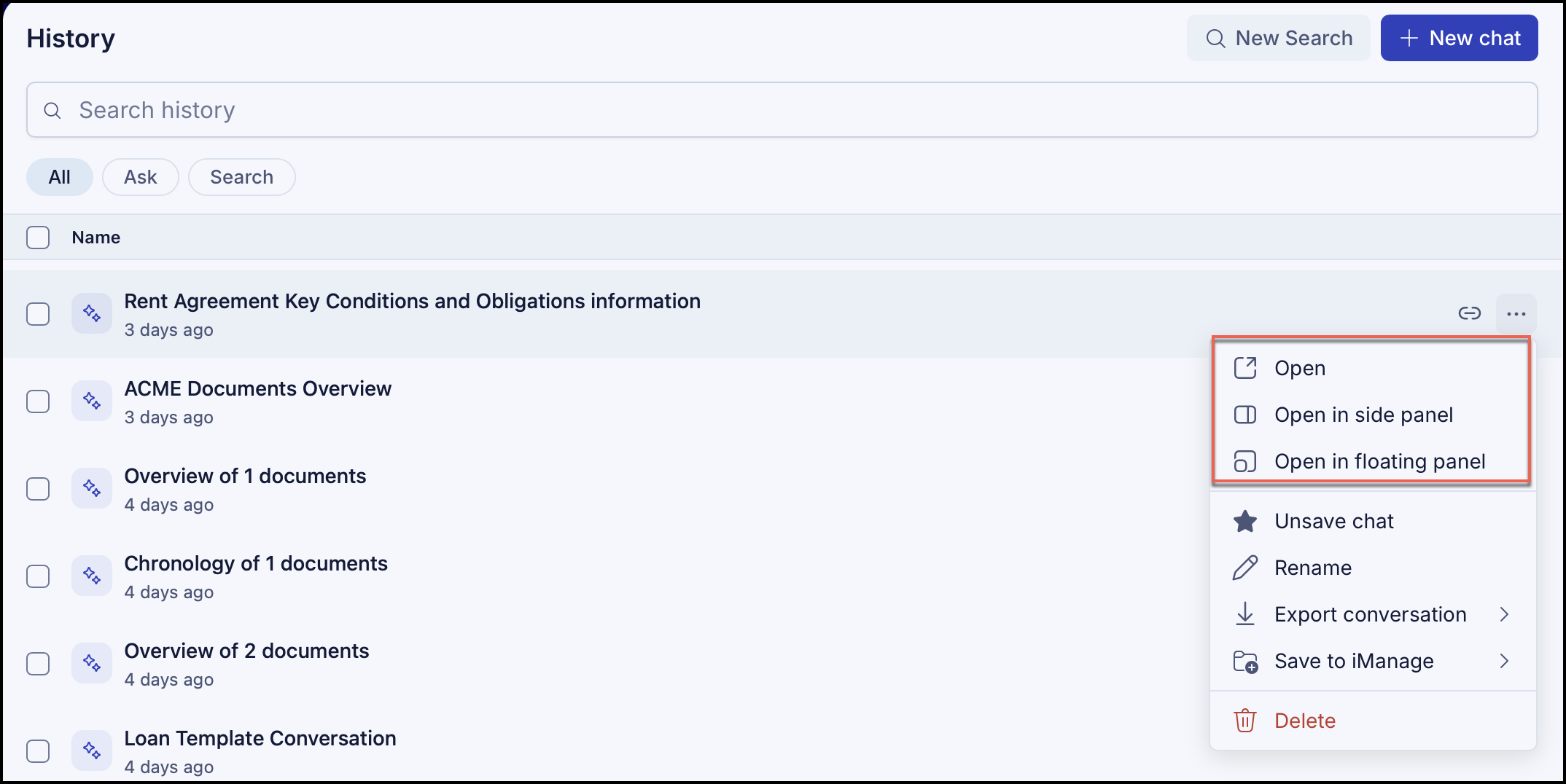
Select the checkbox next to the conversation you want to view and then select Open, Open in side panel, or Open in floating panel icon in the toolbar as shown.
Figure: Selecting an option in the toolbar
If you’ve opened the side panel or floating panel, select Menu
 in the Ask side panel or floating panel to display all the existing conversations and do one of the following:
 Select the conversation you want to view. It opens in Ask page.
Select
Actions next to the conversation you want to open and select one of the following: Open to view the conversation on Ask page.
Open in side panel to view the conversation in the Ask side panel.
Open in floating panel to view the conversation in the Ask floating panel.
Figure: Select an option in side or floating panel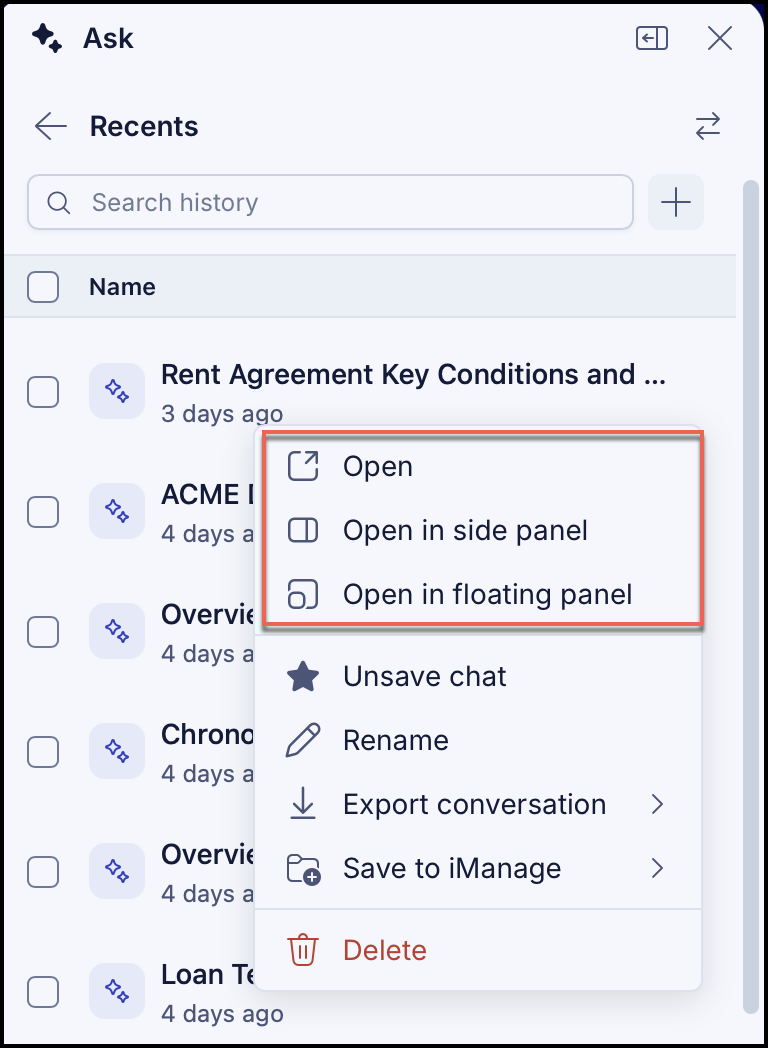
Select the checkbox next to the conversation you want to view and then select Open, Open in side panel, or Open in floating panel icon in the toolbar as shown.
Figure: Select an option in the toolbar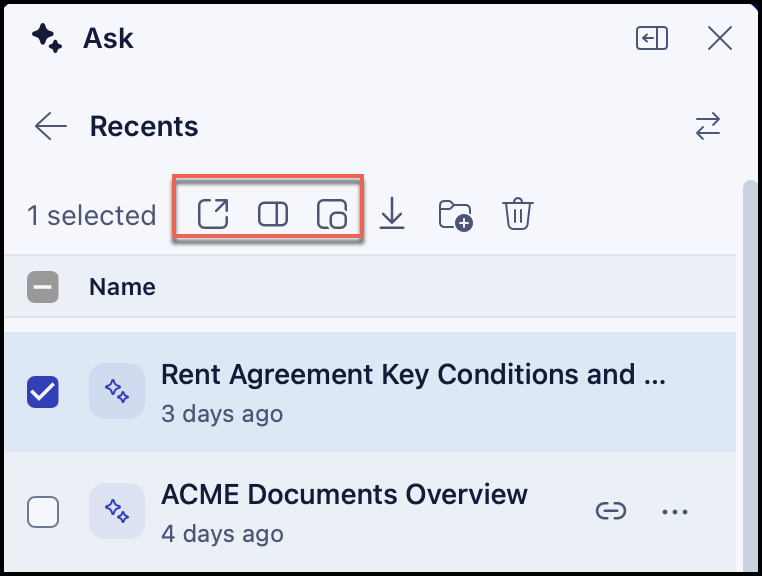
After the conversation is opened, ask your next question in the Ask everything about content field to continue the conversation.
Switching between different Ask panels
You can view all the conversations in Ask page, Ask side panel, or Ask floating panel. However, you can switch between the panels by:
In Ask page, select Switch to and select Floating to switch to floating panel or Sidebar to switch to side panel. The Full screen option is selected by default.
Figure: Switching from full-screen to floating or side panels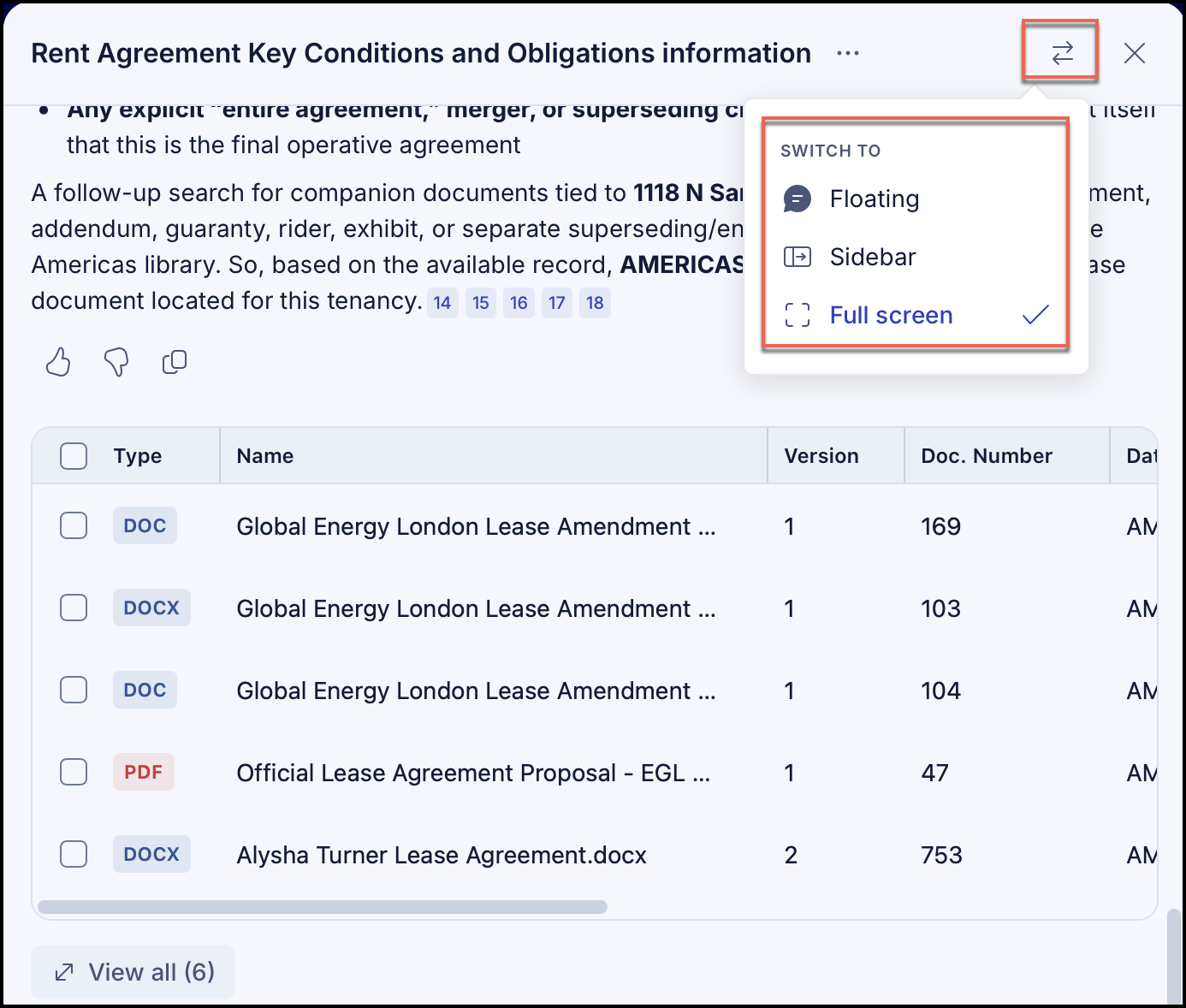
In Ask side panel, select Switch to and select Floating to switch to side panel or Full screen to switch to Ask page. The Sidebar option is selected by default.
Figure: Switching from side panel to full-screen or floating panel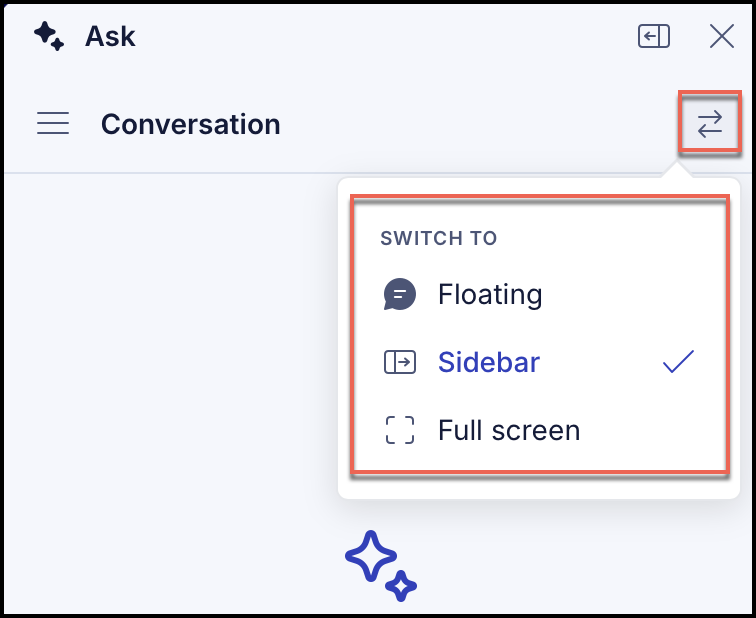
In Ask floating panel, select Switch to and select Sidebar to switch to side panel or Full screen to switch to Ask page. The Floating option is selected by default.
Figure: Switching from floating panel to full-screen or side panel