The importer can also remove metadata or delete users who were added by mistake. Use this section when you need to undo or clean up previously imported data.
In this section:
Preparing data for metadata or user removal
Removal commands require a file containing only user IDs. This section explains what the file should contain and how the importer uses it.
NOTE: Only the user IDs in the file are used during the removal process. The metadata fields to be removed must be specified as command-line arguments.
--help command showing available options for metadata field removal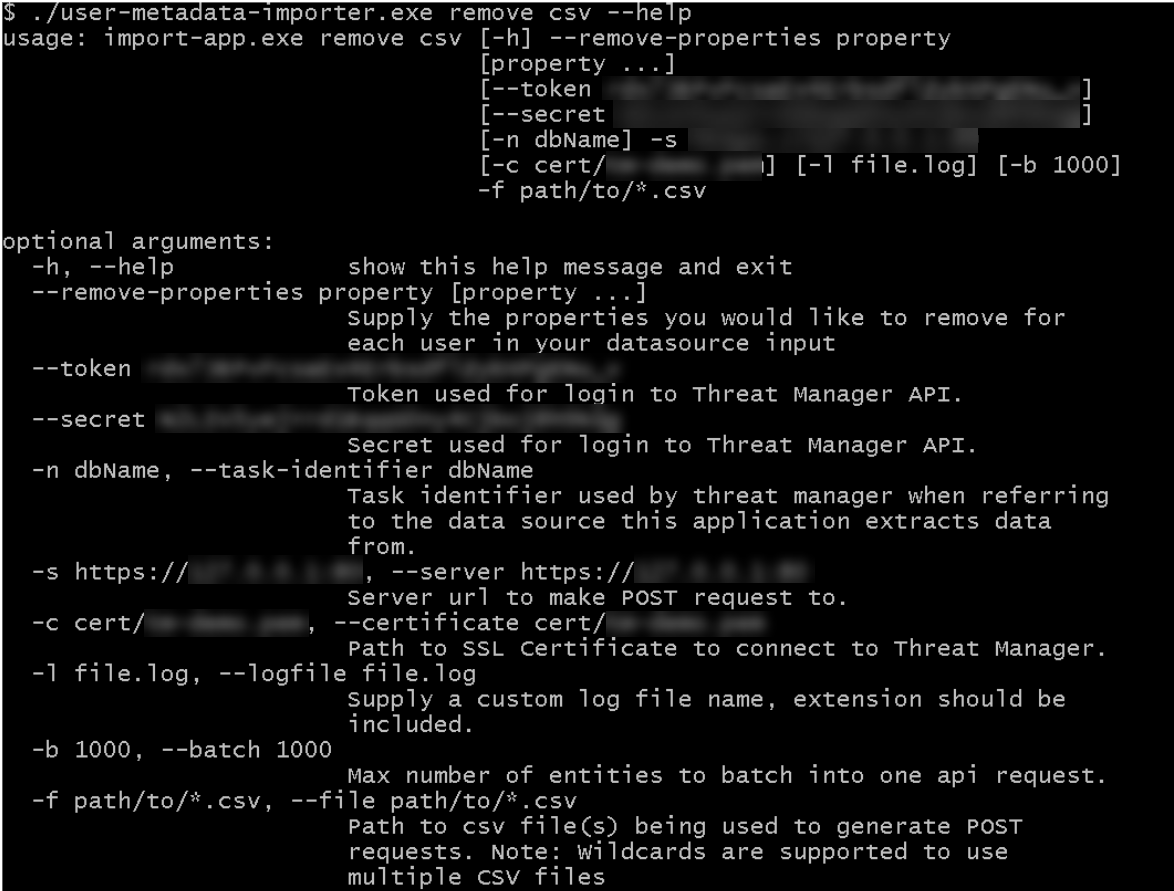
CSV Example: Only the userid needs to be specified
useridRHETT_PULLMANGABRIELLE_SHARPSQL Example: Only the userid needs to be specified
Driver={driver for SQL server};Server=[server URL];Database=[database name];UID=[SQL user ID];PWD=[SQL user password]; SELECT column1 AS 'userid' FROM [DATABASE NAME].[SCHEMA].[TABLE NAME] WITH (NOLOCK) Important behavior notes
Before removing metadata, review these rules. They describe how multiple values, empty fields, and orphaned accounts are handled during removal.
If a user has multiple values for a metadata field, all values are removed when that field is specified for removal.
If all metadata fields are removed from a user who isn’t linked to an iManage Work library, the user record itself is also removed.
A metadata field (for example, Practice Area) is only fully removed from Threat Manager when it has no values for any user. If even one user retains a valid value, the field remains visible—even if it’s blank for others.
Example: If you imported incorrect values for the Practice Area field across all users, you must first re-import the field with blank values for all users, and then run the remove command to delete the field completely.
Task: Remove metadata or accidental user imports
Use these commands to remove metadata fields or delete users. Syntax varies slightly between Windows, macOS, and Linux.
Access the terminal.
Enter the remove command and the relevant arguments, as follows:
For Windows:
.../user-metadata-importer.exe remove [csv|sql] -s [TM URL/HOSTNAME AND PORT (8090)] -f [DATA SOURCE FILE] --remove-properties"[SPACE-SEPARATED LIST OF PROPERTIES TO REMOVE, FOR EACH USER]"[OPTIONAL ARGUMENTS]where
[SPACE-SEPARATED LIST OF PROPERTIES TO REMOVE, FOR EACH USER]lists the metadata fields to remove, and[TM URL/HOSTNAME AND PORT (8090)]is the server and port used to access your Threat Manager appliance.NOTE: Metadata fields which contain a space, such as
Practice Areain the example above, should be enclosed in quotation marks.If all metadata fields are specified for removal, any users that aren't connected to an iManage Work library are also removed.
If you have performed the optional initial step and you're using the Windows account specified in that step and the same host device, the token and secret arguments aren't required (unless the token has since expired). Otherwise, add these arguments.
If a task identifier hasn't been specified in the installation, or if you wish to create a new task identifier for the import, add the task identifier.
For macOS or Linux:
.../python custom_import_properties.py remove [csv|sql] -s [TM URL/HOSTNAME AND PORT (8090)] -f [DATA SOURCE FILE] --remove-properties"[SPACE-SEPARATED LIST OF PROPERTIES TO REMOVE, FOR EACH USER]"[OPTIONAL ARGUMENTS]where
[SPACE-SEPARATED LIST OF PROPERTIES TO REMOVE, FOR EACH USER]lists the metadata fields to remove, and[TM URL/HOSTNAME AND PORT (8090)]is the server and port used to access your Threat Manager appliance.NOTE: Metadata fields which contain a space, such as
Practice Areain the example above, should be enclosed in quotation marks.If all metadata fields are specified for removal, any users that aren't connected to an iManage Work library are also removed.
If you’ve performed the optional initial step and you’re using the same host device, the token and secret arguments aren’t required (unless the token has since expired). Otherwise, add these arguments.
If a task identifier hasn’t been specified in the installation, or if you wish to create a new task identifier for the import, add the task identifier arguments.
The removal proceeds. If a task identifier has been specified, the status of the task can be viewed in the iManage Threat Manager user console (in Configuration > Settings > Status).
For a full list of arguments available and detailed information on each, refer to Metadata Importer arguments.