To get started with iManage Threat Manager, you first need to integrate it with iManage Work by authorizing the application through iManage Control Center. This ensures Threat Manager can securely connect with iManage Work and access the necessary data. When integration is complete, signing in to iManage Threat Manager is straightforward—simply use your iManage Work credentials. After signing in, users with NRTADMIN privileges gain full access to configure settings, manage roles, and perform other administrative tasks within the Threat Manager application.
In this section:
Integrating iManage Threat Manager with iManage Work
For customers connecting to iManage Threat Manager at cloudimanage.com, follow these steps to authorize iManage Threat Manager to connect to iManage Work:
Sign in to iManage Control Center as an NRTAdmin user.
Browse to Settings > Applications.
Select Add Application.
Search for threat-manager, select the application, and then select Authentication.
In the Add Application dialog, toggle Allow Refresh Token to On, and then select Access.
Continue through the remaining steps in the Add Application dialog.
At the Review step, confirm that Enable application is set to Yes.
Select Finish.
The iManage Threat Manager application is added to iManage Control Center.
Sign in to iManage Threat Manager
iManage Threat Manager in the Cloud is pre-configured so that you only need to browse to the provided URL for the iManage Threat Manager instance and sign in with your iManage Work credentials.
All members of the NRTADMIN group in iManage Work are automatically granted Configuration Manager and Role Manager privileges in Threat Manager. This provides out-of-the-box functionality for signing in, adding users, assigning roles, and configuring settings.
To sign in to iManage Threat Manager:
Open a compatible web browser and browse to the URL provided to you for accessing iManage Threat Manager. For example:
If your organization is based in the US, this may be in the form xxxxx-tm.imanage.work, where xxxxx is your customer ID or vanity URL.
If your organization is based outside the US, this may be in the form xxxxx-tm.imanagework.co.ii, where xxxxx is your customer ID or vanity URL and ii is your country code, such as uk or aus.
If your organization connects to cloudimanage.com, this may be in the form xxxxx.tm-cloudimanage.com/login/local, where xxxxx is your customer ID or vanity URL.
The iManage Threat Manager sign-in screen is displayed:
Figure: Sign in to Your Account screen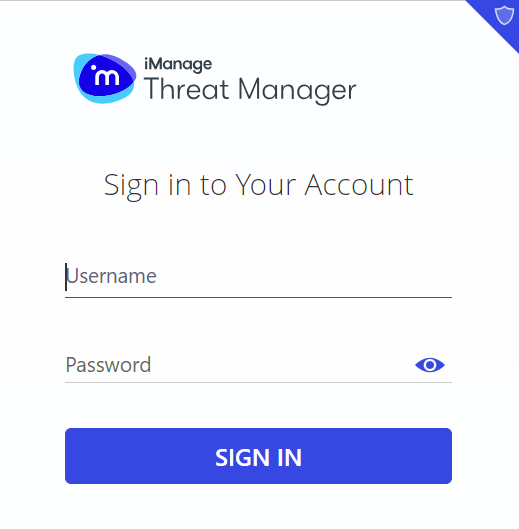
Enter your iManage Threat Manager credentials. The iManage Threat Manager Home screen is displayed.
User feedback panel
After signing in, some users may see a feedback panel inviting them to share their experience with iManage Threat Manager. This panel is shown based on system-wide settings and may not appear for every user. There are no configuration options within Threat Manager to control its visibility or frequency. Feedback submitted through this panel helps improve the product experience.
Authentication
iManage Work users are automatically imported and authenticated in iManage Threat Manager. They can access and perform tasks in Threat Manager based on their assigned roles.
Users sign in to Threat Manager using the same credentials as iManage Work. If single sign-on (SSO) is configured in your iManage Work environment, then it's automatically applied to Threat Manager—no additional SAML (Security Assertion Markup Language) or OpenID setup is required.