The Compliance > Adoption report provides a snapshot of user and group activity over a selected time period, helping identify users who aren't filing content or engaging with the iManage Work Server. It includes summary metrics and detailed counts of key activities, such as documents created, emails filed, and overall content interaction.
In this section:
About the Compliance > Adoption report
The Compliance > Adoption report provides insight into how actively users are engaging with iManage Work. It identifies individuals who may not be filing content or performing key activities, providing both a high-level overview and detailed breakdown of user behavior during the selected reporting period. Metrics include content creation, email filing, and other document-related actions, offering insight into adoption and compliance across your organization.
You can run the report for individual users, groups, or multiple users, with results displayed per user and summarized at the top of the report.
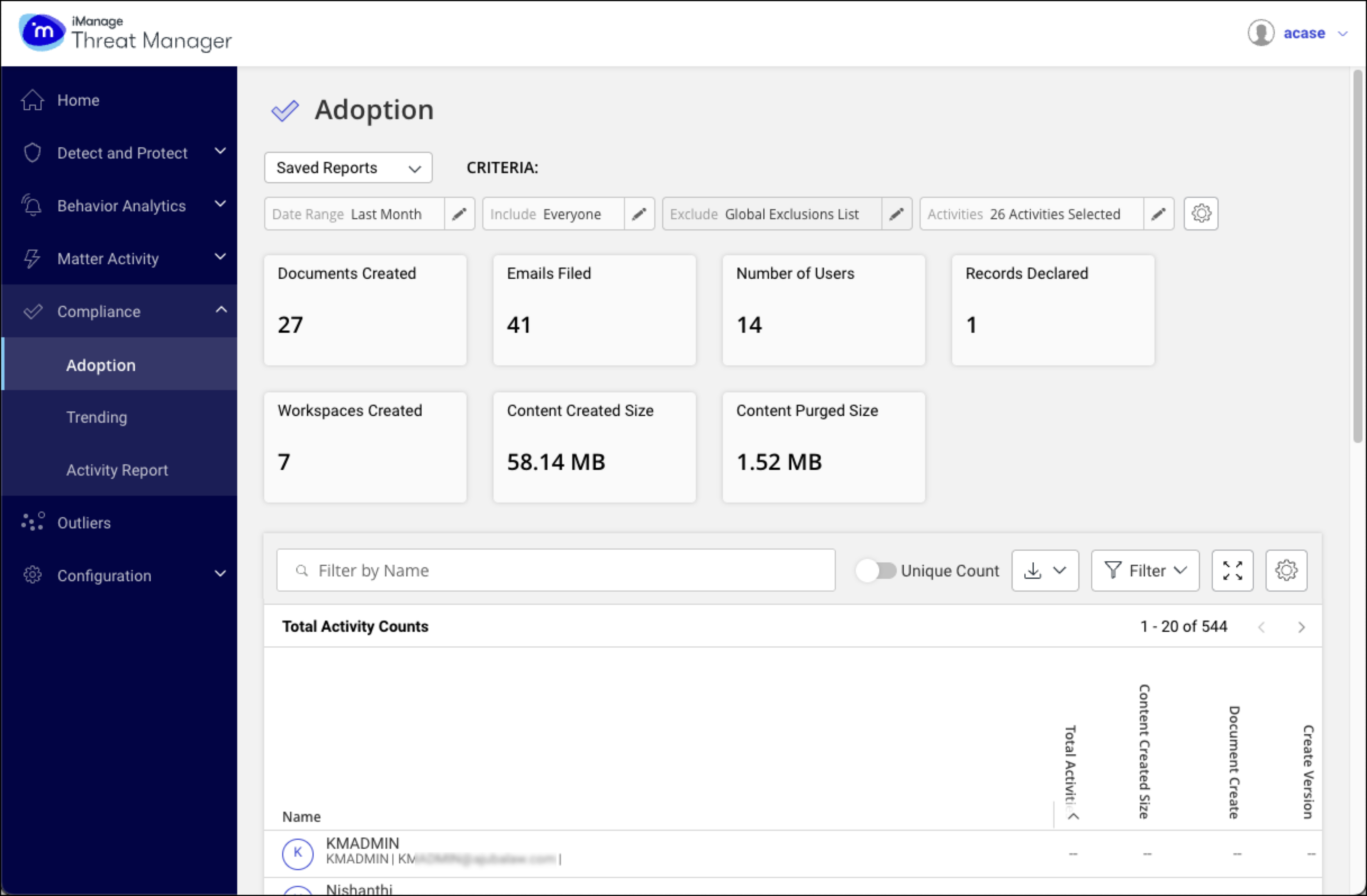
Report overview
The report includes:
Per-user activity metrics for selected document management activities.
Summary tiles with high-level activity metrics for the selected period.
Dynamic content metrics that include document counts and total content size.
Summary tiles
At the top of the Adoption report, summary tiles provide a quick view of key metrics for the selected users and date range.
Documents Created: Total number of documents and versions created during the specified Date Range by the users defined in the Include criteria.
Emails Filed: Total count of unique emails filed during the specified Date Range, by the users defined in the Include criteria.
Number of Users: Displays the total number of users who performed the selected tracked activities, based on the specified Date Range, users to Include, and Activities.
Records Declared: Number of records declared within the specified Date Range and by the users defined in the Include criteria.
Workspaces Created: Total number of workspaces created during the specified Date Range and by the users defined in the Include criteria.
Content Created Size: Combined size of newly created documents, versions, and filed emails during the specified Date Range and by the users defined in the Include criteria.
NOTE: This metric reflects the size of created content only. It doesn't include additional storage components such as full-text indexes, OCR (Optical Character Recognition), or journal entries, which are factored into billing. Therefore, this data shouldn't be used to reconcile storage overage charges. The total storage consumed—and billed—includes these additional components.
IMPORTANT: Supervised import (through API) considerations
Supervised import mode generates two entries in the iManage document history table: one attributed to the Admin who performed the import action, and one to the original user who performed the document activities. Both entries share the same document ID. This behavior is by design and can't be changed.
To ensure correct reporting and compliance tracking:
To avoid inflated metrics, exclude Admin users from the Compliance > Adoption Report, Matter Activity > Reports, and Trending Charts (when trending the Size of Imported Content).
The Content Created Size metric may be overstated due to duplicate entries generated by Admin activity during supervised imports.
To exclude Admin users from report metrics, use the Global Exclusions List or configure report filters to omit their activity.
To accurately reflect user activity in compliance audits, run a Compliance Adoption report with Admin users excluded.
Content Purged Size: Combined size of all purged documents, versions, and emails during the specified Date Range and by the users defined in the Include criteria.
NOTE: Reported storage savings may differ from actual reclaimed space due to excluded components such as indexes and OCR.
Adoption report table
The Adoption report table shows total activity counts for all users in the Include criteria, along with per-user metrics based on the specified Date Range and Activities.
The table displays the Name and Total Activities columns. Additional columns are shown for each activity selected in the Activities criteria. You can show or hide these columns as needed.
When scrolling, the headers remain visible, and a vertical scroll bar appears inside the table. A full‑screen button is available to expand the table for easier review.
Name: The name of each user specified in the Include tile.
Total Activities: The total number of compliance-related Activities selected in the report Criteria performed by a user. These show interaction with the iManage Work Server.
For more information about activities, refer to What are Activities? in Activities.Content Created Size: Displays the total size of all documents and versions created, and emails filed by the user during the selected period.
This column is:Enabled by default
Sortable
Included in CSV, Excel, and PDF exports
Clients: The number of unique Clients involved in the user’s selected activities during the specified time frame.
Matters: The number of unique Matters involved in the user’s selected activities during the specified time frame.
Activity-specific metrics: Columns for each activity selected in the Activities report criteria (for example, Document Create, Create Version, Checkin, Checkout, and Print). These columns display counts per unique document. For example, if a user performs two View actions on a single document, the count for the View activity will be 1.
Understanding activity counts in Threat Manager
When you generate adoption reports (Compliance > Adoption Report) or activity trending charts (Compliance > Trending), iManage Threat Manager calculates the Total Activities count in a way that avoids duplication between related activities.
Some activities in Threat Manager are structured as parent-child pairs. For example, Export is a parent activity that includes child activities such as Export from DMS and Download to Mobile.
If both the parent and its child activities are selected in the activity set, Threat Manager includes only the parent activity in the Total Activity count to prevent double-counting.
If only one (parent or child) is selected, Threat Manager counts that selected activity.
Regardless of what is counted in the total, individual activity counts are still shown in the report or chart for both parent and child activities.
You select which activities to include using the Add/Remove Activities dialog when setting up the report or chart.
Accessing the Compliance > Adoption Report
To access the Compliance > Adoption report, select Compliance > Adoption from the iManage Threat Manager Home screen or navigation bar.
NOTE: You must have the Investigator role to run the Compliance > Adoption report.
When the Compliance > Adoption page opens, a report runs automatically using default values. You can also create a custom report.
Customizing and saving Adoption reports
Defining the date range
On the Compliance > Adoption page, select Date Range in the upper left of the window.
In the Date Range dialog, you can select Last Week, Last Month, Last 3 Months, Last 6 Months, Last Year or specify a Custom date range. The default date range is based on the system default set by the Configuration Manager.
Select OK to confirm your chosen date range, or Cancel to ignore any changes to the date range.
If you don't need to make any further changes to the report, select Apply. The new date range is applied and the results are displayed.
You can optionally Save or Save as the criteria:
Selecting Save saves the criteria under the current criteria name.
Selecting Save as gives you the option to save the criteria under a new name.
For more information about running reports with saved criteria, refer to Running a report with saved criteria.
Specifying people to include or exclude
People to Include
To include users or groups in the Compliance > Adoption report:
Select Include at the top of the page to open the People to Include dialog.
Select the users and groups you want to include. By default, Everyone is selected.
Use the Filter by Name search bar or the filter button to narrow results by users, groups, location, or other available properties.
Select or deselect a user or group by selecting the row or using the check box next to the name.
To deselect all, select Deselect next to the user/group counts or the icon beside the selected user count.
To view group members, select View Members next to the group ID. Members appear in a scrollable tooltip.
To review your current selection, select View Selected.
Select OK to confirm your selection, or select Cancel to discard changes.
After confirming:
Select Apply to run the report with the new scope.
Optionally, select Save to save the criteria under the current criteria name, or Save as to create a new set.
For more information about running reports with saved criteria, refer to Running a report with saved criteria.
People to Exclude
To exclude users or groups in the Compliance > Adoption report:
Select Exclude at the top of the page to open the People to Exclude dialog.
Select the users and groups you want to include. By default, the Global Exclusions List is selected. (This means that activities for all users on that list are excluded from the report.)
Use the Filter by Name search bar or the filter button to narrow results by users, groups, location, or other available properties.
Select or deselect a user or group by selecting the row or using the check box next to the name.
To deselect all, select Deselect next to the user/group counts or the icon beside the selected user count.
To view group members, select View Members next to the group ID. Members appear in a scrollable tooltip.
To review your current selection, select View Selected.
Select OK to confirm your selection, or select Cancel to discard changes.
After confirming:
Select Apply to run the report with the new scope.
Optionally, select Save to save the criteria under the current criteria name, or Save as to create a new set.
For more information about running reports with saved criteria, refer to Running a report with saved criteria.
Selecting compliance-indicating activities
By default, the compliance-indicating activity set is applied to the Compliance > Adoption report. If required, you can customize the activities included in the report.
Select Activities. The Add/Remove Activities dialog appears.
(Optional) Select Activity Set to select activities from any default or saved activity sets.
Select or deselect any activity in the list using the check boxes.
NOTE: For more information about activities, refer to What are Activities? in Activities.
Select OK.
Select Apply. The selected set of activities is applied and the results are displayed.
You can optionally Save, or Save as, the criteria.
Selecting Save saves the criteria under the current criteria name.
Selecting Save as gives you the option to save the criteria under a new name.
For more information about running reports with saved criteria, refer to Running a report with saved criteria.
Running a report with saved criteria
You can save multiple report criteria and quickly apply them from a drop-down menu.
Select the saved criteria field below the Adoption page title. A drop-down menu appears.
Select the desired saved criteria. The report updates automatically with the selected settings.
Customizing the Adoption reports display
Sorting the Compliance > Adoption Report
By default, the report is sorted in ascending order by Activities count, highlighting users with lower overall compliance.
To change sort field or order, select the header of any column.
Filtering the Compliance > Adoption Report
You can filter the user list by name or by the number of compliance-indicating activities.
To Filter by Name, enter a name or ID in the Filter by Name search bar. The report updates based on your input.
To filter by activity count:
Select the Filter button.
If All is the only item displayed under Compliance Indication, select it to expand additional options.
Choose one of the following from the drop-down menu:
Activities less than 10
Activities less than 100
Activities less than 1000
Custom... to define your own range.
Select Apply to filter the report.
Downloading the report
If no filters are applied, the full report will be downloaded.
If filters are active, you’ll be prompted to either:
Download Full Report (original scope only)
Download Report with Current Filters Applied (includes Name and Compliance Indicating Activities filters)
TIP: You can Pin or Unpin to show or hide the filter panel as needed.
Adjusting column visibility in the Compliance > Adoption Report
You can customize which columns are visible in the Compliance > Adoption report.
Select the Settings icon to show or hide columns.
Name and Activities columns are always visible and can't be hidden.
Content Created Size is visible by default and shows the total size of documents and emails created by each user during the selected Date Range. Like other optional columns, it can be shown, hidden, or sorted.
NOTE: Hiding an activity column only removes it from view. It doesn't exclude the activity from the report’s data. Hidden activities are still included in activity counts.
You can also resize columns using the grab handles. To revert to the default layout and visibility, select Reset. This restores both column visibility and widths to their default settings.
Viewing unique counts in Adoption Reports
The Unique Count option allows you to toggle between viewing total activity counts and unique counts. For example, you can view either the total number of documents a user has viewed or just the number of unique documents viewed.
INFO: For example, user David performs the following activities:
Exports Document X three times during the past month
Exports Document Y five times during the past month
When Unique Count is enabled, the Export count will be 2, because he's exported two unique documents.
When Unique Count is disabled (Total Counts are displayed), the Export count will be 8 (three + five total exports).
Enabling Unique Count excludes repeated actions on the same document during the selected period. Disabling it includes all repeating actions.
By default, Unique Count is disabled and total counts are shown.
NOTES:
Whether Unique Count is selected:
The Total Activities column always displays the total number of audits generated by the user across the displayed activities, regardless of the Unique Count setting.
The Clients and Matters columns always display the unique Clients and Matters across which the user has accessed information, regardless of the setting.
Examples
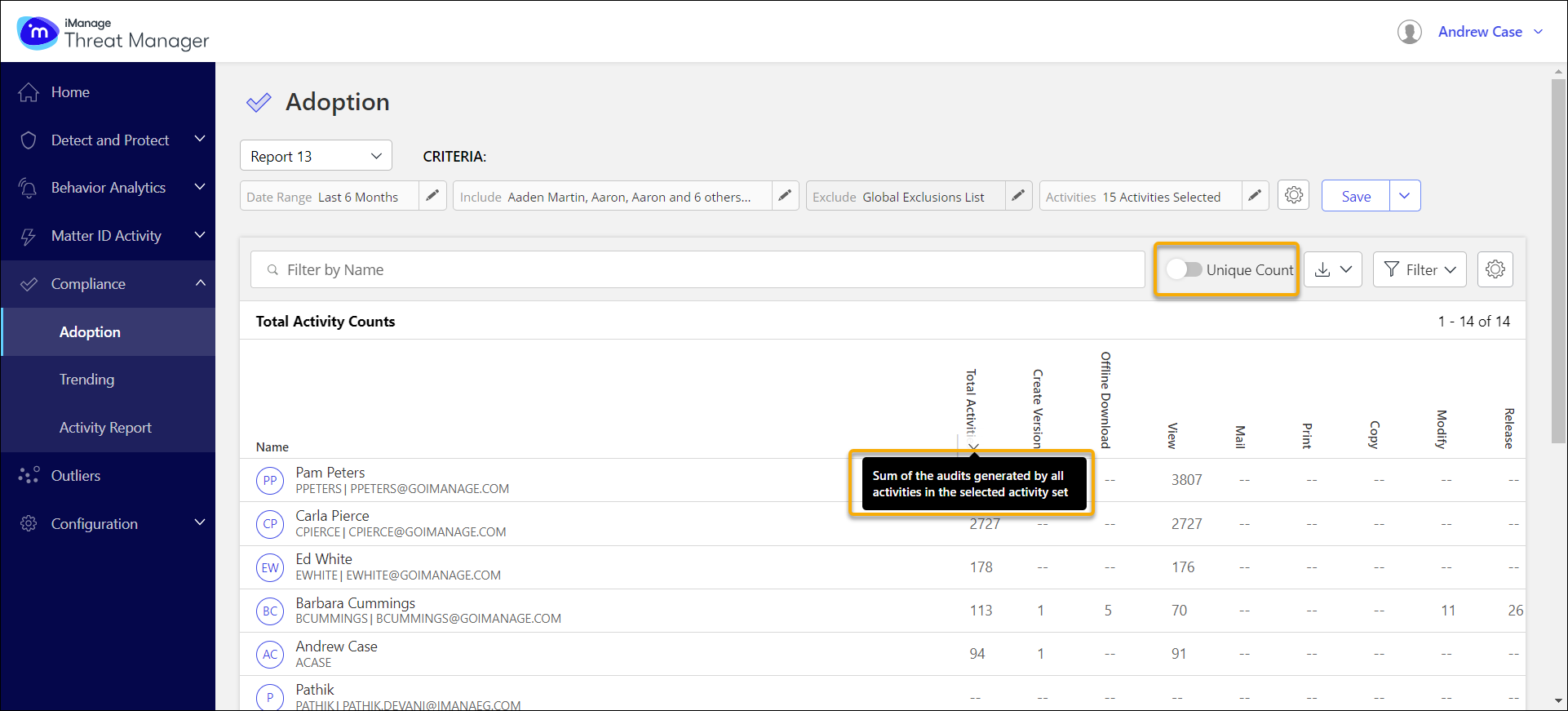
If Unique Count isn't selected, the Views column displays all view audits, including repeated views of the same document:
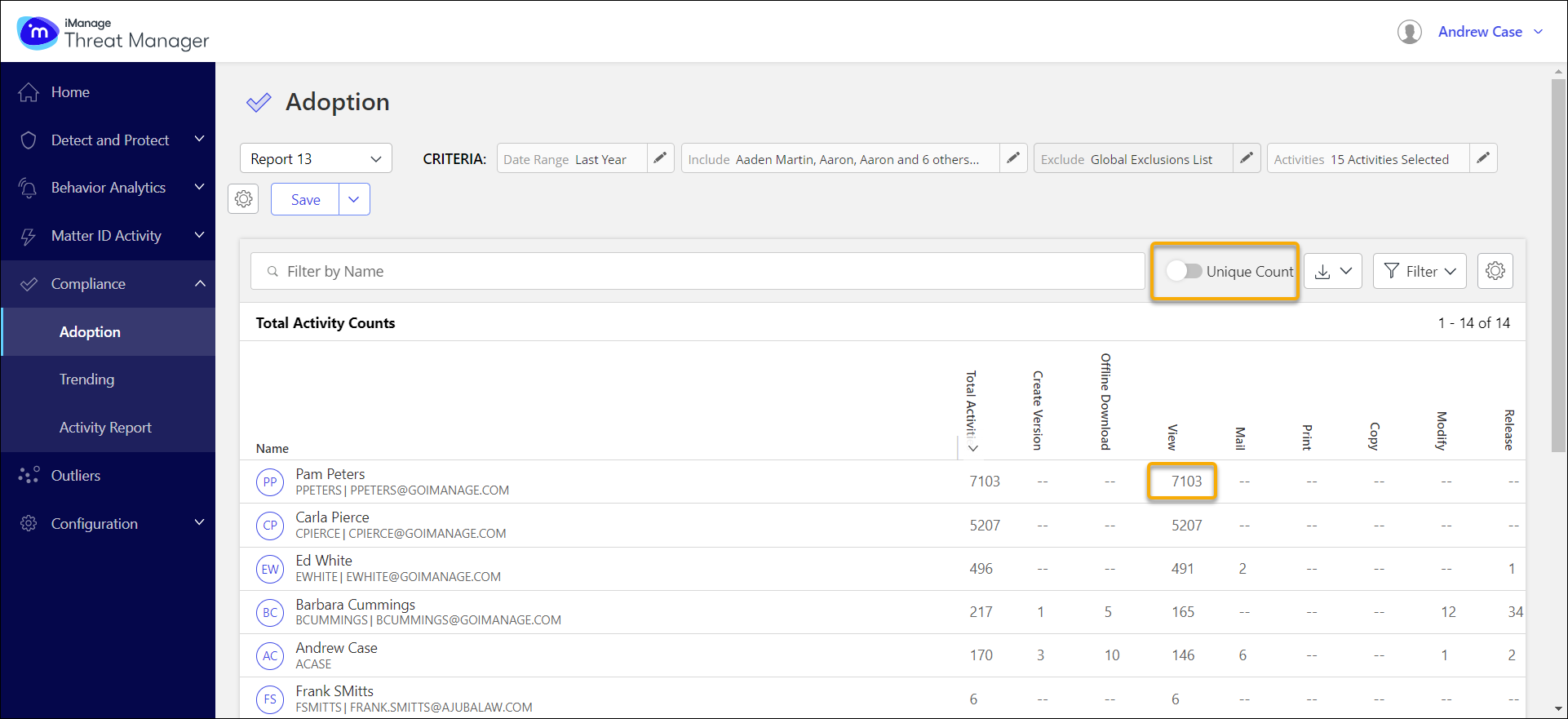
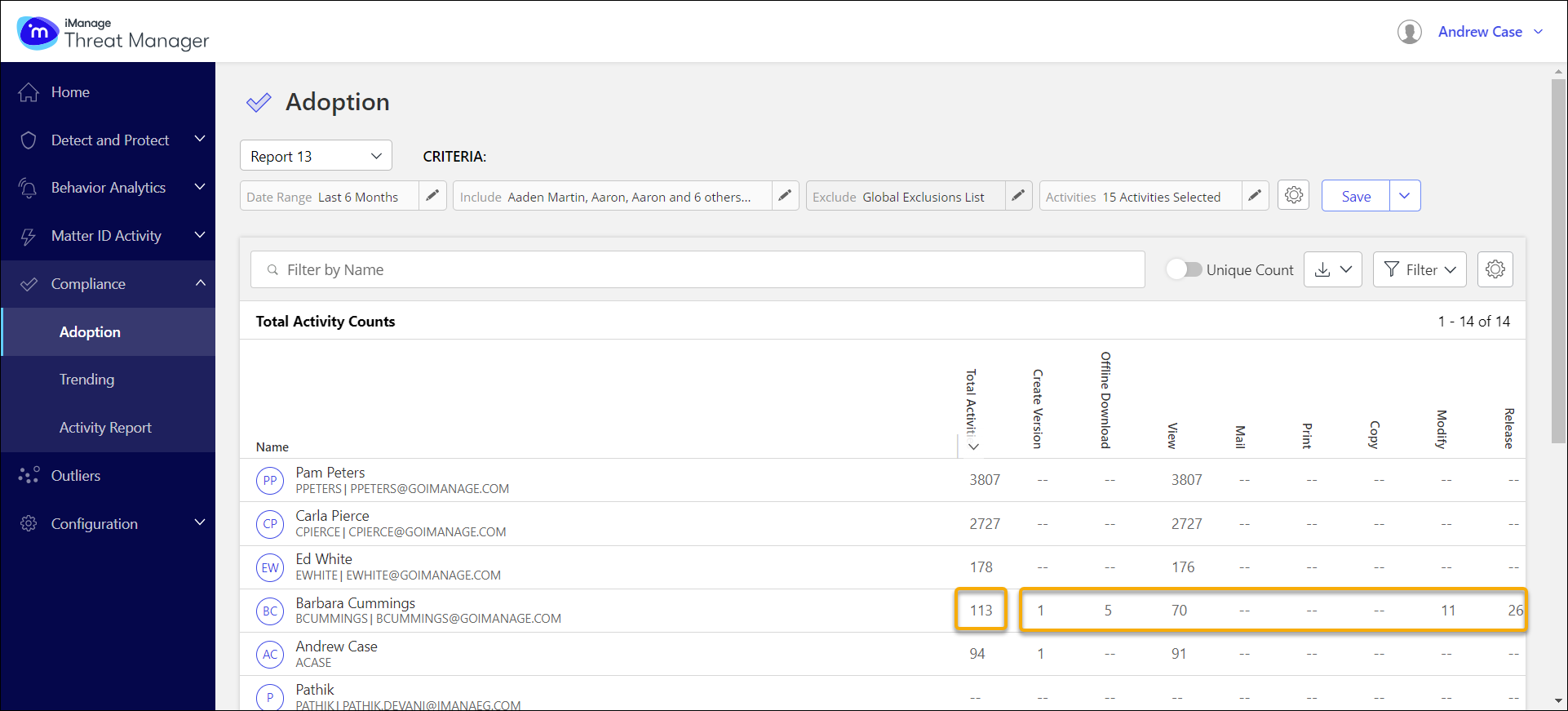
If Unique Count isn’t selected (Total Activities are displayed) the count in the Total Activities column will match the sum of all activities counts across all columns, except unique Clients and Matters:
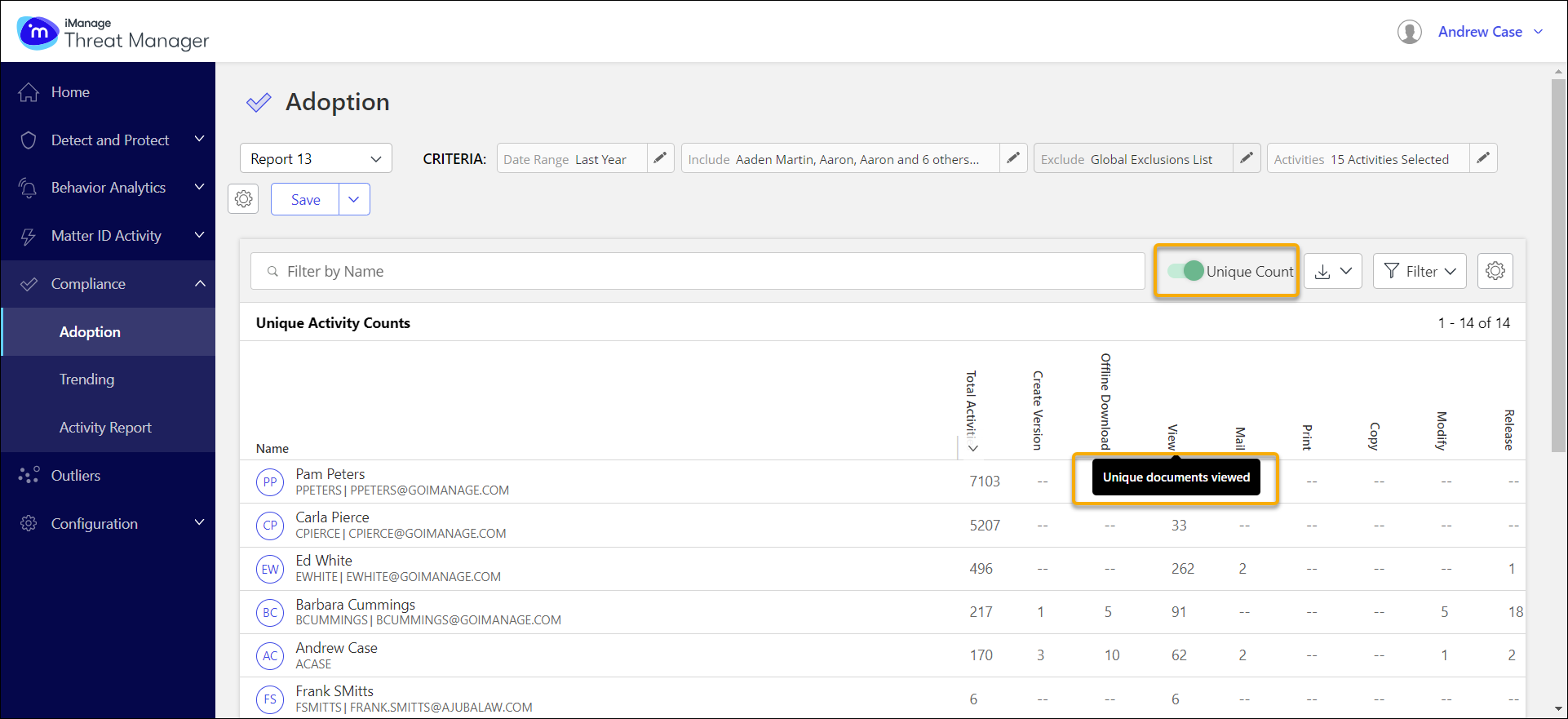
When Unique Count is selected, the Views column displays the number of unique documents viewed by the user across the selected time frame:
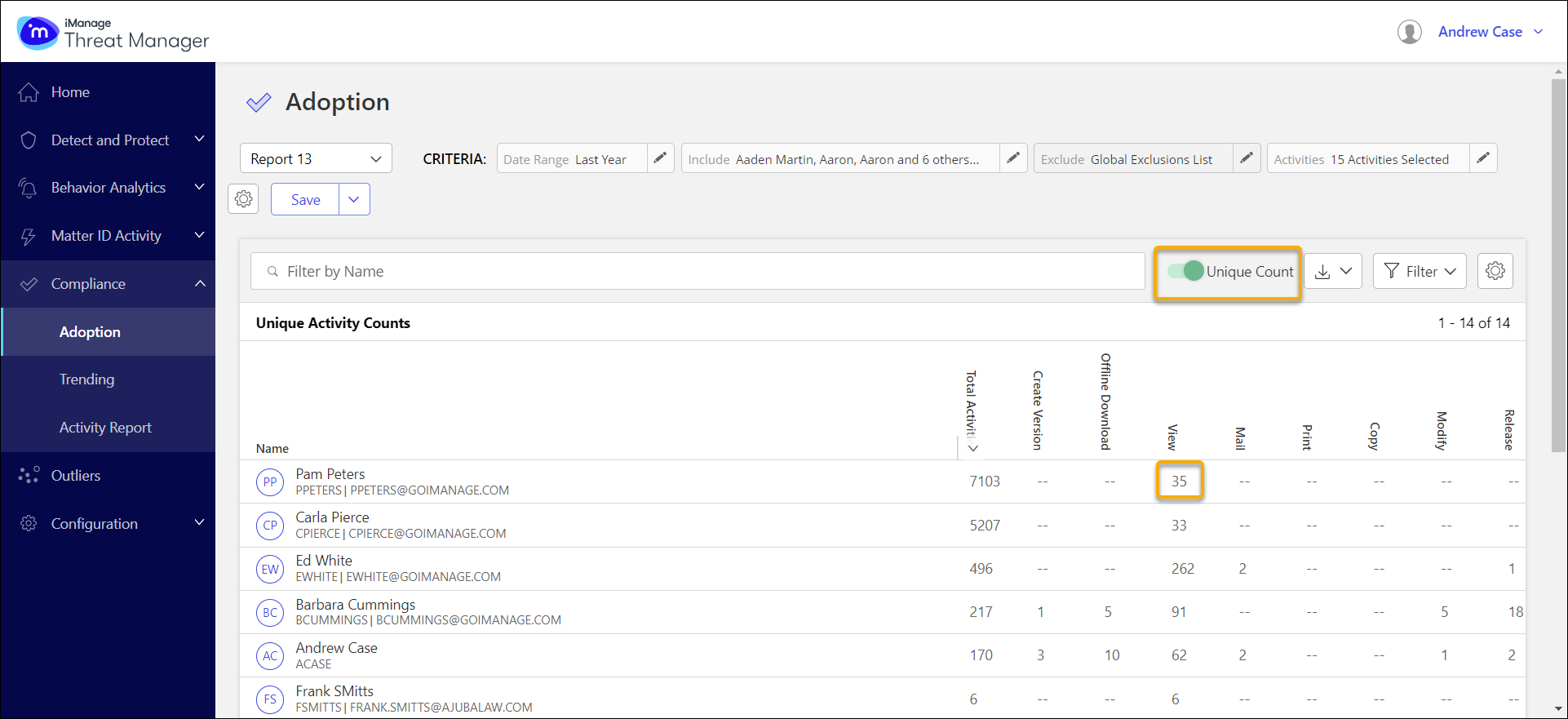
Hovering over a column name displays a tooltip explaining the corresponding activity. In the following figures, the Unique Count toggle is selected and then not selected:
Download the Compliance > Adoption report
You can download the Compliance > Adoption report in CSV, Excel, or PDF format.
On the Compliance > Adoption page, select the
 Download icon at the top right of the list.
Select a download option from the drop-down menu:
Download as CSV
Download as EXCEL
Download as PDF
Depending on the filter status:
No filters have been applied: The download starts immediately.
Filters have been applied: You’ll be prompted to choose:
Report with current filters applied or
Full report
Select an option and then OK to begin the download.
The Compliance > Adoption report is saved to your local system in the specified file format and includes:
All users in the scope (User ID, Username)
User metadata
Relevant activity data, based on the selected filter option