The Filing Settings tab on the Email page lets you view and edit settings related to email filing and linked folders. An example of the Filing Settings tab is shown in the figure below.
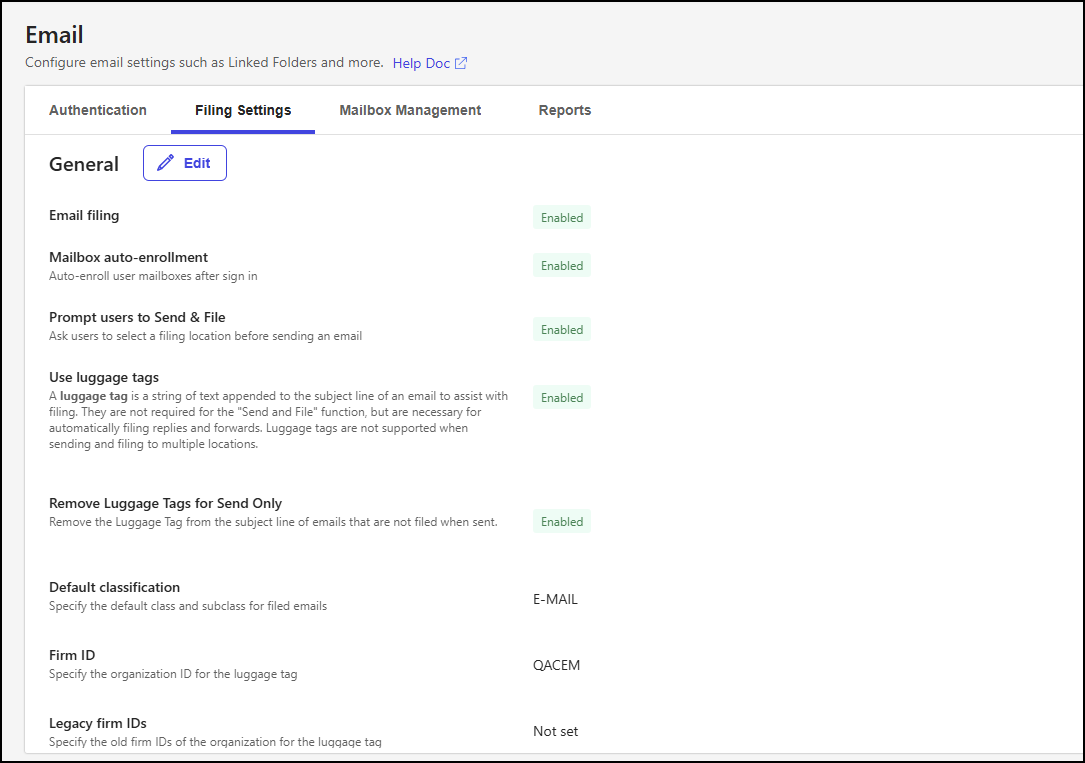
The Filing Settings tab contains the following sections:
General: This section includes settings to configure email filing options. For instructions on updating General settings, refer to the Manage general filing settings section.
Linked Folders: This section includes settings to configure linked folder options. For instructions on updating Linked Folder settings, refer to the Manage linked folder settings section.
Manage general filing settings
To update email filing settings in the General section of the Filing Settings tab, follow these steps:
In iManage Control Center, browse to Extensions > Email.
Select the Filing Settings tab, then select Edit in the General section.
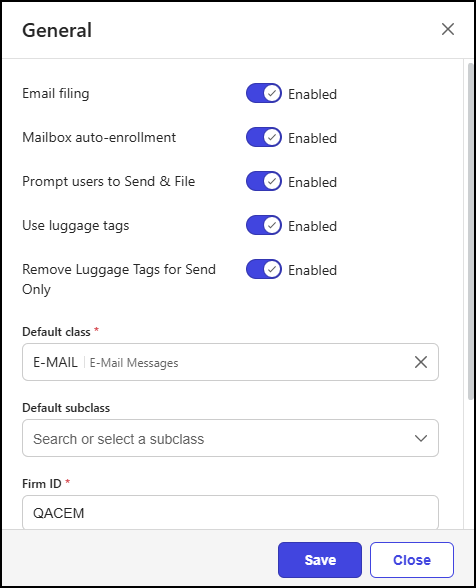 Figure: General dialog
In the General dialog:
Update the following settings as needed:
Email filing: This setting is used to enable and disable iManage Cloud email filing features.
Mailbox auto-enrollment: This setting determines whether you’ll allow user mailboxes to be auto-enrolled for iManage Cloud email filing when they authenticate with the iManage Work for Outlook application. Shared mailboxes are excluded from auto-enrollment because a mailbox owner needs to be selected before enrollment can occur. Even if auto-enrollment is enabled, administrators can still manually enroll and manage mailboxes in the Mailbox Management tab of the Control Center Email page.
Prompt users to Send & File: This setting controls whether the Send & File prompt is presented to users when sending an email message.
Use luggage tags: This setting determines whether luggage tags (or filing instructions) are added to the subject line of an email during the Send & File process.
Remove Luggage Tags for Send Only: This setting controls whether the luggage tag is removed from the subject line when using the Send only option. Removing the luggage tag means the email will be sent without being filed.
Default class: This setting specifies the default email class when saving emails to cloudimanage.com as new documents or new versions. For more information about classes, refer to Classes/Subclasses.
NOTE: The default class value must be applied to all of your iManage Work at cloudimanage.com libraries.Default subclass: This setting specifies the default email subclass when saving emails to cloudimanage.com as new documents or new versions. For more information about subclasses, refer to Classes/Subclasses.
NOTE: The default subclass value must be applied to all of your cloudimanage.com iManage Work libraries.Firm ID: This setting specifies the organization ID used when building luggage tags. If you don’t know your firm ID, refer to the Retrieve values from the imEMM.config file section for guidance.
Legacy firm IDs: This setting specifies the legacy firm IDs, enabling iManage Cloud email management to file emails in user inboxes using previously generated luggage tags.
Select Save.
NOTE: When you set or change the Firm ID or Legacy Firm ID, the fields lock for 24 hours after you Save the changes to prevent further modifications. A warning message appears when you edit the fields, and they become inactive (grayed out) to prevent changes.
Manage linked folder settings
To update email filing settings in the Linked Folders section of the Filing Settings tab, follow these steps:
In iManage Control Center, browse to Extensions > Email.
Select the Filing Settings tab, then select Edit in the Linked Folders section.
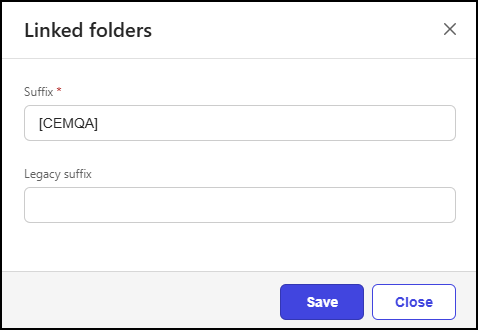 Figure: Linked folders dialog
In the Linked folders dialog:
Update the following settings as needed:
Suffix: This setting specifies the suffix to be added to the name of linked folders when creating them in Microsoft Outlook/Exchange. The suffix is appended to user linked folders in Outlook/Exchange, helping to show that they’re linked folders. If you don’t know your suffix, refer to the Retrieve values from the imEMM.config file section for guidance.
Legacy suffix: This setting specifies the legacy linked folder suffixes, allowing iManage Cloud email management to replace these old values with the new linked folder suffix in folders linked to iManage Cloud email filing.
Select Save.