Opening the iManage Work task pane
The iManage Work for Outlook app is accessible from the iManage button on the Outlook ribbon or on the email message toolbar as shown below. The task pane contains four tabs, and each tab serves a different function and contains slightly different options. The task pane will open to one of the two tabs, Email filing or Save attachments, depending on what Outlook task you're performing when you open it. The main iManage Work task pane view is available when you're in the main view of new Outlook.
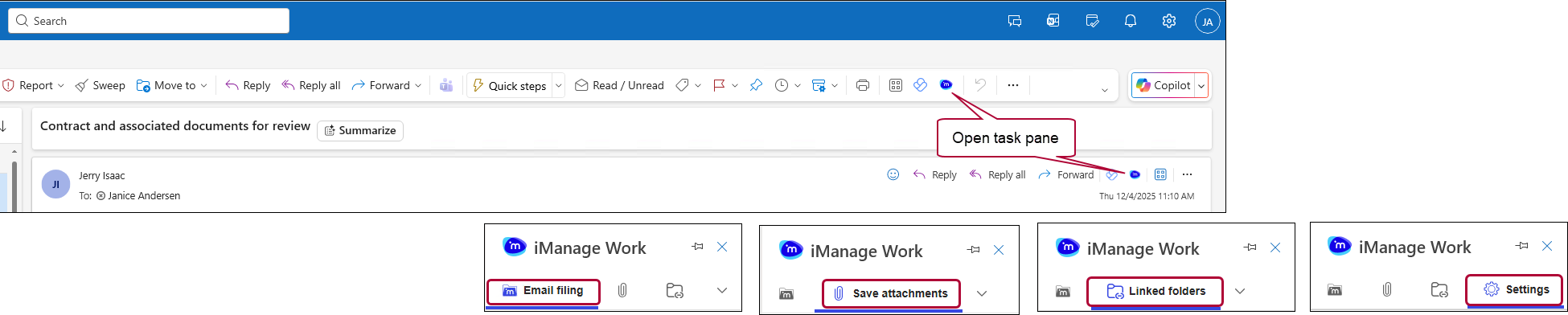
In your inbox, select an email that isn’t already filed, then select iManage Work from the ribbon to open the iManage Work task pane and access the features for the following:
Email filing—For more information, refer to iManage Work task pane view for filed messages
Saving email attachments—For more information, refer to iManage Work task pane for saving attachments
Linking Microsoft Outlook folders to iManage Work folders—For more information, refer to iManage Work task pane Linked folders tab
Settings—For more information, refer to iManage Work task pane settings tab
The iManage Work task pane displays on the right side of the Microsoft Outlook application, and provides the iManage Work features available for the selected email in your inbox.
TIP: For easy access to the iManage Work task pane in Outlook, you can pin it so it remains visible even when you switch views or restart Outlook.
To pin the iManage Work task pane, select the
 icon located on the right side of the task pane header.
To unpin the task pane, select the
 icon.
icon.
To close the iManage Work task pane by selecting the  icon in the upper corner.