The co-authoring experience for recipients is based on a few factors:
The device you’re using.
The type of Microsoft subscription you have.
Whether the iManage Next Generation Co-authoring applications are enabled if the link recipient is a fellow iManage customer.
The following table explains the specifics.
Table: Co-authoring experience for recipients
Prerequisites | User action | Microsoft Windows device or tablet | Phone | Details |
|---|---|---|---|---|
Microsoft 365 Enterprise Account Enabled | View in Microsoft 365 for the web | Yes | Yes | |
Edit in Microsoft 365 for the web | Yes | No | Microsoft allows only View on the web for phones. Editing isn’t supported. | |
Edit in Microsoft 365 applications for desktop | Yes | Yes | Editing on the desktop also requires users to first manually sign in using Add a Place. For more information, refer to Signing in to Microsoft 365 applications. | |
Microsoft 365 Enterprise Account Not Available | View in Microsoft 365 for the web | Yes | Yes | |
Edit in Microsoft 365 for the web | Yes | No | Microsoft only allows View on the web for phones. Editing isn’t supported. | |
Edit in Microsoft 365 applications for desktop | No | No | Editing in desktop applications requires the link recipient to have a Microsoft 365 Enterprise Account. | |
iManage Work Next Gen Co-authoring not enabled | View in Microsoft 365 for the web | No | No | Any link recipient with an active iManage user account also needs to have the iManage Next Generation Co-authoring applications enabled in their environment to view or edit documents shared with them using Collaboration Links. If Next Gen Co-authoring isn’t enabled, users can only download the document. |
Edit in Microsoft 365 for the web | No | No | ||
Edit in Microsoft 365 applications for desktop | No | No |
For recipients using a Microsoft Windows device with either an annual, or semi-annual subscription, the experience of opening documents from collaboration links will vary as explained in the following table.
Table: User experience for recipients using a Microsoft Windows device on a subscription
Microsoft channel | Microsoft 365 applications for the desktop enabled | User experience |
|---|---|---|
User is subscribed to either:
| Yes | Users can open the document on the first attempt after signing in using their Microsoft credentials. |
Not subscribed | No | Users can’t open the file and the following error message is displayed: 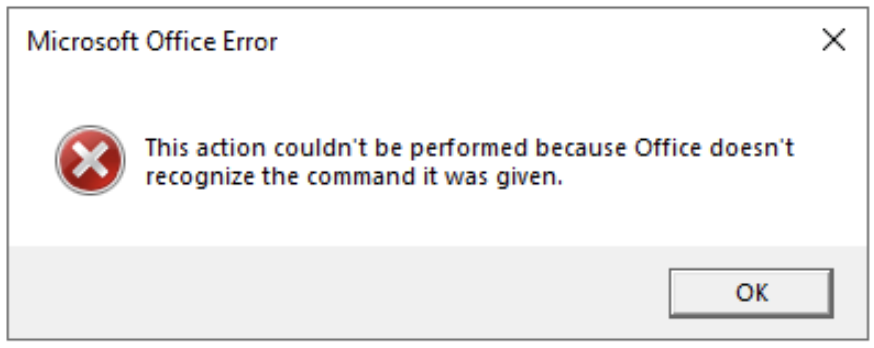 |
NOTES:
Any link recipient with an active iManage user account also needs to have the iManage Next Generation Co-authoring applications enabled in their environment to view or edit documents shared with them using Collaboration Links.
Files opened by link recipients using the collaboration link won’t be added to their Recent Documents list in iManage Work or Add a Place.
Files opened by link recipients using the collaboration link are displayed in the Most Recently Used list in Microsoft.
Link recipients can’t share a document or view its version history when working on it.
As an iManage Work user when co-authoring within an active document, you can view the collaborators in the document displayed either as an email address or as a user name, depending on the medium used for collaboration. This is explained in the table below.
Table: Collaborator displayed in a document based on the collaboration:
User type | In Microsoft online | In the Desktop client |
|---|---|---|
iManage user | Email address used to invite the user—for example, [email protected]. | User name of the collaborator is identical to how it's displayed when co-authoring from iManage Work 10 Web. Example: |
Guest User | Email address used to invite the user—for example, [email protected]. | Depending on how the Guest user is configured, they're displayed using either of the following:
|
As collaborators edit the shared document, you can view their presence through the pointers.
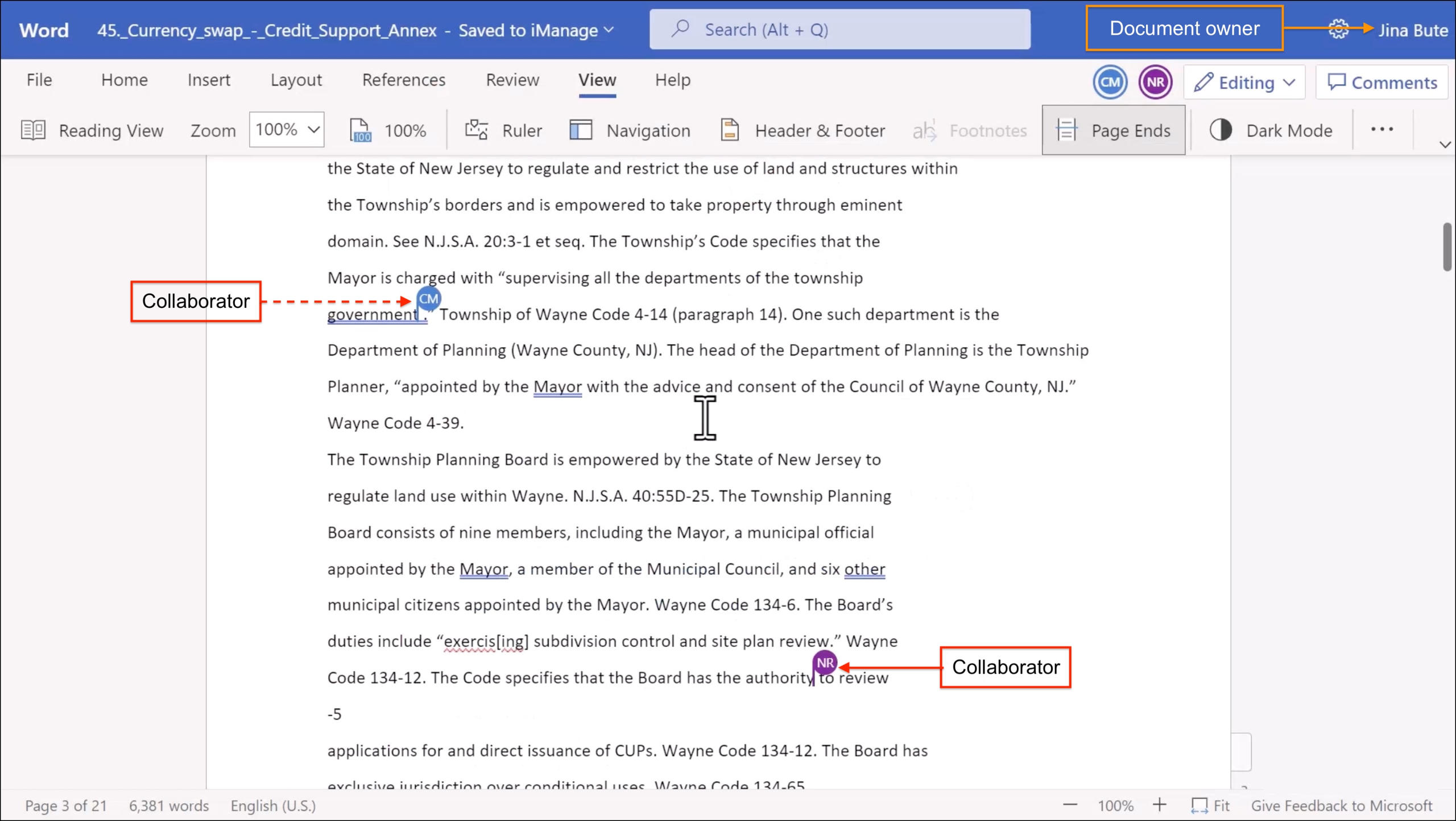
As a link recipient:
When co-authoring the document, you can view the names of the other user(s) active in the document with you.
Besides the document metadata shared on the landing page of the document, you can't access any other details of the document.
You can’t view the Microsoft version history of the document.
You can’t share the document using Microsoft security.
You can’t rename the document.