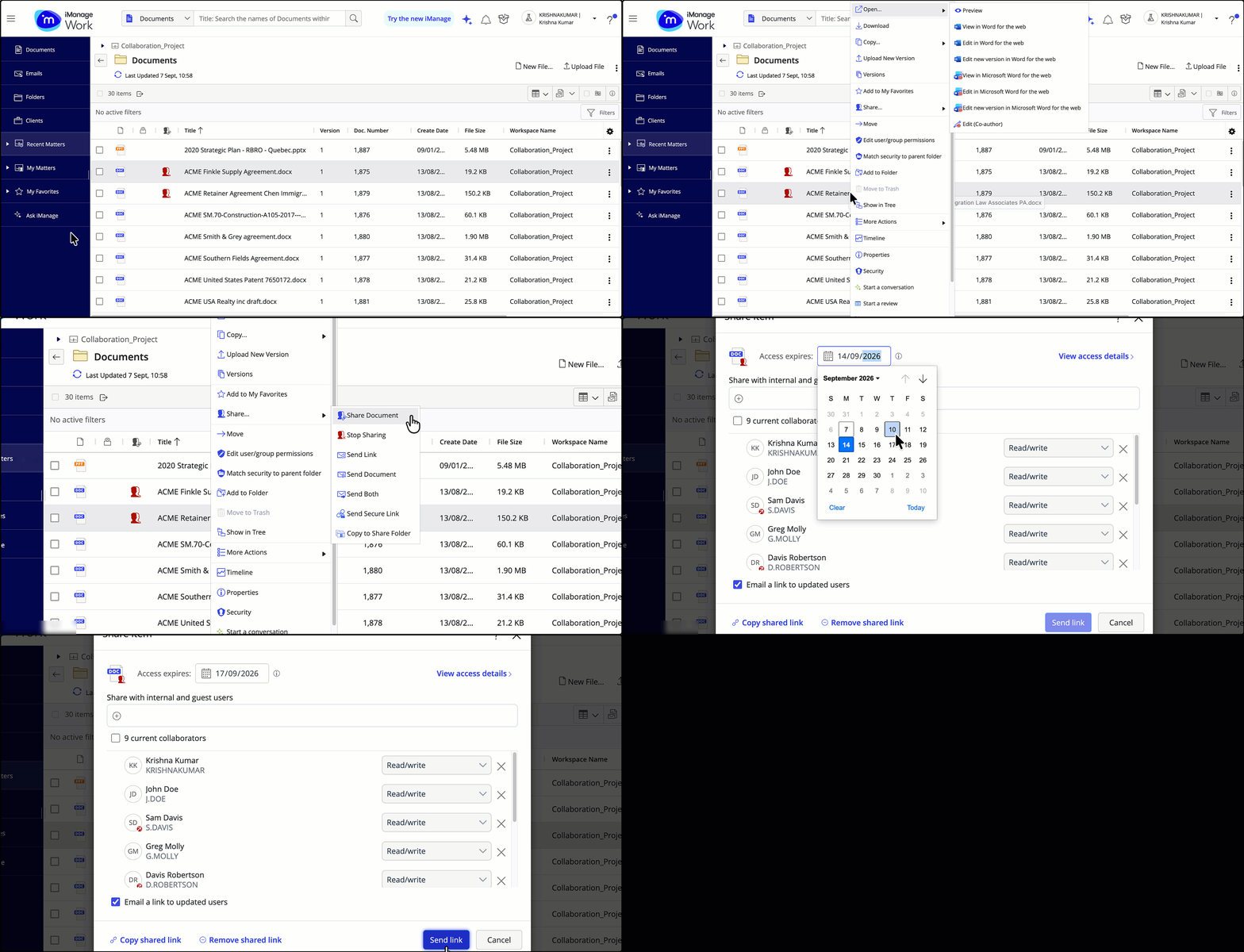
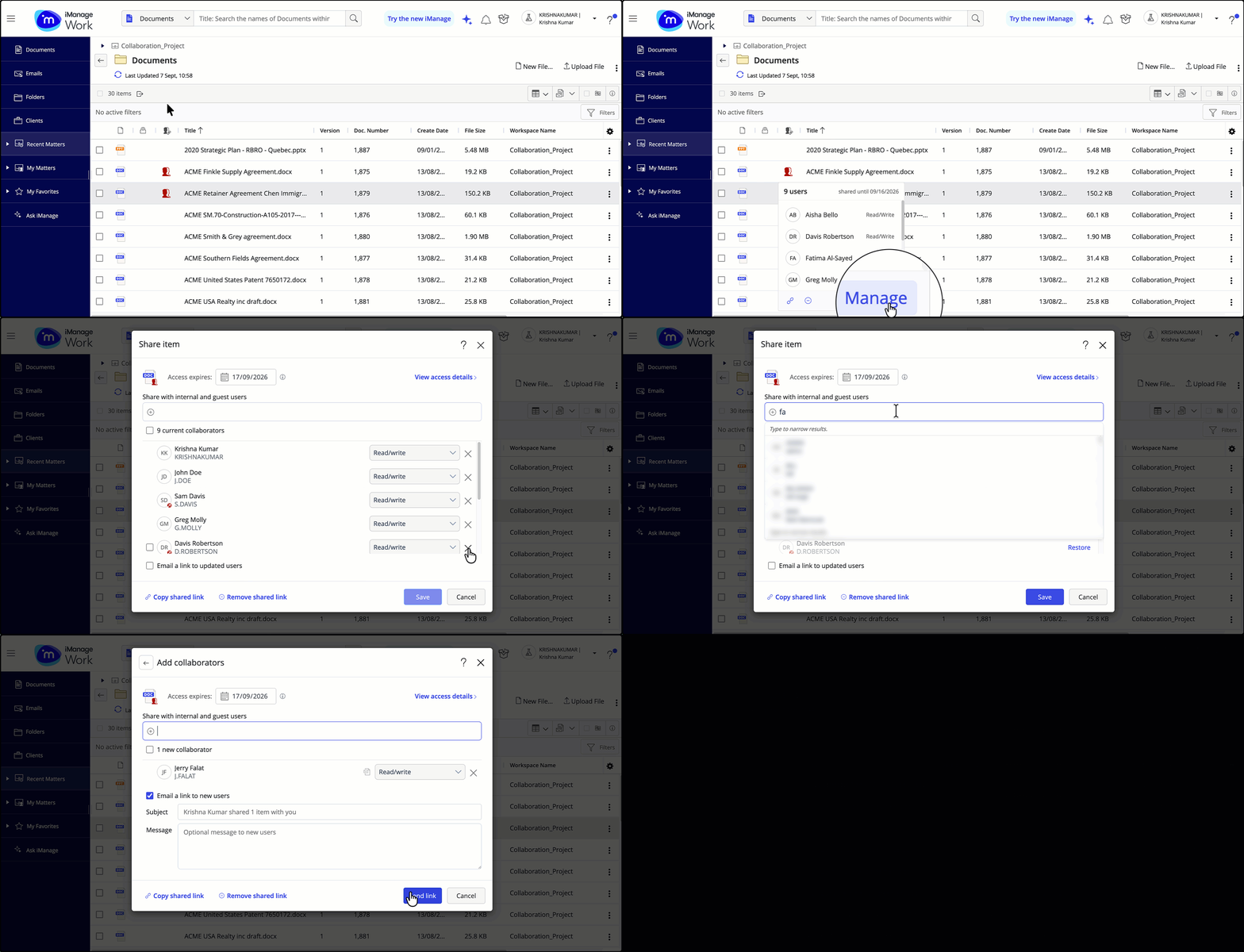
Edit a shared collaboration link from the context menu or toolbar, or the Sharing status indicator, including bulk editing for up to five documents with active, expired, or no existing shares.
Table: Editing a shared collaboration link from the context menu versus sharing status indicator
From the context menu or toolbar | From the Sharing status indicator |
|---|---|
The links for the selected documents are updated. To notify collaborators when they are added to a link or when an expiration date changes, select the Email a link to updated users check box. |
The links for the selected documents are updated. To notify collaborators when they are added to a link or when an expiration date changes, select the Email a link to updated users check box. |
NOTES:
The Sharing status indicator must be displayed in both the grid and list view for editing a shared collaboration link. If you don’t see it in your Grid View, you can add it by selecting the Column Selector. Contact your administrator if you don’t see this in your List View for documents you have shared.
In the following scenarios, no email notification is sent to recipients or the link creator, even if the Email link to updated users check box is selected:
The link expires automatically.
One or more users are removed from the link.
Stop Sharing is used for a link.
A guest user's access level is changed.
When the expiration date for a link is changed, and if Email a link to updated users check box is selected, each collaborator receives an email from noreply@imanage.work, which contains the following metadata:
File name
Document and version number
Collaboration link to the document
Updated expiration date in UTC (Coordinated Universal Time) format
Name of the iManage user who updated the expiration date of the collaboration link
iManage terms and conditions
Figure: Email sent to a collaborator when a link is updated
NOTE: The iManage user who changed the expiration date doesn’t receive a separate confirmation email. Instead, iManage Work adds a record to the timeline.