Creating new versions of a document shared for collaboration
Deleting and restoring documents shared for collaboration from Trash
Identifying a document shared for collaboration
A document shared using a collaboration link can be identified while working with the document both in iManage Work 10 Web and Work 10 Desktop.
Collaboration links icon: Depending on the type of view selected and its configuration in iManage Work, the display of the collaboration link icon varies:
Properties Panel in iManage Work 10 Desktop: The collaboration links
 icon is displayed under Sharing in the properties panel. When working on a Microsoft Office document, this helps you identify the other collaborators with whom the document has been shared, without moving away from the desktop client.Figure: Collaboration link icon in the Properties panel for Work 10 Desktop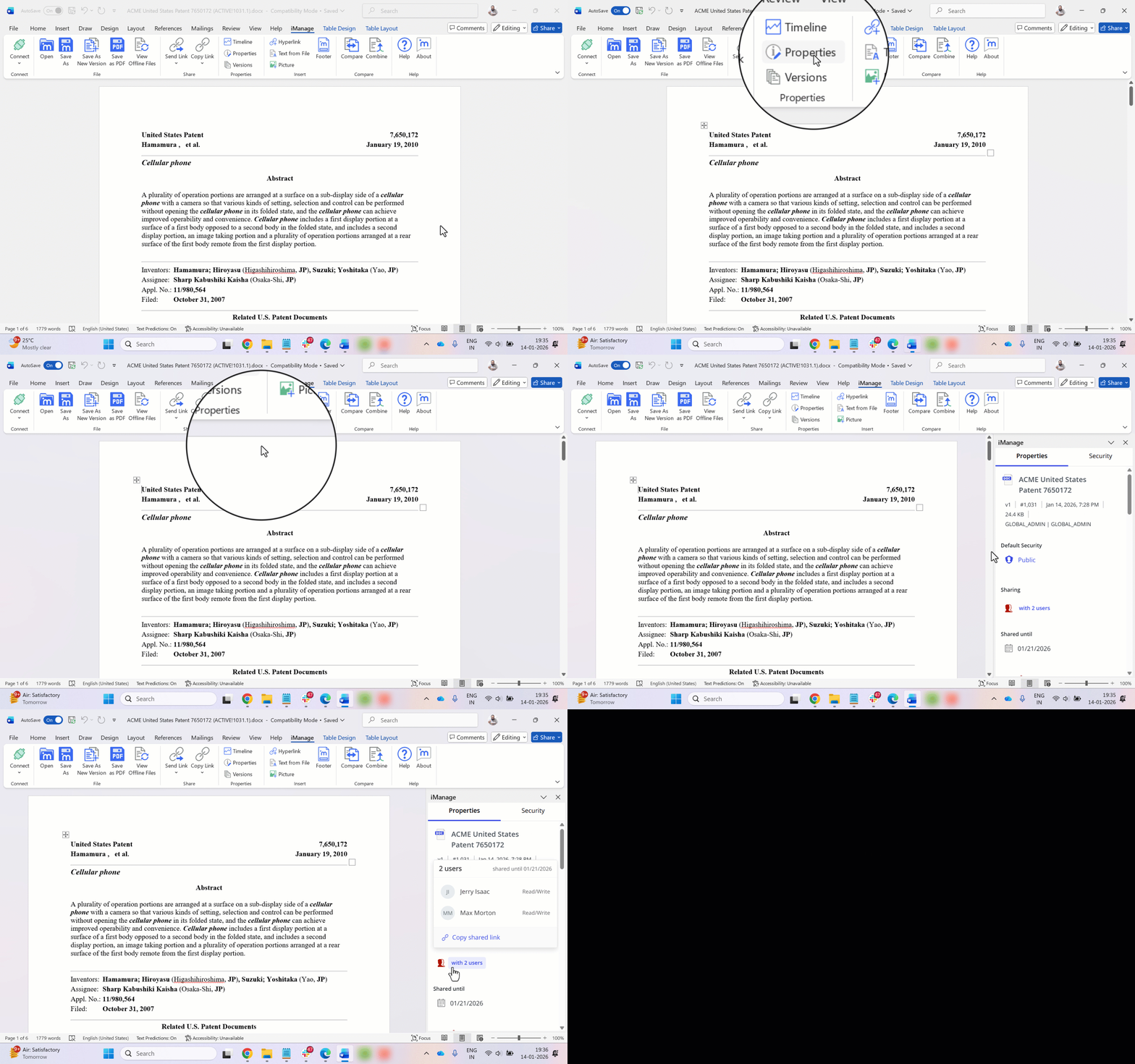
List view: The collaboration links
icon is displayed in the center panel as well as the Properties, Security, and Versions panels. Hovering over the collaboration links icon in the center, the properties and security panel displays a dialog which indicates the expiration date, a list of collaborators, and the following options:Copy Link
Remove Link
Manage: Select this option to open the Share Document dialog and perform any or all of the following actions as required:
Update link expiration date
Add or remove collaborators
Update the access control level for collaborators
Remove the collaboration link
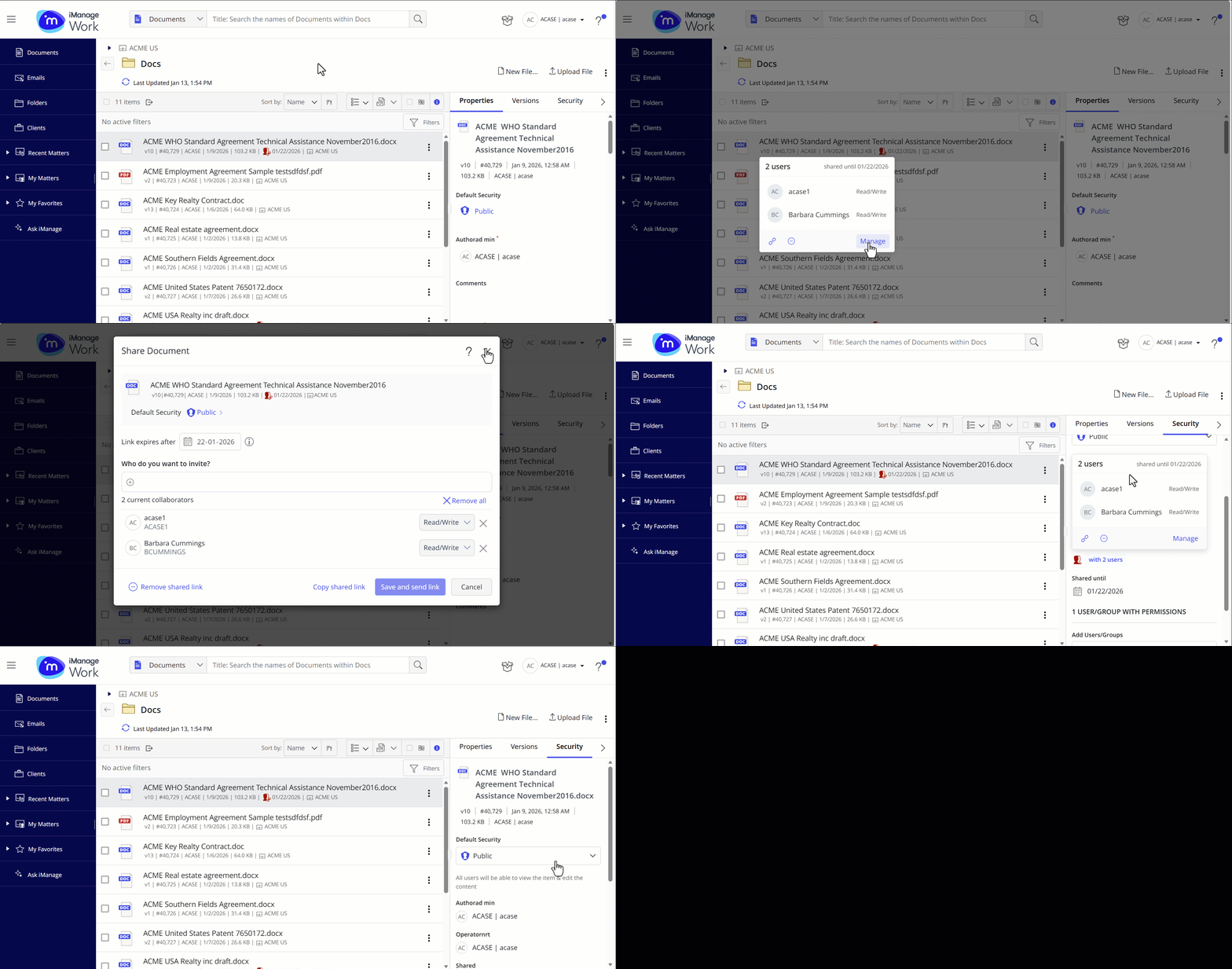
Figure: Collaboration link icon in the list view
Grid View: The collaboration links
icon is displayed by default in the grid view if you haven't previously configured the grid view yourself. If you've done this, then you'll need to add the Sharing column yourself.
To display the collaboration link in the center panel, you may need to add the Sharing column from the grid view settings.
When the Shared field is displayed in your grid view, hover over the collaboration links icon in the center, the properties and security panel to display a dialog which shows the expiration date, a list of collaborators, and the following options:Copy Link
Remove Link
Manage: Select this option to open the Share Document dialog and perform any or all of the following actions as required:
Update link expiration date
Add or remove collaborators
Update the access control level for collaborators
Remove the collaboration link
Figure: Collaboration link icon in the grid view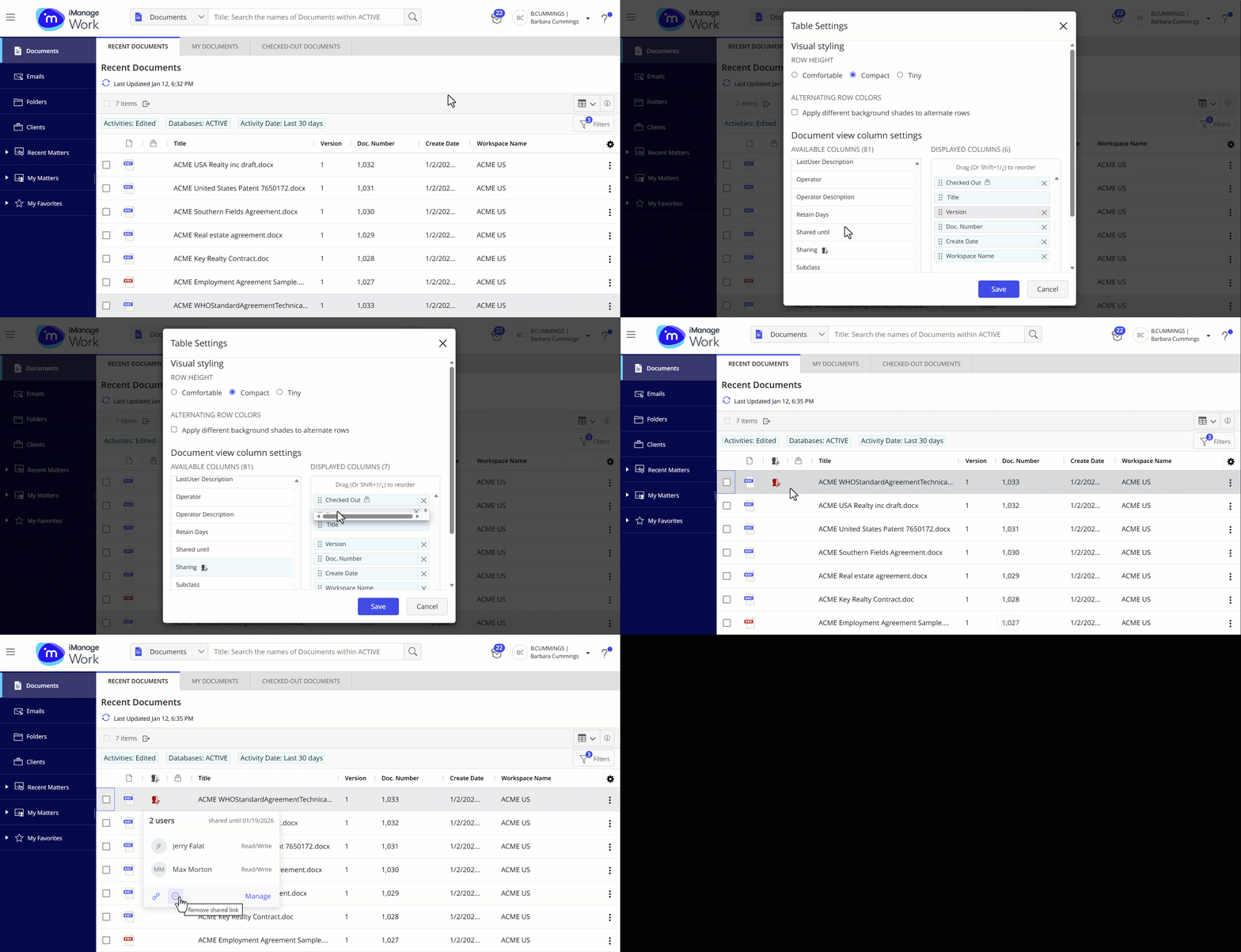
Expired Share icon: Expired links are identified by a unique :Collab_link_expired: icon, displayed next to the shared documents up to seven days after the link expires.
Figure: Expired collaboration link icon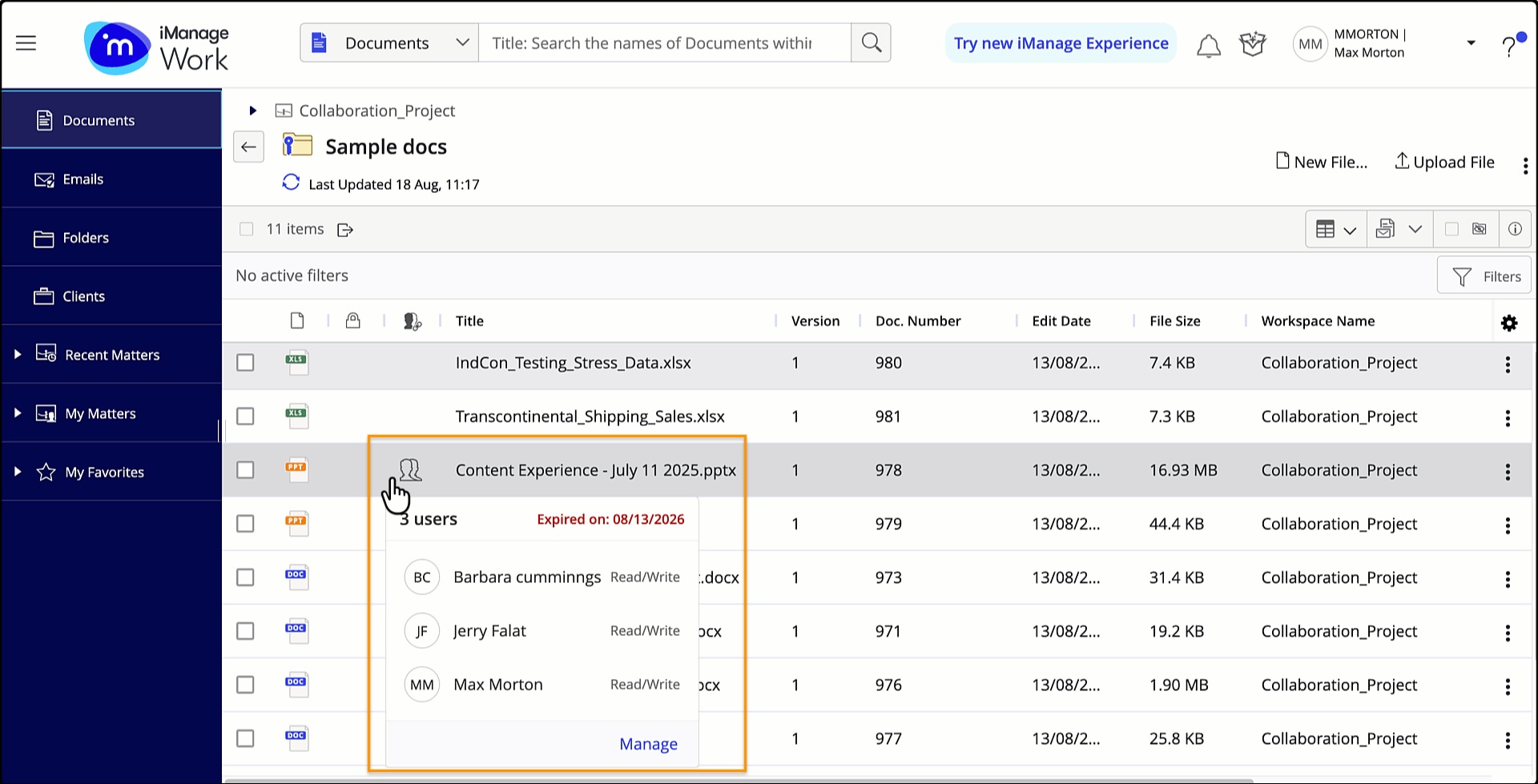
Document status: If a document is checked out by a collaborator for edits, then the checked-out
 icon is displayed followed by the name of the user who checked out the document (for internal user) or email ID (for guest user). If you’ve enabled the Checked out column in the grid view settings, then hovering over this icon displays the application in which the document is checked out for editing. The email address of a guest user who opens a document for editing is displayed in the Checked out and Last user fields with the @ prefix.Figure: Document status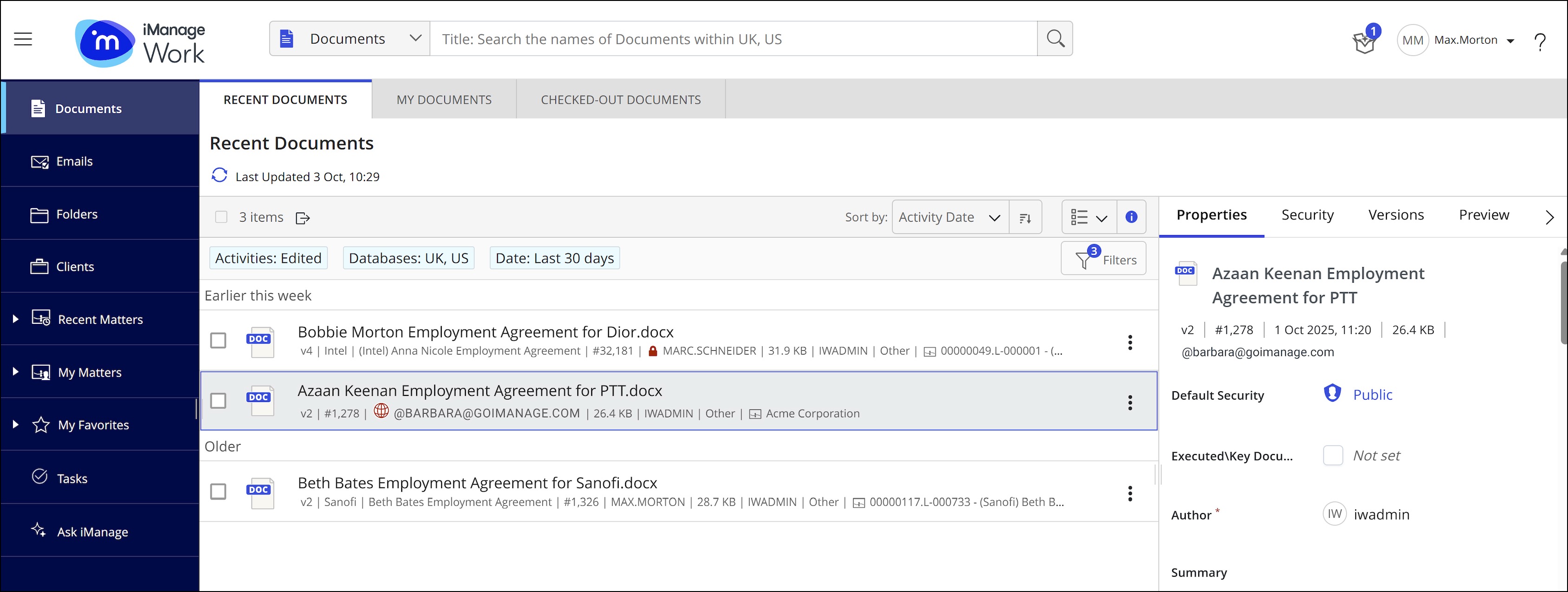
If you or any user has view or higher access to the shared document, you can create a new version of the shared document. For more information, refer to Creating new version of the document shared for collaboration.
You can search for a shared document using the Shared Status or expiration date criteria in Advanced Search.

Deleting a document version shared for collaboration isn't allowed.
Viewing who invited other users for collaboration
NOTE: This functionality is only applicable for a single document.
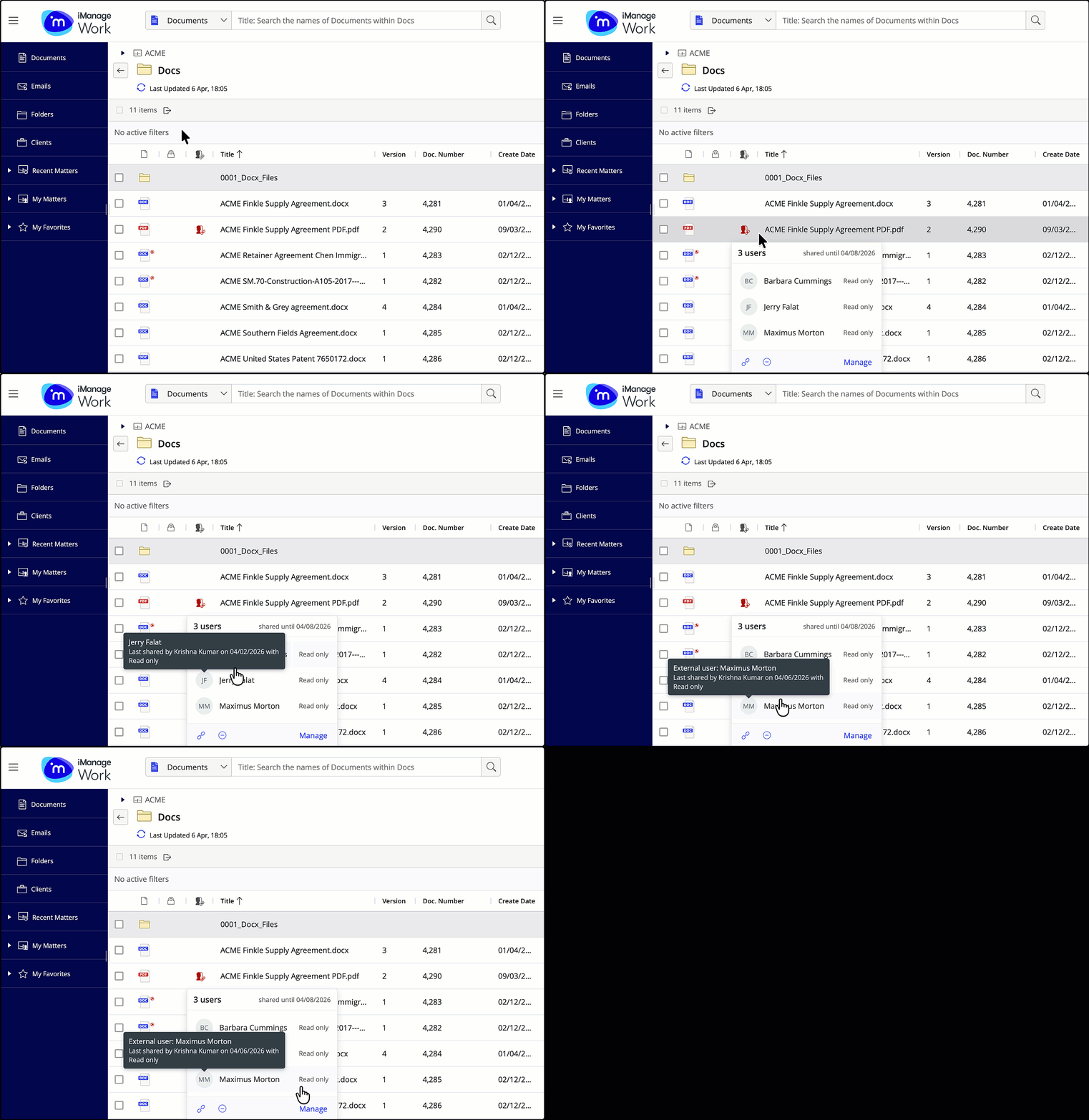
Hovering over the collaboration links icon in the center, the properties and security panel displays a dialog which shows the expiration date, a list of collaborators, and a few more options.
In addition to the above, hovering over a collaborator’s name displays the following details:
Collaborator’s name
Collaborator type (Internal, external, or blocked)
Name of the iManage Work user who created the collaboration link
Date on which the document was shared for collaboration
Collaborator’s access type (Read Only or Download)
You can view these details in the following places across the user interface:
iManage Work Web
Shared status icon in the:
Sharing field in Grid View
Sharing field in List View
Properties panel (including Preview)
Security Panel (including Preview)
Upload New version dialog > View Collaboration Link dialog
Copy as new version dialog > View Collaboration Link dialog
iManage Work 10 desktop
Shared status icon in Properties panel
Shared status icon in Security panel
File Open dialog - Shared Status icon in List and Grid View
File Open dialog - Properties Panel
Save as New Version dialog
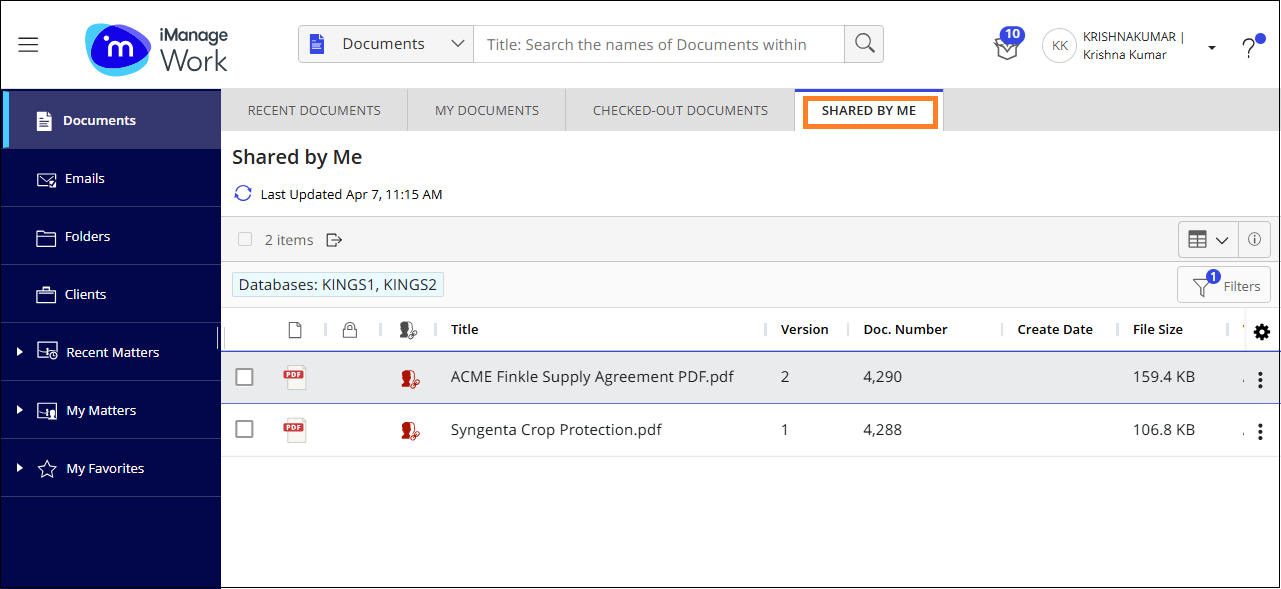
Shared by me tab
The SHARED BY ME tab shows documents you shared through Collaboration Links.
The Shared By Me tab lists:
Documents where you’ve created a link for the first time.
Documents that you’ve shared across all libraries to which you’ve got access.
Any document with an existing link where you’ve added at least one new user
Any document where the link has expired and you’ve renewed it
Applies to documents where you’ve created the original link
Also applies to documents where you haven’t created the original link but added at least one new user
Documents won't be available under the Shared By Me tab if:
The collaboration link expires.
A document you shared previously has expired and has been renewed by another user.
A document has an active share created by another user and you change the expiration date or remove a user from the active share.
Creating new versions of a document shared for collaboration
When the latest version of a document is shared for collaboration, it's still possible to create a new version of this document—provided the document isn't currently checked out and is being actively edited. Note that this is true even for users who can’t create collaboration links (this is an Admin setting that can be set per user).
In this case, the link to the previous document shared will automatically update to point to the new latest version for the link recipients.
To ensure that this is the desired behavior, anyone creating a new version of a document will now be informed of this in the new version dialog and given a choice as to whether they wish to continue.
This is true for all methods of creating a new version in iManage Work Web and in the iManage Work 10 Desktop client, the below example covers the Copy as new version option.
Select the document which you’ve shared for collaboration.
On the context menu, select Copy and then select Copy as new version.
Figure: Copy as new version dialog with collaboration link configuration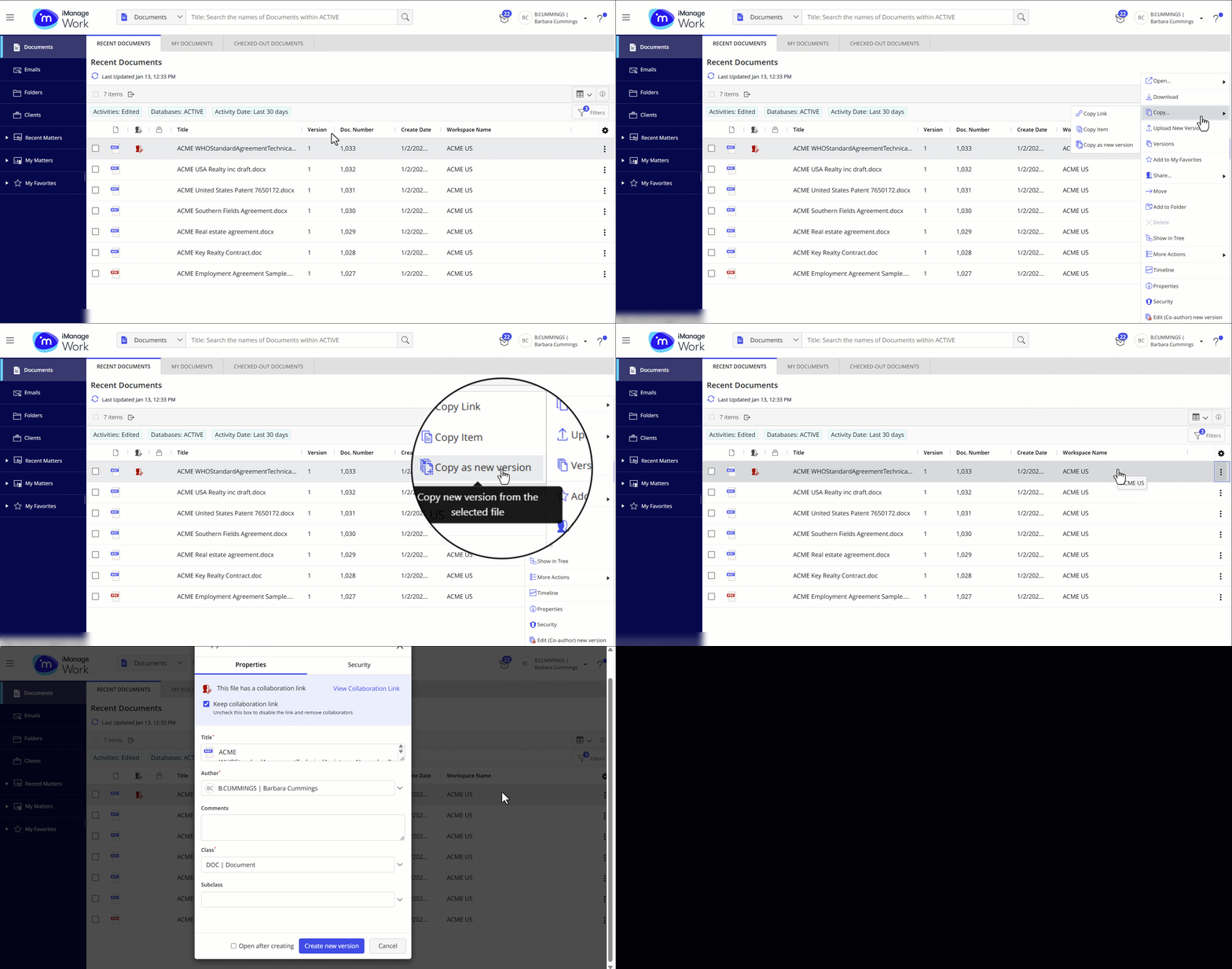
In the Copy as new version dialog, a blue banner is displayed with the following options:
View Collaboration Link: Selecting this option displays a preview of the details related to the shared collaboration link, such as expiration date, document security, collaborators, and their access levels. You can’t make any edits here.
Figure: Option to keep or remove collaboration link when creating a new document version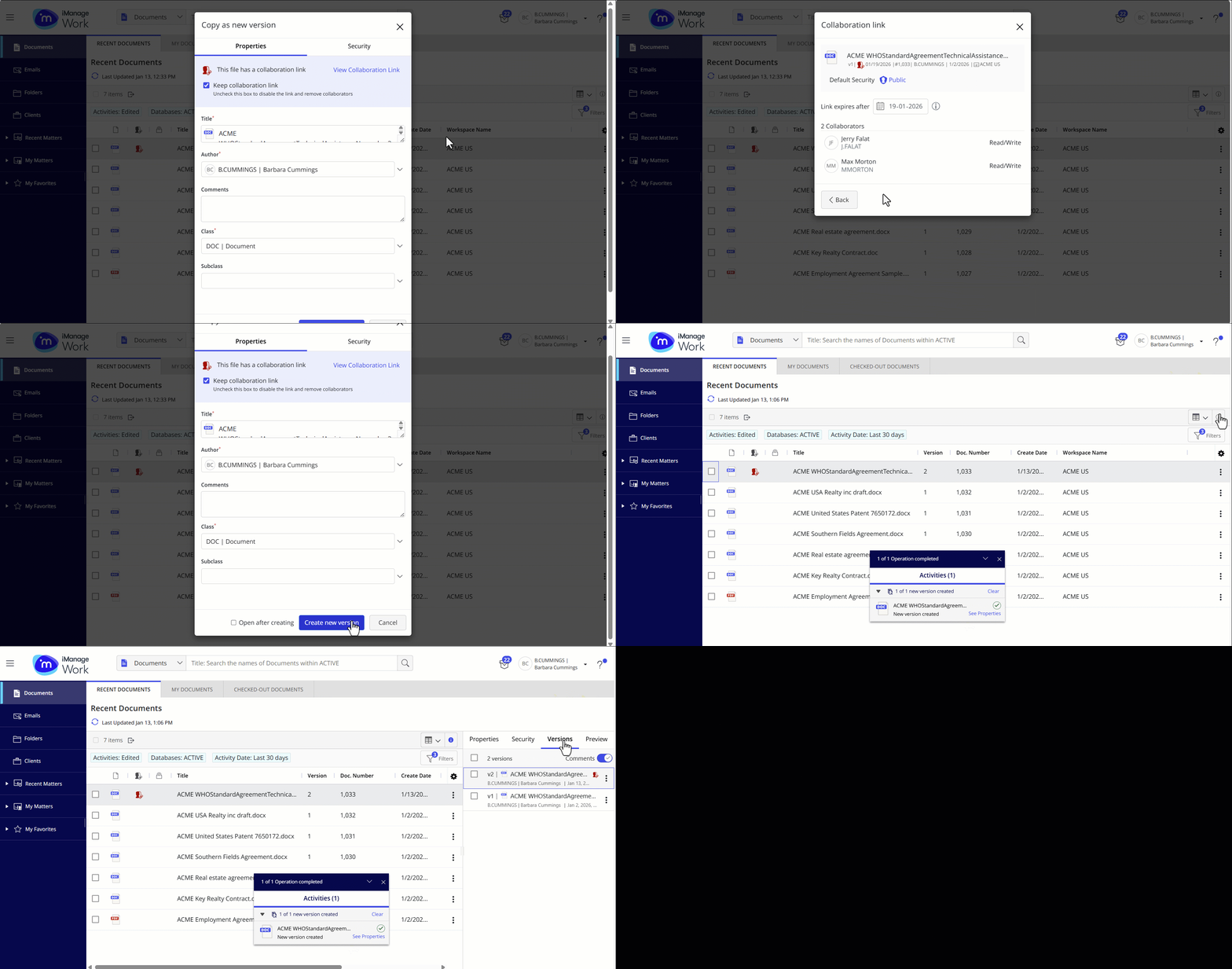
Keep collaboration link: Clear this check box if you wish to disable the collaboration link shared for the previous version of the document. If you don’t clear this check box, all the previously configured details are carried over to the new version.
Remove Collaboration Link: Clearing the Keep collaboration link option removes the link from both the new version being created and the previous version, removing the link in effect.
Select Create new version.
The new version is created and the Shared Status and Shared Until values are now shown for the latest version. Link recipients opening the link from the landing page in iManage Work Web are automatically taken to the latest version.
NOTE:
If the landing page isn't refreshed to point to the latest version, or if a collaborator reopens a document shared with them from the Most Recently Used (MRU) list in Microsoft Office, and a later version now exists, they get an error message and need to refresh, or reauthenticate to the landing page to ensure they're opening the latest version.
If you're trying to upload a new version to a document that's shared for collaboration, and the file type being uploaded isn't compatible with Collaboration Links, then the Keep collaboration Link check box is automatically deselected in the Upload new version dialog, and the Collaboration link is removed from the previous version.
Creating new versions of a document using iManage’s Microsoft Office integration
When creating a new version of an existing document, you can select one of the following options:
Save the document as a new version in the same file type
Save the document as a new version in a different file type, for example, saving a .docx document as a .pdf.
After selecting one of the above options, you can also choose to keep the existing collaboration link, or remove it completely using one of the following actions from the iManage tab in Microsoft Office applications:
Save As New Version
Save as PDF

Creating new versions of a document using iManage’s Adobe plug-in
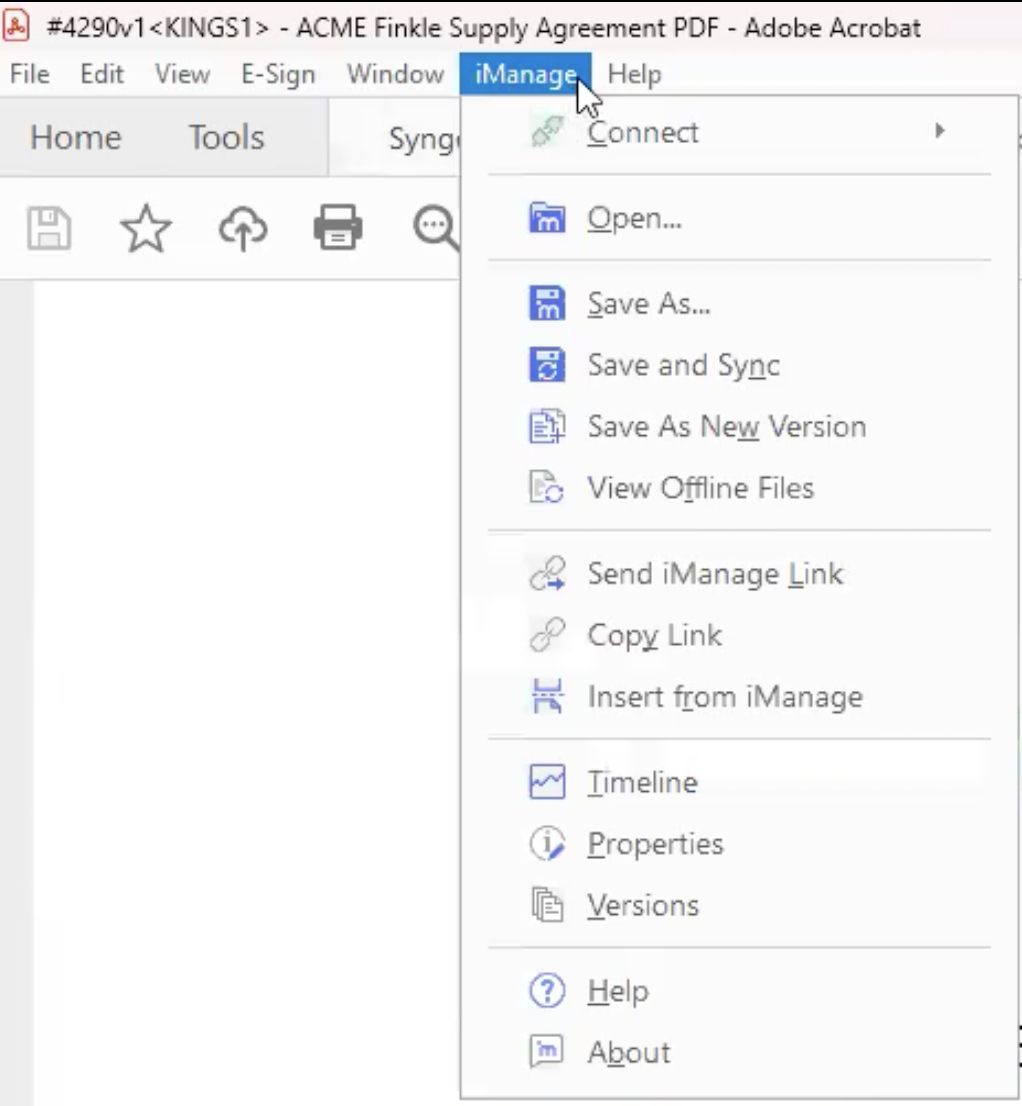
For a previously shared PDF file, you have the following options when creating a new version of a document using the Adobe plug-in:
Create a new version and move the Collaboration Link to the new version.
Create a new version and remove the Collaboration Link, thereby removing the share from the document entirely.
Documents Marked as Records
Documents marked as records can be shared, and link recipients can access them.
Share options apply to records only if you have sufficient access.
Record icon appears in the Share dialogs and landing pages against documents marked as record.
Landing page options for iManage Work Next Generation Co-authoring supported document types: View in Web, Download
Landing page options for other document types: Download only
Deleting and restoring documents shared for collaboration from Trash
A document version with an active collaboration link can’t be deleted or moved to Trash. The document version can be deleted only if the link has expired or is removed by the document owner.
When you restore a deleted document version from Trash, the details of the expired link will also be restored.
Here’s an example that explains how deleting and restoring a specific document version with a collaboration link works:
Let’s consider a document with three versions (V1, V2, and V3).
V3 has an expired collaboration link.
V3 is deleted and moved to Trash, and the next available version, V2 is shared using Collaboration Links.
If the link for V2 expires and V3 is then restored from Trash, the expired link details for the document are restored from V2 as it was the document version with the most recent active link.