Q: What is Collaboration Links?
A: Collaboration Links facilitate secure, real-time sharing of documents with guest users—directly from your engagement file in Work 10. Unlike iManage Share, which moves copies of shared files to a separate iManage Share data center, Collaboration Links provides controlled access to the original document, ensuring that collaborators always interact with the most current version.
Built on the foundations of iManage Work at cloudimanage.com, and using Microsoft 365 subscriptions, Collaboration Links facilitates iManage Work Next Generation Co-authoring between your internal credentialed users and guest users, who are granted access on a single-document, time-bound basis.
Q: Who are collaborators?
A: Internal or external users with whom you share documents through collaboration links are called Collaborators.
Q: Who are the internal and guest users?
A: The following are the types of users:
Internal User: Existing iManage user in your own company.
Guest User: Any other user you share a document with. This could be:
A colleague in your own company who isn't an iManage user.
A client or peer who works for another company.
Q: When should you use Collaboration Links?
A: You can use Collaboration Links to do the following:
Share one or more documents (for co-authoring or download) with someone outside your organization, and co-author in real time—for example, external counsel, a client, or an expert.
Collaborate with someone in your organization—for example, a professional service organization where only certain departments have iManage licenses, use Collaboration Links to co-author or share for download with colleagues in your organization who don’t have iManage licenses.
Work with teams who may not have access to a certain workspace because it's behind a Security Policy Manager wall—for example, a printing team with which you need to share documents on a temporary basis for purposes of formatting or printing, use Collaboration Links to grant timed access to documents that you’d otherwise email to your printing team.
Grant temporary access to one or more private documents to colleagues in your organization.
Q: What document formats are supported to be shared using a collaboration link?
A: The goal of iManage Collaboration Links is to enable link recipients to seamlessly edit documents shared using iManage Next Generation Co-authoring.
The following document types can be edited, viewed, and downloaded by guest users:
Microsoft Word: .docx
Microsoft PowerPoint: .pptx, .ppsx
Microsoft Excel: .xlsx, .xlsm, .xlsb
All other document types apart from email can also be shared using collaboration links, but only downloading them is supported.
Q: How do I identify a document that's shared using collaboration links?
A: The collaboration link  icon is added to the document in Work 10 to visually indicate that the document is being shared using a collaboration link. Internal users with access to the document in iManage Work can view when the links are shared, and hover over the Shared Status icon to learn more about who the document is shared with.
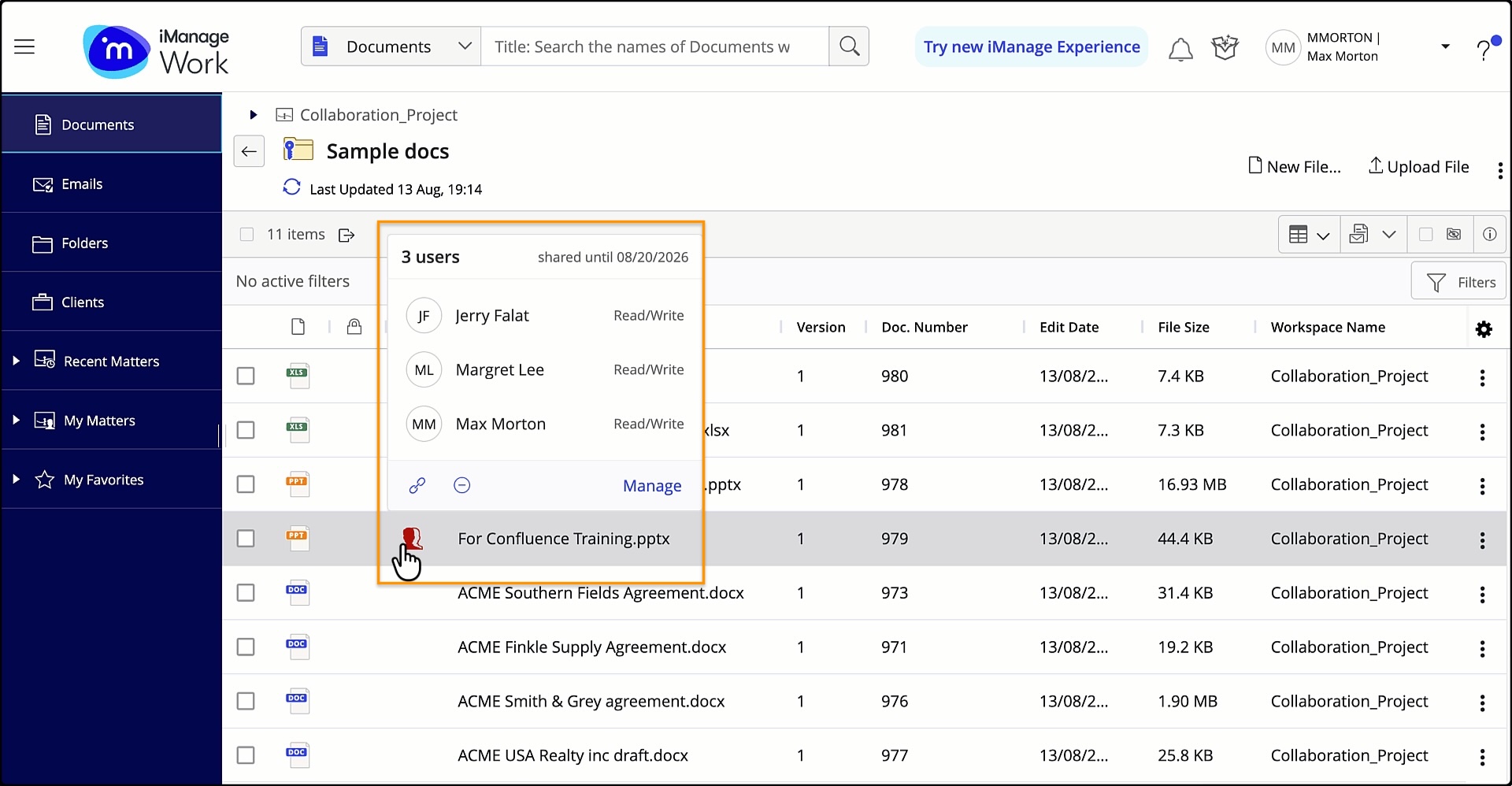
Expired links are identified by a unique :Collab_link_expired: icon, displayed next to the shared documents up to seven days after the link expires.
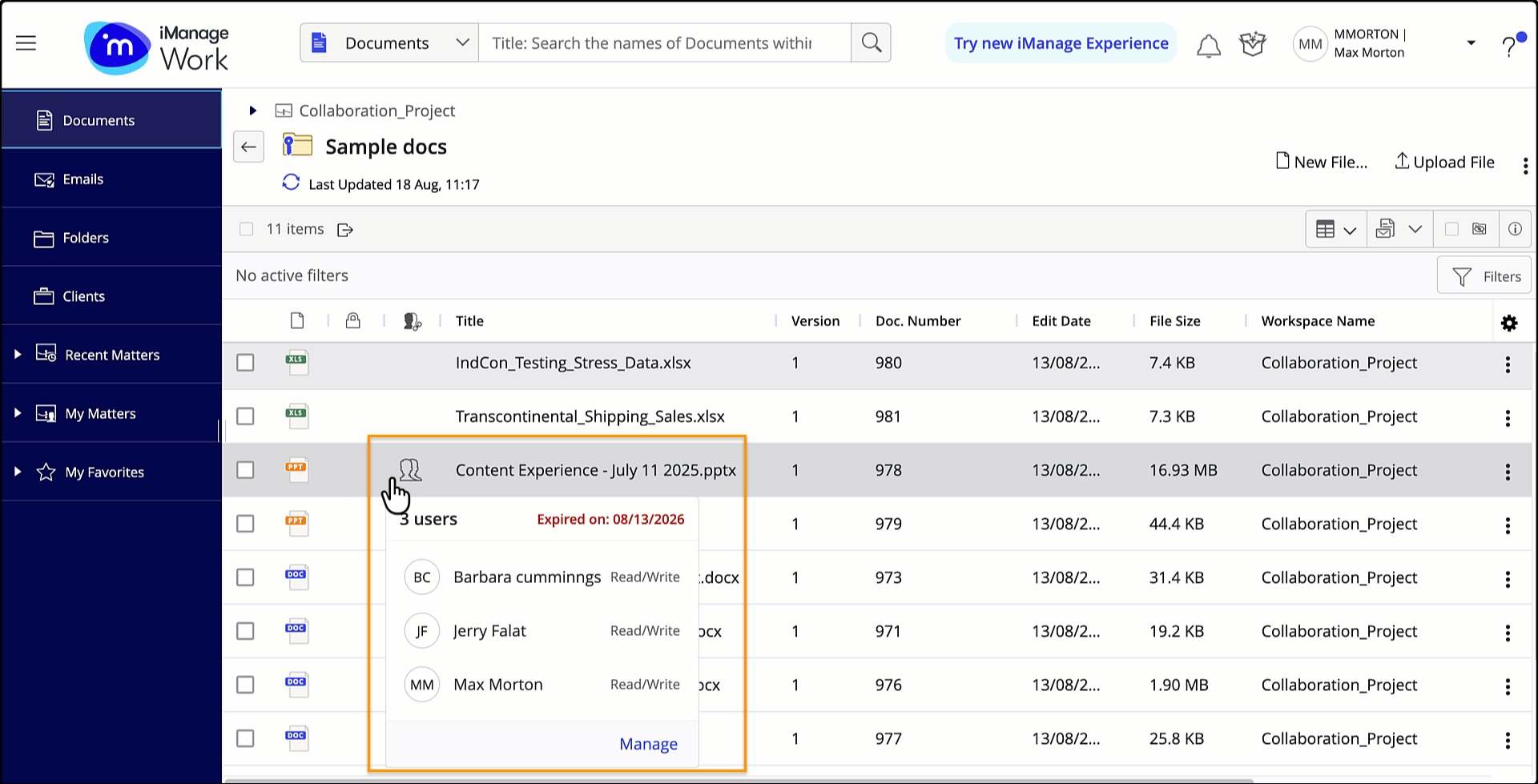
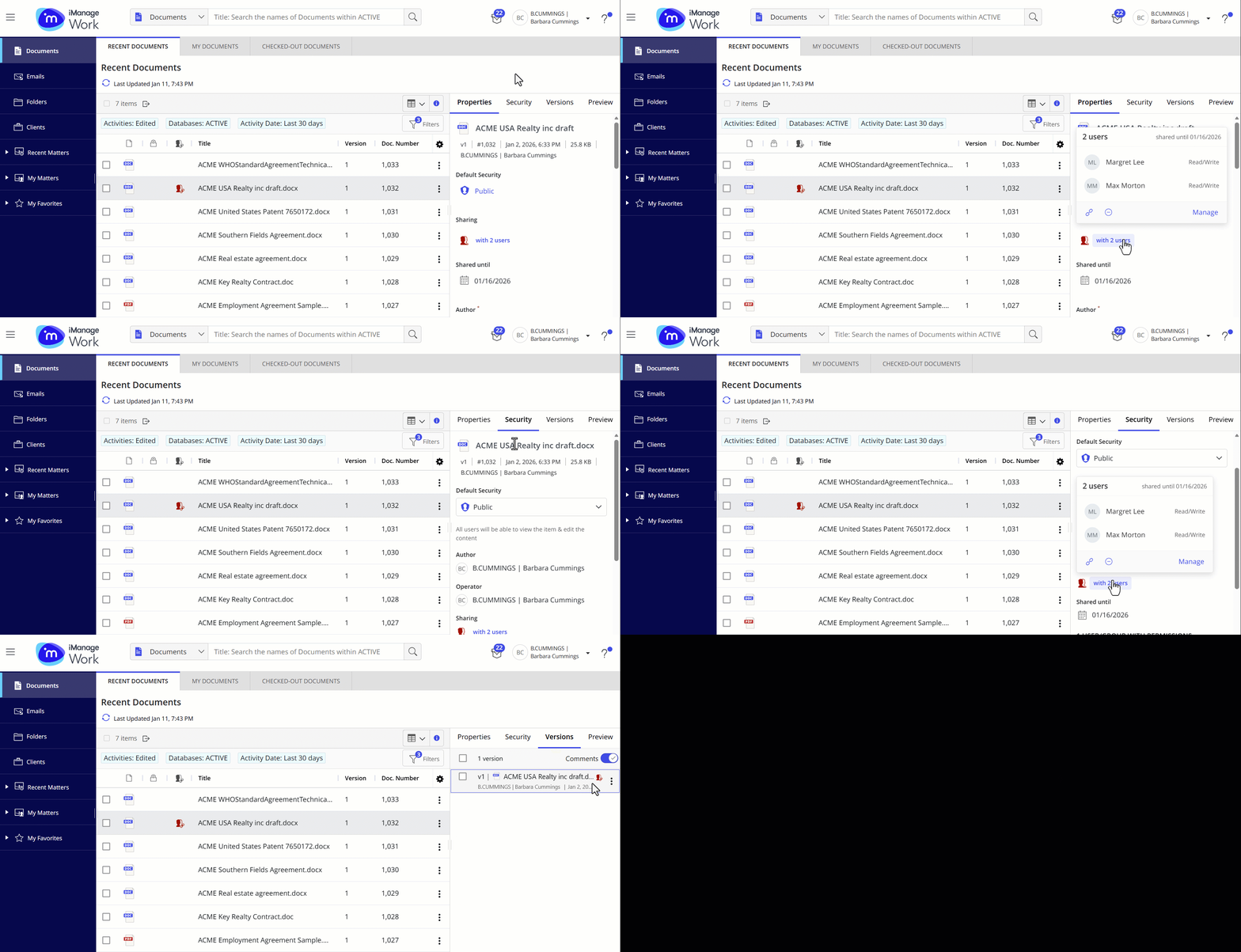
The collaboration link icon is also displayed in the Properties, Security, and Versions panels to show that the document is being shared using a collaboration link.
Q: Can I select multiple documents to share at the same time?
A: Yes, you can share a maximum of five documents at once.
Q: How many collaborators can you invite?
A: A maximum of 25 users, which can be either of the following:
Only internal users
Only external users
Combination of both internal and external users
If there are less than 25 users, the creator is also auto-added upon creation of the collaboration link. If 25 users are added before link creation, the creator is blocked from being auto-added. They receive a confirmation email explicitly informing them they couldn't be added. They cannot access the link.
Q: Can I invite a group of users to collaborate on a document?
A: This isn't supported for collaboration links to ensure that every document is shared with an explicit list of users at all times.
Q: Can I share entire folders or workspaces using collaboration links?
A: The option to share entire folders and workspaces is on our roadmap, with bulk document sharing first, then folders, and then matters thereafter.
Q: Can I choose not to send an email to collaborators when sharing a document?
A: Yes. You can deselect the option to send an email to recipients when you generate a link. If you choose this option, you can still copy the link and paste it into another application.
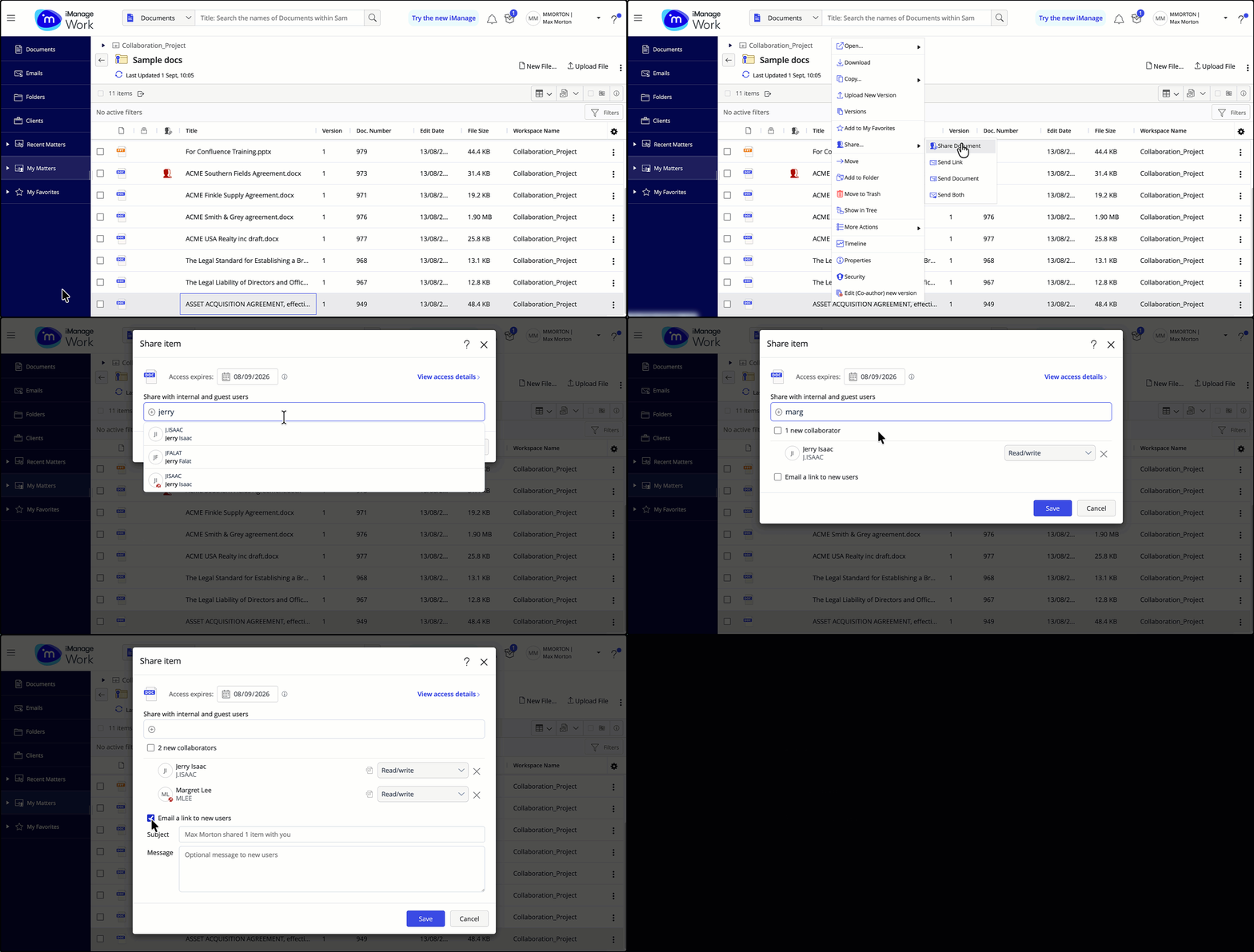
Q: Can I send a message to collaborators while sharing a document?
A: Yes. The message window supports a maximum of 254 characters.
Q: How do I identify which collaborator is currently working on the document that I shared?
A: When a collaborator opens a document to edit it, their user name is displayed in the following fields:
Checked out user
Last User
NOTE: The email address of a guest user who opens a document for editing is displayed in the Checked out and Last User fields with the @ prefix.Figure: Identifying the collaborator currently working on a shared document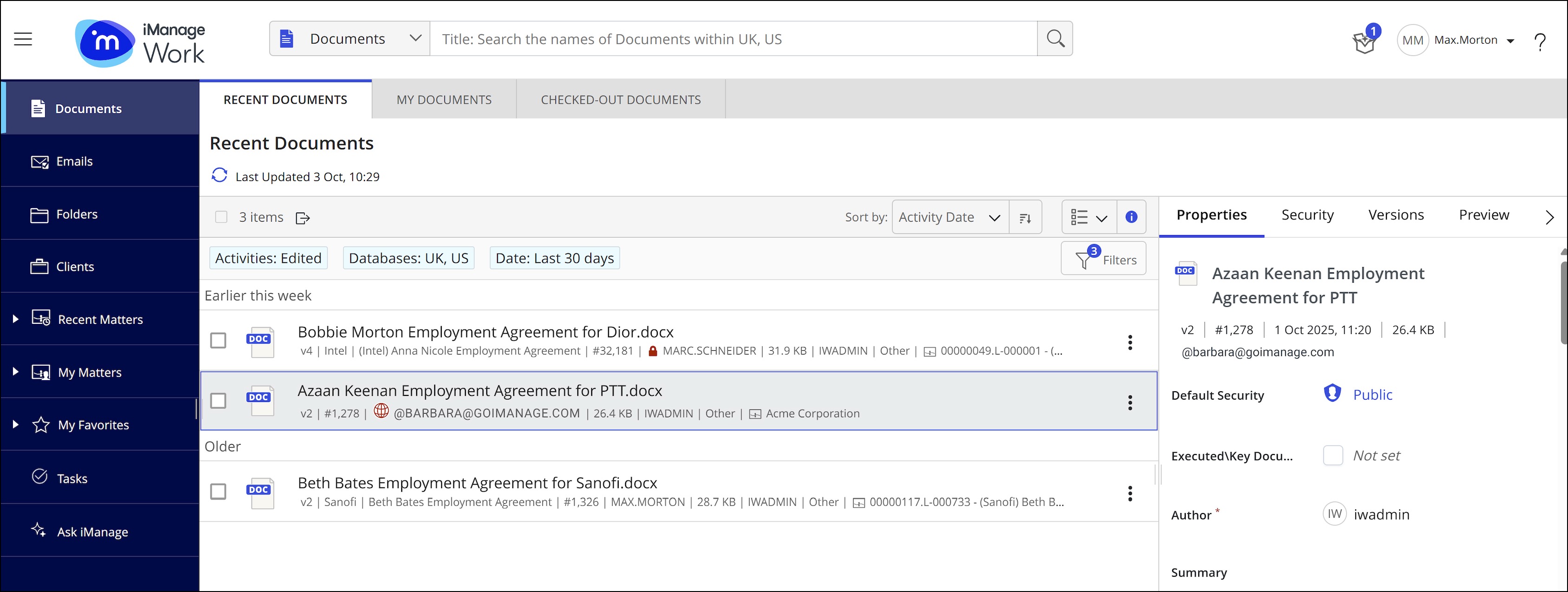
Q: Why’s the document still shown as checked out (in iManage Work) to a user after a link has expired or is removed for the user?
A: If a link recipient has a document open in Microsoft Web or their Microsoft Desktop application at the time that the link expires or their access is removed, it can take up to 1 hour for the document to be released and shown as checked in to iManage Work.
Q: Can I share a previous version or multiple versions of a document?
A: The Share Document option is available only for the latest version of a document. If a new version of a document is created while there's an active share on the document, by default, the collaboration link for that document will point to the newly-created version.
Q: Can all iManage users in my company share documents using Collaboration Links?
A: This feature is configurable per user by one of your iManage Administrators. As a user, if you don’t have permissions to share a document, when working on a document that's been shared by someone else, you can still:
View who the document is shared with.
Create a new version of the document, and have that document inherit or remove the collaboration link at the time of version creation.
Q: Can I view who a document is shared with while working with the document in Microsoft Word, Excel, or PowerPoint desktop?
A: Yes. Open the iManage Properties panel of the document to view the Shared status and the number of users the document is shared with. Hovering over this number opens the Collaborators drop-down list.
Q: Can I view if a document I'm working on has ever been shared for collaboration previously?
A: Yes. Select Timeline from the context menu for the document in question. On the Activities tab, select the new Collaboration filter. This shows you the history of when the document was shared, with whom, and by who.
Q: Why is my subdomain included in the landing page URL and the document when I get a collaboration link from another company using collaboration links?
A: This is because you have authenticated to the document through the iManage Tenant sign-in and subdomain of your own company.
Q: Can I use the iManage Work 10 Mobility app on my iOS phone to create and edit Collaboration Links?
A: Yes, if you're using one of the following apps on your phone, you can create, edit, and remove Collaboration links identically to how you can in iManage Work Web (permissions allowing):
iManage Work 10 Mobility
iManage Work 10 for Intune
iManage Work 10 for Ivanti
iManage Work 10 for Blackberry 10.24.2 or later
Q: Must NRTADMIN group members be explicitly listed on a private document's access control list (ACL) to be able to create collaboration links?
A: Yes. While NRTADMIN members can check out and modify documents, they don't have inherent sharing permissions. To create a collaboration link, they must be added directly to the document's ACL (access control list) in addition to also having the Send Collaboration Links privilege set for their role.