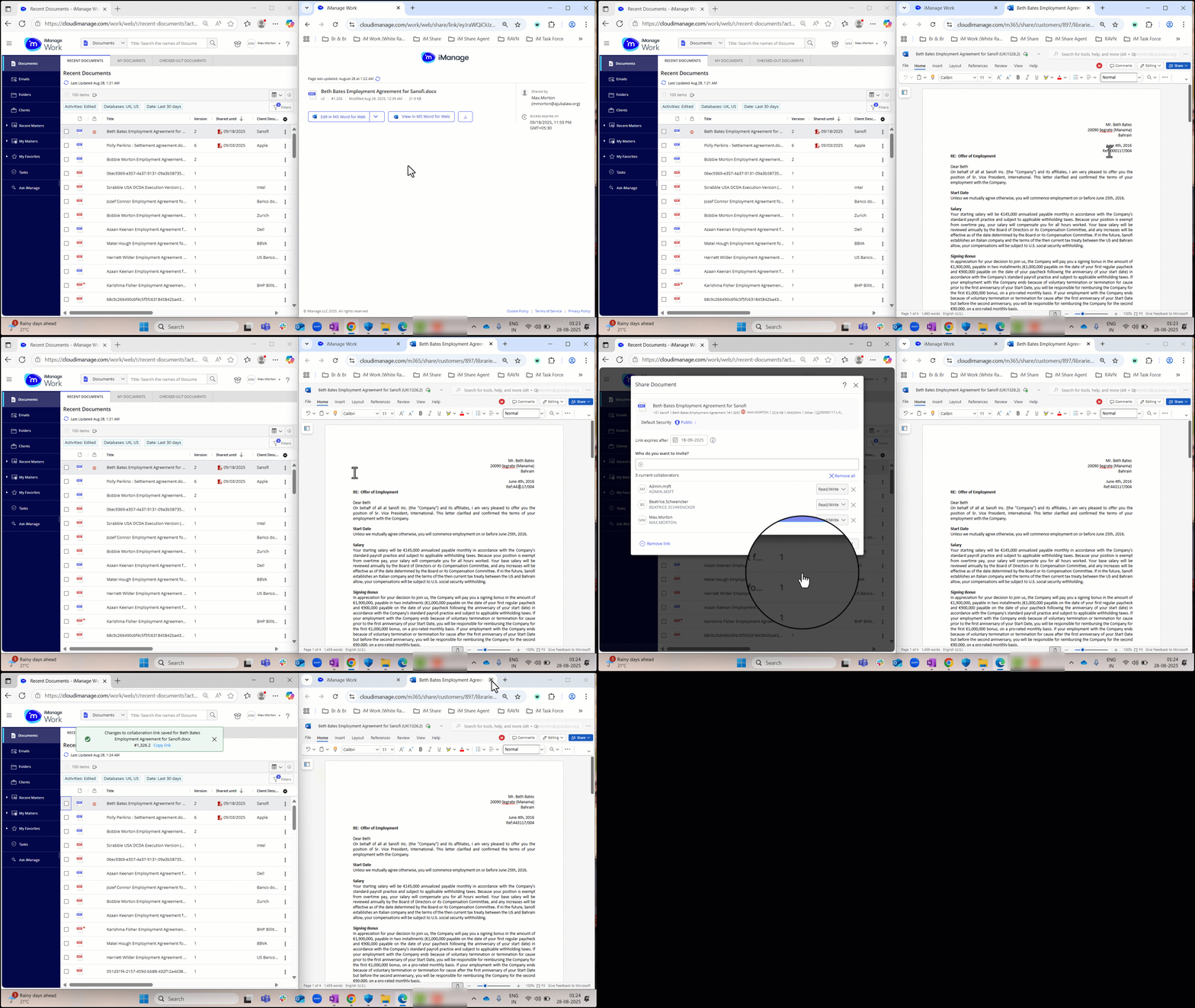
When an iManage Work user shares one or more documents with you through a collaboration link, you may receive an invitation email from noreply@imanage.work with a link to the shared document.
If an iManage user bulk selects five documents, all five documents will be sent to you in the same email.
NOTE:
If you don’t receive an email from noreply@imanage.work, it’s possible that this email address might be treated as spam by your organization. In such scenarios, check your spam folder.
Any email ID registered as an iManage user or guest user will receive an access code if their email address is entered in the Verifying identity and requesting access page. However, they won’t be able to open the document shared through a collaboration link unless they have been invited to collaborate.
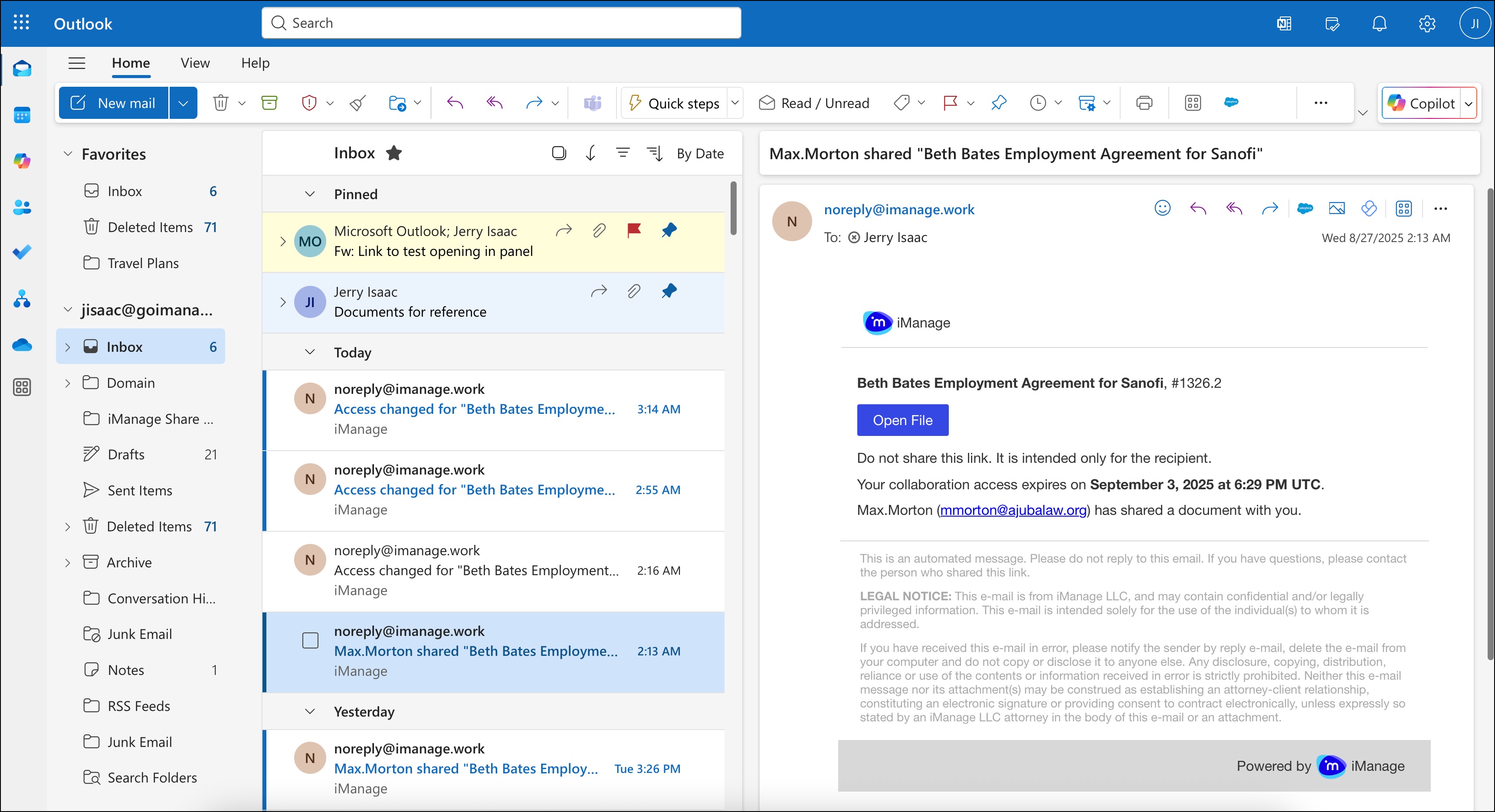
The email contains the following metadata:
File name
Document and version number
Collaboration link to the document(s)
Expiry date in UTC format
Name of the iManage user who shared the document(s) with you through a collaboration link
iManage terms and conditions
Selecting the link opens a new tab in your browser window where you must enter your email ID for verification and for requesting access.
Where multiple documents are shared with you through the same email, each link takes you to that document directly. Once you have authenticated to access one link, you can access the other links without needing to re-authenticate again within a window of 10 minutes.
Enter your email ID and select Verify identity and request access.
Figure: Verifying identity and requesting access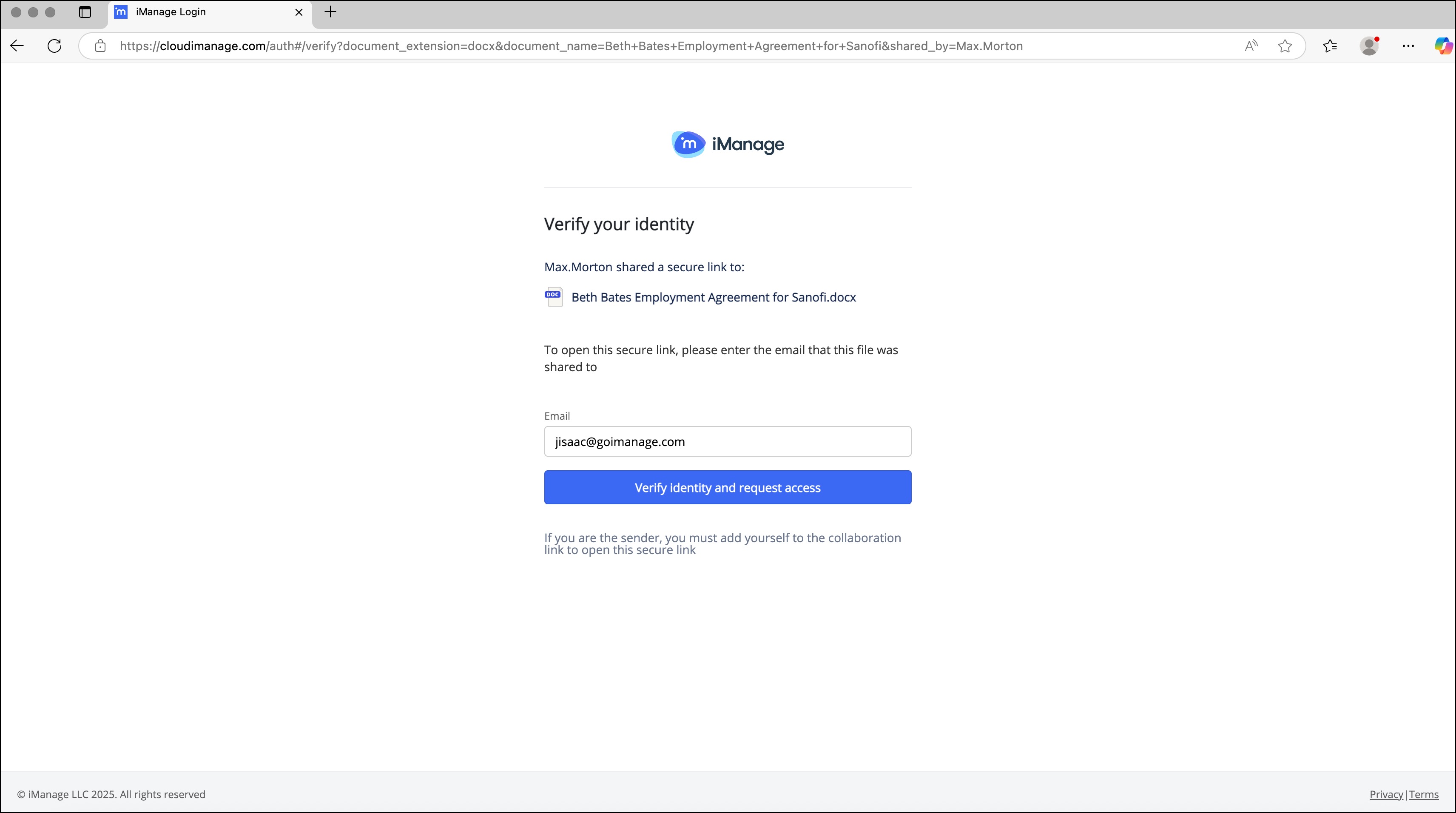
Based on your user account type, the options shown on screen to access the shared document are as below:
If you’re an existing iManage user, you’ll be taken to the SSO dialog of your firm where you must enter your password.
Figure: Authenticating an internal iManage or cross-tenant user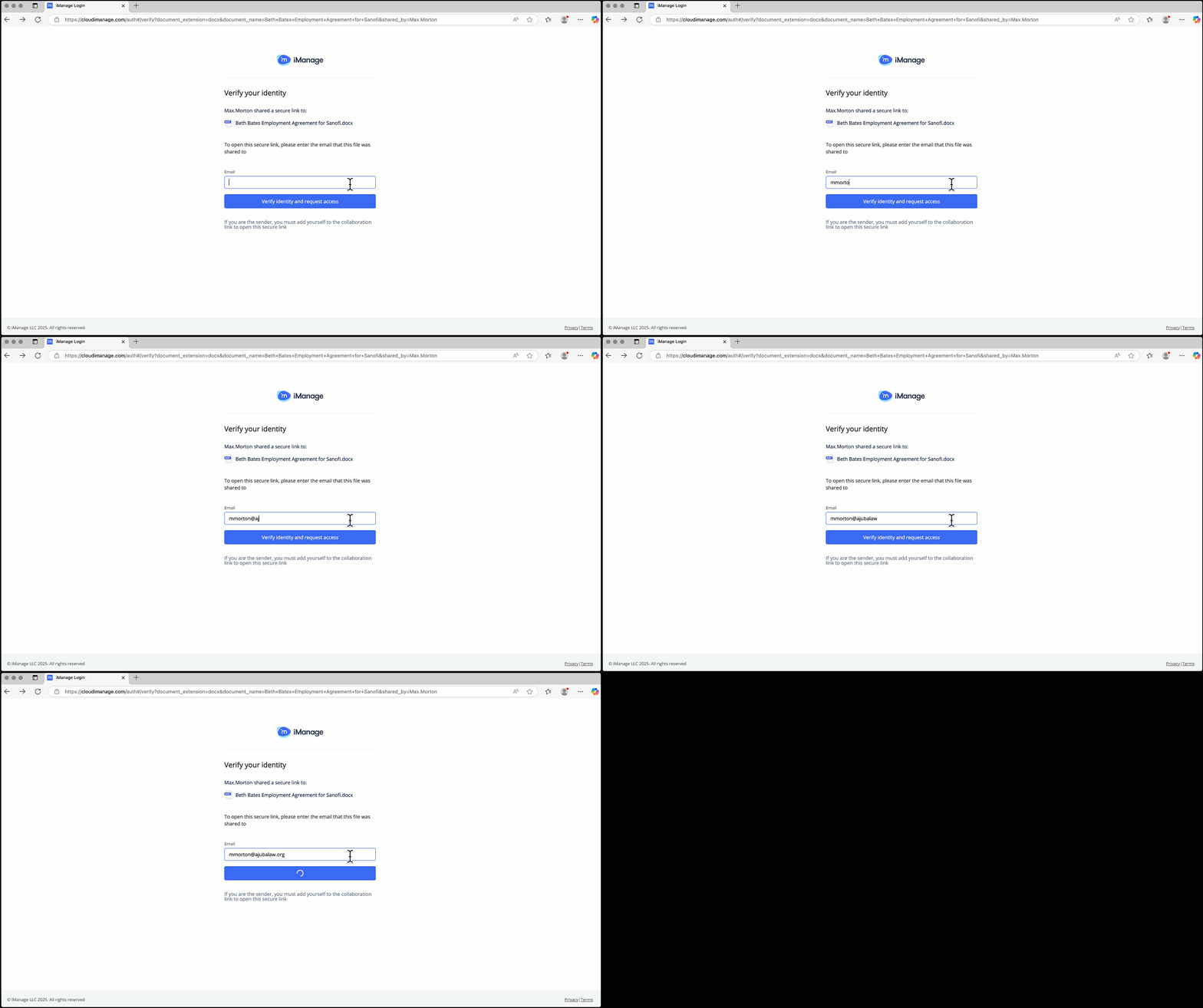
If you’re a non-iManage user, you’ll be asked to enter an access code. You’ll receive an email from noreply@imanage.work with an eight-digit access code, which is valid for 10 minutes from the time it arrives in your email inbox. If you haven’t received the code within a couple of minutes or your existing code doesn’t work, select Request new code. You may enter a code up to three times.
Enter the code in the Enter code field and then select Access File.
Figure: Authenticating an internal non-iManage or guest user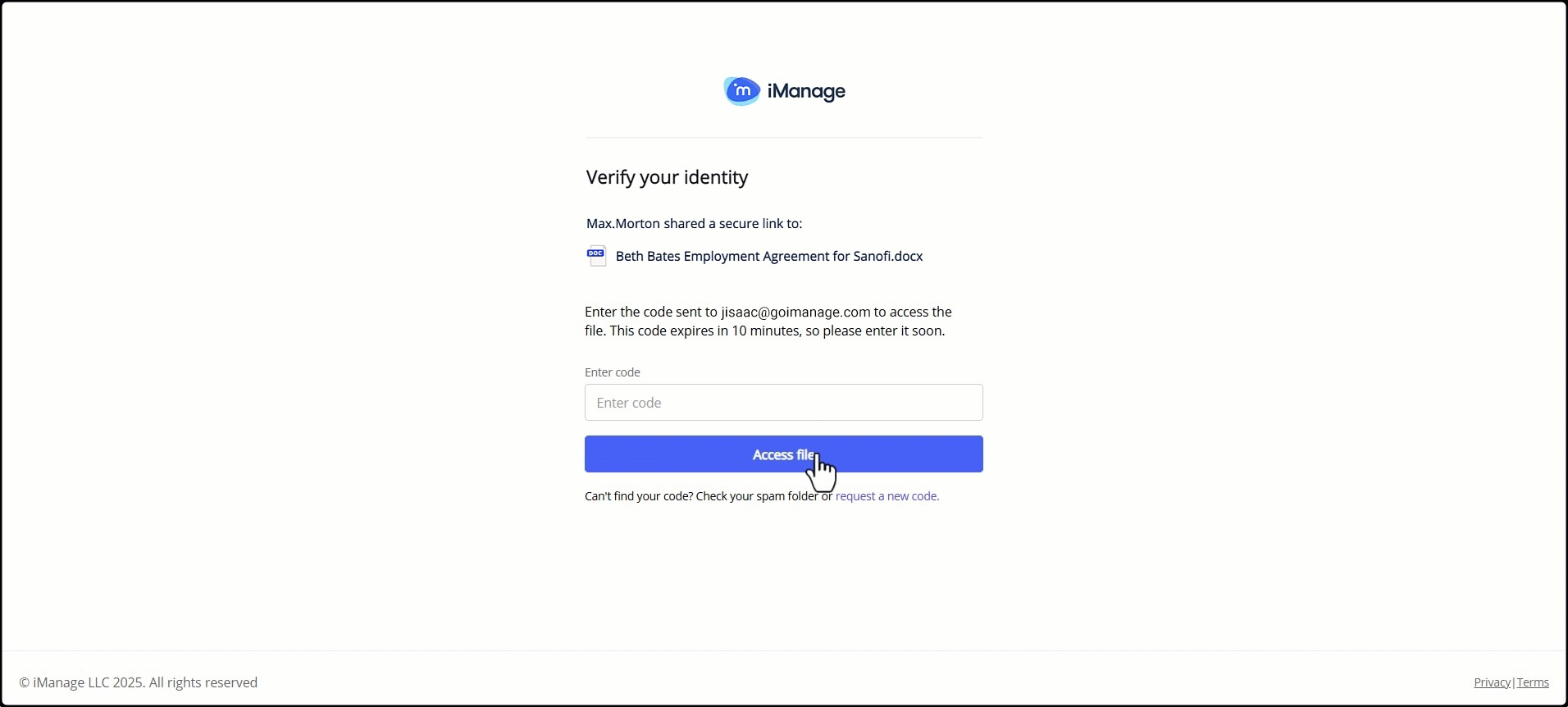
You’re now directed to the landing page, where the following metadata is displayed:
File name
Document number
Document version
Date when the document was last modified
Name of the iManage user who shared the document
Expiry date of the collaboration link
iManage Terms and conditions
Figure: Collaborator’s landing page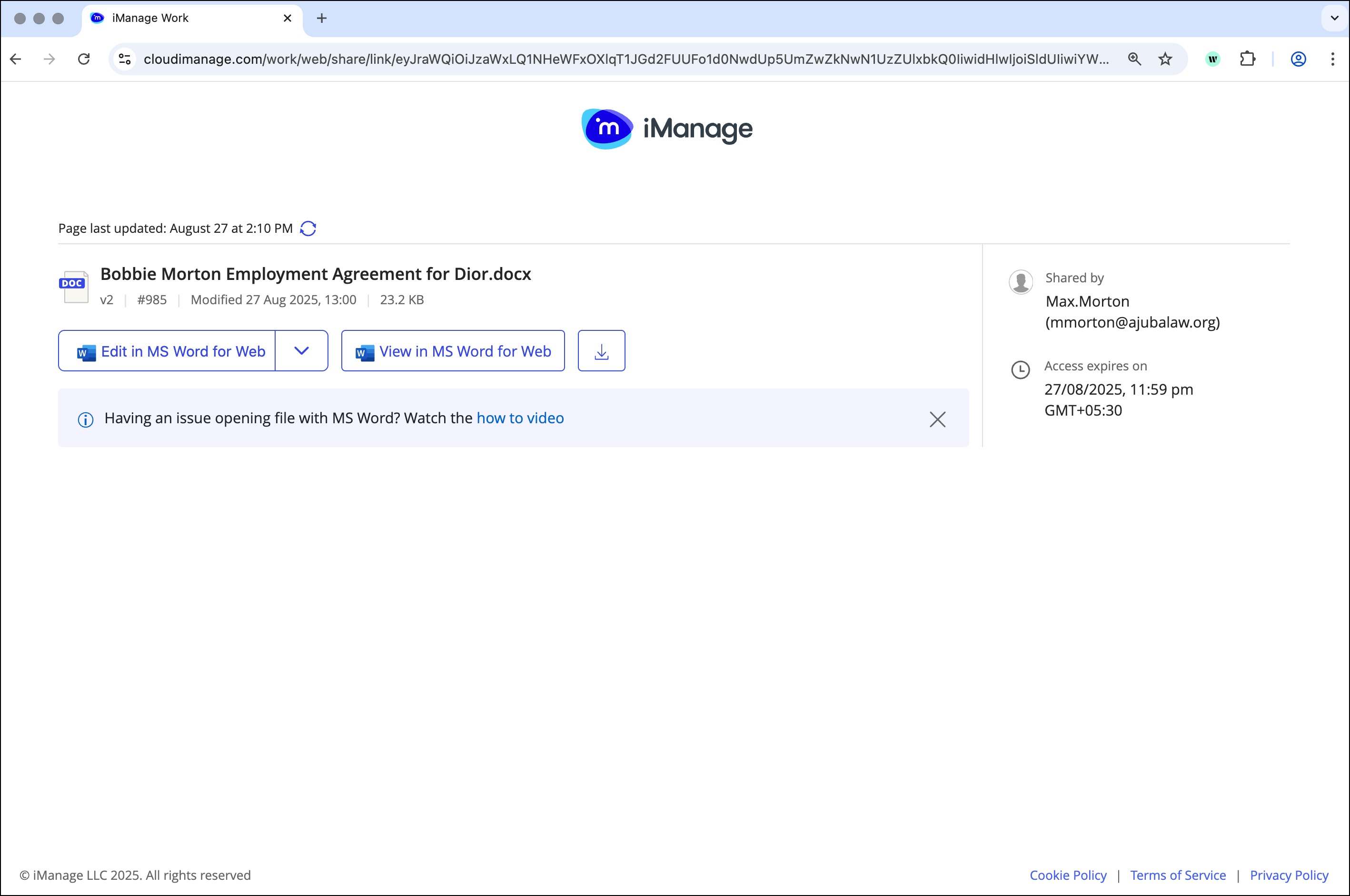
NOTE: On the landing page, Download is the only option available for file types that aren’t supported for co-authoring by Microsoft.
You can now:
Edit in MS Word for Web: Edit the document in Microsoft Office for Web on a computer or tablet (the option isn't available on your mobile phone).
Figure: Editing in MS Word for Web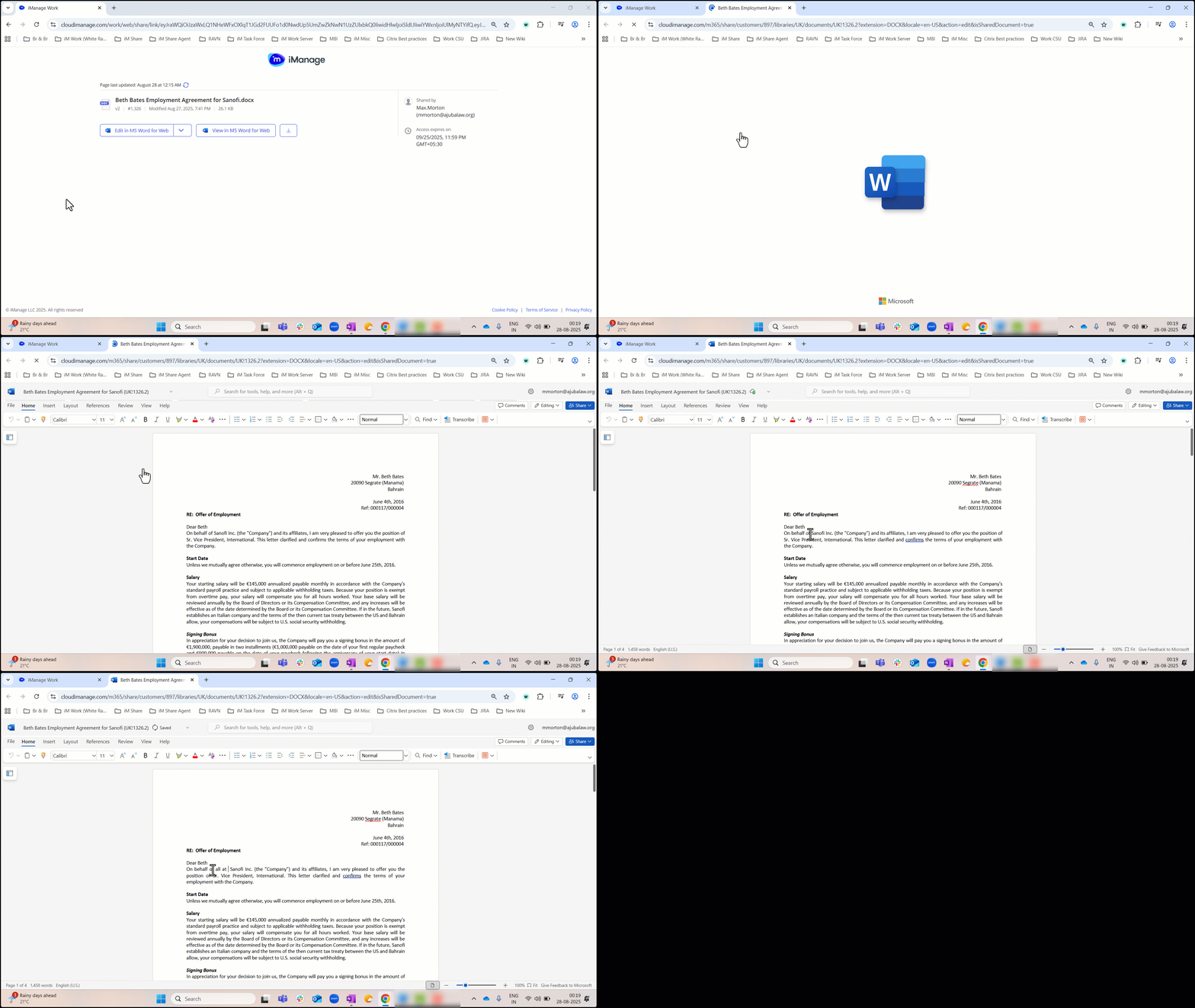
Edit in MS Word: Edit the document in Microsoft Office on a desktop. Also, to edit the document in Microsoft Office Desktop, Microsoft 365 applications for the desktop must be enabled. iManage Next Generation Co-authoring must be enabled on your iManage tenant if you're an iManage customer. Edit in MS Word is supported for phones or tablets. You need to have Microsoft Word installed on your device as M365 Copilot is no longer supported by Microsoft for editing.
Figure: Edit in MS Word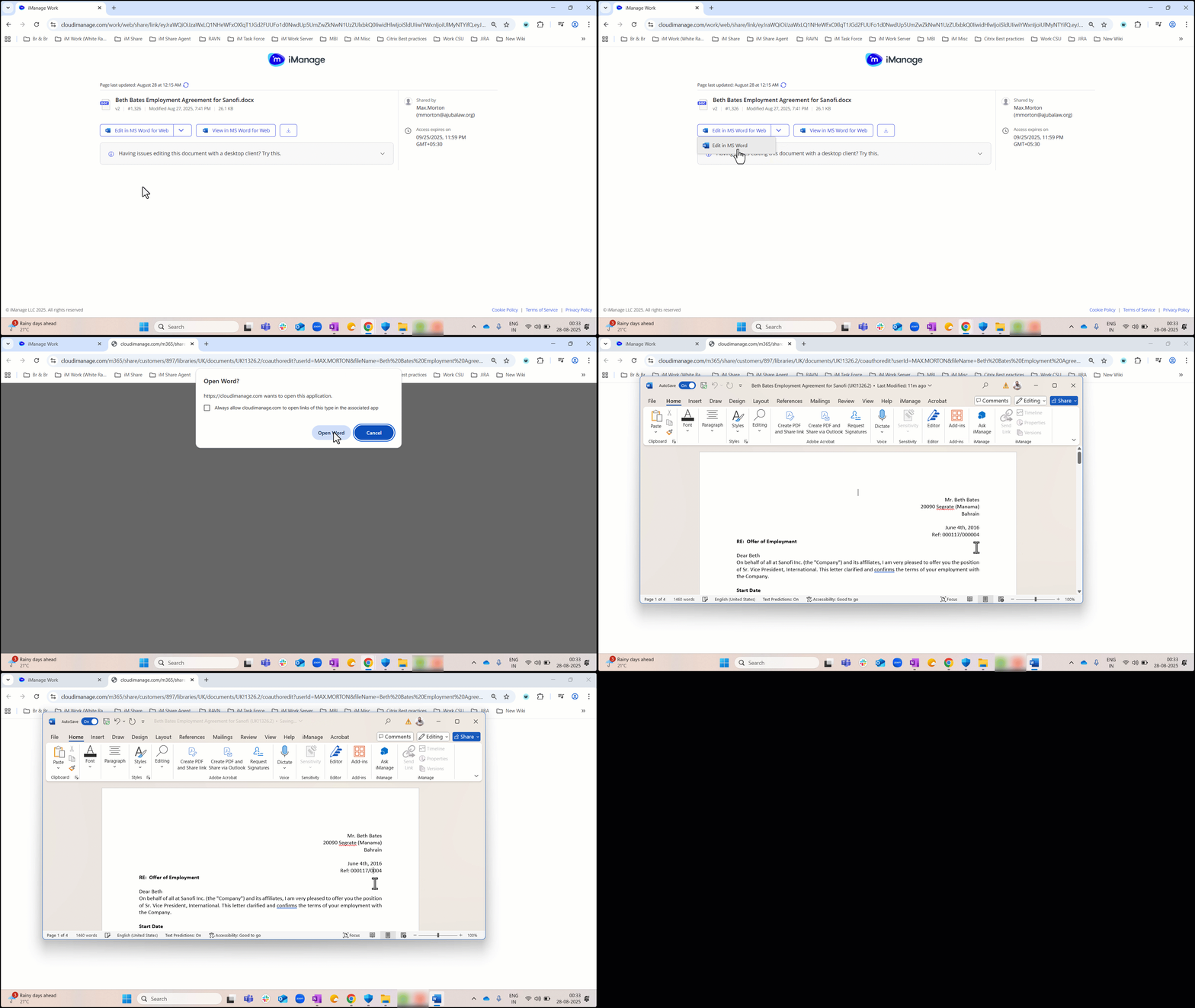
View the document: View in Microsoft Word for Web.
Figure: Viewing in MS Word for Web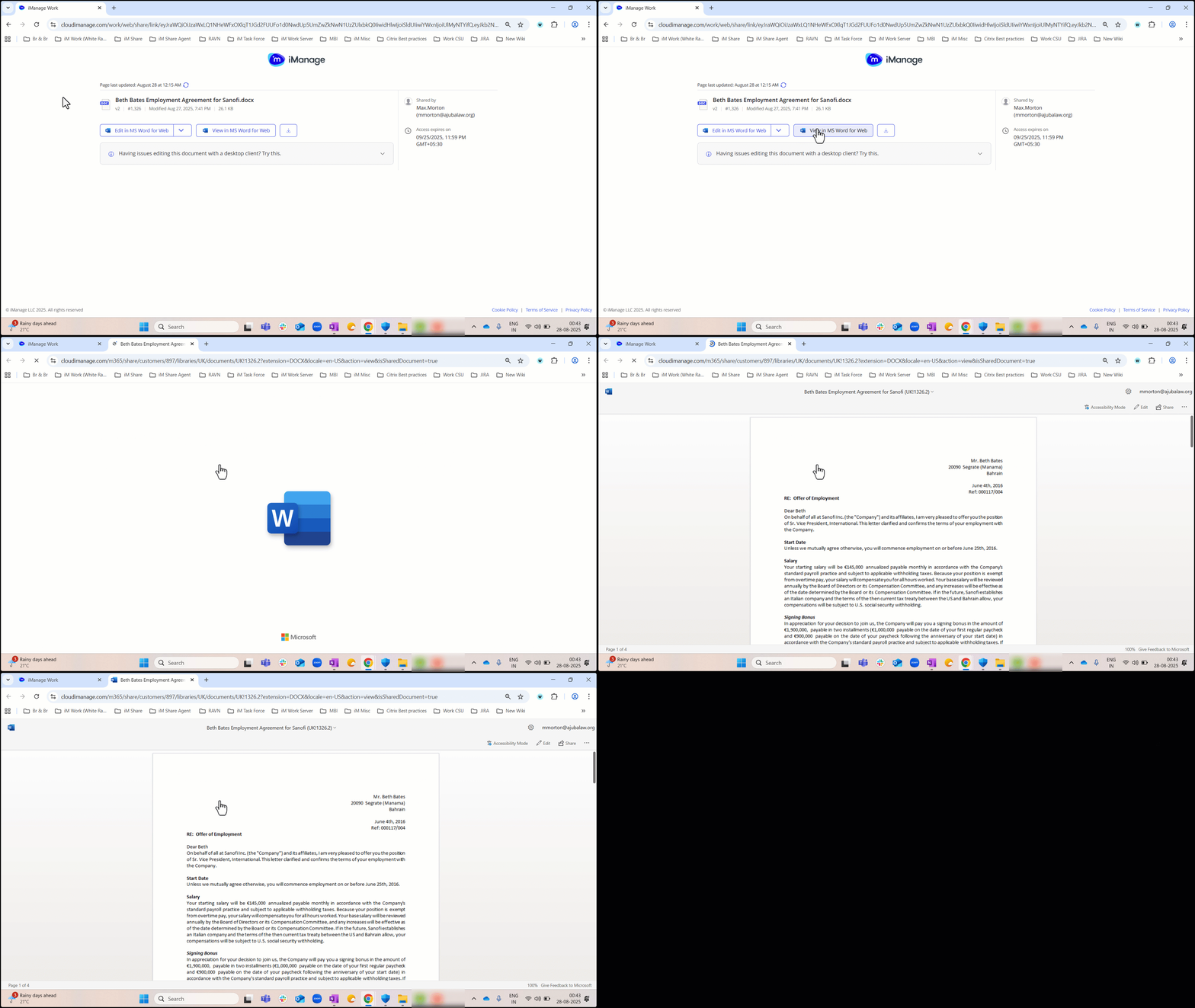
Download the document: Download to your device.
NOTES:
To edit the document in Microsoft Office for Web, iManage Work Next Generation Co-authoring must be enabled on your iManage tenant if you're an iManage customer.
Links are per document, so each link takes you to that specific document only.
Once you've authenticated, selecting a second document link shared with you takes you to that document, as long as your authentication token is valid.
The following page is displayed when the document is open and your access to the link expires or the link is removed.
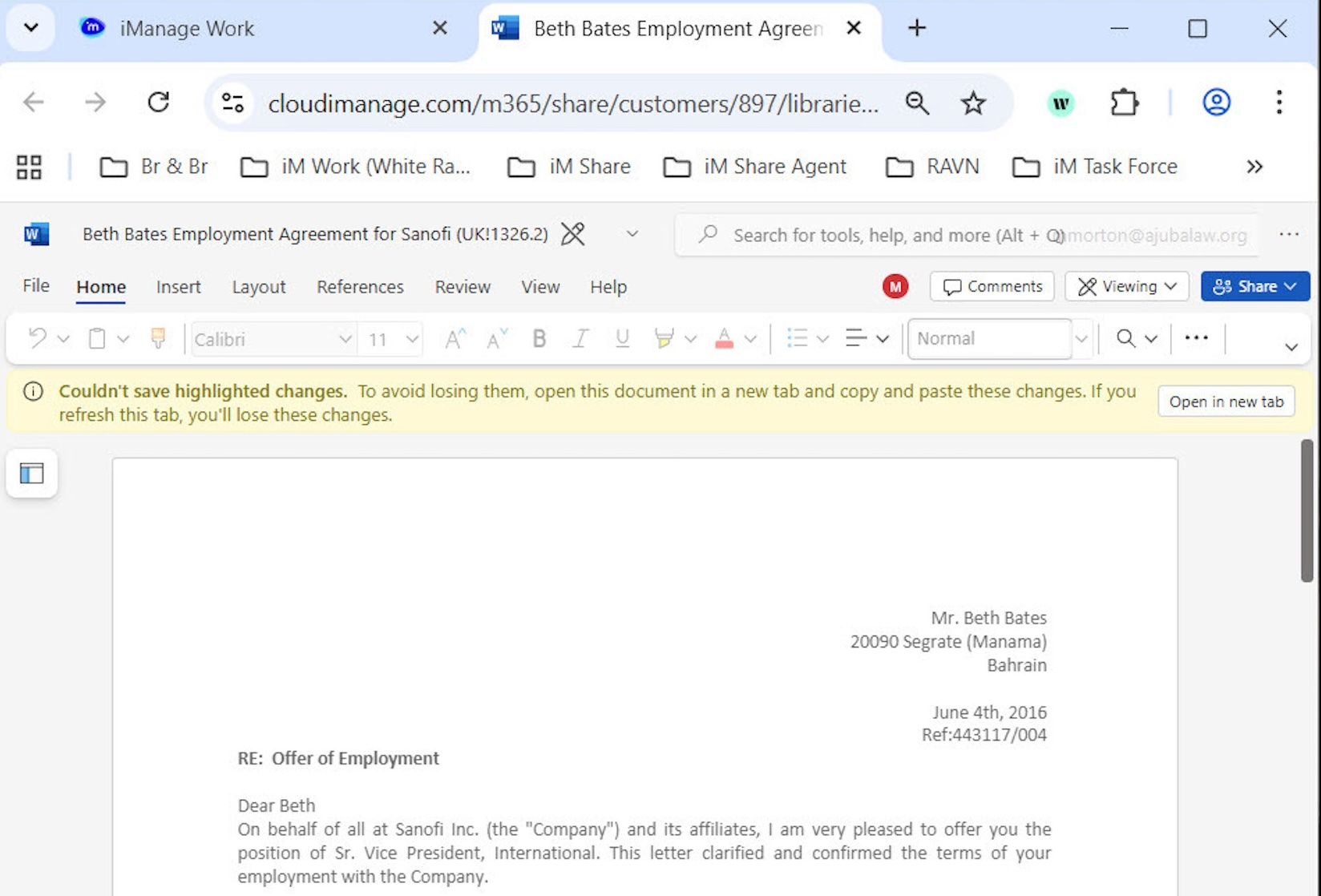
The following page is displayed if your access is changed from Read/Write to just Read, when working on the document.