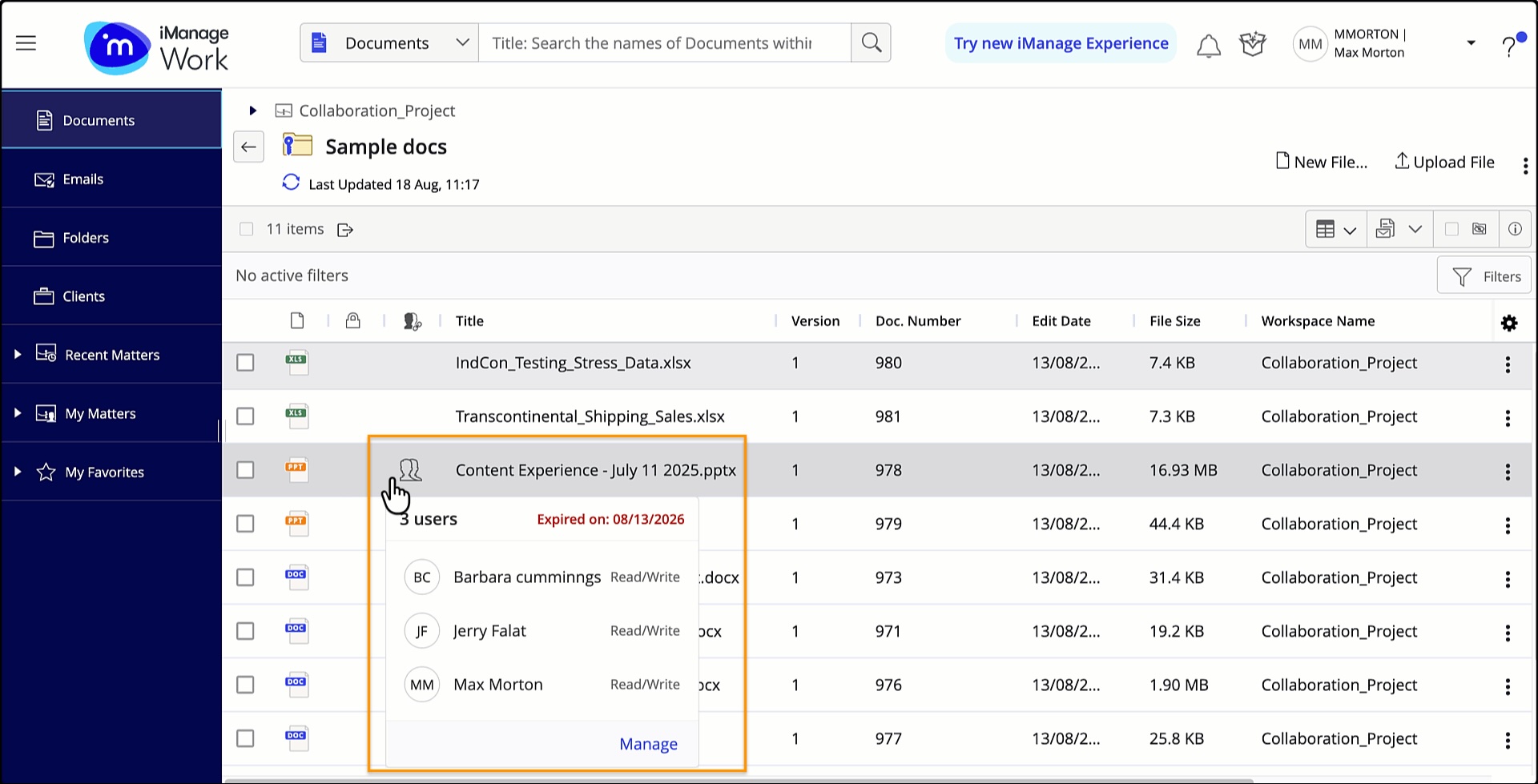
You can remove a shared collaboration link by using one of the following methods:
Remove a link for all recipients using the context menu or toolbar
Remove a link for all recipients using the sharing status indicator
NOTES:
You can select up to five documents and then select Stop Sharing from the multi-select toolbar. This option is displayed only if at least one of the selected documents has an active share.
When a document link has expired or sharing is stopped, the document is no longer displayed in the SHARED BY ME tab.
Removing link for all recipients using the context menu or toolbar
Select the documents that you shared for collaboration.
Remove the link using the context menu or the toolbar.
In the toolbar:
Select Share > Share Document.
In the Share item dialog, select Remove shared link.
Select Stop sharing.
Figure: Removing one or more collaboration links using the Share item dialog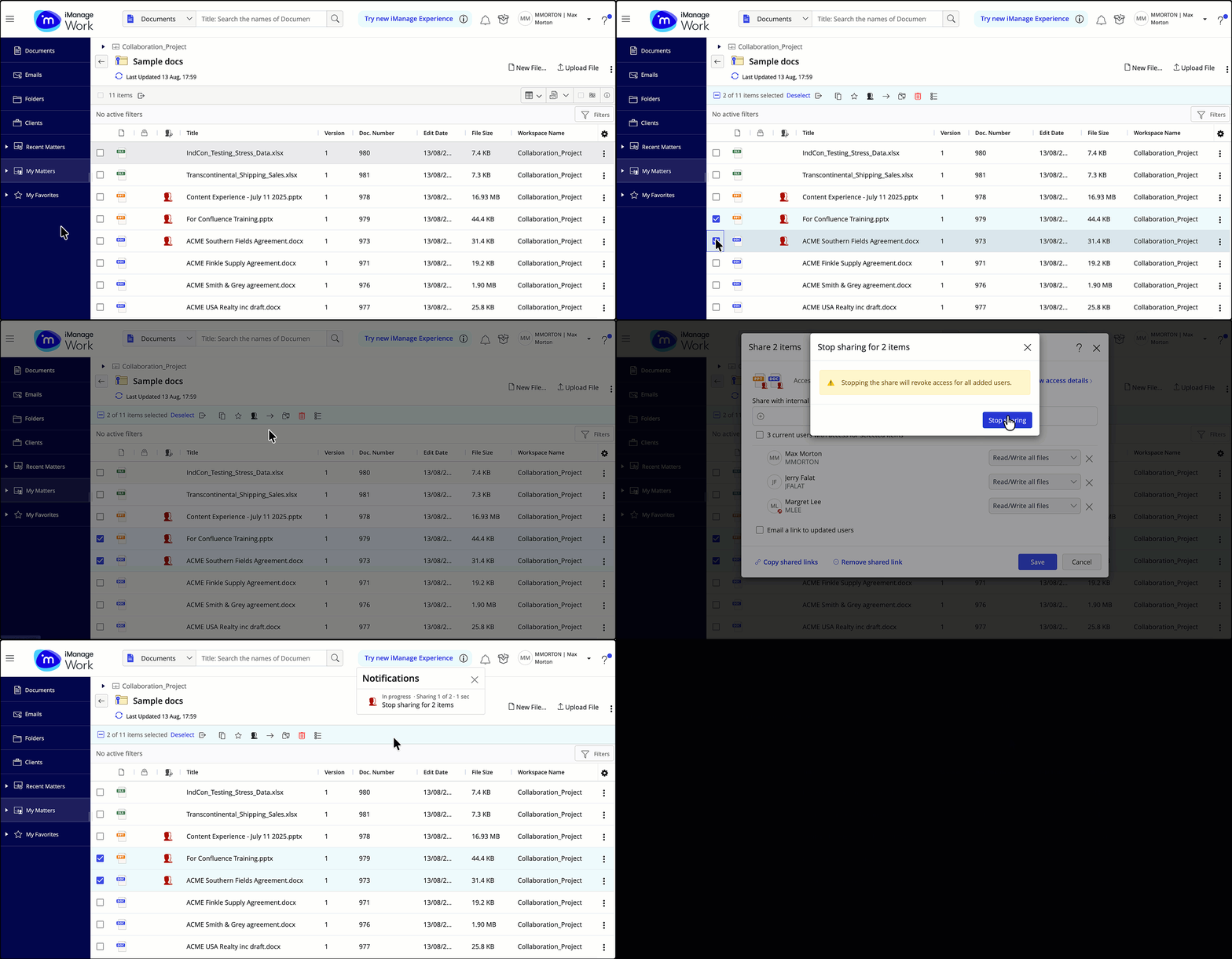
From the context menu:
Select Share > Stop Sharing > Stop sharing.
Figure: Removing one or more collaboration links using the context menu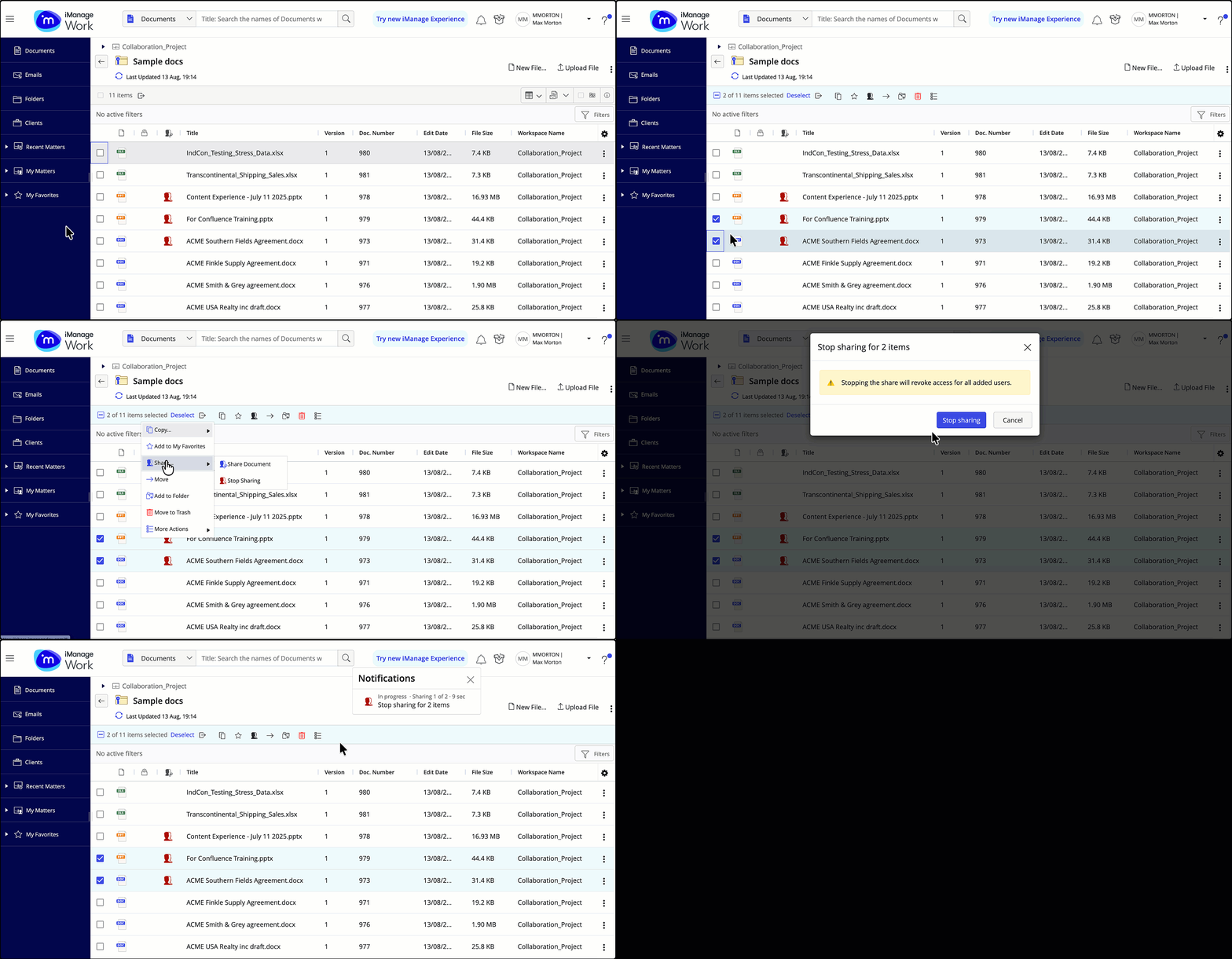
Removing collaboration links for all recipients using the sharing status indicator
Select a document that you’ve shared for collaboration.
Hover over the sharing status indicator and select Remove shared link in the floating dialog.
Select Stop sharing.
Figure: Removing a collaboration link using the sharing status indicator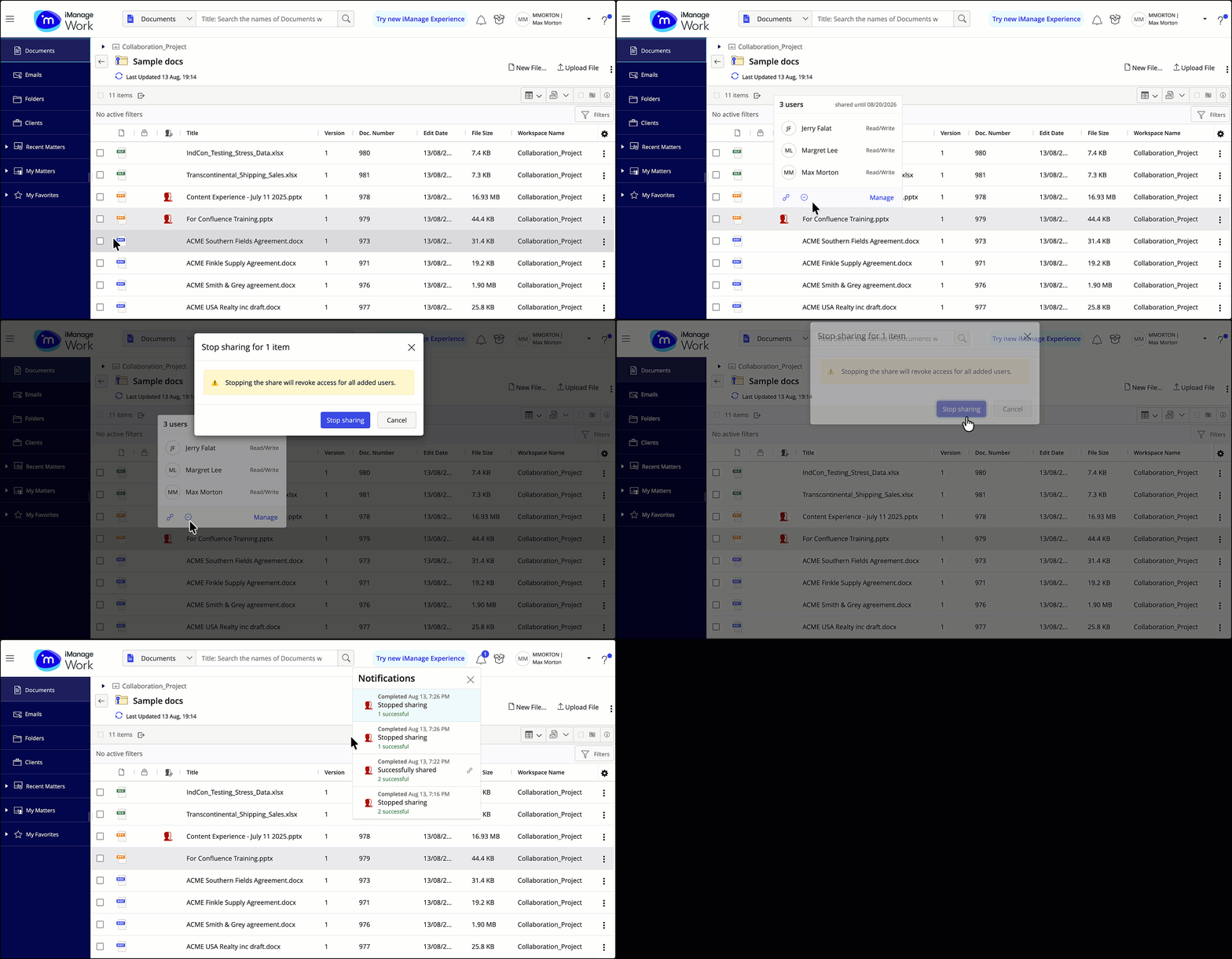
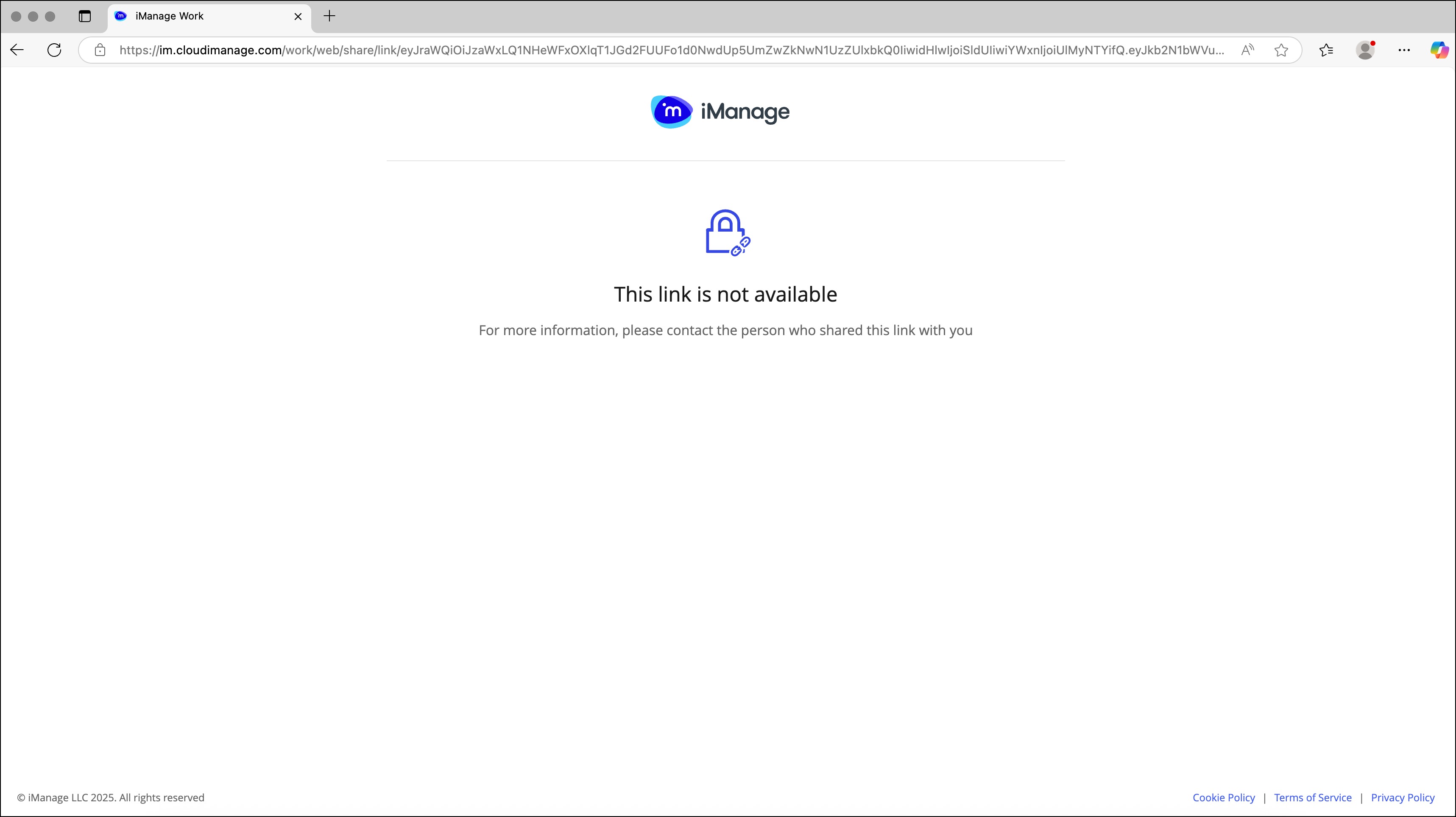
Collaborators are taken to the following page when a collaboration link is removed or expires.
Expired links are identified by a unique :Collab_link_expired: icon, displayed next to the shared documents up to seven days after the links expire.