You can remove one or more users in the following ways:
Removing users using the context menu or toolbar
Select the document(s) that you’ve shared for collaboration.
From the context menu or in the toolbar, select Share and then select Share Document.
In the Share item dialog, select the
 icon next to the name of the user who you wish to remove from the active share.
 Select Save. No email confirmation is sent if a user is removed from a link.
Figure: Removing users using the context menu or toolbar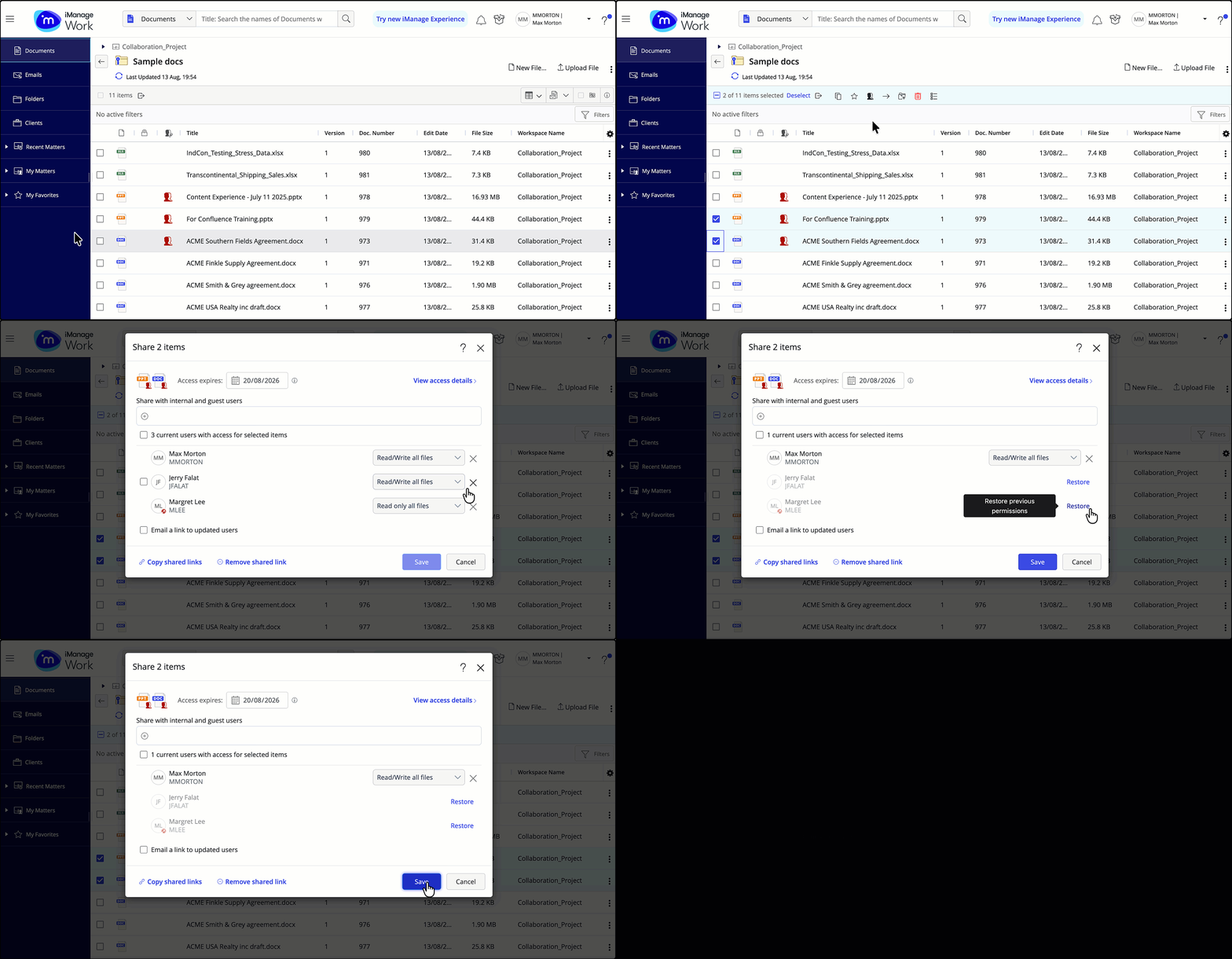
Removing users using the sharing status indicator
Select the document(s) that you’ve shared for collaboration.
Hover over the sharing status indicator and select Manage in the dialog.
In the Share item dialog, select the
icon next to the name of the user who you wish to remove from the active share.Select Save.
Figure: Removing users using the sharing status indicator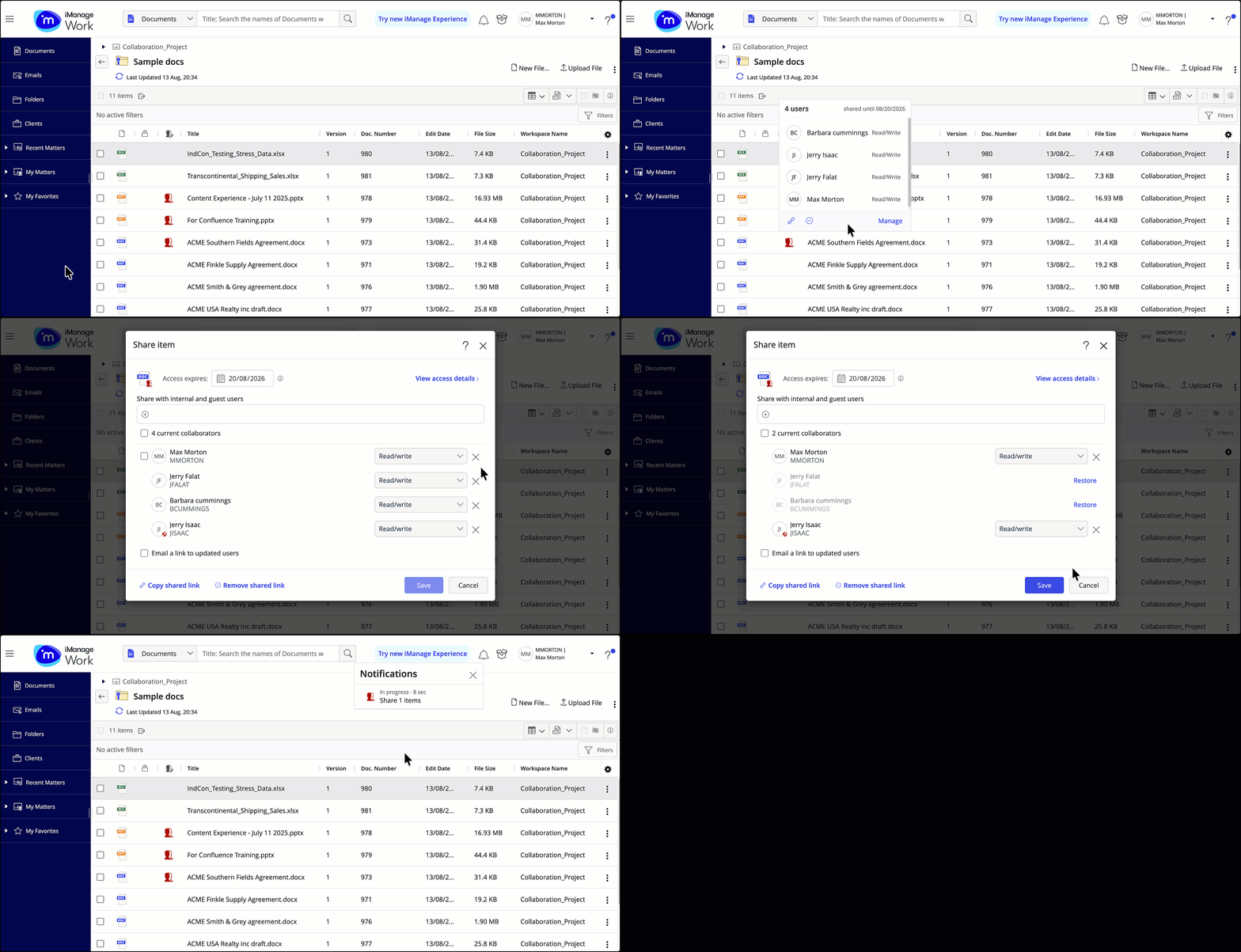
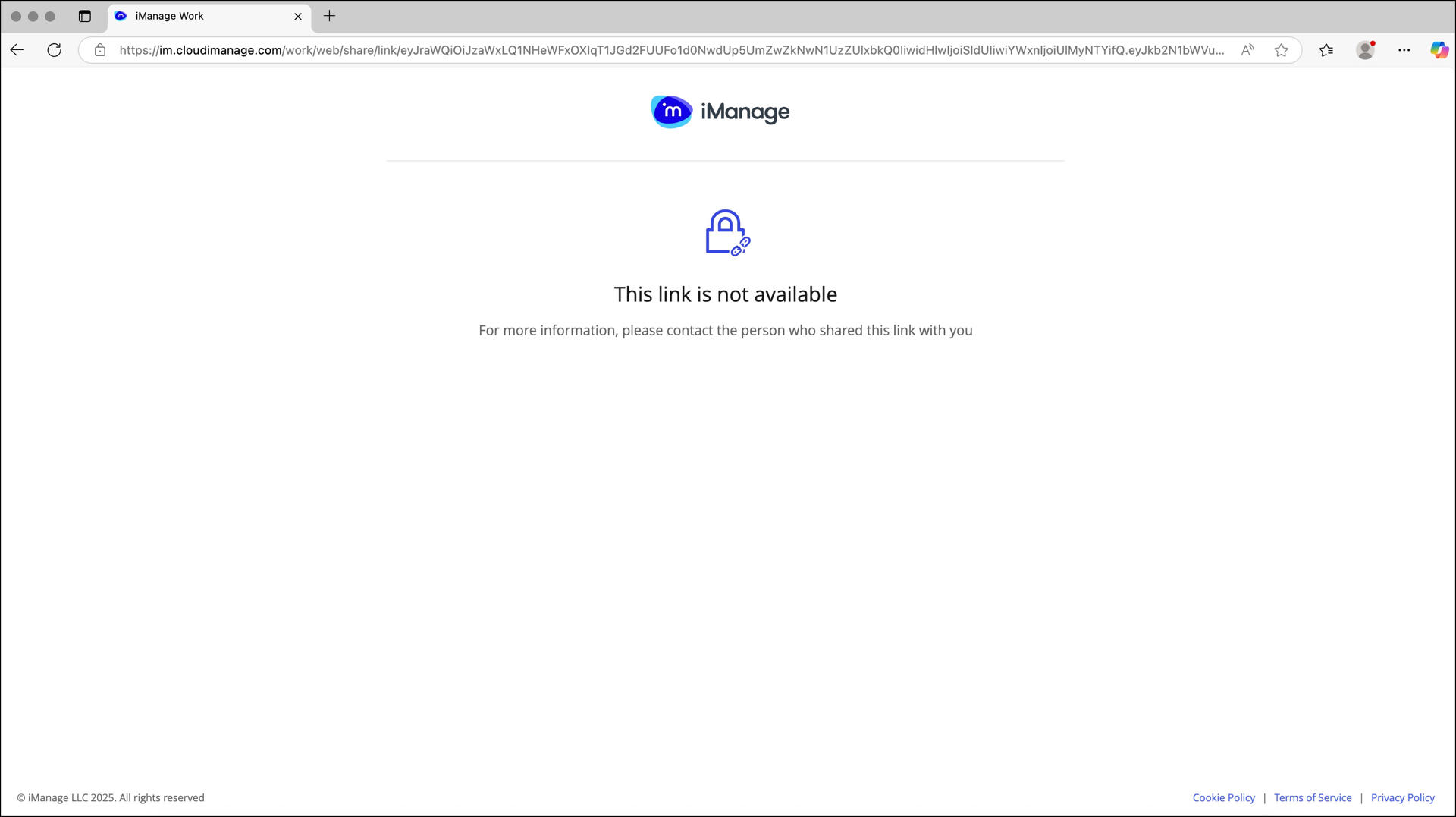
Collaborators are taken to the following page when they no longer have access to the link.
NOTES:
If collaborators have the document open in Microsoft web at the time their access is removed, they lose access to the document the next time their edits are saved or when they refresh manually.
If collaborators have the document open in Word, Excel, or PowerPoint Desktop at the time their access is removed, an error message is displayed the next time auto-save runs, but the document remains open on their device.
In either of the above scenarios, it may take up to 1 hour for the document to show as checked in (globe icon removed) in iManage Work Web.