Start a workflow is a contextless trigger, which isn’t tied to a document or workspace. Users access it from the Start a Workflow tab in the iManage Work navigation panel, view the list of workflows created with this trigger, and select one to start.
Trigger name | Use case |
|---|---|
Start a workflow | This trigger starts a workflow in an iManage Work library. Provide a display name that is displayed to users in iManage Work applications. If Wait For Completion is set to Yes, you must use Update workflow state in your workflow, otherwise, applications eventually time out without indicating the completion state to the user. |
Activation
To add the Start a Workflow option to the navigation bar in iManage Work:
Sign in to iManage Control Center as an NRTADMIN.
Browse to Work Clients > Web Client.
Select Settings > Navigation.
For more information, refer to Configure navigation settings section in the iManage Control Center Help.Select Edit.
In the Navigation dialog, select the Start a Workflow checkbox.
Figure: Adding the Start a Workflow option to the navigation bar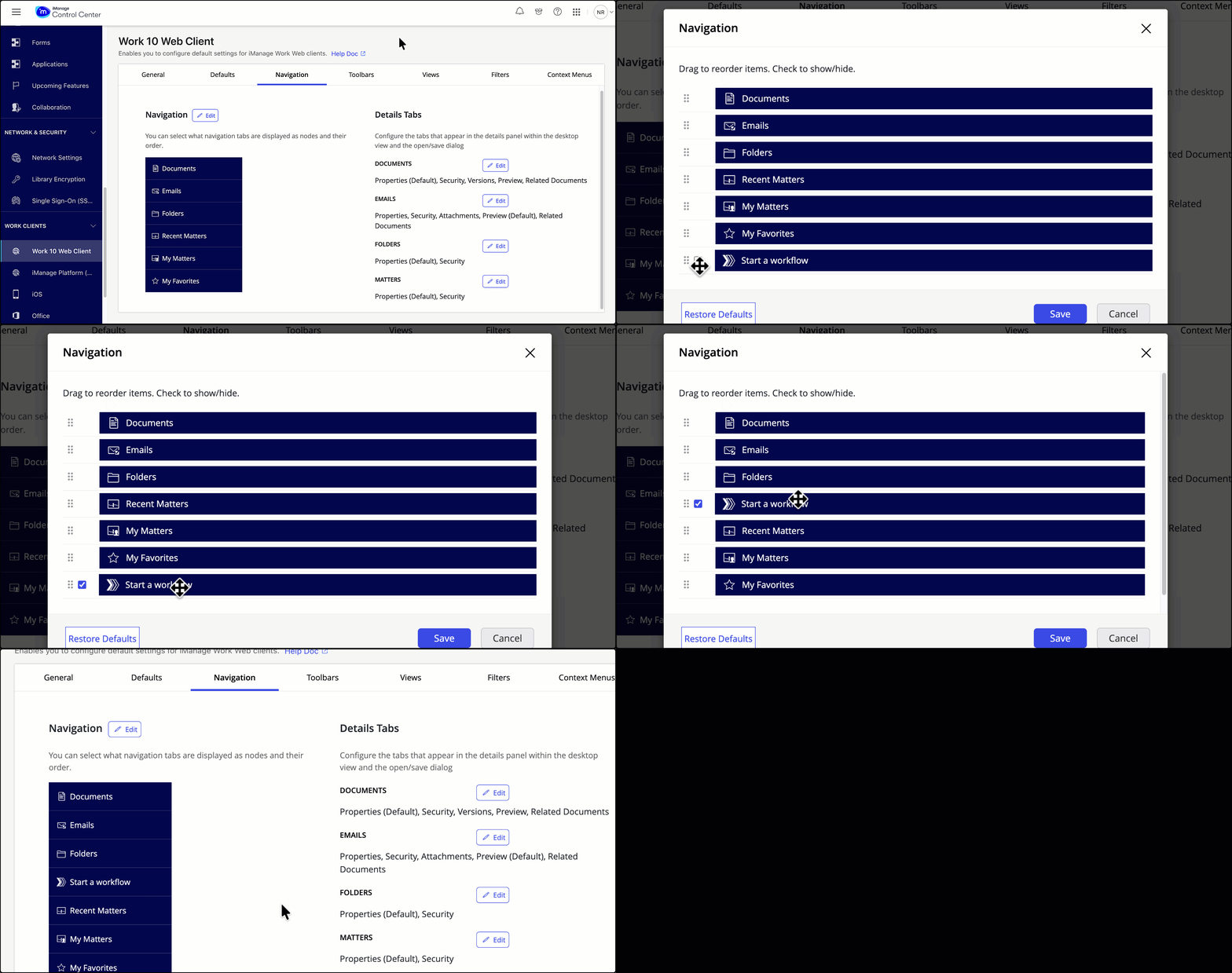
(Optional) Change the default order of the Start a Workflow tab by dragging it to any position in the list.
Select Save. The preview in iManage Control Center displays the iManage Work side navigation panel with the Start a Workflow tab.
NOTE: After you make this change, all users must sign out of iManage Work and sign in again to make sure the Start a Workflow tab is visible to them. Once enabled, the Start a Workflow tab lists every workflow created using the Start a Workflow trigger, and users select one to start it.
Build your flow
To create a workflow that uses the Start a workflow trigger:
Go to http://make.powerautomate.com and select +Create.
Create an Automated cloud flow.
To view all the available iManage Work triggers, search for iManage Work.
Select the Start a Workflow trigger.
Specify the following:
Workflow name: Provide the name that users will select when they want to trigger the workflow.
Description: Provide a detailed description of the workflow for users.
Library ID: Select what library the workflow will apply to.
Form ID: Select a form you’ve built in iManage Workflow Manager, or select None.
Available To Users and Available To Groups: Specify one or more user IDs or group IDs (semicolon-separated) for whom the workflow is available.
Wait For Completion: Specifies if applications wait until the workflow completes execution:
If set to Yes, you must use the Update workflow state action for all logical conclusions of your workflow or the user is informed that the flow is taking longer than expected.