Signing a document
You can sign a document/agreement from the signature email or from Docusign or Adobe Sign.
Docusign: To sign a document, select Review Document in the signature email you received. For more information on how to sign a document, go to https://support.docusign.com/s/document-item.
Adobe Sign: To sign an agreement, select Review and sign in the signature email you received. For more information on how to sign an agreement, go to https://helpx.adobe.com/ie/sign/using/signing/sign-agreements-sent-to-user.html.
If you’re an approver, the Review and approve button is displayed.
Completion email sent to the sender of the document/agreement
Completion email (Docusign)
After all signatories have signed the document, the sender of the document receives a completion email. This email includes the date the document was sent, along with a copy of the signed document. To view the signed document in Docusign, select View Completed Document in the email.
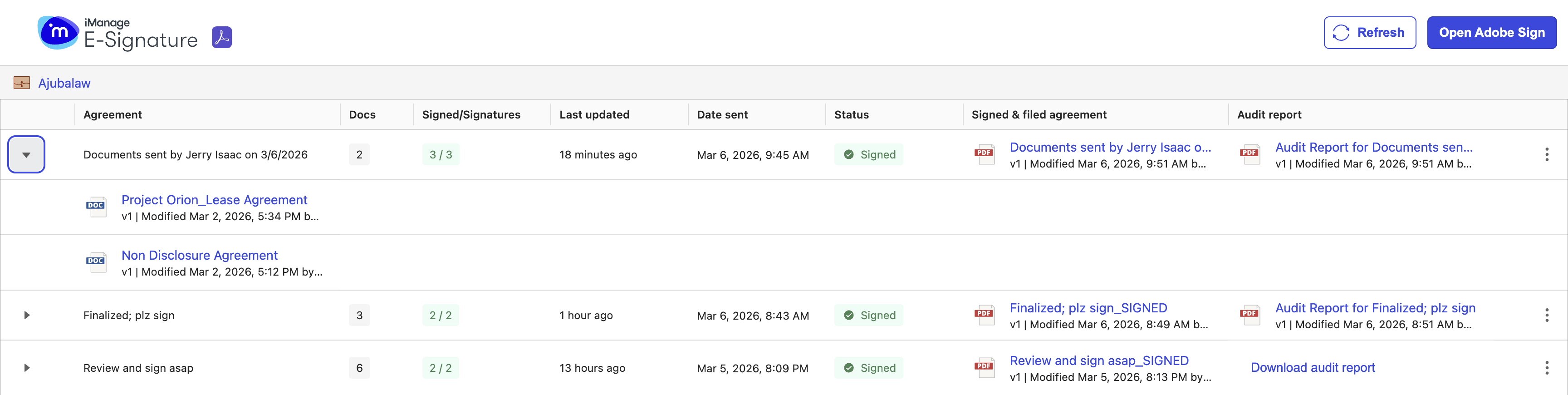
The document status changes to Signed in the E-signature dashboard after all signatories have signed it and E-signature files a copy of the signed document to iManage Work.

Let's consider a scenario in which a document requires signature fields (signatures, initials, date signed, and/or text) as well as other non-signature fields such as name, email, or company. iManage Work E-signature considers the document as signed and files it as soon as the signature fields are added. So, if an unsupported field is added after this, the signed and filed copy of the document won't include it. However, if the unsupported field is added before the signature fields, the signed and filed copy of the document includes it.
Also, there may be scenarios in which an envelope/agreement contains multiple documents, out of which only one or a few require signature, while some documents may need the signatories to add only a date or other information for completion. iManage E-signature does the following for each such completed yet non-signed document in the envelope:
Changes the status to Signed but the Signed/Signatures column displays 0/0.
The completed document and Certificate of Completion are uploaded to iManage Work.
Completion email (Adobe Sign)
After all signatories have signed the agreement, the sender of the agreement as well as all signatories receive a completion email. This email includes the subject of the agreement, list of all the signatories, along with a copy of the signed agreement, which has the Audit Report added at the end. To view the signed agreement in Adobe Sign, select Open agreement in the email.
NOTE: Some of the above may differ based on the agreement settings that the sender has configured for their Adobe Sign account.
The agreement status changes to Signed in the E-signature dashboard after all signatories have signed it and E-signature files a copy of the signed agreement to iManage Work.