We’re committed to providing users with the best possible experience with our iManage Work Next Generation Co-authoring feature. Throughout our 8-month Early Access Program (EAP), we've identified several areas of device specific settings and policies that can impact feature setup, deployment, and success.
Our best practices are designed to:
Enhance user experience: Discover tips for reducing user clicks and suppressing dialogs.
Optimize your results: Get insights on how to achieve the best outcomes from our products and services.
By following the following best practices, you’ll enjoy a more efficient, satisfying, and hassle-free experience.
- Make sure to sign in using the Microsoft 365 applications for the desktop
- Add iManage Work at cloudimanage.com to your trusted sites list
- Version handling in iManage Work Next Generation Co-authoring
- Transitioning from iManage Work Desktop for Windows Co-authoring to iManage Work Next Generation Co-authoring
- Turning off browser notifications
- Ensure the Quick Access toolbar is enabled on your Microsoft 365 applications for the desktop
- Enable Microsoft AutoSave when using iManage Work Next Generation Co-authoring
- Disabling Microsoft Create new files in the cloud automatically option
- Migrating from the iManage Microsoft Office for the web application to iManage Work Next Generation Co-authoring
- Sending feedback when experiencing an issue with Microsoft 365 for desktop applications
Make sure to sign in using the Microsoft 365 applications for the desktop
Before using the iManage Work Next Generation Co-authoring features, you must perform a one-time authentication in any one of the Microsoft 365 applications for the desktop (Microsoft Word, Microsoft Excel, or Microsoft PowerPoint).
If you don’t do this, you'll receive a notification when trying to open a document from iManage Work.

For information about how your administrators can configure iManage on your device, refer to Guided user authentication for iManage Work storage provider in Microsoft 365 applications for desktop.
Additionally, you can also refer to the iManage Work Next Generation Authentication video for a step by step sign-in process.
Add iManage Work at cloudimanage.com to your trusted sites list
When you open documents using iManage Work Next Generation Co-authoring menus, it's possible a yellow banner is displayed informing you that the document is open in protected mode. You'll have to select Allow Editing to edit the file.
To make sure that documents open in edit mode, your administrators can add iManage Work at cloudimanage.com URL to a list of the trusted sites by doing the following:
Browse to Control Panel and select Internet Options.
In the Internet Properties window, select Security.
Select Trusted sites and select Sites.
Add the following site: https://*.cloudimanage.com (the * is in place of your tenant-specific domain or subdomain).
Figure: Adding iManage Work at cloudimanage.com to trusted sites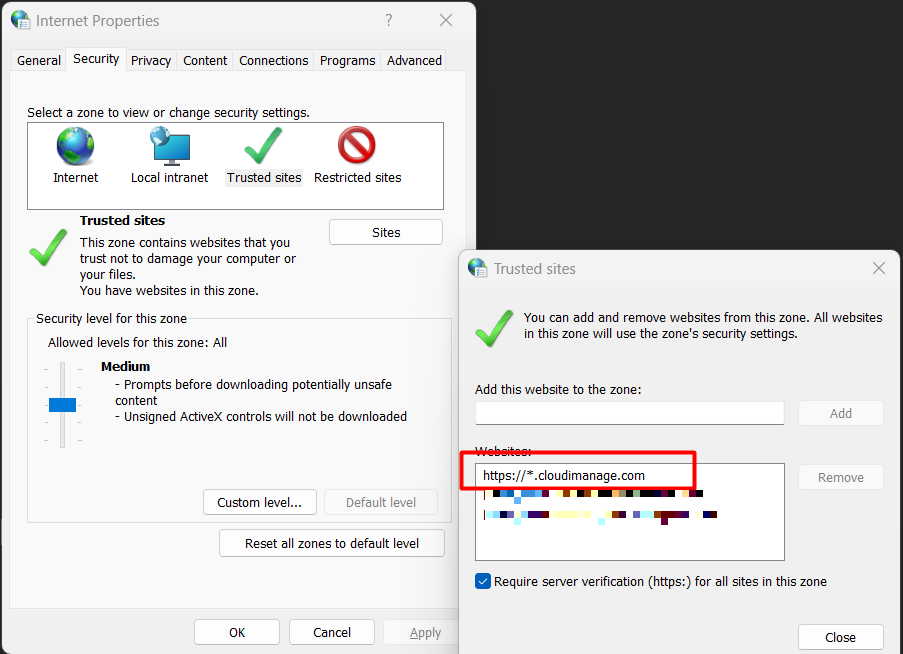
Version handling in iManage Work Next Generation Co-authoring
When you edit files using either of the iManage Next Generation Co-authoring options, (Edit (Co-author) or Edit (Co-author) in MS <appname> for the web), you currently can’t save the file as a new version in editing mode. All the edits made are automatically saved to the current version of the file.
This is because creating a new version of the file isn’t supported while multiple collaborators are editing the file. However, we're working on an update to iManage Work Desktop for Windows to let users create a new version when opening it using iManage Work Next Generation Co-authoring, if there's only one user for the file. We expect this update to be available in the second half of 2025.
Until then, if you want to save your changes to a new version of the file, you should create a new version of the file before starting the co-authoring or editing session by doing either of the following:
Select the Edit (Co-author) new version option available in iManage Work at cloudimanage.com. This opens a version of the document in the relevant Microsoft 365 for the desktop applications.
Or select the Edit (Co-author) new version in MS <app> for the web option available in iManage Work at cloudimanage.com. This opens a new version of the document in Microsoft 365 for the web.
IMPORTANT: It's possible your administrator has configured your Open context menu to only include one of the above options and therefore you may not have access to one or both options.
Right-click the document and select Copy as new version in iManage Work. After a copy is created, you can use the Edit (Co-author) option to edit this new version of the document.
Additionally, you can promote a previous version of the file as a new version using Timelines in iManage Work at cloudimanage.com. To do this:
In iManage Work at cloudimanage.com, right-click the file and browse to Timeline.
On the Timeline page, select List to view the recent activities.
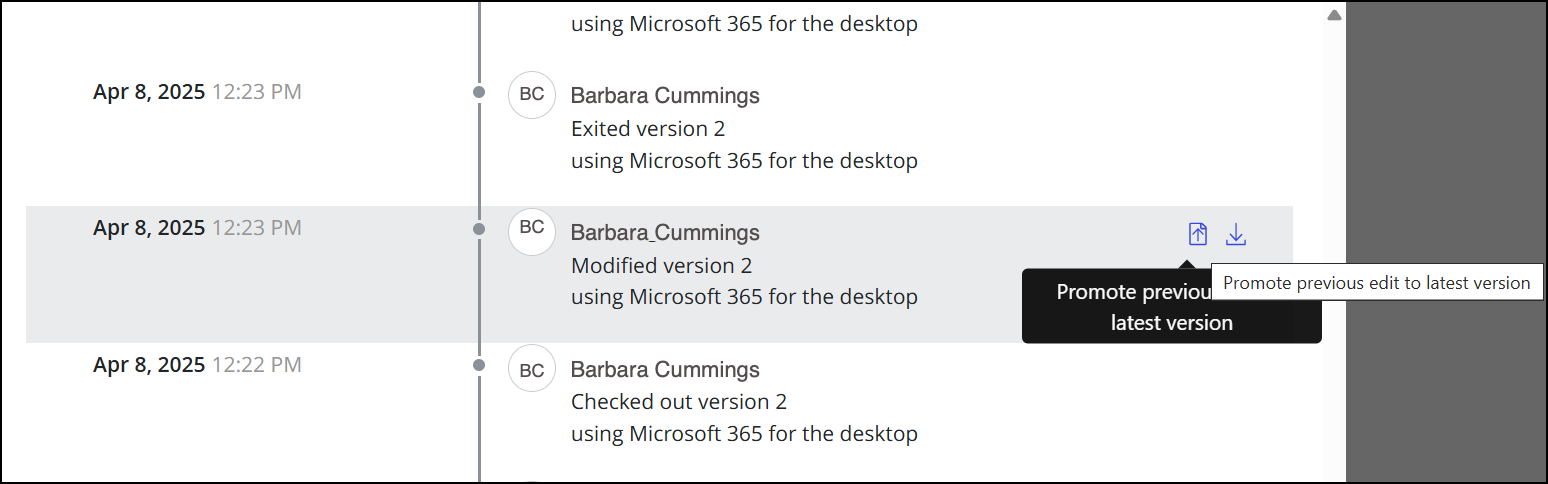
To promote the previous edit to latest version, select a timeline with Modified version <# number> and then select the Promote previous edit to latest version
 .
.
When you perform the above steps, all edits from the current version of the file are rolled back, the file is restored to this previously saved state, and a new version of the file is created. Any edits made to the current version of the file aren't available in this new version.
Transitioning from iManage Work Desktop for Windows Co-authoring to iManage Work Next Generation Co-authoring
If you've installed iManage Work Desktop for Windows, then the Co-authoring group is also installed and available in Microsoft 365 applications for the desktop ribbon bar.
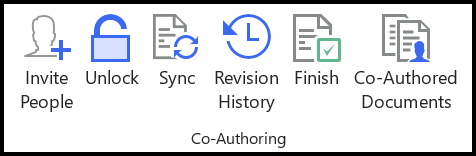
The process of co-authoring using the Co-authoring group is different from co-authoring using iManage Work Next Generation Co-authoring. So, to remove redundancy, administrators might want to disable the iManage Work Desktop for Windows Co-authoring group in the ribbon bar.
To hide the group, browse to C:\Program Files\iManage\Work10\(versionNumber) and in each of the Microsoft Office ribbon XML files comment out the GroupCoauthoring section as shown in the following figure.
After the content is commented out in the ribbon XML files, administrators must upload the XML files in iManage Control Center by browsing to Office > Configuration to deploy the files to all users.
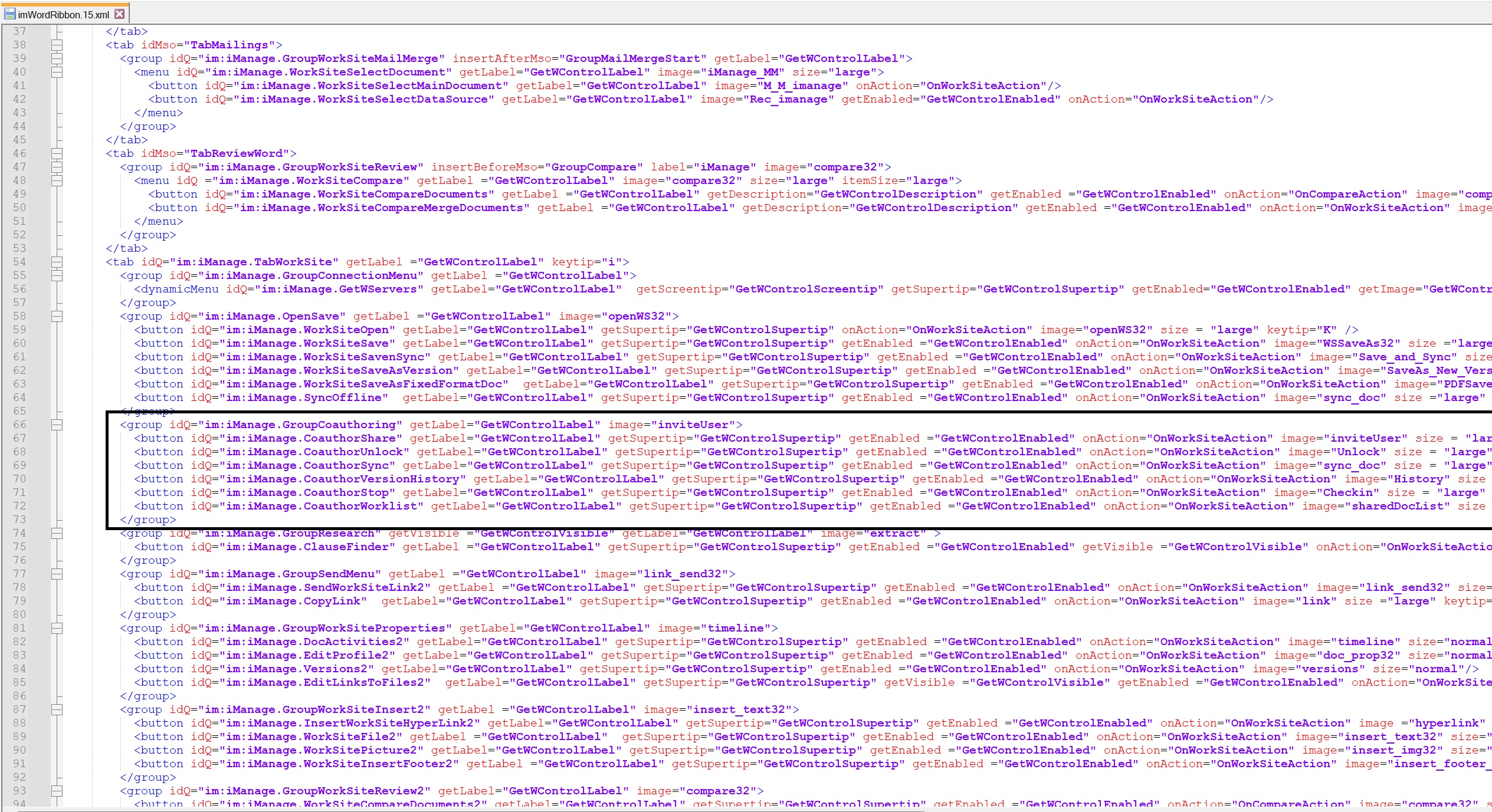
Example text to comment out:
<group idQ="im:iManage.GroupCoauthoring" getLabel="GetWControlLabel" image="inviteUser"> <button idQ="im:iManage.CoauthorShare" getLabel="GetWControlLabel" getSupertip="GetWControlSupertip" getEnabled ="GetWControlEnabled" onAction="OnWorkSiteAction" image="inviteUser" size = "large" keytip="CA" /> <button idQ="im:iManage.CoauthorUnlock" getLabel="GetWControlLabel" getSupertip="GetWControlSupertip" getEnabled ="GetWControlEnabled" onAction="OnWorkSiteAction" image="Unlock" size = "large" keytip="CU" /> <button idQ="im:iManage.CoauthorSync" getLabel="GetWControlLabel" getSupertip="GetWControlSupertip" getEnabled ="GetWControlEnabled" onAction="OnWorkSiteAction" image="sync_doc" size = "large" keytip="CU" /> <button idQ="im:iManage.CoauthorVersionHistory" getLabel="GetWControlLabel" getSupertip="GetWControlSupertip" getEnabled ="GetWControlEnabled" onAction="OnWorkSiteAction" image="History" size = "large" keytip="CV" /> <button idQ="im:iManage.CoauthorStop" getLabel="GetWControlLabel" getSupertip="GetWControlSupertip" getEnabled ="GetWControlEnabled" onAction="OnWorkSiteAction" image="Checkin" size = "large" keytip="CT" /> <button idQ="im:iManage.CoauthorWorklist" getLabel="GetWControlLabel" getSupertip="GetWControlSupertip" getEnabled ="GetWControlEnabled" onAction="OnWorkSiteAction" image="sharedDocList" size = "large" keytip="CW" /> </group>However, before hiding the co-authoring group, make sure that users finish their co-authoring session and check-in the files to iManage Work. If the co-authoring group is hidden before checking in the files, all the edits aren't saved and will remain in Microsoft SharePoint indefinitely, and the document will remain checked-out. Additionally, if administrators forcibly check-in the document, the changes won't be saved to iManage Work, even though the document is checked in.
Turning off browser notifications
When you open a document using Edit (Co-author), a browser notification as shown in the following figure is displayed. You can select Always allow <url> top-open links to this type in the associated app check box to turn off this browser notification.
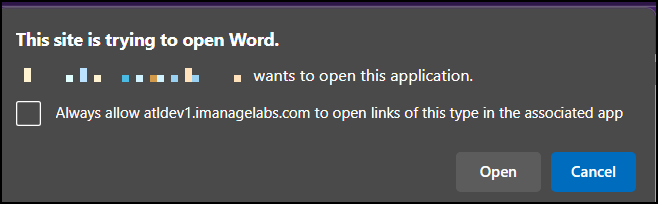
Additionally, your administrator can use the following registry keys to make sure that this browser notification isn't displayed.
NOTE: If the registry paths aren't available, then the administrators have to create it.
Microsoft Edge (Microsoft Windows device)
Location:
HKEY_LOCAL_MACHINE\SOFTWARE\Policies\Microsoft\EdgeType:
REG_SZName:
AutoLaunchProtocolsFromOriginsValue:
[{"allowed_origins":["cloudimanage.com"],"protocol":"ms-excel"},{"allowed_origins":["cloudimanage.com"],"protocol":"ms-powerpoint"},{"allowed_origins":["cloudimanage.com"],"protocol":"ms-word"}]NOTE: The value is in compacted JSON format. You can use a tool like https://jsonformatter.org/json-minify to format and validate the value.
Google Chrome (Microsoft Windows device)
Location:
HKEY_LOCAL_MACHINE\SOFTWARE\Policies\Google\ChromeType:
REG_SZName:
AutoLaunchProtocolsFromOriginsValue:
[{"allowed_origins":["cloudimanage.com"],"protocol":"ms-excel"},{"allowed_origins":["cloudimanage.com"],"protocol":"ms-powerpoint"},{"allowed_origins":["cloudimanage.com"],"protocol":"ms-word"}]URL schemes for invoking Microsoft 365
The following is the list of scheme names used to invoke Microsoft 365:
ms-word:
ms-powerpoint:
ms-excel:
Ensure the Quick Access toolbar is enabled on your Microsoft 365 applications for the desktop
When you open documents using iManage Work Next Generation Co-authoring, it can be challenging to track changes made to the document during your usual workday. The easiest visual indicator to know that the file is opened in a collaborative state and not exclusively checked out is to take note of the AutoSave toggle in Microsoft Quick Access Toolbar (QAT).
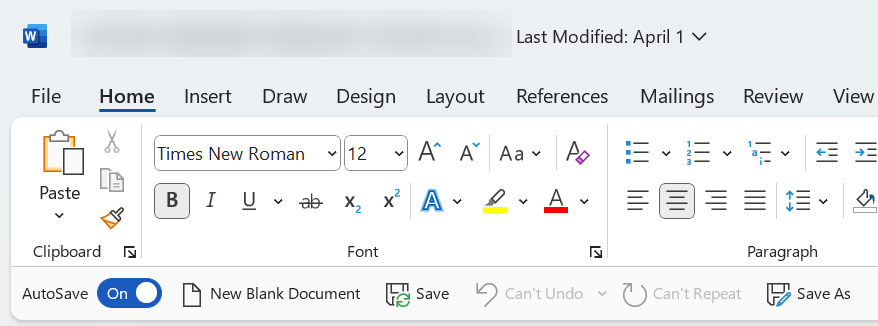
You can configure QAT to add your favorite functions and commonly used action items for easy access. With this, you don’t have to toggle between tabs to find the function you're looking for.
Administrators can place the QAT above or below the ribbon, turn off the QAT, or hide it from your view by using the following registry setting:
Location:
Software\Microsoft\Office\16.0\Common\ToolbarsType:
DWORDName:
QuickAccessToolbarStyleValue:
10- displays the QAT above the ribbon11- displays the QAT below the ribbon111- hide from view
Enable Microsoft AutoSave when using iManage Work Next Generation Co-authoring
For documents stored in iManage Work to be co-authored seamlessly with Microsoft 365 desktop applications, Microsoft AutoSave must be turned on. This ensures that your edits and changes are continuously saved back to iManage Work in real time, and prevents conflicts or data loss during a co-authoring session.
To enable AutoSave, do the following:
In your Microsoft Word, Excel, or PowerPoint desktop application, select File > Options.
In the Options dialog, select the Save category.
Ensure that the AutoSave files stored in the Cloud by default in Word/Excel/PowerPoint check box is selected.
Select OK to apply your changes. You'll need to restart your Microsoft application.
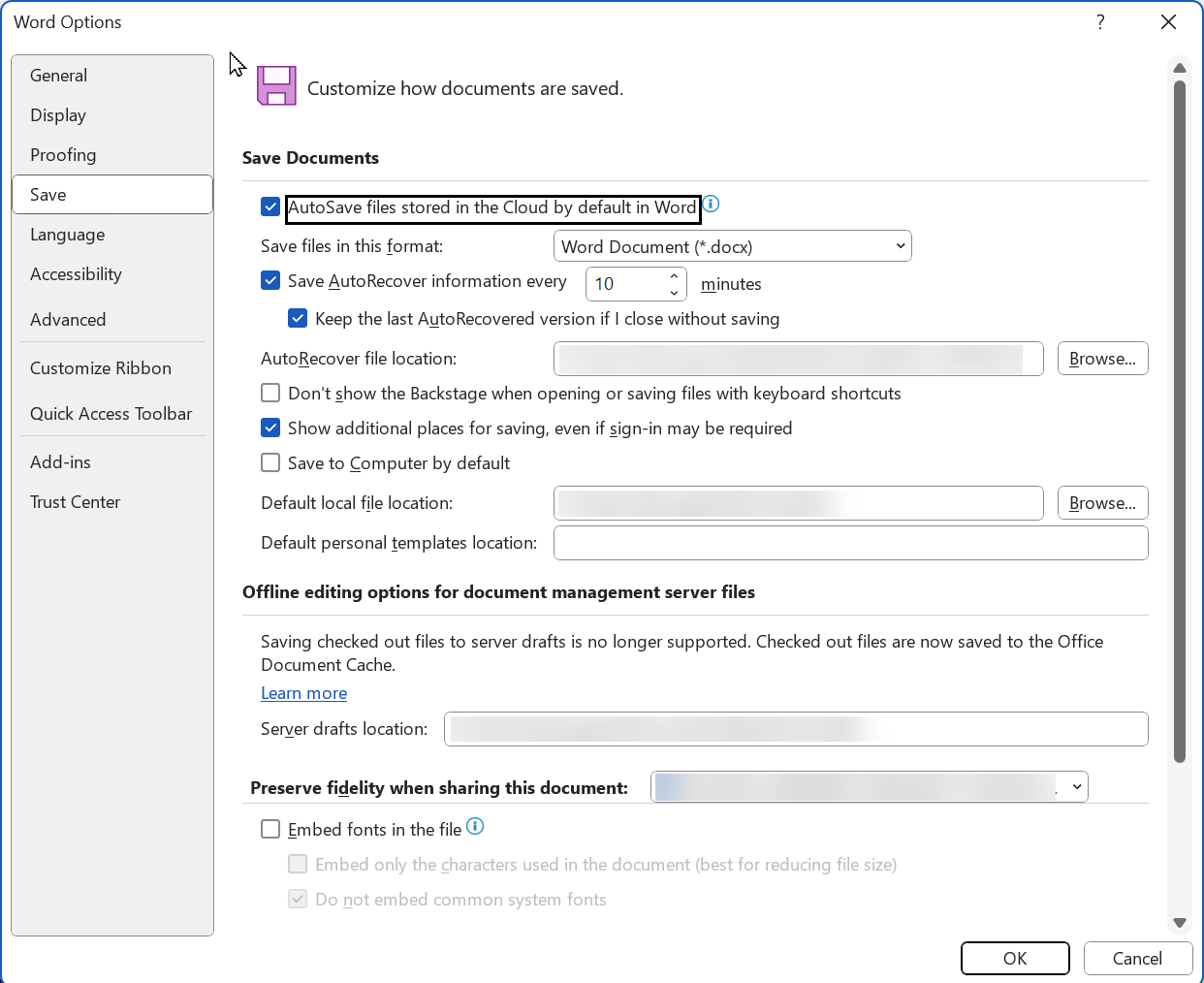
Once enabled, AutoSave will be active whenever you open and edit iManage documents in Microsoft 365 desktop applications using the Next Generation Co-authoring options.
Disabling Microsoft Create new files in the cloud automatically option
Microsoft is introducing a new option Create new files in the cloud automatically (currently in the Preview channel of Microsoft 365 applications for the desktop). When this setting is enabled, any new documents you create in Microsoft Word, Microsoft Excel, or Microsoft PowerPoint are automatically saved to Microsoft OneDrive, Microsoft SharePoint, or iManage Work.
Saving all new documents to an iManage Work workspace automatically can cause issues if files aren’t moved into the appropriate workspace or renamed accordingly. At this time, we recommend that you disable this option until we have adequate workflows developed.
To disable the setting, do the following:
In your Microsoft Word, Excel, or PowerPoint desktop application, select File > Options.
In the Options dialog, select Save.
Deselect the Create new files in the cloud automatically check box.
Select OK to save your changes.
Disabling this setting ensures that new files can be managed appropriately, keeping your content consistent with your organization’s document management practices.
NOTE: This setting is still in Preview channel and hasn't been deployed to the M365 current channel yet. This setting may not be displayed until your Microsoft 365 environment is updated.
Migrating from the iManage Microsoft Office for the web application to iManage Work Next Generation Co-authoring
If you have previously enabled iManage Microsoft Office for the web application to allow co-authoring using Microsoft 365 for the web and want to migrate to the new iManage Work Next Generation Co-authoring feature, you can follow the steps provided in Switching from the iManage Work Office for the web Co-authoring Application to iManage Work Next Generation Co-authoring.
Sending feedback when experiencing an issue with Microsoft 365 for desktop applications
We've built the iManage Work Next Generation Co-authoring feature as part of Microsoft Cloud Storage Partner Program Plus (CSPP+). So, for the product to function seamlessly, we rely on technology from both iManage and Microsoft. It's possible that sometimes an error might occur when using the application with Microsoft 365 for desktop applications. In such cases, you can report these incidents by sending feedback. This will help us and Microsoft to troubleshoot the issue.
To send feedback, do the following:
Select the Help tab.
Select Feedback.
In the Feedback to Microsoft task pane, select Report a problem.
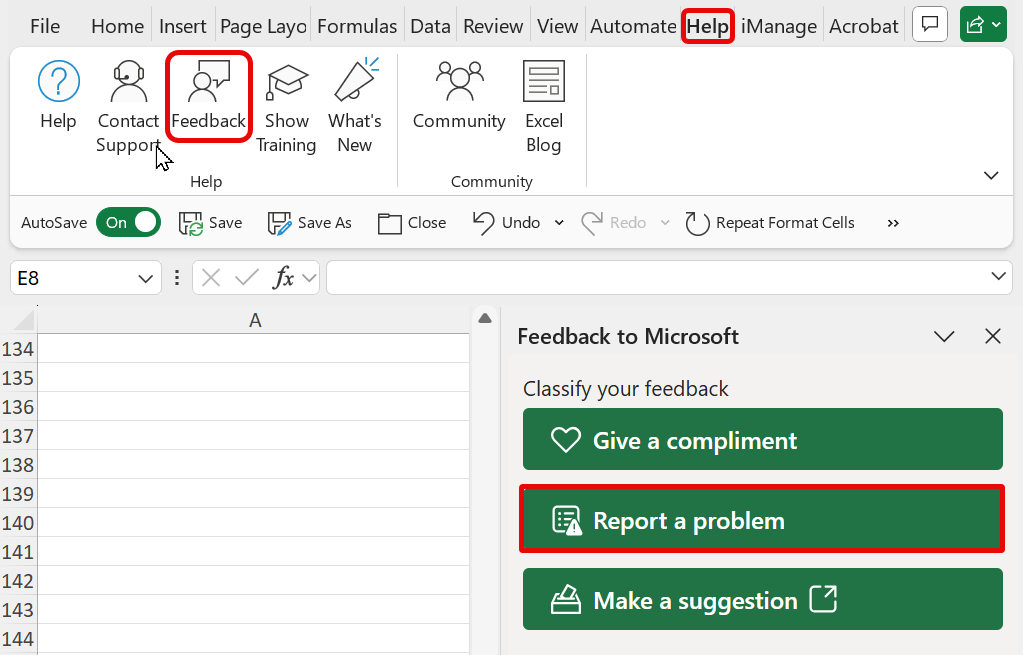
In the dialog that opens, enter: #iManage (along with a description of the issue) and select Submit.
NOTE: Providing feedback when encountering an issue with Microsoft 365 online follows the same process, although the user interface may look a bit different.
Q: Why is the Feedback button missing from my Microsoft environment?
A: It's possible that your administrator has disabled the option to supply feedback.
Primary Group Policy Objects (GPO) policy: The feedback policy settings are located under User Configuration > Policies > Administrative Templates > Microsoft Office 2016 > Privacy > Trust Center. For information on these policies, refer to https://learn.microsoft.com/en-us/microsoft-365/admin/manage/manage-feedback-ms-org?view=o365-worldwide. The key policy is "Allow users to submit feedback to Microsoft". If an admin disables this policy, you won't be able to submit feedback to Microsoft.
Registry-based approach: For older Microsoft Office versions or more granular control, admins can set the
HKEY_CURRENT_USER\SOFTWARE\Policies\Microsoft\Office\Common\Restrictionsregistry setting with a DWORD value NoHelpItemSendFeedback set to 1 to remove the Send Feedback option from the Help menu.