You can share a file or send a link to a file to other users who have an iManage Work account for co-authoring the file if you have read/write or full access to a file saved to iManage Work at cloudimanage.com by any of the following ways:
From iManage Work at cloudimanage.com, select the file and browse to Copy > Copy Link and share the copied file link with other users. Additionally, if the file opens in iManage Work Preview, select the Copy
 icon and then select Copy Link.
 If you open the file in Microsoft 365 for the web, you can share the link in the following ways:
Copy the URL from the address bar within the editing session in Microsoft 365 for the web and send it to other users.
Select the Share option available at the top of the Microsoft 365 for the web application and then select Copy Link. The following figure is displayed:
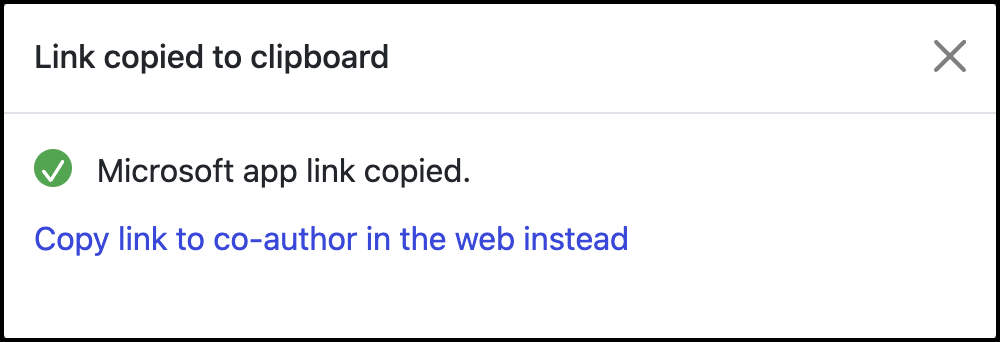
This link is now copied to your clipboard and you can paste it in any application. When you share this link with other users, they can sign in using their iManage Work and Microsoft 365 accounts and start editing the file using Microsoft 365 applications for the desktop. This is the default option.
Alternatively, you can select Copy link to co-author in the web instead. When you select this option, the following figure is displayed:
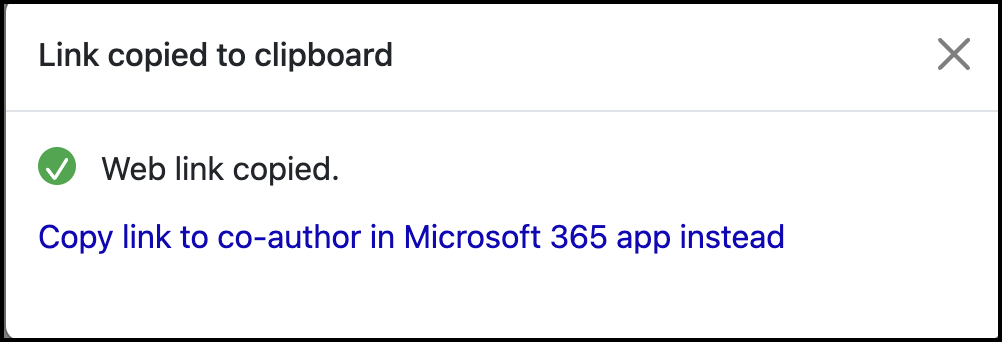
When you share this link copied to your clipboard and when users sign in, the link opens in Microsoft 365 for the web in co-authoring mode.
Selecting Copy link to co-author in Microsoft 365 app instead generates the link that allows users to open the file in Microsoft 365 applications for the desktop.
NOTES:
Your administrator should make sure Microsoft 365 for desktop is enabled in iManage Control Center and all the relevant Microsoft 365 desktop apps are installed on the user's device with whom you want to share the Microsoft 365 app link.
If users have only read access to the file, the link shared will open the file in view mode. Users have to request read/write access or full access to co-author the file.
If you have opened the file in Microsoft 365 applications for the desktop, select the Share option available at the top of the Microsoft 365 application. The Share dialog opens. Then:
On a Microsoft Windows device, select Open Share Page. This opens a new browser tab or browser and opens the file in Preview mode in iManage Work at cloudimanage.com. Select the Copy
icon and then select Copy Link.Figure: Share option for Microsoft Windows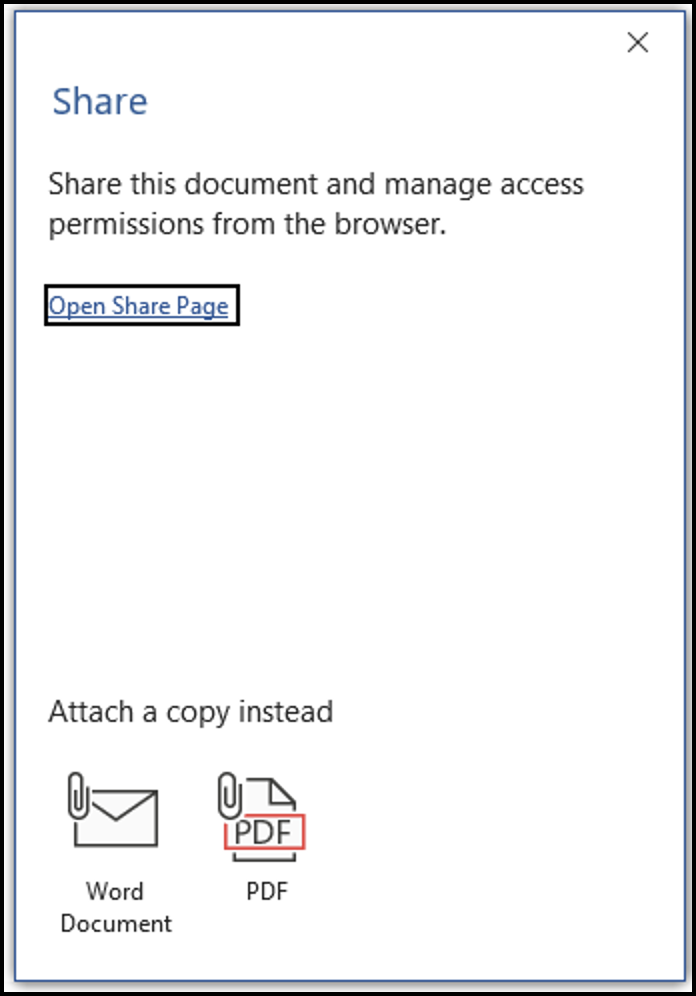
On macOS device, enter the name of the recipients with whom you want to share and select Send. When the recipients open the document from the email, the file opens in the application defined as the default in iManage Control Center—for example, Microsoft 365 for the web.
Figure: Share option in macOS devices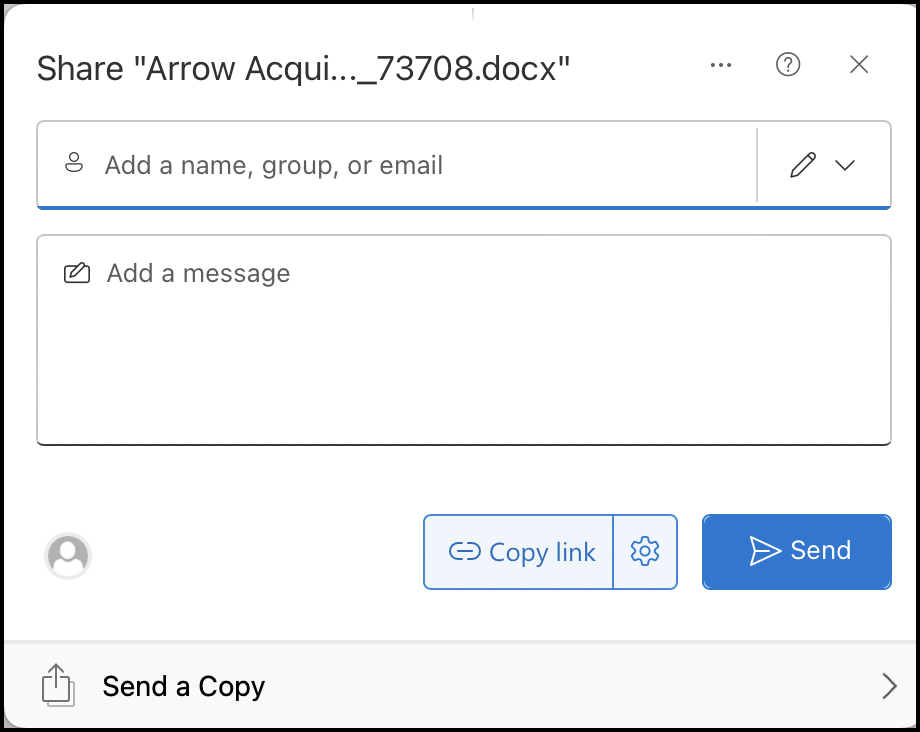
Alternatively, you can select Copy link and share the link with users who want to co-author the file. When users select the link, the file opens in the application defined as the default in iManage Control Center.
From the iManage Work at cloudimanage.com app on iOS devices, select Copy Link at the top of the menu and share the copied file link with other users.
From iManage Work Desktop for Windows 10.10.1 or later:
In the Share section, select Send link > Send edit link on the iManage ribbon. An email is generated with the NRL link. You can share the emails with other users who have a valid iManage Work account.
In the Share section, select Copy link > Copy edit link on the iManage ribbon. A link is copied to the clipboard. You can share the link with other users.
Figure: Edit link copied to clipboard
Sharing files with external users
It isn't currently possible to co-author a document using iManage Work Next Generation Co-authoring with any users outside your company, or any users within your company who don't have an active iManage Work account ID. The process to support this workflow is currently being developed.