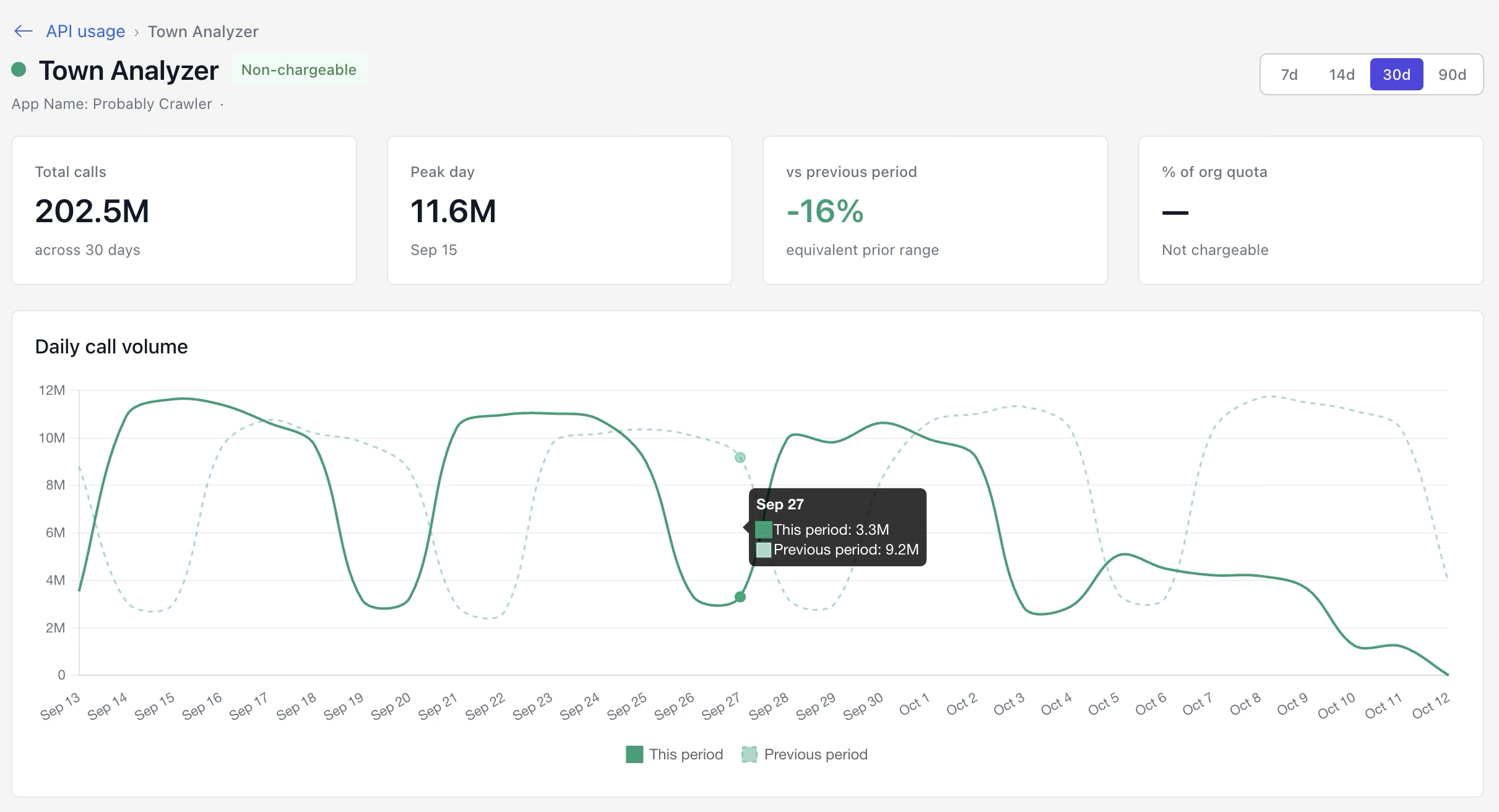
The Application details page provides a comprehensive overview of usage and reporting data for a selected application. It includes the following elements:
Application name: The name of the application.
Application type: Indicates whether the application is chargeable or non-chargeable.
Data reporting selector: Lets you select a reporting period from a list of preset date ranges.
Data reporting tiles: Display the following metrics for the selected reporting period:
Total calls: The total number of calls made to the application during the reporting period.
Peak day: The date with the highest call volume and the number of calls made on that date.
vs reporting period: Compares the number of API calls in the selected reporting period with the previous period of the same duration.
% of org quota: Shows the application's calls as a percentage of the organization-wide quota for all applications during the reporting period.
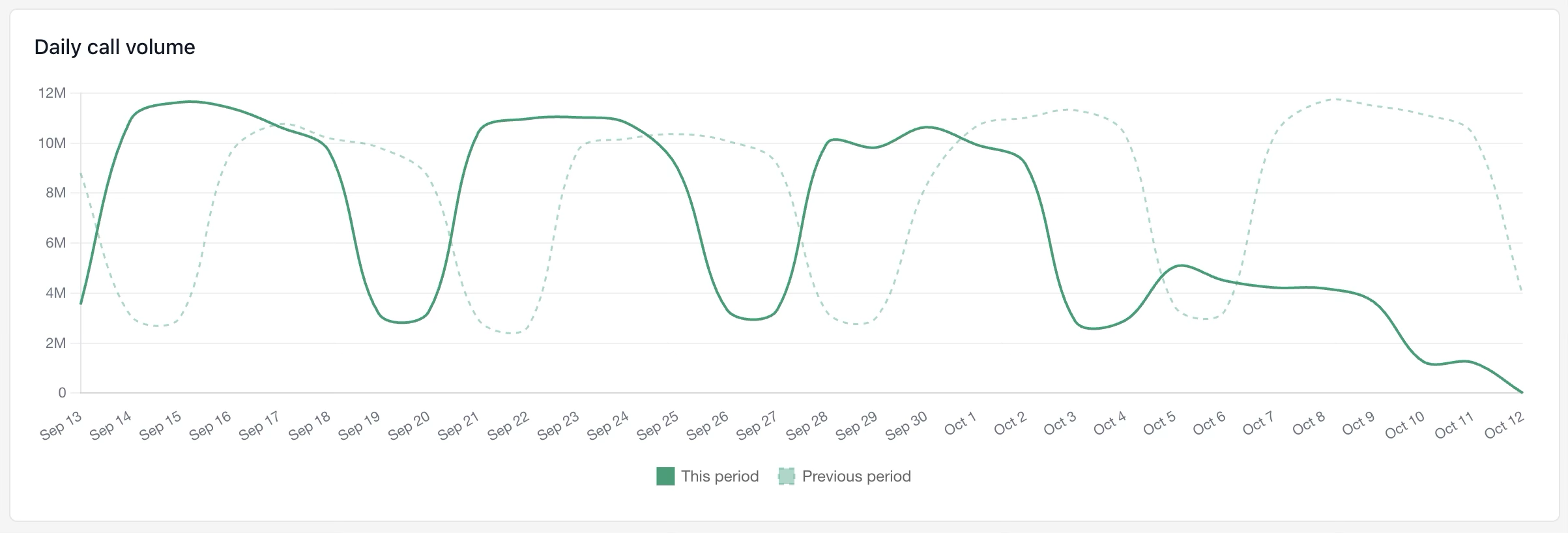
Daily call volume chart: A line chart that compares the application's daily call volume in the selected reporting period with the previous period of the same duration.
NOTE: The Application details page is only available if the Cloud API Analytics upcoming feature is active. This feature is currently available to select customers participating in a private Early Access Program (EAP). For instructions on how to enable this feature if you’re participating in the EAP, refer to Cloud API Analytics feature activation.
An example of the Application details page is shown in the figure below.
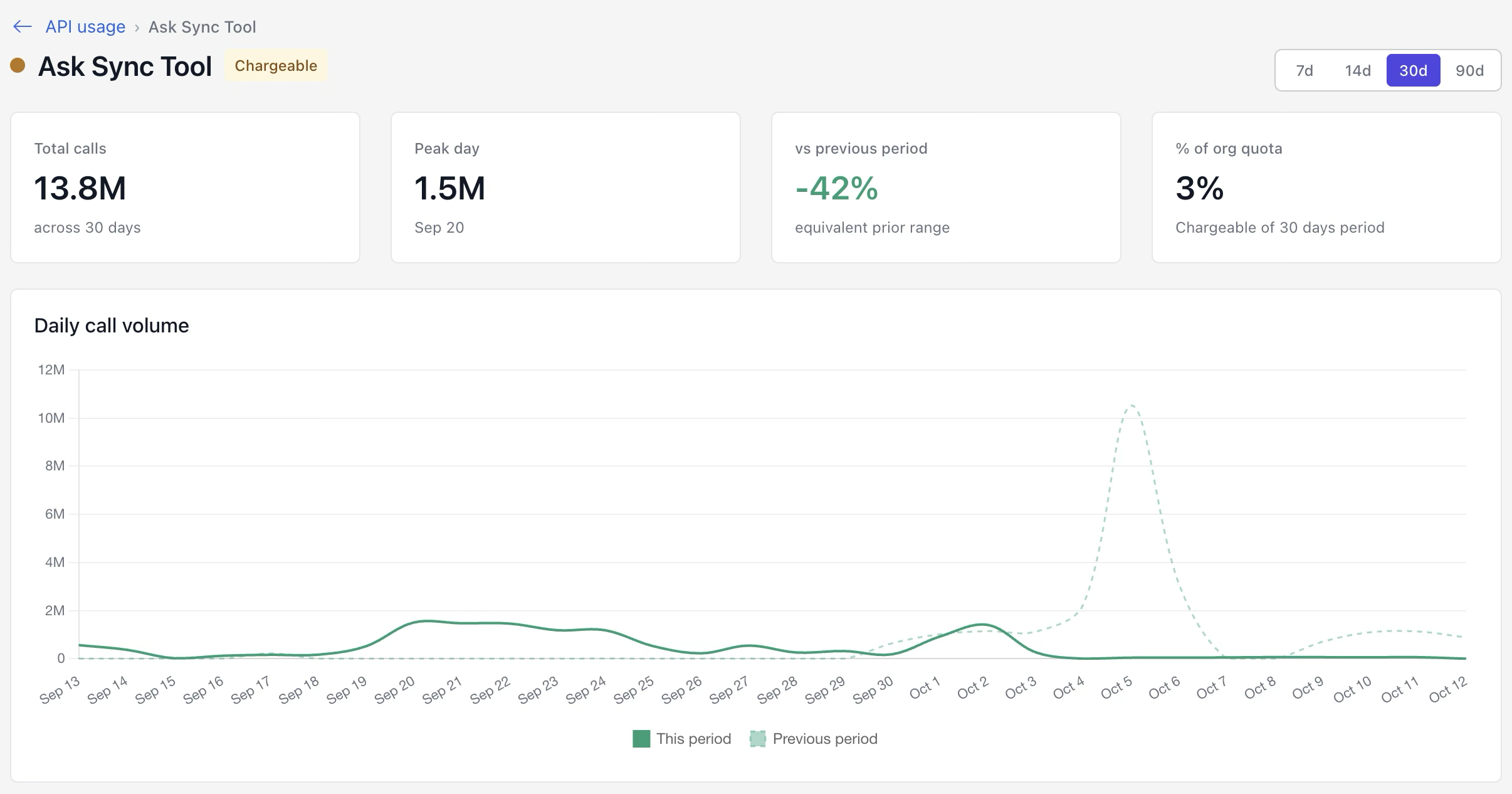
This section includes the following topics:
Application details page actions
On the Application details page, you can change the data reporting period for the application.
Select the data reporting period
By default, the Application details page displays application data for the previous 30 days, excluding the current day. You can change the number of days included in the reporting period by selecting a preset date range.
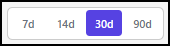
To choose a preset date range, select one of the following options:
7d: Shows API activity for the previous 7 days
14d: Shows API activity for the previous 14 days
30d: Shows API activity for the previous 30 days
90d: Shows API activity for the previous 90 days
Application details page sections
The Application details page is organized into the following sections:
Application snapshot: Summarizes an application's call activity and quota usage over a selected reporting period through key metrics.
Daily call volume: Features a line chart that compares the application's daily call activity for the selected reporting period against the equivalent prior period.
Application snapshot section
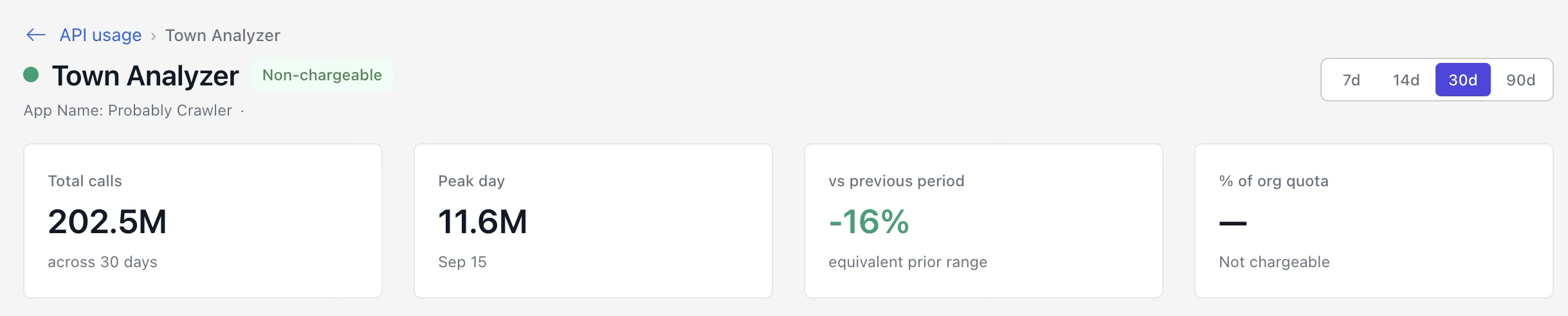
The Application snapshot section includes tiles that summarize the application's call activity for the selected reporting period.
Total calls: Displays the total number of calls made to the application during the selected reporting period. This value includes all calls recorded on the days within that period.
Peak day: Identifies the day with the highest call volume during the selected reporting period. The tile shows both the date and the number of calls recorded on that day.
vs previous period: Shows how the application's total calls changed compared with the immediately preceding reporting period of the same duration. For example, a 30-day selection is compared with the seven days before that period.
% of org quota: Displays the percentage of the organization's call quota used by this application during the selected reporting period. This value compares the application's call total with the quota available across all applications.
NOTE: The % of org quota tile only displays a value for chargeable applications.
The following figure highlights the tiles in the Application snapshot section of the Application details page.
Daily call volume section
The Daily call volume section includes a chart with lines that show the application’s daily call volume:
In the selected period
In the previous period of the same duration
The following figure highlights the Daily call volume section of the Application details page.
Daily call volume section actions
In the Daily call volume section, you can:
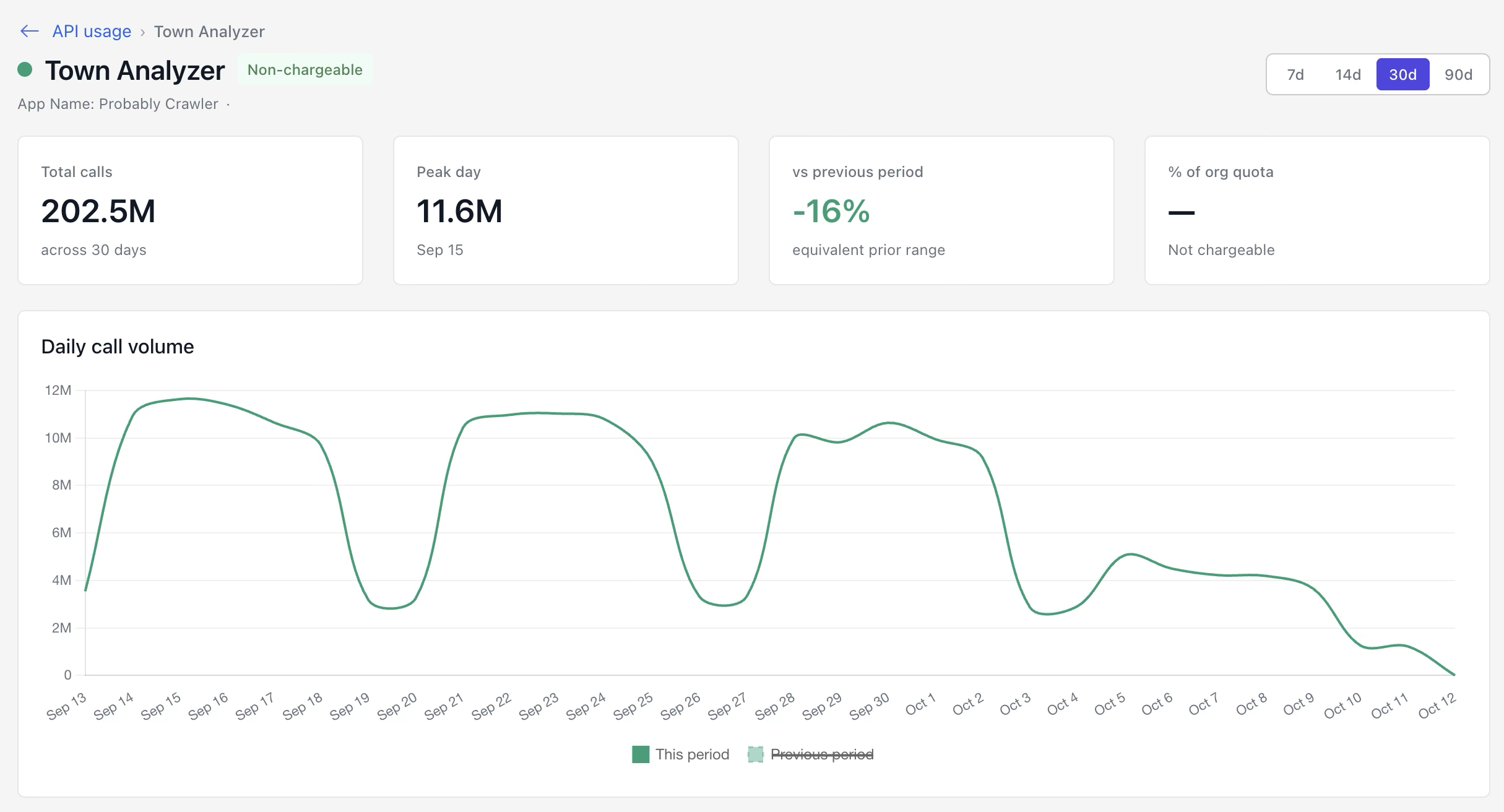
Filter the reporting period categories shown in the chart
Hover over a date to see more details about the application calls made on that day
For more information on these actions, refer to the sections below.
Filter reporting period categories
To filter the reporting period categories shown in the chart, select a category from the legend in the Daily call volume chart. For instance, in the example below, the Previous period category has been removed from the chart.
See more details about a date
To see more details about a specific date during the reporting period, hover above the date in the Daily call volume chart. For instance, in the example below, a pop-up dialog shows the number of application calls for September 27 and the same day in the previous reporting period.