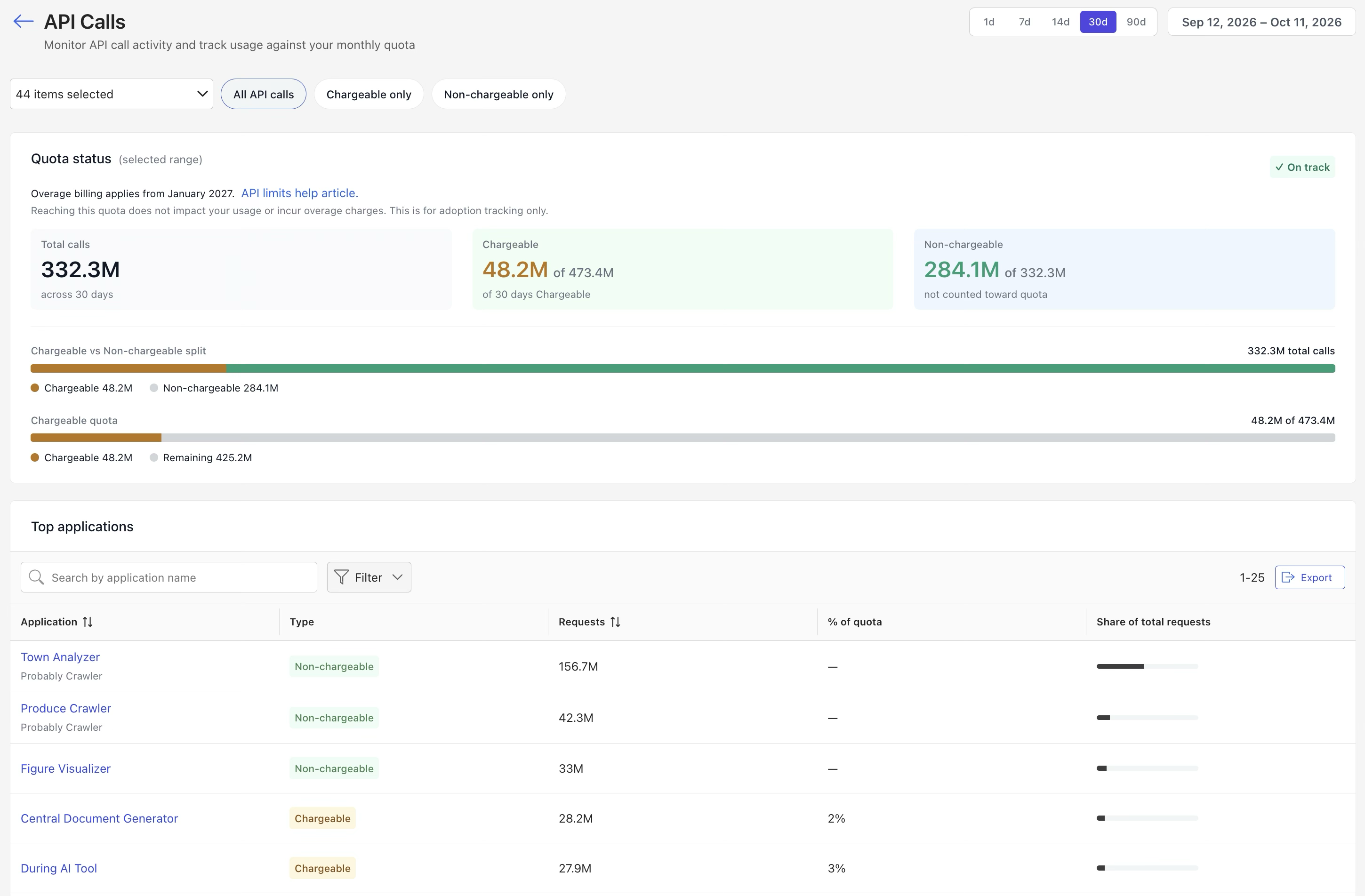
The API Calls page provides comprehensive visibility into organization-wide API consumption, quota utilization, and application-level activity over a selected reporting period. It's organized into three main sections:
Quota status: Delivers a high-level summary using indicators, tiles, and graphs to help you monitor overall call volumes, distinguish between chargeable, and non-chargeable calls, and track your chargeable API quota consumption.
Top applications: Features a consolidated table detailing individual application activity, including each application's name, type (chargeable, or non-chargeable), total call count, percentage of the organization's chargeable quota consumed, and overall share of total API traffic.
API calls by application—daily: Visualizes daily call trends across the reporting period with an interactive line graph that can be filtered by:
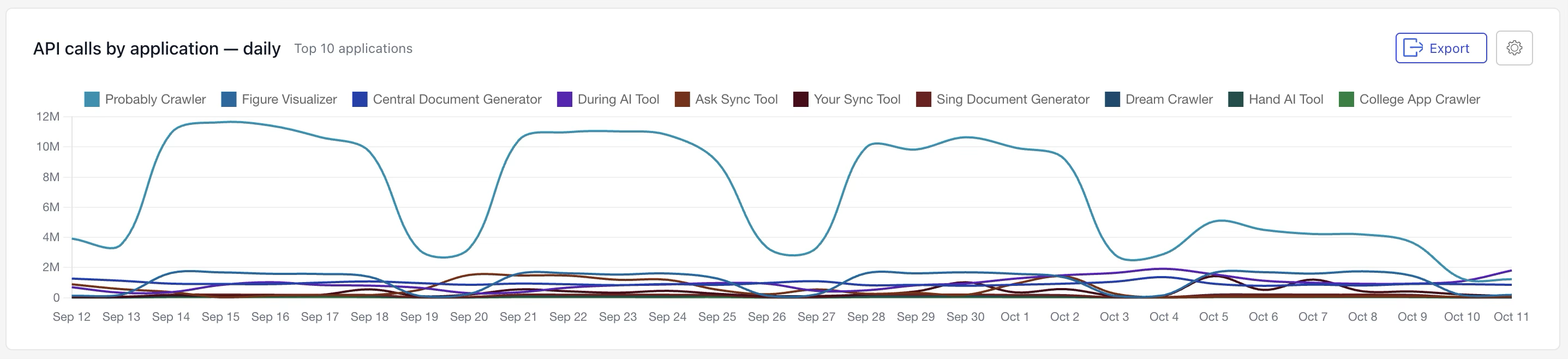
Top 10 applications: Tracks the daily call volume of the top 10 most active applications.
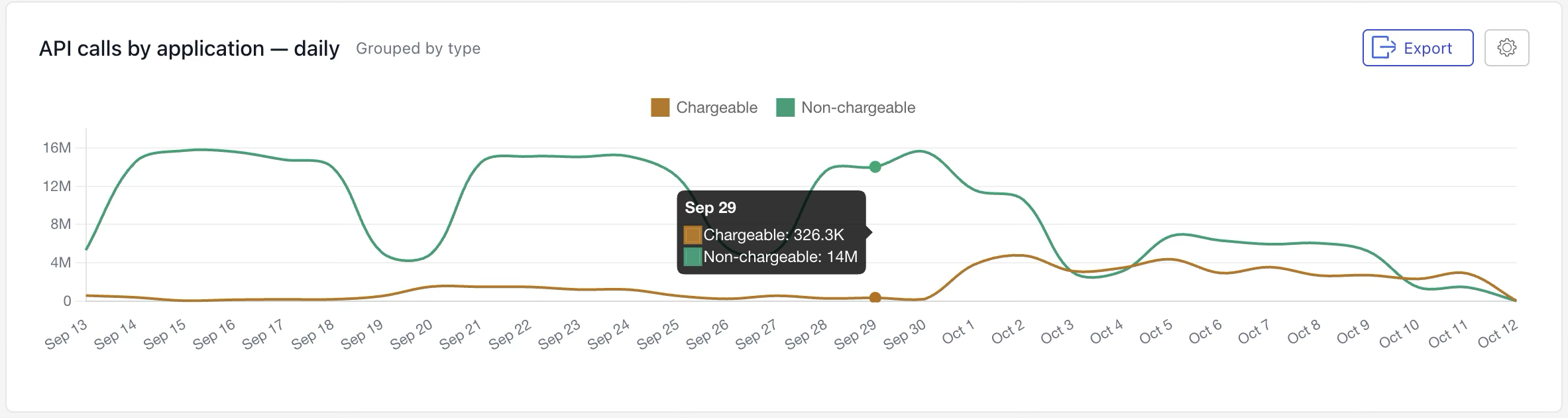
Grouped by type: Compares aggregate daily volume between chargeable, and non-chargeable calls across all applications.
Together, these sections allow administrators to spot high-volume applications, evaluate quota impact, and analyze usage patterns over time.
NOTE: The API Calls page is only available if the Cloud API Analytics upcoming feature is active. This feature is currently available to select customers participating in a private Early Access Program (EAP). For instructions on how to enable this feature if you’re participating in the EAP, refer to Cloud API Analytics feature activation.
An example of the API Calls page is shown in the figures below.
This section includes the following topics:
API Calls page actions
On the API Calls page, you can change the reporting period and control which applications appear in the Top applications section.
Select the data reporting period
Select which applications are shown in the Top applications section
Use the following sections to change the reporting period or filter the applications shown in the Top applications section.
Select the data reporting period
By default, the API Calls page displays API activity for the previous 30 days. You can change the number of days included in the reporting period by selecting a preset date range or choosing a custom date range.

To choose a preset date range, select one of the following options:
1d: Shows API activity for the previous day
7d: Shows API activity for the previous 7 days
14d: Shows API activity for the previous 14 days
30d: Shows API activity for the previous 30 days
90d: Shows API activity for the previous 90 days
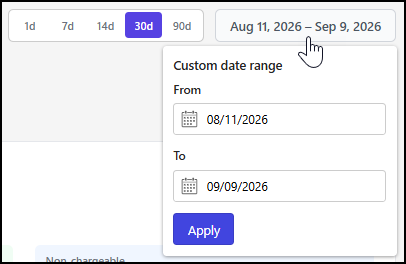
To select a custom date range, select the date range field and then choose the start and end dates using the From and To date picker fields.
Select which applications are shown
By default, the Top applications section of the API Calls page shows details for all applications. You can customize which applications are displayed in this section using the application selection drop-down list or by selecting one of the application type filters.

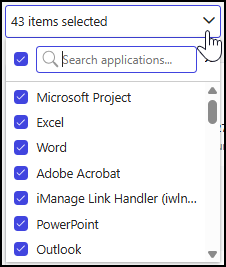
To select one or more applications, use the application selection drop-down list. You can search for applications using the Search applications field or scroll through the list to make your selection.
You can also filter applications by type using the following options:
All API calls: Displays both chargeable, and non-chargeable applications.
Chargeable only: Displays only chargeable applications.
Non-chargeable only: Displays only non-chargeable applications.
NOTE: The filters adjust the output based on the applications selected in the application selection drop-down list.
API Calls page sections
The API Calls page includes the following sections:
Quota status: The Quota Status section includes indicators, tiles, and graphs that show details about your API calls during the reporting period. It helps you track both chargeable, and non-chargeable calls and monitor your usage of the chargeable API call quota.
Top applications: The Top applications section features a table summarizing application usage for the selected period, detailing each application's name, type (chargeable, or non-chargeable), total call count, percentage of chargeable quota consumed, and overall share of total API calls.
API calls by application—daily: The API calls by application—daily section features a line graph visualizing daily call volume trends across the reporting period, viewable either by the top 10 applications or grouped by chargeable versus non-chargeable call types.
Quota status
The Quota status section features indicators, tiles, and graphs that provide details about your API calls during the reporting period. This information helps you track both chargeable, and non-chargeable API calls and see how much of your chargeable API call quota was used.
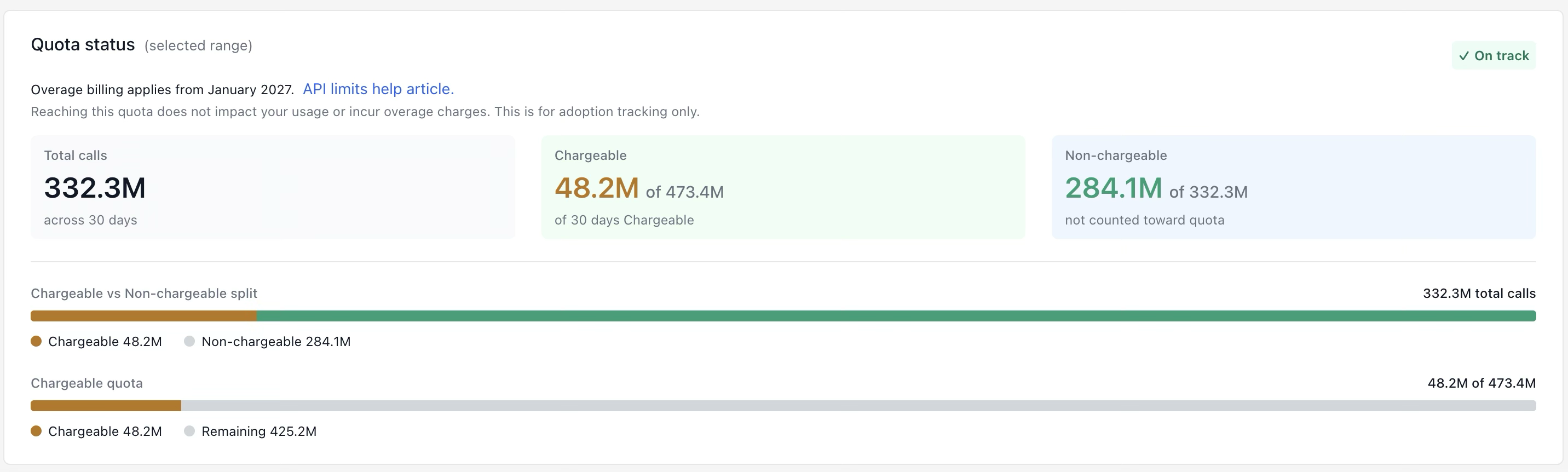
The Quota status section provides the following information about your API usage and quota during the reporting period:
Status indicator: Displays the status of your chargeable API quota. The possible values are:
On track
At risk
Over quota
Not billed
Total calls tile: Shows the total number of API calls made.
Chargeable tile: Expressed as x of y, this tile shows the number of chargeable API calls you made (x) compared to your chargeable API quota (y).
Non-chargeable tile: Expressed as x of y, this tile shows the number of non-chargeable API calls made (x) compared to the total number of API calls (y).
Chargeable vs Non-chargeable split bar chart: This chart displays a segmented bar with the following details:
Chargeable: The number of chargeable API calls made.
Non-chargeable: The number of non-chargeable calls made.
Chargeable quota bar chart: This chart shows a segmented bar with the following details:
Chargeable: The number of chargeable API calls made.
Remaining: The number of chargeable API calls remaining in your quota.
Top applications
The Top applications section provides a consolidated view of application usage during the selected reporting period. This section includes a table that shows the application name, type (chargeable, or non-chargeable), the number of times the application was called, the percentage of the total chargeable quota used by the application's calls, and the application's share of all application calls during the reporting period. By default, the application list is sorted by the number of requests shown in the Requests column.
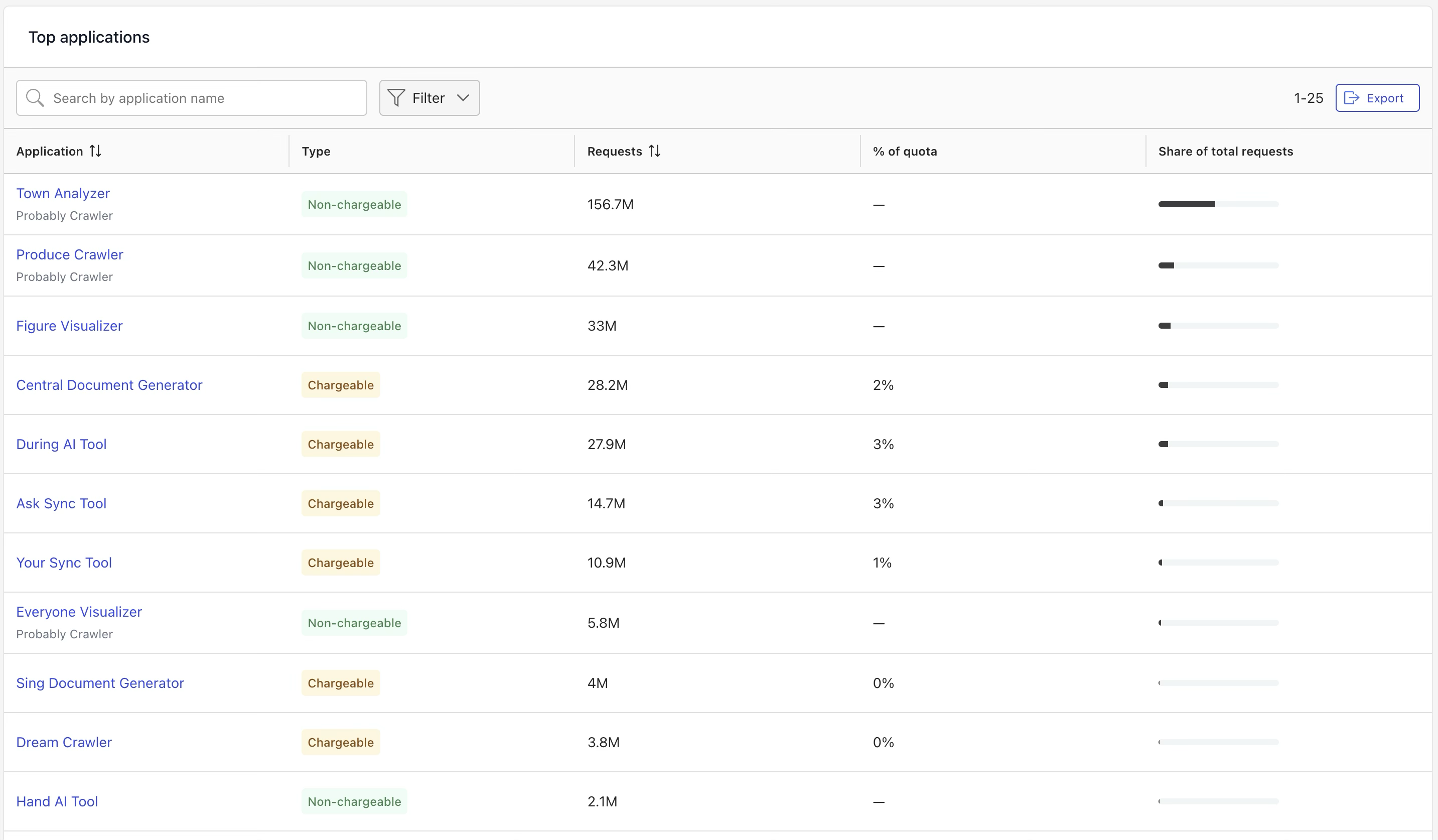
The table in the Top applications section includes the following columns:
Application: This column shows the name of the application and, if applicable, the extension. If the value is a single line, it represents the application name. If it's two lines, the first line is the extension name, and the second line is the application name.
Type: Shows whether the application is Chargeable or Non-chargeable.
Requests: The number of times the application was called during the reporting period.
% of quota: For chargeable applications, this indicates the percentage of total chargeable quota consumed by the application’s calls during the reporting period. For non-chargeable applications, this value is shown as —.
Share of total requests: A bar chart showing the application’s share of all application calls during the reporting period.
Top applications section actions
In the Top Applications section, you can:
Search for applications
Filter the list by values in the Type column
Sort the application list
Rearrange table columns
Browse through the application list using page controls
Export application details
View a detailed application summary
For more information about these actions, refer to the sections below.
Search for applications
To search for an application, enter a search string in the Search by application name field. You can use all or part of the application name, vendor name, or application ID.
Filter data output
To filter the application table based on values in the Type column, select an option from the Filter drop-down list.
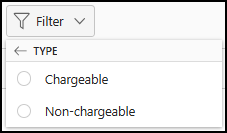
After you select a filter option, the application table updates to show only applications that meet the filter criteria. The applied filter selection is also displayed, as shown in the following example.
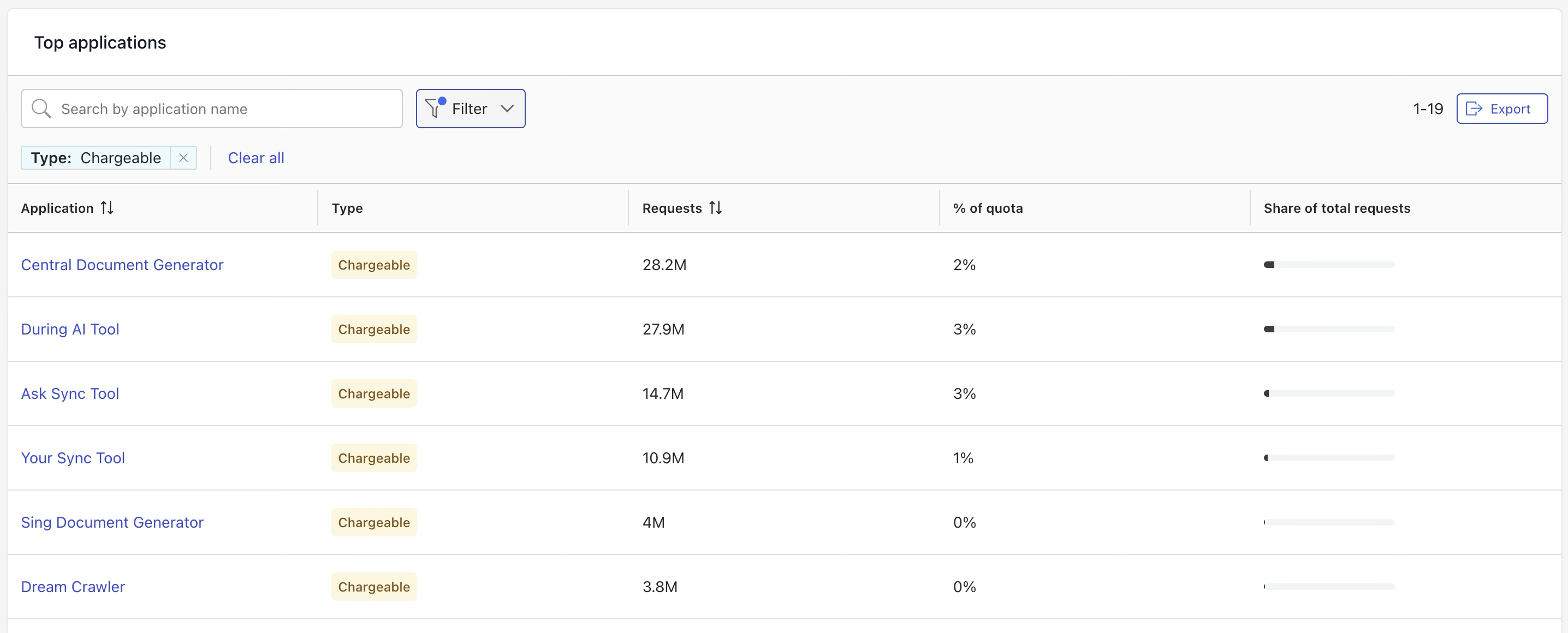
To remove filtering, do either of the following:
Select X next to the Type filter display.
Select Clear all.
Sort the application list
To sort the application list by:
Application name: Select the Application column heading.
Application type: Select the Type column heading.
The number of application requests (default): Select the Requests column heading.
Rearrange table columns
In the application list, you can rearrange the order of the % of quota and Share of total requests table columns. To do this, select the column header, drag the column to the desired location, and then drop it into place.
Browse through application list pages
Use the application list controls to specify how many items appear on each page, move to the previous or next page, or go directly to a specific page. The application list controls are shown in the figure below.
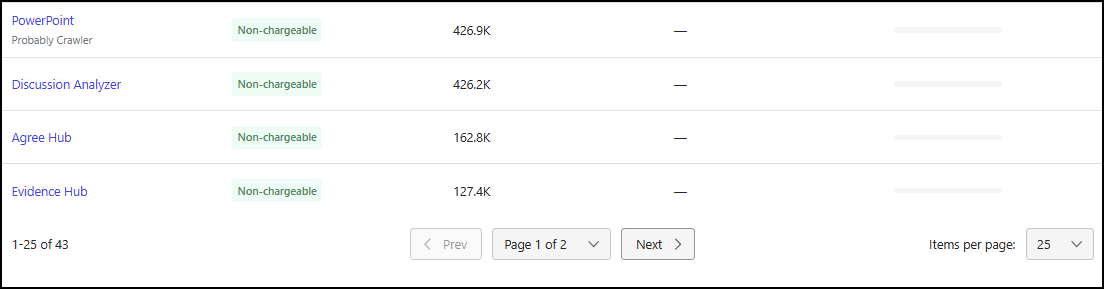
Specify the number of items shown
From the Items per page drop-down list, select the number of items to display in the tile:
25 (default)
50
100
250
Browse through pages
Use the following options to move through the pages of the application list:
Prev: Go to the previous page
Next: Go to the next page
Browse directly to a page
To go directly to a page in the application list, select the page from the Page x of y drop-down list.
Export application list details
To download application list details in CSV format, select the Export button in the Top applications section.
NOTE: When you export data, any active search selections are applied. As a result, the downloaded file includes only the applications displayed in the table at the time you select Export.
View a detailed application summary
To open a page that displays more details about an application, select the application name in the application table. For more information, refer to Application details page.
API calls by application—daily
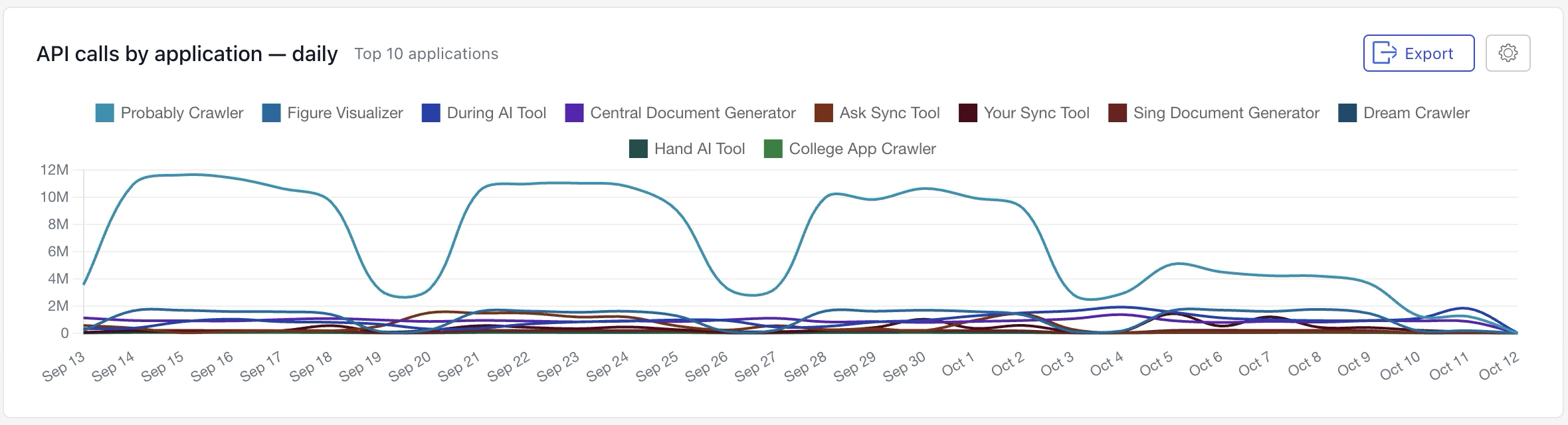
The API calls by application—daily section features a line graph that shows application calls for the reporting period. You can view the data in either of the following ways:
Top 10 applications: Shows the daily number of calls made by the top 10 applications during the reporting period.
Grouped by type: Shows the daily number of chargeable and non-chargeable application calls across all applications during the reporting period.
Use these graphs to identify the applications with the highest call volume, compare chargeable and non-chargeable calls, and track usage trends over time.
API calls by application—daily section actions
In the API calls by application-daily section, you can:
Export graph details
Select the graph type
For more information about these actions, refer to the sections below.
Export graph details
To download application graph details in CSV format, select the Export button in the API calls by application—daily section.
Select the graph type
To select which graph is shown, select the  icon and then choose either:
Top 10 applications: Shows the daily call count for the top 10 applications.
Grouped by type: Shows the daily count of chargeable and non-chargeable calls across all applications.
Top 10 applications graph
The Top 10 applications graph displays a colored line for each of the top 10 applications that made calls during the reporting period. A color-coded legend identifies each application by name. An example is shown in the figure below.
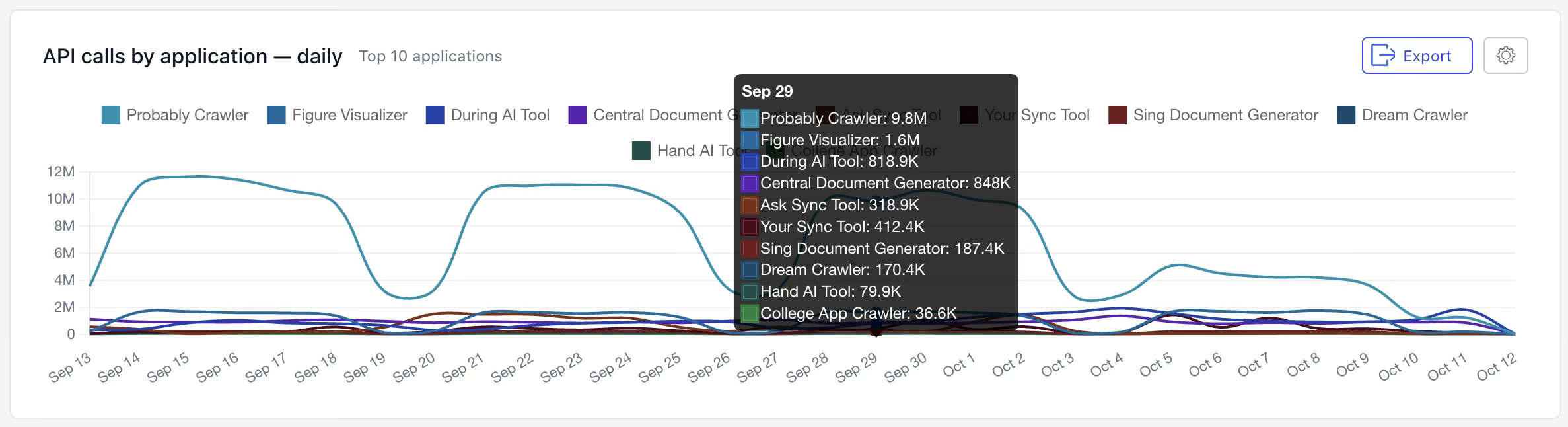
To see more details about a specific date, hover above the date on the graph. For instance, in the example below, a pop-up dialog shows the number of calls for each of the top 10 applications on Sep 29.
Grouped by type graph
The Grouped by type graph displays a colored line for chargeable, and non-chargeable application calls across all applications during the reporting period. A color-coded legend identifies each type by name. An example is shown in the figure below.
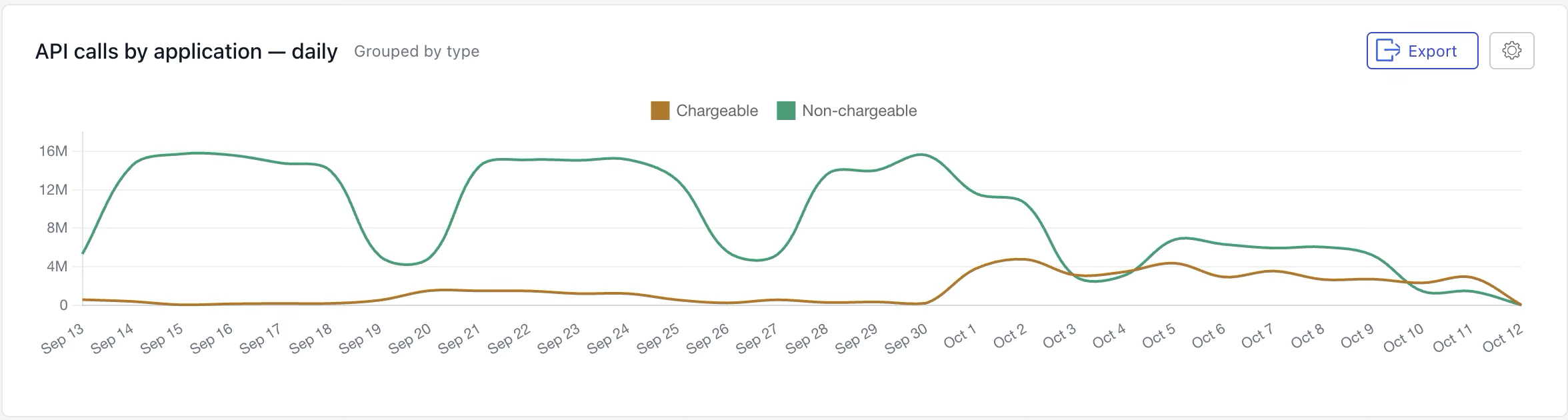
To see more details about a specific date, hover above the date on the graph. For instance, in the example below, a pop-up dialog shows the number of chargeable, and non-chargeable calls on Sep 29.