The Customer Downloads Total dashboard tile summarizes application download activity for each customer in your iManage Cloud customer environments during the selected reporting period. For each customer, the tile displays the customer ID, customer name, total number of application downloads, and a visual bar graph representing download volume. This information helps users quickly identify which customers are downloading applications most frequently and compare download activity across their customer base.
The tile includes tools to search for specific customers, sort results by customer name or download count, and browse through paginated results. Users can also export customer application download details to a CSV file for further analysis or access the Usage Over Time page to view more detailed download trends and historical activity over the selected reporting period.
An example of the Customer Downloads Total dashboard tile is shown below.
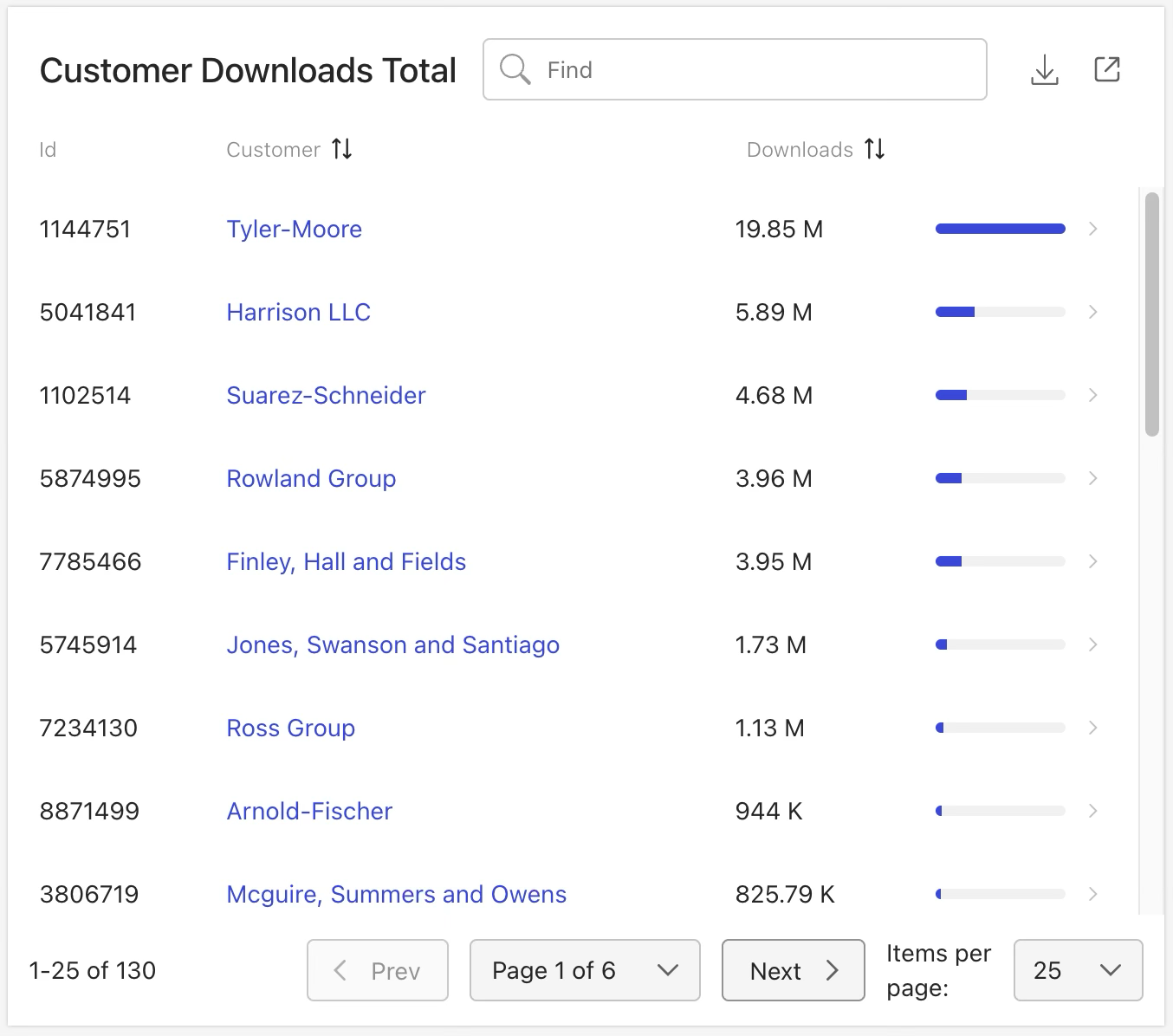
Customer Downloads Total tile actions
In the Customer Downloads Total tile, you can:
Search for customers
Sort the customer list by:
Customer name
The number of application downloads
Browse through the customer list using page controls:
Specify the number of customers shown per page
Browse through pages using the Prev and Next buttons
Browse directly to a customer list page
Download customer application download details in CSV format
Open another page to view a more detailed report about customer application downloads
For more information on these actions, refer to the sections below.
Search for a customer
To search for a customer, enter a search string in the Find field that includes all or part of the customer’s name.
Sort the customer list
To sort the customer list by:
Customer name: Select the Customer column heading.
The number of application downloads: Select the Downloads column heading.
Browse through the customer list
Use the customer list controls to specify how many customers appear on each page, move to the previous or next page, or go directly to a specific page.
Specify the number of customers shown
From the Items per page drop-down list, select the number of customers to display in the tile:
25 (default)
50
100
250
Browse through pages
Use the following options to move through the pages of the customer list:
Prev: Go to the previous page
Next: Go to the next page
Browse directly to a page
To go directly to a page in the customer list, select the page from the Page x of y drop-down list.
Download customer application download details
To download customer application download details in CSV format, select the  icon.
icon.
View a more detailed report
From the Customer Downloads Total tile, you can open the Usage Over Time page to display more details about customer downloads using one of these methods:
Select the
 icon to view data for all customer downloads across all applications.
Select a customer name to view download data for that specific customer across all applications.
For more information, refer to Usage Over Time page.