Overview
Use the Usage Over Time page to review historical application activity for a specified period. This page helps you compare application requests and downloads, identify usage trends across iManage Cloud customer environments, and narrow the results by customer, application, metric type, and date range.
The interactive chart plots request, download, and total API activity for the selected period. Use the color-coded legend to show or hide data series, point to a data point to view its metrics, and export the report data to a CSV file for additional analysis.
The breakdown table summarizes the data shown in the line chart. For each customer, application, and metric-type combination, it provides the following statistics for the selected period:
Total API calls
Share of all API calls
Date with the most API calls
You can refine the page with these scope and date filters:
Customer: Include all customers or choose specific customers.
Application: Include all applications or choose specific applications.
Metric type: Show requests, downloads, or both.
Reporting period: Specify the date range to include.
NOTE: To open this page, select the  icon on any of the following tiles on the Usage Analytics page:
You can also open the page by selecting a row in the Customer Consumption tile.
When the Usage Over Time page opens, its default filters reflect how you accessed it. Opening the page from a requests tile displays application requests, while opening it from a downloads tile displays application downloads. Opening it from the Customer Consumption tile filters the data by the customer and application selected in that tile.
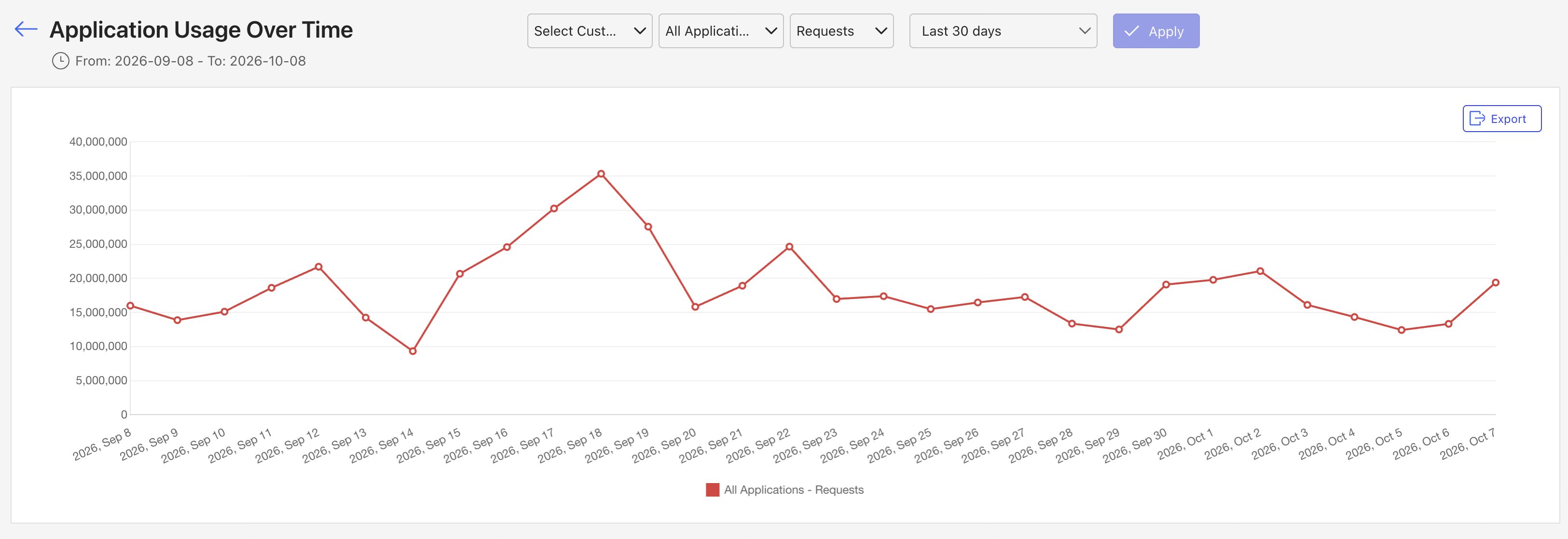
An example of the Usage Over Time page is shown in the figure below.
Usage Over Time page actions
On the Usage Over Time page, you can:
View data for all customers, or search for and select one or more specific customers
View data for all applications, or search for and select one or more specific applications
Specify if the chart and table should show data for application requests only, application downloads only, or both
Adjust the data reporting period
Download customer application request and download details in CSV format
For more information on these actions, refer to the sections below.
Select which customers are included
By default, the page shows application usage data for all customers in your portfolio. To change which customer usage data is displayed, use the Customer drop-down list to search for and select one, multiple, or all customers, and then select Apply.

Select which applications are included
By default, the page shows application usage data for all applications used by customers in your portfolio. To change which application usage data is displayed, use the Application drop-down list to search for and select one, multiple, or all applications, and then select Apply.

Select which metric types are included
The default metric type shown on the page depends on how you accessed it.
NOTE: This page can be accessed by selecting the icon in any of the following tiles on the Usage Analytics page:
You can also access the page by selecting a row in the Customer Consumption tile.
When the Usage Over Time page opens, its default filters reflect how you accessed it. Opening the page from a requests tile displays application requests, while opening it from a downloads tile displays application downloads. Opening it from the Customer Consumption tile filters the data by the customer and application selected in that tile.
To change which metric type’s usage data is displayed, use the Metric Type drop-down list to search for and select one or more of the following metric types, and then select Apply.
Requests
Downloads
Total APIs (all metric types)

Adjust the data reporting period
By default, the page shows application usage data for the last 30 days for customers in your portfolio. To change the reporting period, use the Date Range drop-down list to select one of the following options, and then select Apply.
Last 7 days
Last 30 days
Last one year
Statement Period
Custom

NOTES:
The Statement Period section includes an option for each month in which data is available.
When you select Custom, the From and To date picker fields will display. Use these fields to choose your desired date range.
Download customer application request and download details
To download customer application request and download details in CSV format, select the Export button.
NOTE: When you export data, any active scope or data reporting period selections are applied. As a result, the downloaded file includes only the details applied at the time you select Export.
Interactive chart details
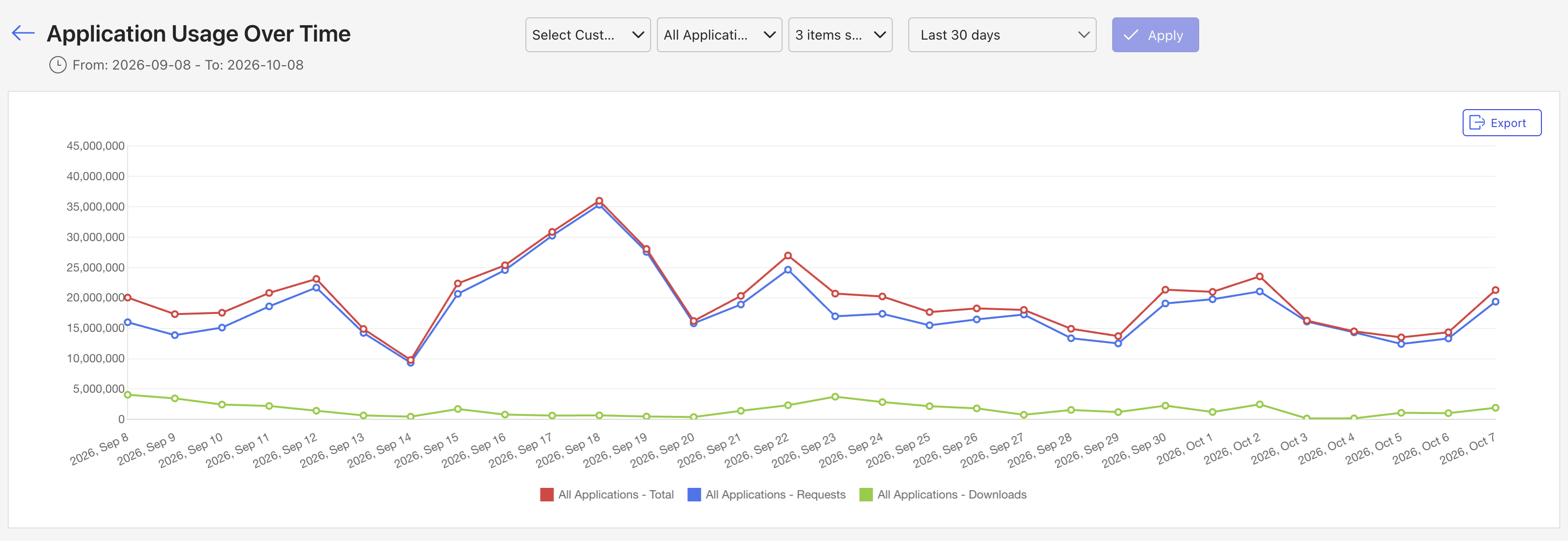
The interactive chart provides the following details about customer application usage over the specified reporting period:
A line chart with a line for each of the following metric types:
The number of application requests
The number of application downloads
The combined number of application requests and downloads
A color-coded legend showing which types are included in the chart
NOTE: In the Scope section, use the metric type drop-down list to select which types the line chart includes. You can select one, two, or all three types. The chart shows a line only for each selected type.
An example of the interactive chart with all three metric types selected is shown in the figure below.
In the interactive chart, you can:
Filter the metric types shown in the chart
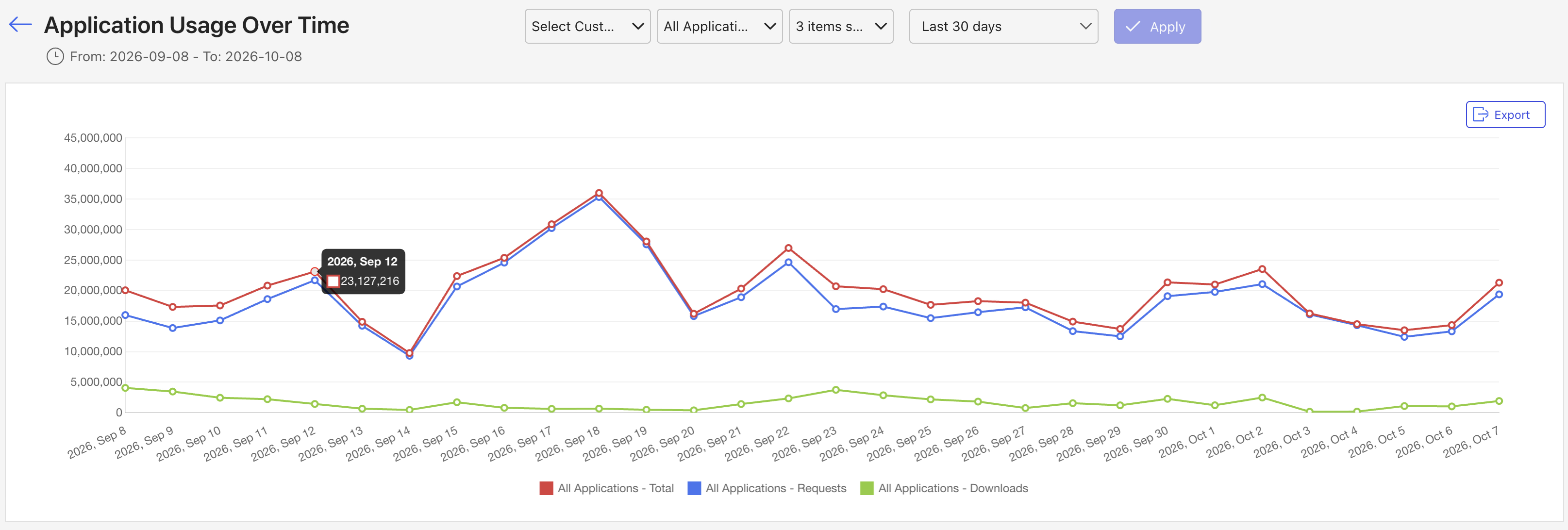
Hover over a point on a line to see more details about the corresponding data reporting period
Download application usage details in CSV format
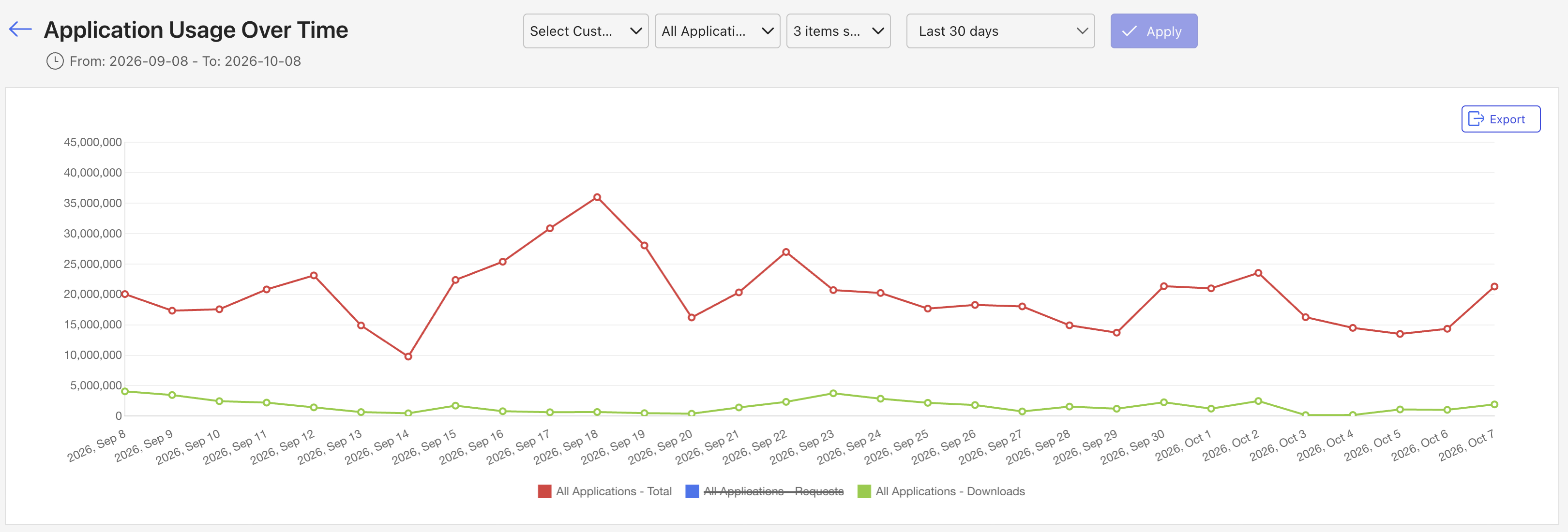
Filter metric types
To filter the metric types shown in the chart, select one or more types from the legend in the interactive chart. For instance, in the example below, the Requests metric type has been removed from the chart.
See more details about a data reporting period
To see more details about a specific data reporting period, hover over a point on a line in the interactive chart. For instance, in the example below, a pop-up dialog shows the number of Requests for the 2026, Sep 12 data reporting period.
Download customer application usage details
To download customer application usage details in CSV format, select the Export button in the interactive chart.
Breakdown section details
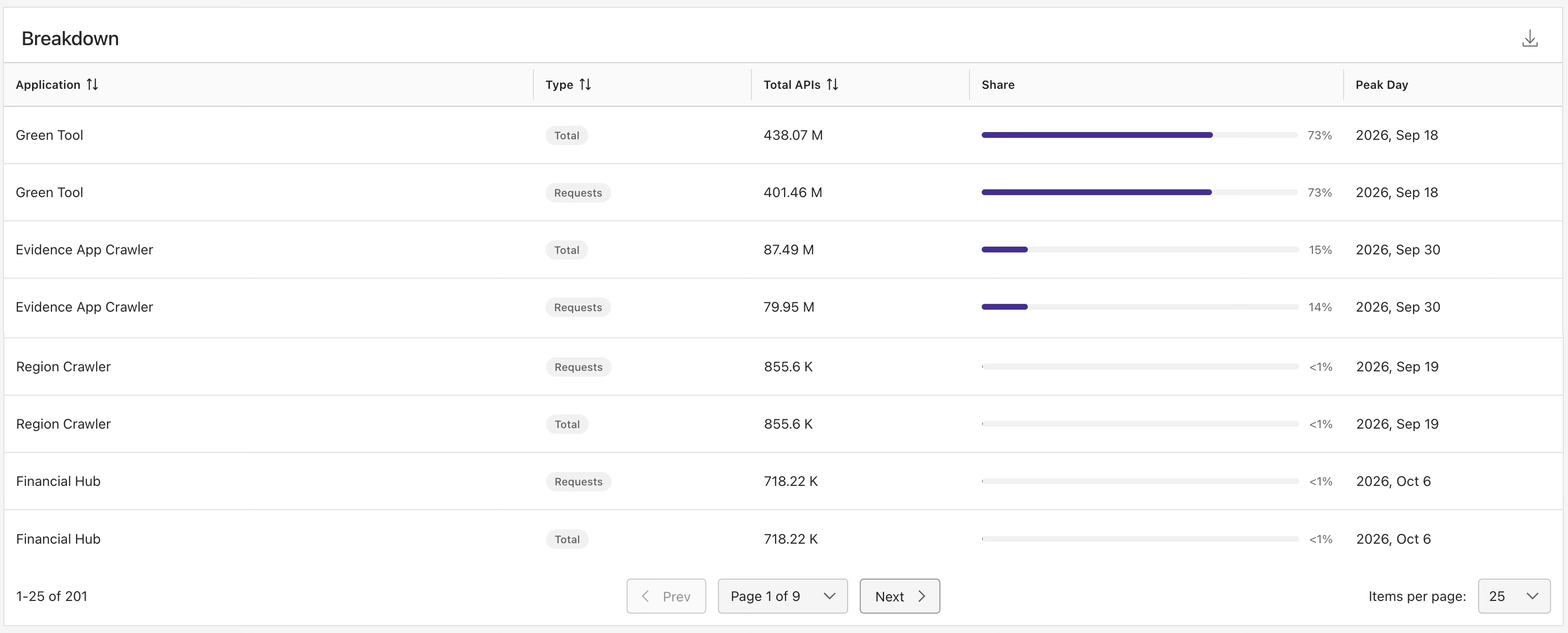
The breakdown table summarizes the data shown in the interactive chart. For each customer, application, and metric-type combination, it provides the total number of API calls, the share of all API calls, and the date with the most API calls for the selected period.
The table includes the following columns:
Customer / Application: Identifies each unique customer and application combination.
Type: Indicates whether the metric consists of requests or downloads.
Total APIs: Shows the total API calls for the customer, application, and metric type during the reporting period.
Share: Shows the percentage of all API calls represented by the customer, application, and metric type during the reporting period.
Peak Day: Identifies the date with the highest number of API calls for the customer, application, and metric type during the reporting period.
An example of the Breakdown section is shown in the figure below.
Breakdown section actions
In the Breakdown section, you can:
Sort the output in the breakdown table
Download customer application usage details in CSV format
For more information about these actions, refer to the sections below.
Sort the breakdown table
To sort the output in the breakdown table, select the appropriate column heading from the following options:
Customer / Application
Type
Total APIs
Download breakdown table details
To download customer application usage details in CSV format, select the  icon.
icon.