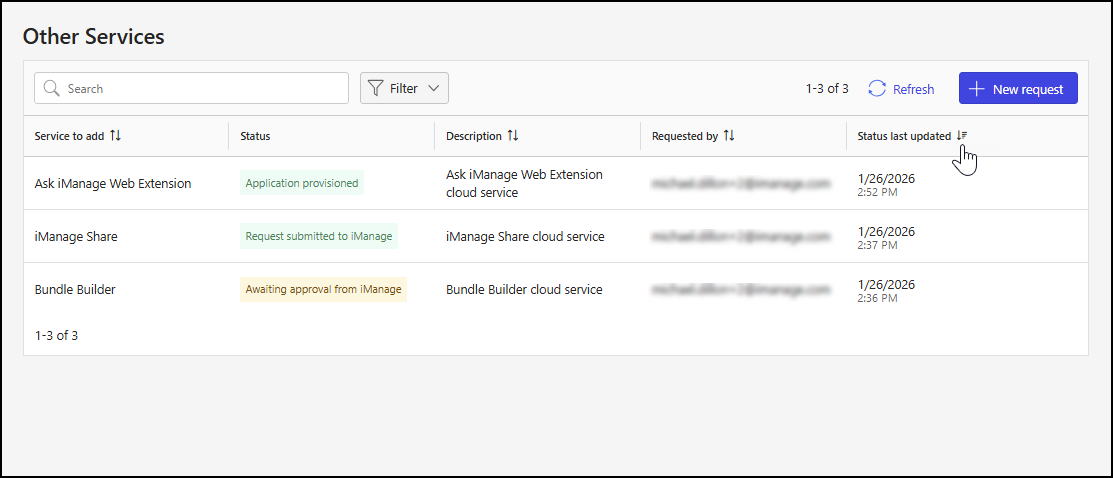
The Other Services page provides a convenient way to request additional iManage Cloud services that must be approved or provisioned before they can be added and enabled in iManage Control Center. Because these services require contract validation or provisioning by iManage, they must be requested through this separate process.
A guided dialog prompts you for the information iManage needs to evaluate your request and enable the service, ensuring that all the necessary details are collected. This page also lets you track the progress of your submitted requests. The search, filter, and sort page controls help you easily locate and review your requests.
An example of the Other Services page is shown in the following figure.

This section includes the following topics:
Other Services page actions
On the Other Services page, you can:
Request a new cloud service: Submit a request for a new cloud service. For detailed steps, refer to Request a cloud service.
View cloud service request details: Check the details of a cloud service request. For detailed steps, refer to View cloud service request details.
Request a cloud service
On the Other Services page, you can submit requests to add the following cloud services:
Ask iManage Web Extension
Bundle Builder
Customer Managed Encryption Keys (CMEK)
E-signature with DocuSign
iManage Disposition Manager
iManage Records Manager
iManage Security Policy Manager
iManage Share
iManage Threat Manager
iManage Tracker
To submit a request for a new cloud service:
Go to https://cloudimanage.com/admin/ and sign in with your iManage credentials.
NOTE: To request a cloud service, the user account used to sign in to iManage Admin Portal must be assigned the Onboarding Management scope and Operator role for customer onboarding. For more information about granting user access, refer to Onboarding Access.
Browse to Customer Onboarding > Other services.
On the Other Services page, select + New request.
In the Choose cloud service step of the New Request dialog:
Figure: New Request dialog: Choose cloud service step
Select a service from the Choose cloud service drop-down list. For a list of available cloud services, refer to Other Services page actions.
Select Enter requirements to proceed to the next step.
In the Enter requirements step of the New Request dialog:
Figure: New Request dialog: Enter requirements step
Fill in the details using the guidance in Cloud service request requirements.
Select Review and Submit to proceed to the next step.
NOTE: The figure above shows an example of the Enter requirements step for the iManage Share service. The specific information you’ll be asked to provide in this step varies by service. For more information, refer to Cloud service request requirements.
In the Review and Submit step, review and confirm the service details.
Figure: New Request dialog: Review and Submit step
If you need to make any changes, select Back to return to the previous step.
When everything is correct, select Submit requirements to submit the service request.
NOTES:
When you submit a request for a new cloud service, iManage reviews it and decides whether to approve or deny it. You'll be contacted if there are any questions about the request or if more information is needed.
For iManage Disposition Manager, iManage Security Policy Manager, and iManage Threat Manager, you’ll receive a notification when the service is set up through a ticket. For all other services, notification will be provided in the Status column of the table on the Other services page.
Cloud service request requirements
The table below lists each iManage Cloud service along with the specific information required when submitting a service request.
Table: Cloud service request requirements
Cloud service | Requirement field | Description |
|---|---|---|
Ask iManage Web Extension | Comment | A description that provides more details about the Ask iManage Web Extension service request. |
Bundle Builder | Comment | A description that provides more details about the Bundle Builder service request. |
Customer Managed Encryption Keys (CMEK) | Azure Key Vault - 1 | The DNS name for the first Azure key vault. For example, https://ajubalaw.vault.azure.net/. For more information, refer to the Success catalog: Customer-managed encryption keys (CMEK) Help Center article and the Azure Key Vault page in Control Center Help. |
Azure Key Vault - 2 | The DNS name for the second Azure key vault. For example, https://ajubalaw.vault.azure.net/. For more information, refer to the Success catalog: Customer-managed encryption keys (CMEK) Help Center article and the Azure Key Vault page in Control Center Help. | |
Comment | A description that provides more details about the Customer Managed Encryption Keys service request. | |
E-signature with DocuSign | Comment | A description that provides more details about the E-signature with DocuSign service request. |
iManage Disposition Manager | Comment | A description that provides more details about the iManage Disposition Manager service request. |
iManage Records Manager | Custom Subdomain | The custom subdomain for iManage Records Manager (IRM). Enter only the custom subdomain value for IRM using letters, numbers, and hyphens. The domain and protocol are entered automatically. For example, if you enter xyz, the URL will be https://xyz.irm-cloudimanage.com. |
Database model | The database model planned for iManage Records Manager.
| |
Comment | A description that provides more details about the iManage Records Manager service request. | |
iManage Security Policy Manager | Number of matters | The number of matters planned for iManage Security Policy Manager (SPM). |
Migrating from on-prem | Specifies whether SPM data is being migrated from an on-premises environment.
| |
Library for Groups Importer | The library from which iManage Work will sync to import groups from SPM. | |
Skip disabled users import | Specifies whether disabled users are skipped during data import.
| |
Comment | A description that provides more details about the iManage Security Policy Manager service request. | |
iManage Share | Name | The name of the iManage Share administrator. |
The email address of the iManage Share administrator. | ||
Comment | A description that provides more details about the iManage Share service request. | |
iManage Threat Manager | Custom Subdomain | The custom subdomain for iManage Threat Manager (TM). Enter only the custom subdomain value for TM using letters, numbers, and hyphens. The domain and protocol are entered automatically. For example, if you enter xyz, the URL will be https://xyz.tm-cloudimanage.com. |
Comment | A description that provides more details about the iManage Threat Manager service request. | |
iManage Tracker | Comment | A description that provides more details about the iManage Tracker service request. |
View cloud service request details
To view cloud service request details:
Go to https://cloudimanage.com/admin/ and sign in with your iManage credentials.
Browse to Customer Onboarding > Other services.
On the Other Services page, choose a service from the cloud service table and use one of the following methods to select it:
Select the service in the Service to add column.
Select the three dots icon in the service row and then select View details.
Right-click the service row and then select View details.
An example of the right-click menu is shown in the figure below.Figure: Other Services page: Right-click View details action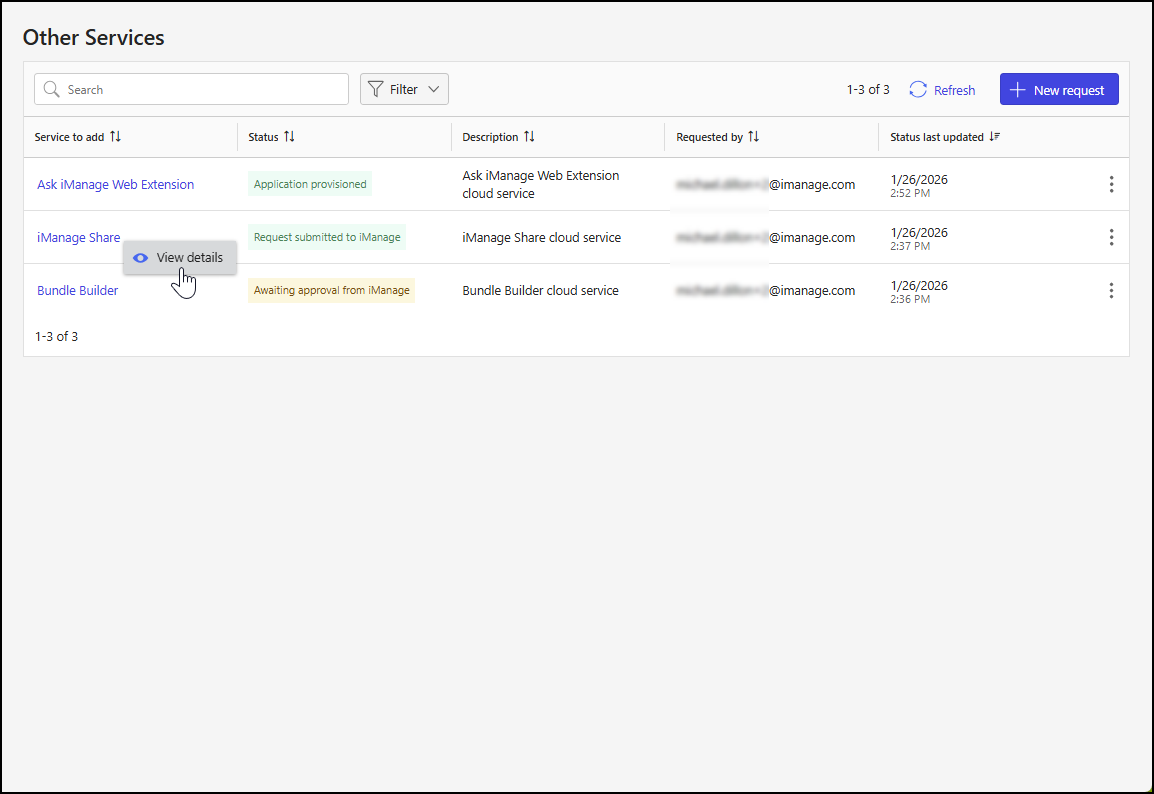
The Cloud Technical Requirements dialog displays, showing the status and details for the service.
Figure: Cloud Technical Requirements dialog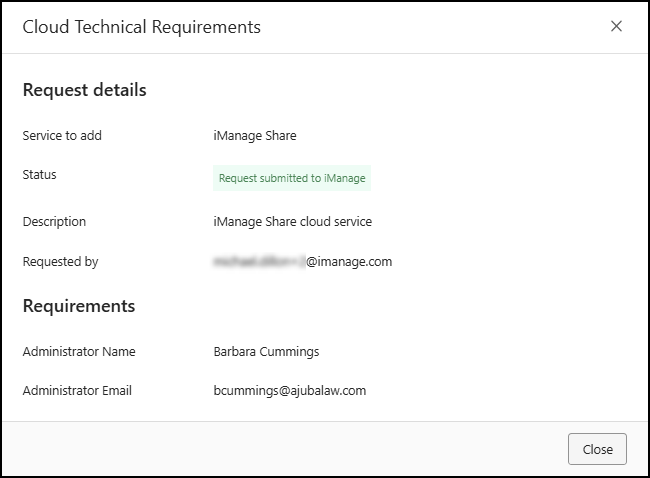
To close the Cloud Technical Requirements dialog, select Close.
Cloud service table data output options
On the Other Services page, you can:
Search for requests: Use a cloud service name or description search string to filter the results in the cloud service table. For more information, refer to Search for cloud service requests.
Filter the output: Filter data in the cloud service table based on values in the Service to add and Status columns. For more information, refer to Filter by cloud service request status.
Sort the output: Organize the results in the cloud service table by selecting a column header to sort by the values in that column. For more information, refer to Sort cloud service table output.
Search for cloud service requests
To search for cloud service requests, enter a search string in the Search field.

Filter by cloud service request status
To filter data output based on values in the Service to add and Status columns of the cloud service table:
Select Filter > Service to add to display the cloud service options, and then choose one or more options.
Figure: Service to add filter options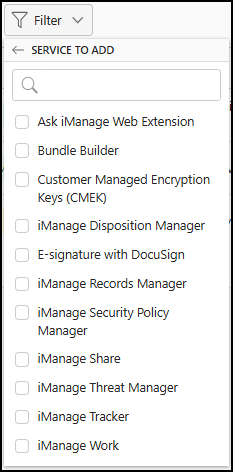
Select Filter > Status to display the status options, and then choose one or more options.
Figure: Status filter options
An example of the cloud service table filtered by status is shown in the following figure:
Filter: Other Services page: Status filter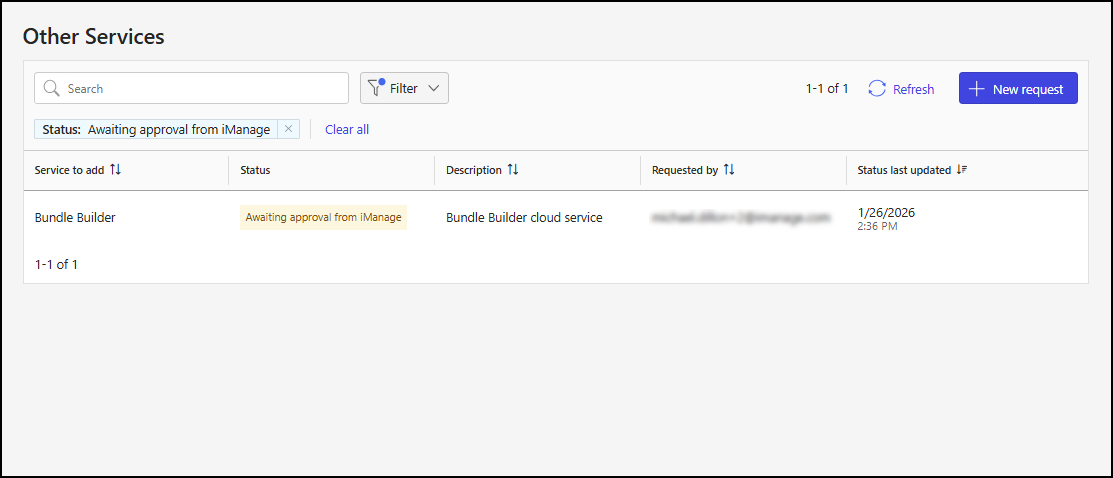
To remove filtering:
Select X next to the Service to add or Status filter display.
Select Clear all.
Sort cloud service table output
In the cloud service table, select a column header to sort the output by the values in that column. In the following figure, the table output is sorted in descending order by the values in the Status last updated column.