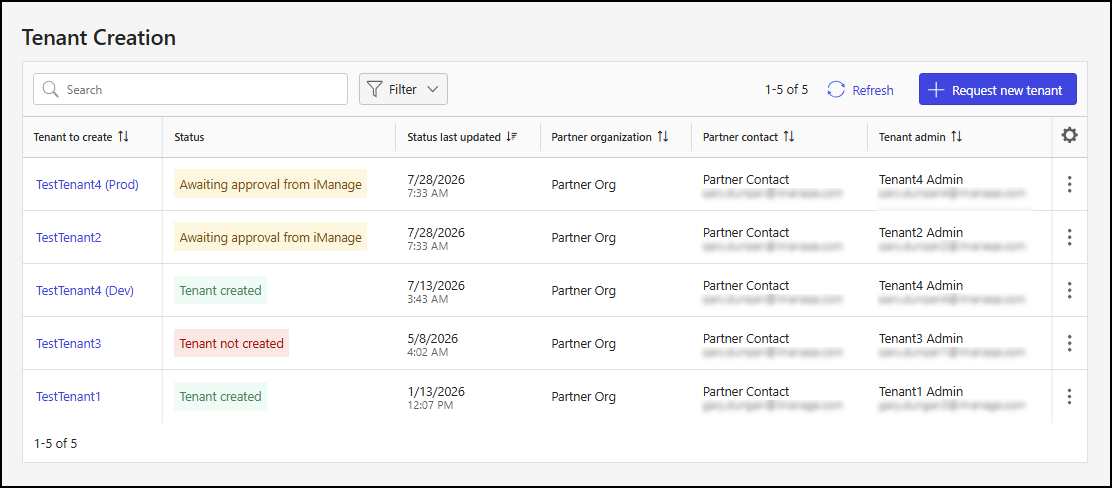
The Tenant Creation page provides an easy way to request a new tenant—an iManage Work environment that can be used for production or as a sandbox for testing. A guided dialog prompts you for the information iManage needs to evaluate your request and create the tenant, ensuring that all the necessary details are collected.
NOTE: Tenant creation requests are typically submitted by Partners when requesting a tenant for a customer.
This page also lets you track the progress of your submitted requests. The search, filter, and sort page controls help you easily locate and review your requests.
An example of the Tenant Creation page is shown in the following figure.
This section includes the following topics:
Tenant Creation page actions
On the Tenant Creation page, you can:
Request a new tenant: Submit a request for a new tenant. For detailed steps, refer to Request a new tenant.
View tenant details: Check the details of a tenant request. For detailed steps, refer to View tenant details.
Request a new tenant
To submit a request for a new tenant in iManage Admin Portal, follow these steps:
Go to https://cloudimanage.com/admin and sign in with your iManage credentials.
NOTE: To request a new tenant, the user account used to sign in to iManage Admin Portal must be assigned the Onboarding Management scope and Operator role for customer onboarding. For more information about granting user access, refer to Onboarding Access.
Browse to Customer Onboarding > Tenant creation.
On the Tenant Creation page, select + Request new tenant.
In the Company details step of the Request New Tenant dialog:
Figure: Request New Tenant dialog: Company details step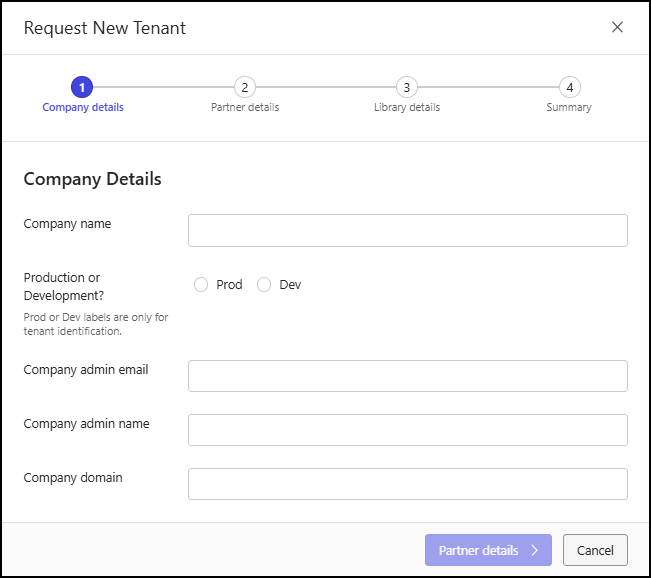
Fill in the company details:
Company name: Enter the name of the company for which the new tenant is being requested. Enter a value that meets the following criteria:
Alphanumeric: a–z, A–Z, 0–9
Special characters allowed: All
Spaces allowed: Yes
Production or Development: Select the environment type for the tenant creation request.
Prod: The request is for a production environment.
Dev: The request is for a development environment.
Company admin email: Enter the email address of the company administrator.
NOTE: This must be a valid email address with an active mailbox, because the password setup link is sent to that address when the tenant is created.
Company admin name: Enter the name of the company administrator.
Company domain: Enter the company domain. This must be unique to the tenant and is typically the domain name associated with the firm (for example, ajubalaw.com).
NOTE: The domain portion of the email address entered in the Company admin email field is automatically copied to this field.
Select Partner details to proceed to the next step.
In the Partner details step of the Request New Tenant dialog:
Figure: Request New Tenant dialog: Partner details step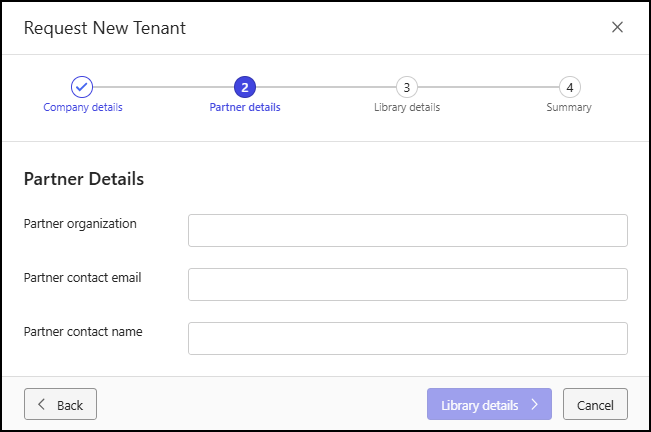
Fill in the partner details:
Partner organization: Enter the name of the Partner organization.
Partner contact email: Enter the email address of the Partner contact.
Partner contact name: Enter the name of the Partner contact.
NOTE: If there's no partner associated with this request, provide your own contact information.
Select Library details to proceed to the next step.
In the Library details step of the Request New Tenant dialog:
Figure: Request New Tenant dialog: Library details step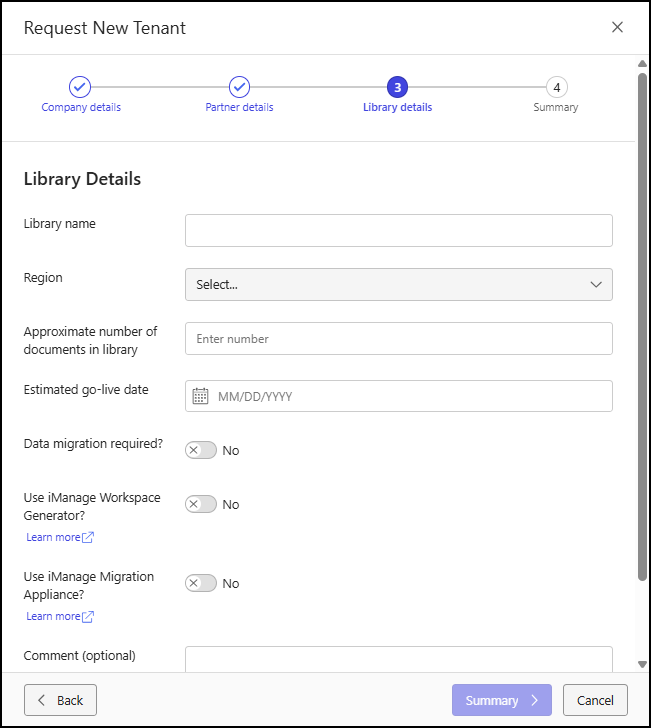
Fill in the library details:
Library name: Enter the name of the library. Enter a value that meets the following criteria:
Length: 1–32 characters
Alphanumeric: a–z, A–Z, 0–9
Special characters allowed: _
Spaces allowed: No
Region: Select the region that'll host the library. Choose a value from the Region drop-down list.
Approximate number of documents in library: Enter the estimated number of documents that'll reside in the library.
Estimated go-live date: Enter the date when the library is expected to go live. Enter a date or select one using the date picker.
Data migration required: Select whether data needs to be migrated to this library.
No (default): Data doesn’t need to be migrated.
Yes: Data needs to be migrated.
Estimated migration start date: Enter the migration start date if data needs to be migrated. Enter a date or select one using the date picker.
NOTE: This field is shown only if Data migration required is set to Yes.
Use iManage Workspace Generator: Select whether iManage Workspace Generator will be used to automate the process of creating workspaces.
No (default): Workspace Generator won’t be used.
Yes: Workspace Generator will be used.
Use iManage Migration Appliance: Select whether iManage Migration Appliance will be used to migrate data to the library.
No (default): iManage Migration Appliance won’t be used.
Yes: iManage Migration Appliance will be used.
Comment: Enter a description that provides more details about the library.
Select Summary to proceed to the next step.
In the Summary step, review and confirm the company, Partner, and library details.
Figure: Request New Tenant dialog: Summary step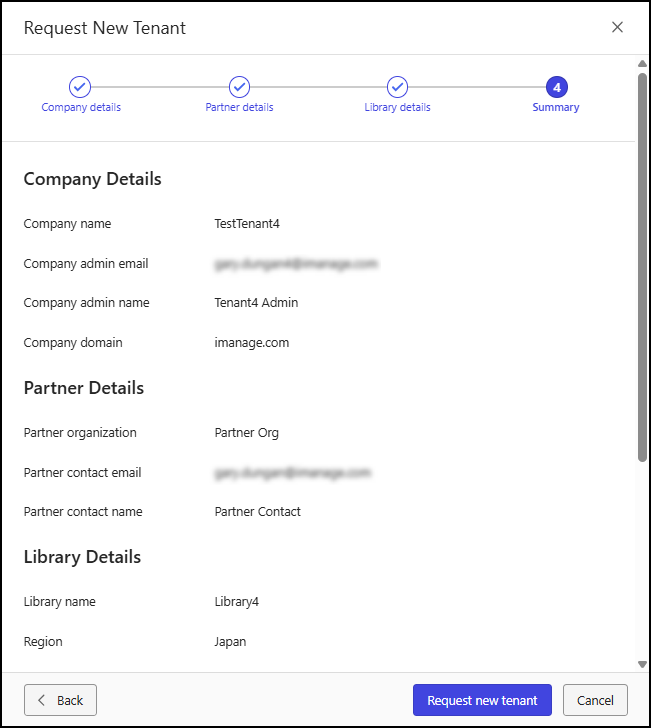
If you need to make any changes, select Back to return to the previous steps.
When everything is correct, select Request new tenant to submit the new tenant request.
NOTE: When you submit a request for a new tenant, iManage reviews and validates it against the contractual agreements. You'll be contacted if there are any questions about the request or if more information is needed.
View tenant details
To view tenant details, follow these steps:
Go to https://cloudimanage.com/admin/ and sign in with your iManage credentials.
NOTE: To view tenant details, the user account used to sign in to iManage Admin Portal must be assigned the Onboarding Management scope and either the Operator or Monitor role for customer onboarding. For more information about granting user access, refer to Onboarding Access.
Browse to Customer Onboarding > Tenant creation.
On the Tenant Creation page, choose a tenant from the tenant table and use one of the following methods to select it:
Select the tenant in the Tenant to create column.
Select the kebab on the tenant row and then select View details.
Right-click on the tenant row and then select View details.
An example of the right-click menu is shown in the figure below:Figure: Tenant Creation page: right-click View details action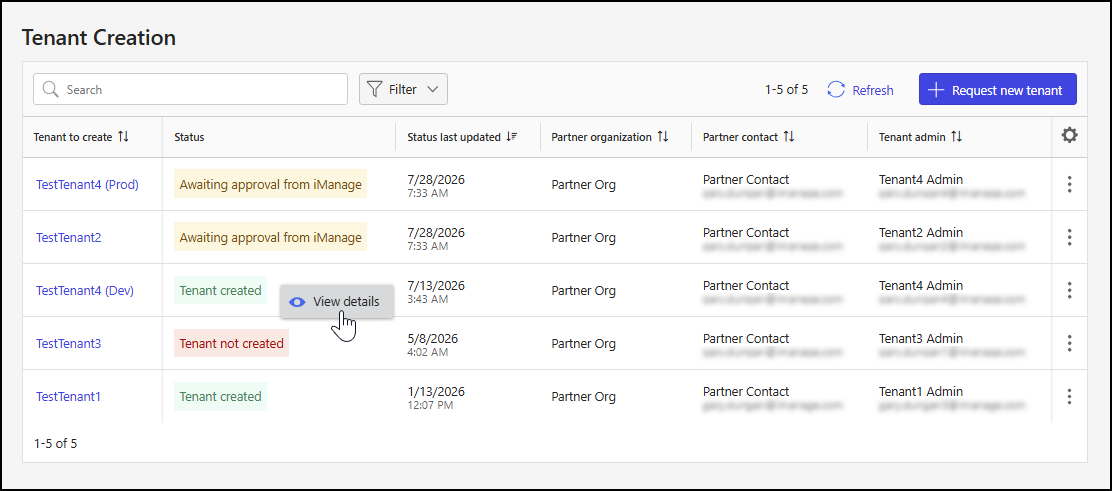
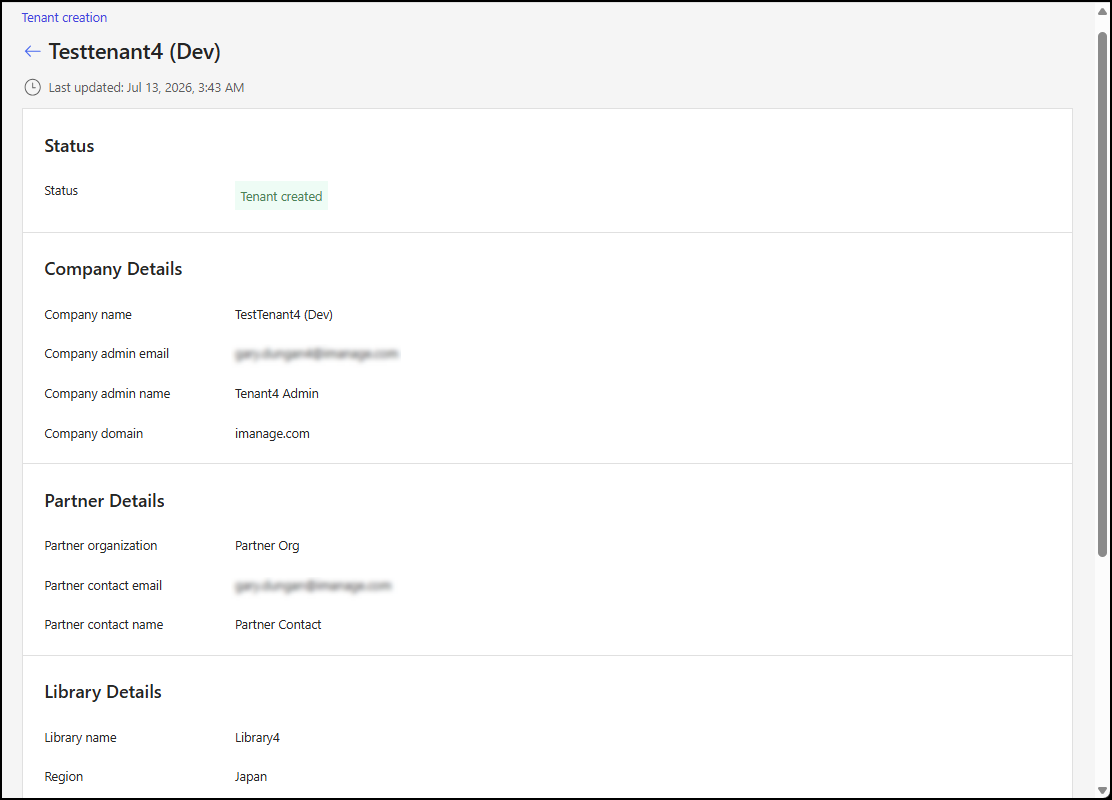
The Tenant Details page displays, showing the status and details for the tenant.
Tenant table data output options
On the Tenant Creation page, you can:
Search for requests: Use a tenant or Partner search string to filter the results in the tenant table. For more information, refer to Search for tenant creation requests.
Filter the output: Filter data in the tenant table based on values in the Status column. For more information, refer to Filter by tenant creation status.
Sort the output: Organize the results in the tenant table by selecting a column header to sort by the values in that column. For more information, refer to Sort tenant table output.
Configure the table: Customize the table by adding, removing, or reordering columns. For more information, refer to Configure the tenant creation table.
Search for tenant creation requests
To search the tenant table, enter a search string in the Search field.

Filter by tenant creation status
Filter data output based on values in Status column of the tenant table.
Select Filter > Status to display the status options, and then choose one or more options.
Figure: Status filter options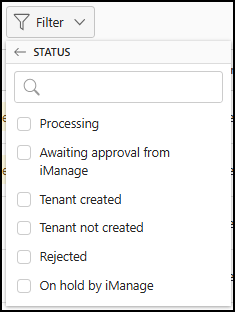
An example of the tenant table filtered by status is shown in the following figure.Filter: Tenant Creation page: Status filter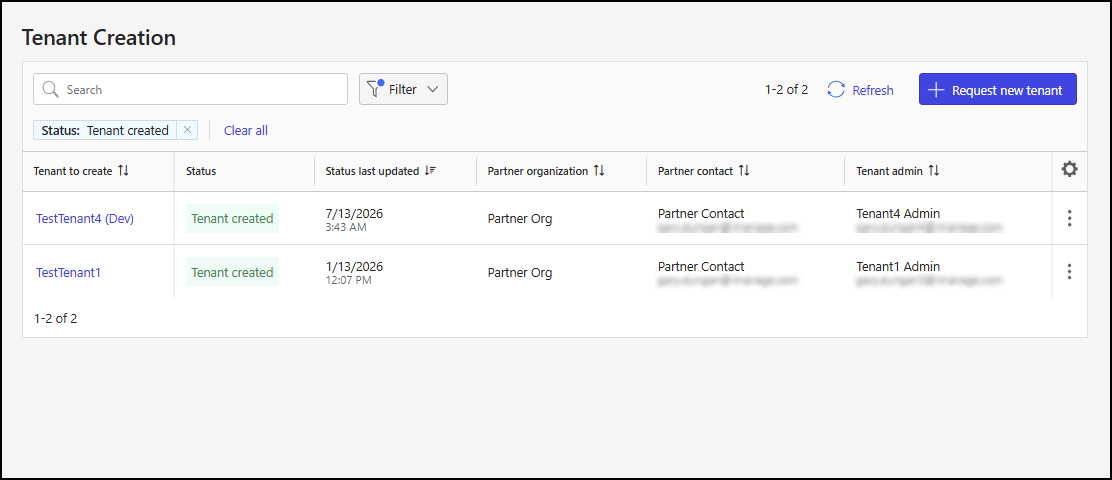
To remove status filtering:
Select X next to the Status filter display.
Select Clear all.
Sort tenant table output
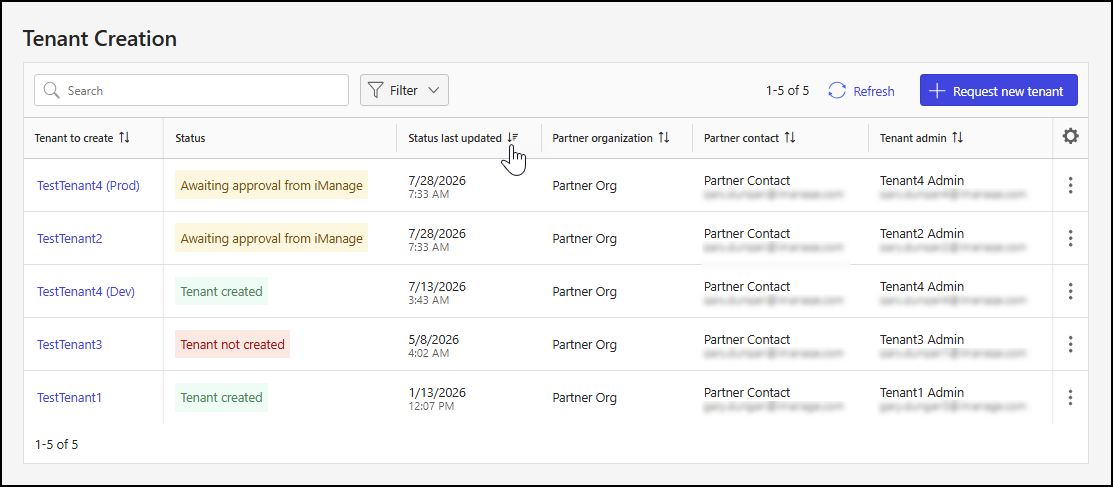
In the tenant table, select a column header to sort the output by the values in that column. In the following figure, the table output is sorted in descending order by the values in the Status last updated column.
Configure the tenant creation table
By default, the tenant table displays the following columns in the order listed:
Tenant to create
Status
Status last updated
Partner organization
Partner contact
Tenant admin
To add, remove, or reorder the columns, select the  icon at the far right of the tenant table on the Tenant Creation page. This opens the Edit Columns dialog, as shown in the following figure.

In the Edit Columns dialog:
To add a column to the output: Hover over the column name in the Available Columns panel and select the
 icon. This action moves the column to the Displayed Columns panel.
To remove a column from the output: Hover over the column name in the Displayed Columns panel and select the
 icon. This action moves the column to the Available Columns panel.
To reorder columns: Select and drag a column in the Displayed Columns panel.
To return to the default column display and order: Select Reset to default.
To save column display: Select Save to save your column display and order changes or Cancel to abandon your changes.
NOTE: The Tenant to create column is required and can’t be removed or reordered.