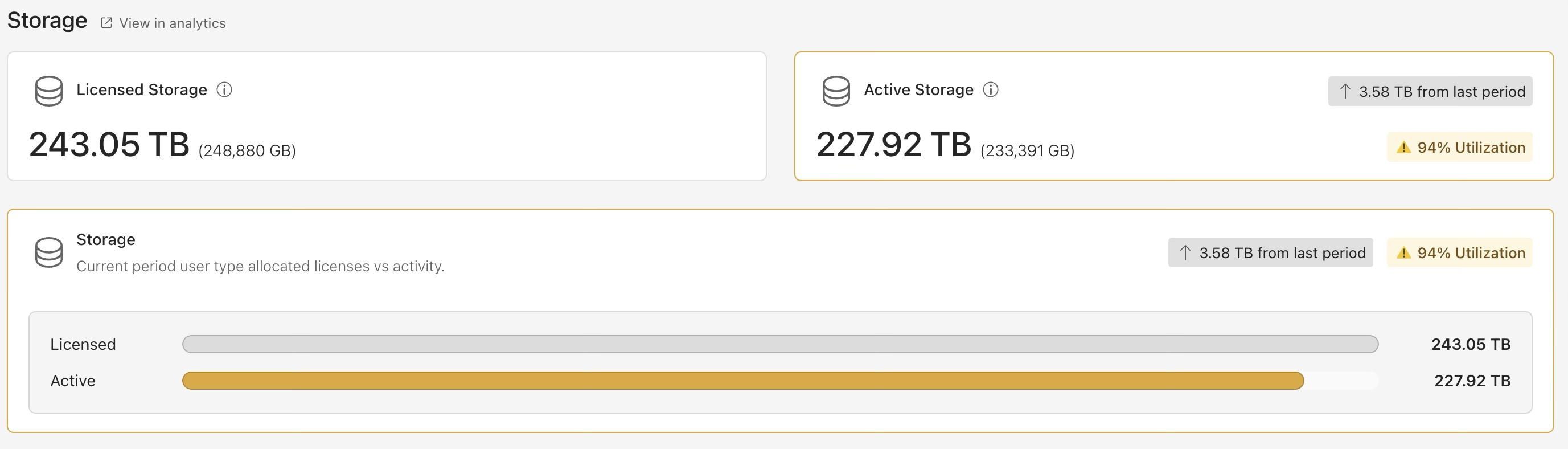
The Storage section of the Billing page displays tiles that show your licensed storage allocation and the amount of storage consumed for the selected period. This information is presented through the following dashboard tiles:
Licensed Storage and Active Storage: These tiles show, respectively, the amount of storage allocated to your organization and the amount used.
Storage: This tile provides visual indicators that make it easy to compare your subscribed storage with the amount consumed.
INFO: Storage consumption is calculated using binary (base-2) units following the International Electrotechnical Commission (IEC) standard.
Examples of these tiles are shown in the following figure.
NOTE: To view more detailed information about your storage usage, select View in analytics. This opens the Analytics page in the Cloud Analytics section of iManage Admin Portal.
Licensed and Active Storage tiles
The Licensed Storage and Active Storage tiles provide a quick snapshot of your organization’s storage allocation and usage for the selected period.
Licensed Storage: Shows the total amount of storage allocated to your organization through your cloudimanage.com subscription.
Active Storage: Shows the amount of storage consumed by your organization.
The Active Storage tile shows how your storage usage has changed since the previous period, indicating whether usage has increased, decreased, or remained the same. The tile also includes visual indicators to alert you when storage used has approached or exceeded your allocated amount:
At 90% of allocated storage:
The tile outline changes to orange.
An orange warning message displays, showing the percentage of licensed storage used.
When storage usage exceeds the allocated amount:
The tile outline changes to red.
A red error message displays, showing how much storage usage is over the allocation.
An example of these tiles is shown in the following figure.

Storage tile
The Storage tile uses progress bars to visually represent the amount of storage consumed compared to the storage allocated through your cloudimanage.com subscription.
This tile shows how your storage usage has changed since the previous period, indicating whether usage has increased, decreased, or remained the same. The tile also includes visual indicators to alert you when storage used has approached or exceeded your allocated amount:
At 90% of allocated storage:
The tile outline and Active bar change to orange.
An orange warning message displays, showing the percentage of licensed storage used.
When storage usage exceeds the allocated amount:
The tile outline and Active bar change to red.
A red error message displays, showing how much storage usage is over the allocation.
An example of this tile is shown in the following figure.
