The Users section of the Billing page displays tiles showing licensed and active user counts for Standard, Collaborator, Ask iManage, and Non-billable users. It also includes a table listing users who were active during the selected period. This information is presented through the following dashboard tiles:
Users: This set of tiles shows user counts for the following user types:
Standard Licensed Users: The number of named user licenses that provide full access to iManage Work, including features like Search, Email Management, Work 10 Web access, document download, and all core capabilities of iManage Work.
Standard Active Users: The number of Standard Licensed users who signed in to iManage Work during the selected period.
Non-billable Active Users: The number of non-billable users who were active during the selected period. These users are assigned to a global non-billable group and represent system accounts that support iManage Work subsystems, such as accounts used for testing, training, help desk support, migrations, and third-party implementation or managed services. To learn about non-billable group assignment, refer to the Procedure for marking users as non-billable for iManage Cloud Help Center article.
User Types: This set of tiles shows licensed and active user counts for the following user types:
Standard Licensed Users: Users with full access to iManage Work, including features like Search, Email Management, Work 10 Web access, document download, and all core capabilities of iManage Work.
Collaborator Licensed Users: Users who have view, download, and upload capabilities to iManage Work using the Work 10 Web interface. Their access is specifically designed to support collaboration with users who have licenses for full editions of iManage Work.
Ask iManage Licensed Users: Users with access to AI-powered search and insights, allowing them to query documents using natural language and receive intelligent responses. A user is considered active if they performed any actions in Ask iManage during the selected period.
Users in the Billing Cycle: A table that displays information about users who were active during the selected period.
NOTE: The Non-billable Active Users, Collaborator Licensed Users, and Ask iManage Licensed Users tiles don’t display if there aren’t any users of that type.
Examples of these tiles are shown in the following figures:
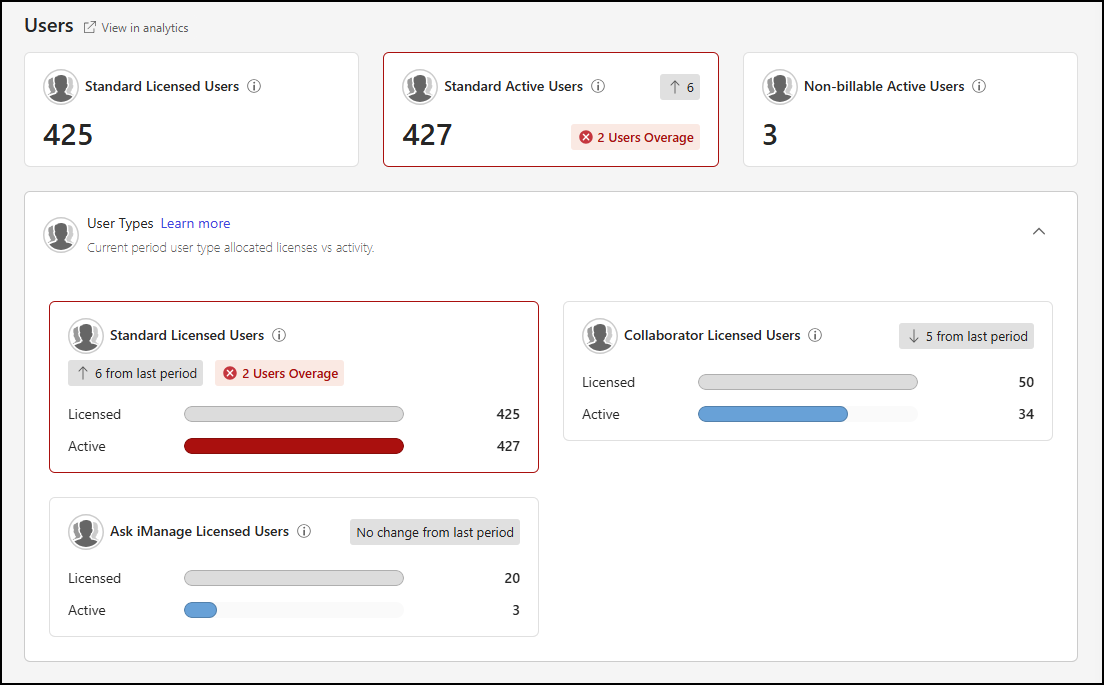
Users tiles
The Standard Licensed Users, Standard Active Users, and Non-billable Active Users tiles provide a quick view of your organization’s iManage Work and non-billable user counts for the selected period.
Standard Licensed Users: Shows the number of named user licenses purchased by your organization for the selected period that provide full access to iManage Work, including features like Search, Email Management, Work 10 Web access, document download, and all core capabilities of iManage Work.
Standard Active Users: Shows the number of Standard Licensed users who signed in to iManage Work during the selected period.
Non-billable Active Users: Shows the number of non-billable users who were active during the selected period. These users are assigned to a global non-billable group and represent system accounts that support iManage Work subsystems, such as accounts used for testing, training, help desk support, migrations, and third-party implementation or managed services.
NOTE: The Non-billable Active Users tile doesn’t display if there aren’t any users of that type.
The Standard Active Users tile shows how the number of active users has changed since the previous period, indicating whether the number has increased, decreased, or remained the same. The tile also includes visual indicators that alert you when your organization is approaching or has exceeded its licensed user limit.
When the number of active users reaches 90% of your user licenses:
The tile outline changes to orange.
An orange warning message displays, showing the percentage of licenses in use.
When the number of active users exceeds the number of licenses:
The tile outline changes to red.
A red error message displays, showing the number of users over the license limit.
An example of these tiles is shown in the following figure.

User Types panel
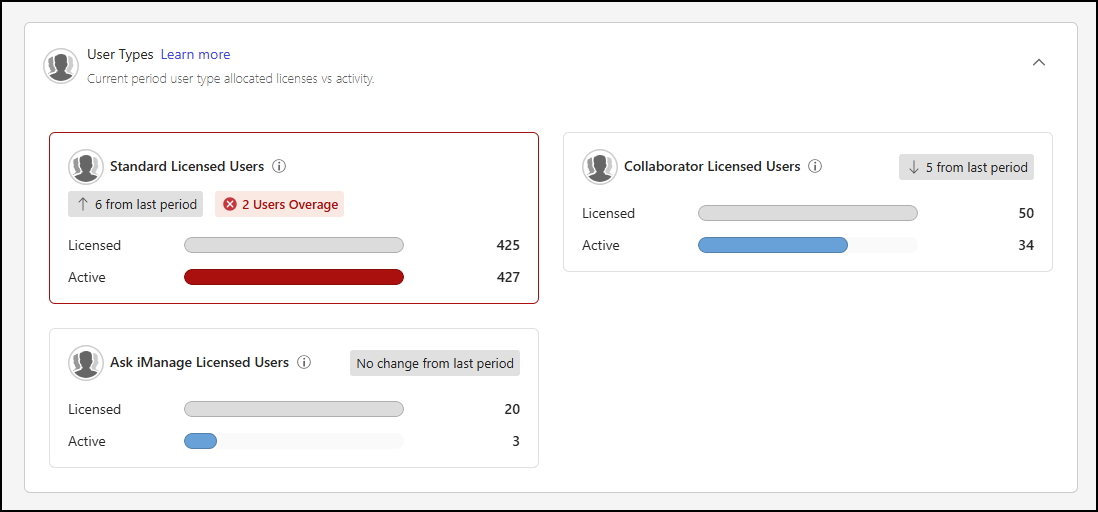
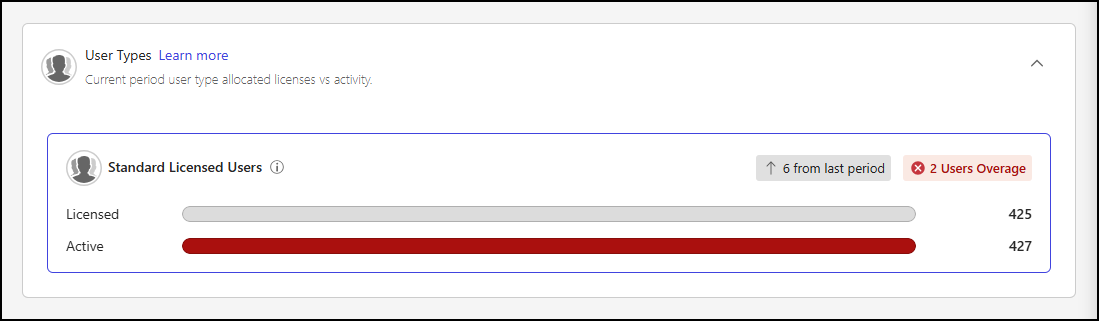
The User Types panel includes tiles that show the number of licensed and active users for each of the following user types:
Standard Licensed Users: Users with full access to iManage Work, including features like Search, Email Management, Work 10 Web access, document download, and all core capabilities of iManage Work.
Collaborator Licensed Users: Users who have view, download, and upload capabilities to iManage Work using the Work 10 Web interface. Their access is specifically designed to support collaboration with users who have licenses for full editions of iManage Work.
Ask iManage Licensed Users: Users with access to AI-powered search and insights, allowing them to query documents using natural language and receive intelligent responses. A user is considered active if they performed any actions in Ask iManage during the selected period.
NOTE: The Collaborator Licensed Users and Ask iManage Licensed Users tiles don’t display if there aren’t any users of that type.
For the selected period, each user type tile displays:
The number of licensed users, along with a bar visualization.
The number of active users, along with a bar visualization.
How the number of active users has changed since the previous period, indicating whether the number has increased, decreased, or remained the same.
Each tile also includes visual indicators to alert you when your organization is approaching or has exceeded its purchased user license limit.
When the number of active users reaches 90% of your user licenses:
The tile outline changes to orange.
An orange warning message displays, showing the percentage of licenses in use.
When the number of active users exceeds the number of licenses:
The tile outline changes to red.
A red error message displays, showing the number of users over the license limit.
An example of the User Types panel is shown in the following figure.
User Types panel actions
Show user license definitions
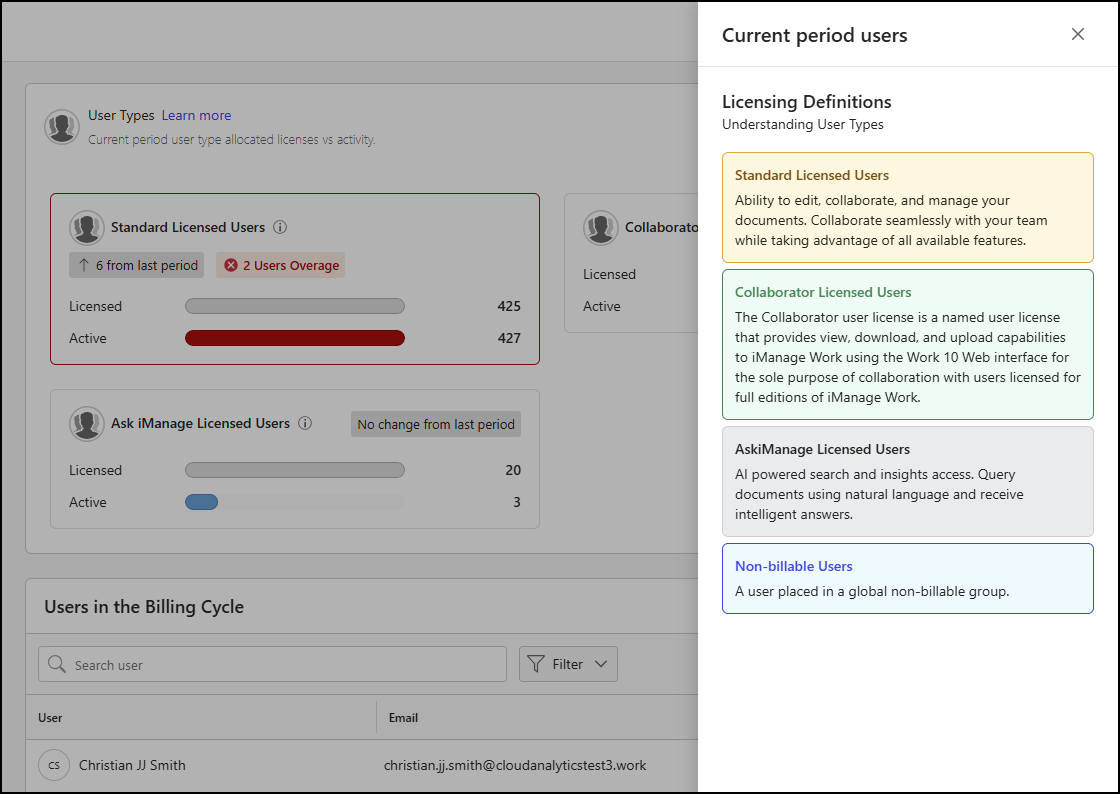
To view definitions for each license type, select Learn more in the User Types panel. Selecting Learn more opens a panel that displays definitions for each user type, as shown in the following figure.
Show or hide licensed users tiles
The User Types panel includes an accordion feature that lets you show or hide the licensed users tiles.
Select the
 icon in the upper-right corner of the panel to hide the licensed users tiles.
Select the
 icon in the upper-right corner of the panel to show the licensed users tiles.
Licensed users tiles are displayed by default.
Selectively display a licensed users tile
All four licensed users tiles are shown by default. You can select an individual tile to hide the others and focus on that user type. Selecting the tile again returns the User Types panel to its default view, with all three licensed users tiles displayed.
An example of the User Types panel with only the Standard Licensed Users tile displayed is shown in the following figure.
Users in the Billing Cycle section
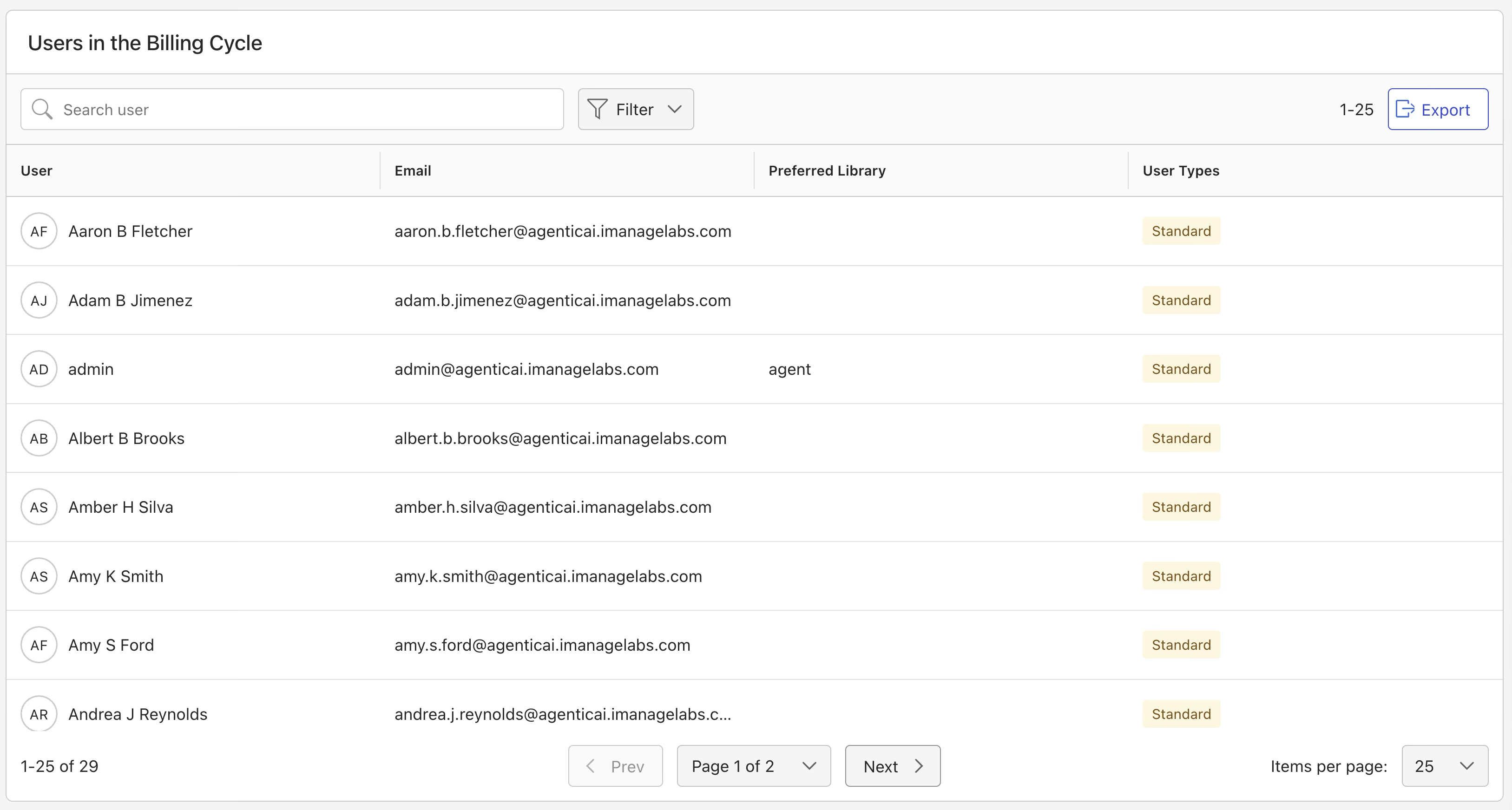
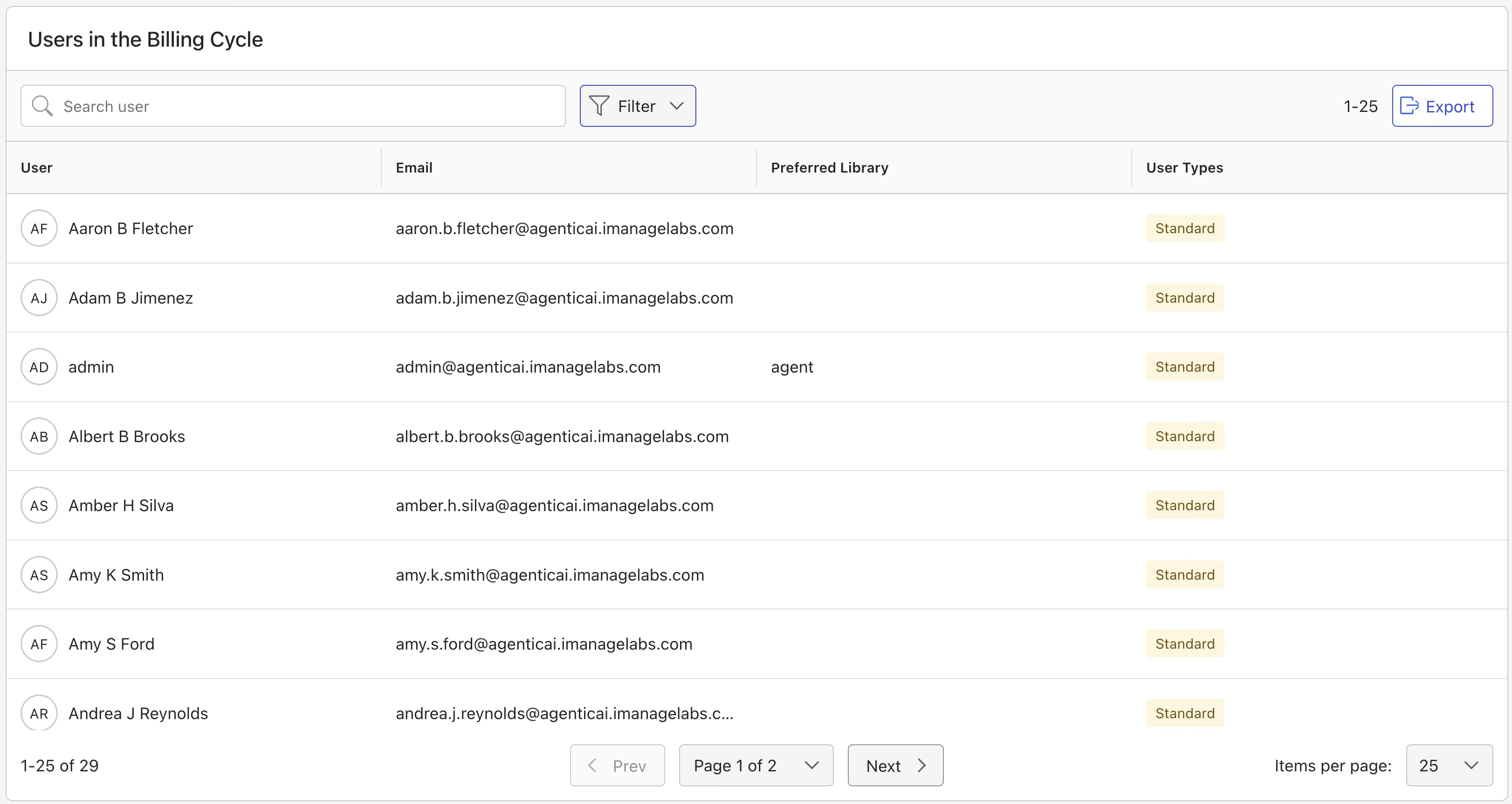
The Users in the Billing Cycle section displays a list of all iManage Work users who signed in during the selected period. The list includes the following columns:
User: The name of the user.
Email: The email address of the user.
Preferred Library: The default library assigned to the user.
User Types: The user types assigned to the user.
NOTE: If the user has more than one type (for example, both Standard and Ask iManage), all assigned types are displayed in the User Types column.
An example of the Users in the Billing Cycle section is shown in the following figure.
Users in the Billing Cycle section actions
In the Users in the Billing Cycle section, you can:
Search for users by name or email address.
Filter the list based on values in the Preferred Library and User Types columns.
Specify how many users are displayed per page.
Browse through pages using the Prev and Next buttons or the Page X of Y drop-down list.
Export user details.
For more information about these actions, refer to the sections below.
Search for a user
To search for a user in the Users in the Billing Cycle section, enter a search string in the Search user field.

Filter data output
You can filter the user table based on values in the Preferred Library and User Types columns.
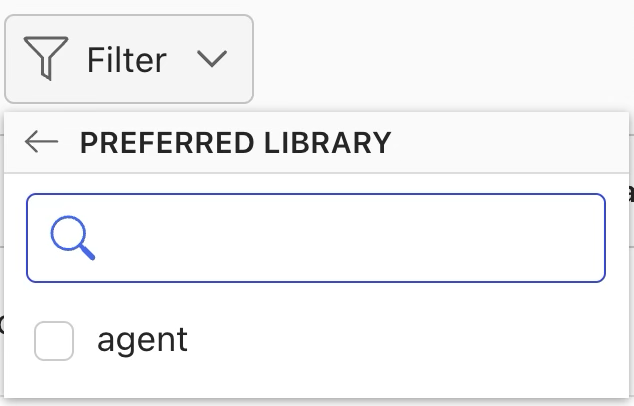
Filter by preferred library
Select the Filter drop-down list.
Select Preferred Library.
Select one or more libraries.
Filter by user types
Select the Filter drop-down list.
Select User Types.
Select one or more user types.
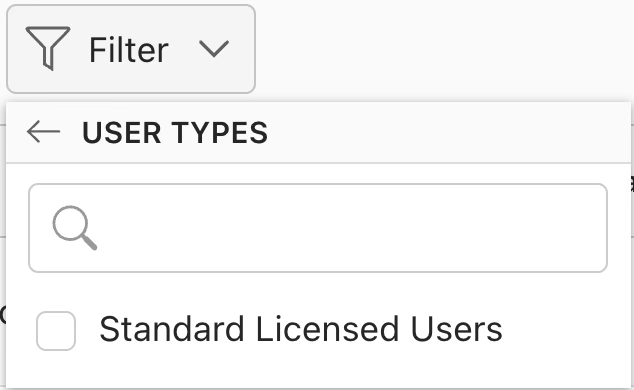
NOTE: The User Type filter list is dynamic and shows only the user types that had active users during the selected period.
Filtered output
After you select one or more filter options, the table updates to show only users or preferred libraries that meet the filter criteria. The applied filter selections are also displayed, as shown in the following table.
Table: Filter selection and output
Filter | Output |
|---|---|
User Types | 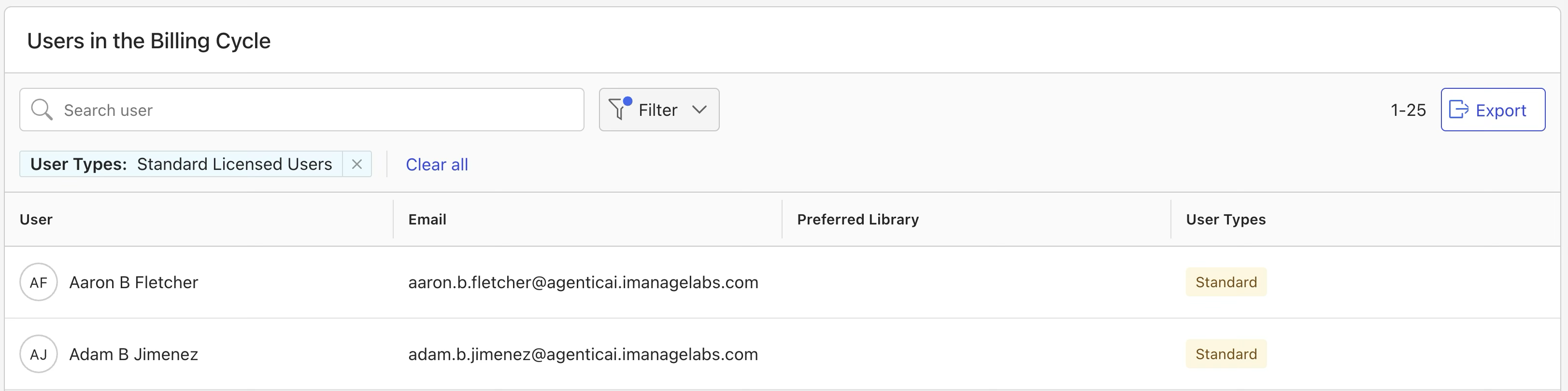 |
Preferred Library |  |
To remove filtering, do either of the following:
Select X next to the applicable filter display.
Select Clear all.
Specify the number of users shown
To change how many users are shown in the Users in the Billing Cycle section, select from the following options in the Items per page drop-down list:
25 (default)
50
100
250
Browse through pages
To browse through pages in the Users in the Billing Cycle section, use the following options:
Prev: Go to the previous page.
Next: Go to the next page.
Page X of Y: Select a specific page.
Export user details
To download user details in CSV format, select the Export button in the Users in the Billing Cycle section.
NOTE: When you export data, any active search or filter selections are applied. As a result, the downloaded file includes only the users displayed in the table at the time you select Export.