The Collaborators tab on the Collaboration page lets you view and manage all users who’ve received collaboration links for a specific library. To access this tab in iManage Control Center, browse to Settings > Collaboration and then select the Collaborators tab.
NOTE: To allow and block users from accessing collaboration links, the user must be a member of the NRTADMIN group. For more information, refer to Creating an NRTADMIN User.
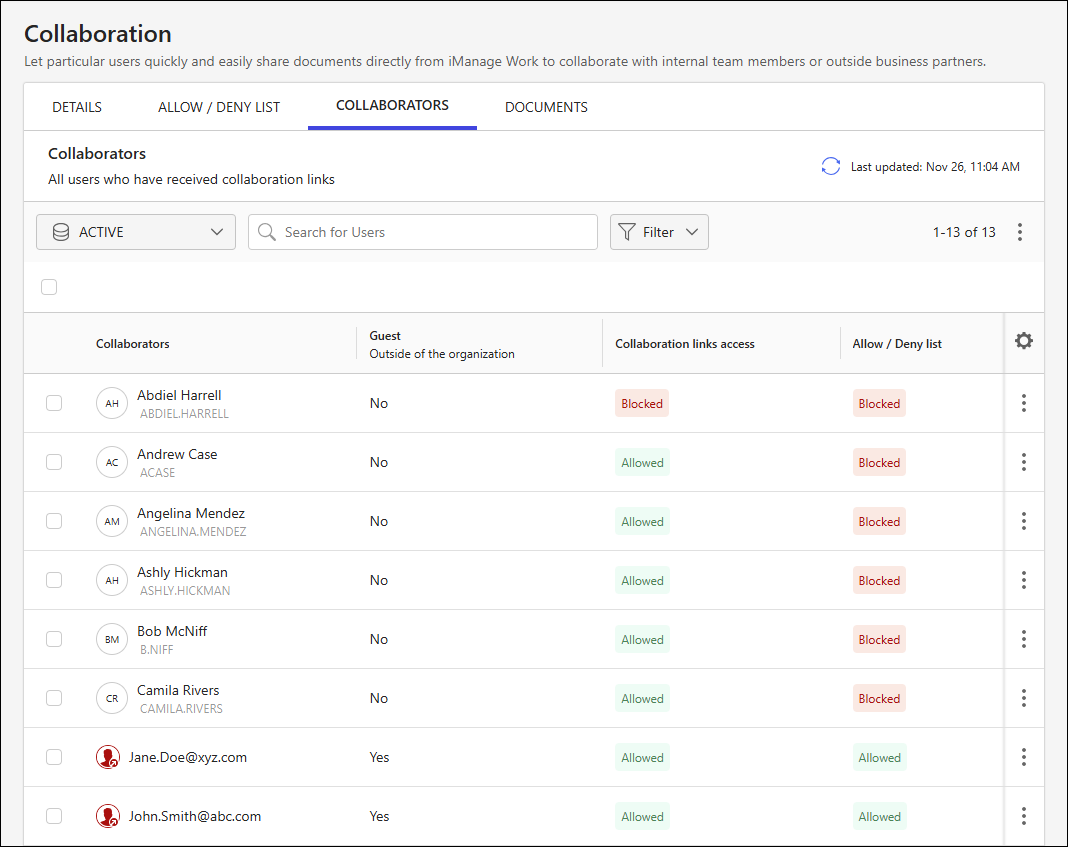
Users are displayed in a table that includes the following details:
Collaborators: The name and ID of the user if they're internal to the organization, or their email address if they’re not.
Guest: An indicator showing whether the user is internal or external (a non-iManage guest user) to the organization.
Collaboration links access: An indicator showing whether the user is allowed or blocked from accessing documents shared through collaboration.
Allow / Deny list: An indicator showing whether the user is allowed or blocked through the Allow / Deny List feature.
An example of the Collaborators tab is shown in the figure below.
Collaborators table data output options
The following data output options are available for the Collaborators table:
Library: Choose the database to display user collaboration details.
Search for Users: Filter data output by user name, ID, or email address.
Filter: Filter the data output using the following criteria:
Guest: Filter based on whether a user is inside or outside the organization.
Yes
No
Collaboration links access: Filter based on whether a user is allowed or blocked from collaborating.
Allowed
Blocked
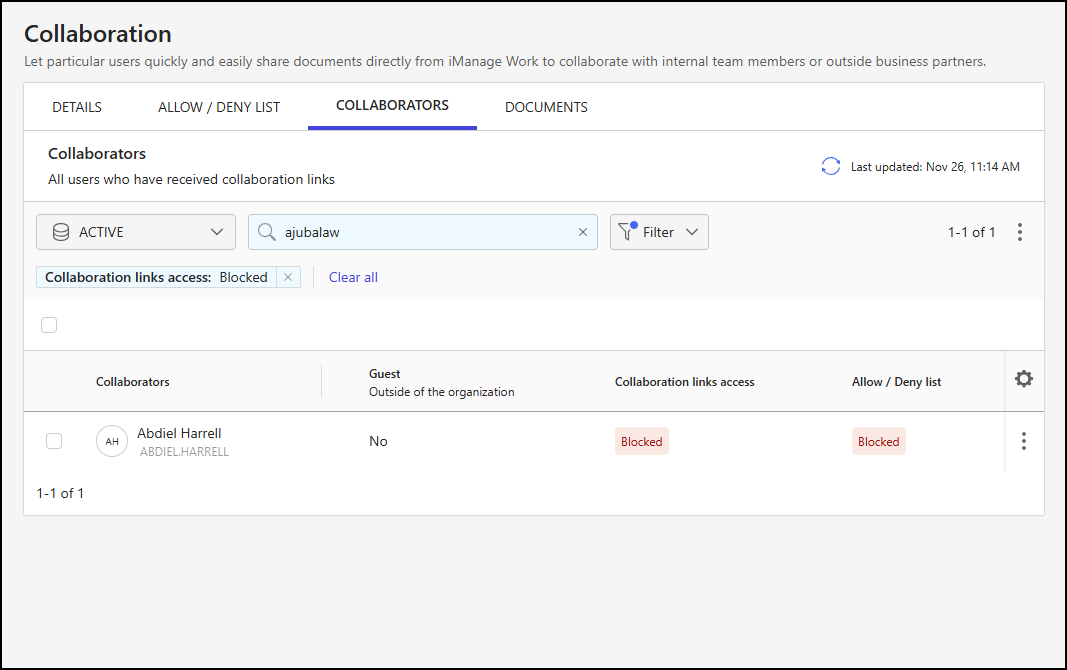
The following figure shows an example of filtering applied to users from the ajubalaw organization who are blocked from accessing documents shared through collaboration in the Active library.
Manage library access
User access to documents shared through collaboration is managed on the Collaborators tab of the Collaboration page.
NOTE: When the Document sharing feature is disabled, the Collaborators table remains available so you can view who’s been invited to collaborate. However, the options to allow and block library access are disabled, and the following banner message is displayed at the top of the Collaborators tab:
“Collaboration is disabled on <LibraryName> library. These collaborators no longer have access to collaboration links.”
Selecting collaborators
In the Collaborators table, you can choose one, multiple, or all collaborators currently shown on the page and perform actions on them.
To choose all collaborators, select the check box above the Collaborators table.
To choose one or more collaborators, select the check box next to each collaborator within the table.
When one or more collaborators are selected, actions are displayed on the toolbar menu, as shown in the following figure.
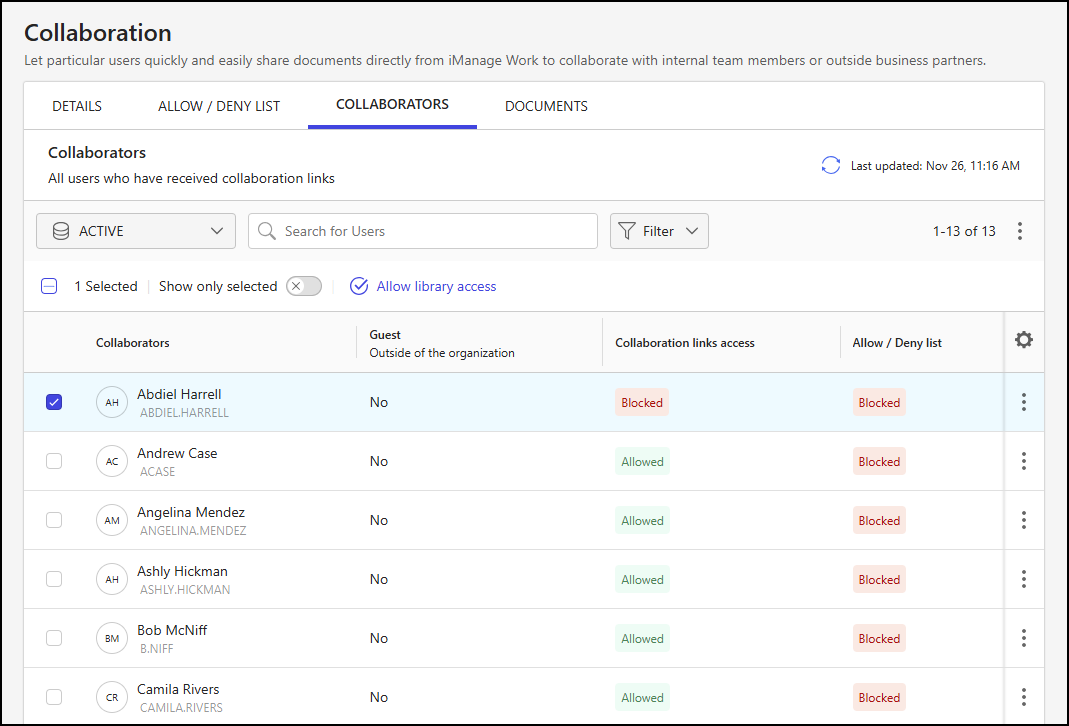
The following toolbar menu actions are available when one or more collaborators are selected:
Show only selected: Displays only the selected collaborators.
Library access action: The action shown depends on the access status of the selected collaborators:
Allow library access: This action displays if only users with a Blocked access status are selected.
Block library access: This action displays if only users with an Allowed access status are selected.
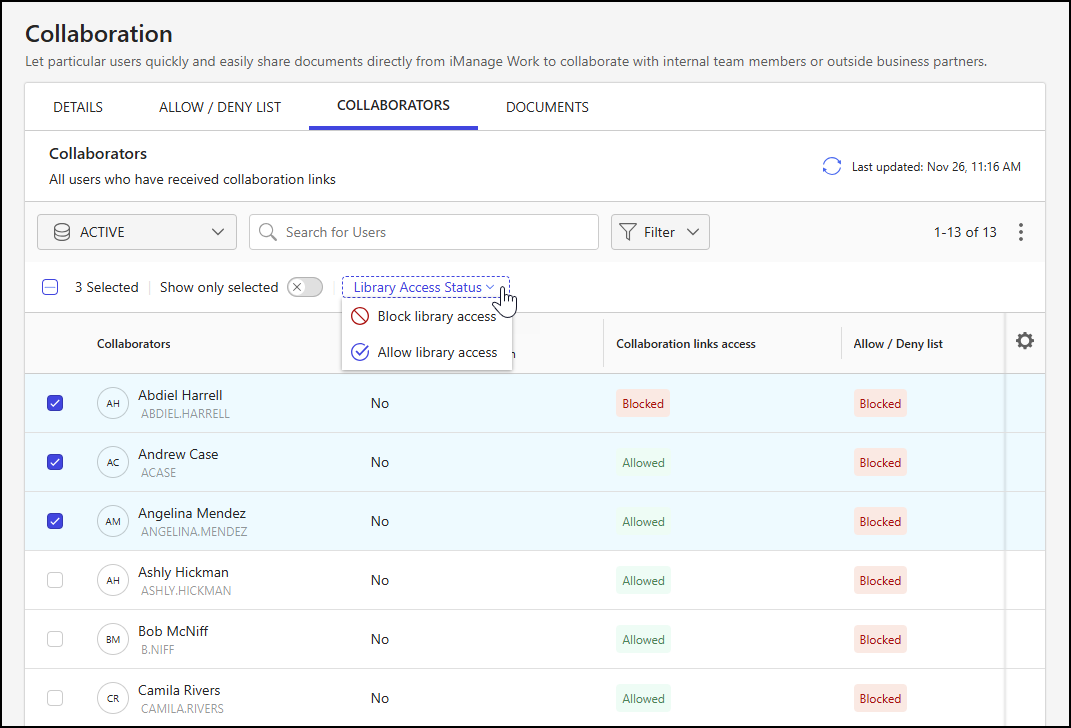
Library Access Status: This drop-down menu displays if multiple users are selected and they have a mix of Allowed and Blocked access statuses. The options in the drop-down menu include Block library access and Allow library access.
The Library Access Status drop-down menu is shown in the following figure.
Managing collaborator access
You can manage library access for one or more users by following the guidance in Selecting collaborators, or by either right-clicking a collaborator row or selecting the kebab menu for an individual collaborator.
Follow these steps to manage access:
In iManage Control Center, browse to Settings > Collaboration.
Select the Collaborators tab.
Select the library from the library drop-down list.
Locate the user(s) whose access you need to manage.
Using either the toolbar, right-click menu, or kebab menu, select one of the following options:
Allow library access: This grants the user permission to access all collaboration links they’ve been invited to in the selected library.
Block library access: This prevents the user from accessing all collaboration links they’ve been invited to in the selected library. It also prevents them from being invited to collaborate on any documents in this library moving forward, using the Email address or User ID set to be blocked.
Figure: Collaborators tab - Block library access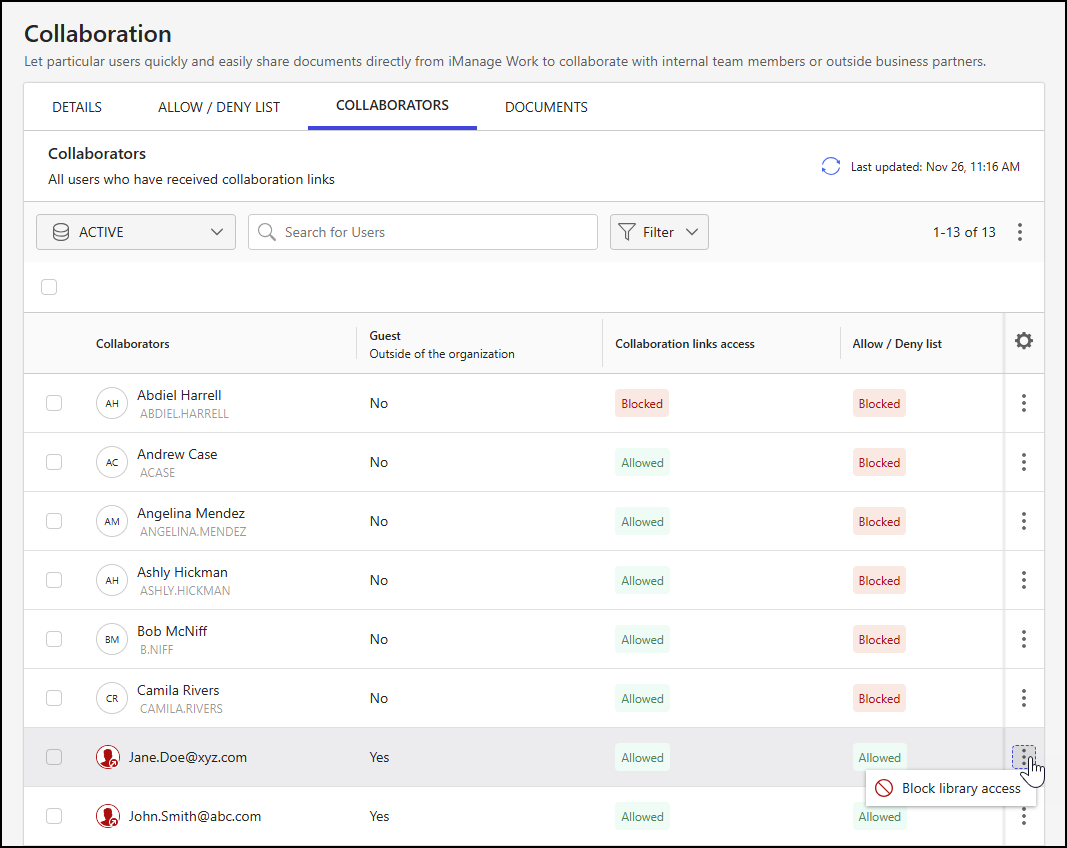
If you’re blocking library access, the Block library access alert displays. Select Block to prevent the user(s) from accessing collaboration links in the selected library.
Figure: Block library access alert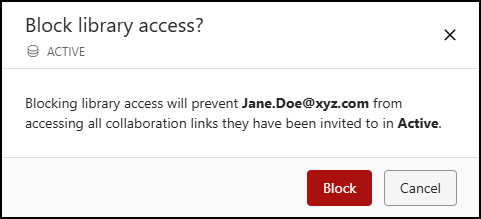
Download the Collaborators table
To download the Collaborators table to your device, select the icon in the upper-right portion of the Collaborators tab, and then select Download as CSV.