NOTE: To perform operations on the Documents page, the user signed in to iManage Control Center must be a member of the NRTADMIN group, or be assigned to a role with Tier 1 or Tier 2 access to Control Center. For more information about the specific operations allowed, refer to Understanding tiers.
The Documents page lets you search for documents using various search criteria, and perform the following actions on these documents:
Unlock checked-out documents.
Verify user access rights for the selected document using the Check effective access option.
Verify user access rights based on the groups assigned in the aaccess control list (ACL) using the Security option.
View the versions of a document.
View the history of a document.
View details of a document.
Copy a link to one or more documents using the Copy Link option.
Perform bulk security updates.
Searching for documents
Select Content > Documents. The list of default search fields is displayed as shown in the following figure:
Figure: Documents page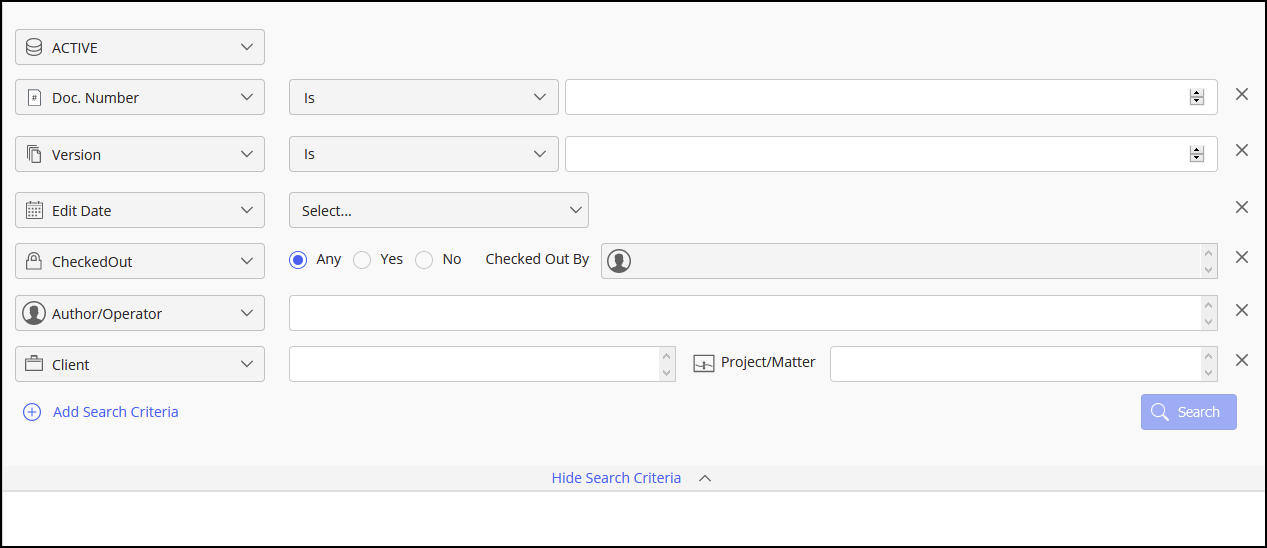
Use these search fields to refine your search, then select Search.
To add more search criteria, select Add Search Criteria.
When you enter search criteria, the Clear values option is also displayed; select it to clear all search criteria you've entered.
In the preceding figure, the Hide Search Criteria option is displayed.
To hide the search criteria and focus only on the list of documents, select Hide Search Criteria.
Selecting Hide Search Criteria changes this option to Show Search Criteria. Select this to view the search criteria list.
NOTE: For performance reasons, search results are limited to 10,000 items. If your search exceeds 10,000 results, refine the search with additional criteria.
You can alternatively perform searches without the 10,000 result limitation using the iManage Work Universal (REST v2) API.
iManage Control Center preserves the search fields you enter when searching for documents, workspaces, or trash. When you add or remove search fields, your settings are automatically saved and will be present the next time you sign in and access the Documents, Workspaces, or Trash pages. This provides the advantage of not having to remember or reselect your search fields for subsequent searches.
Search fields are stored locally in the browser's cache for each individual library. If you switch to a different browser or to a different device, you'll see the default search fields.
Unlocking documents
Checked out documents are documents that have been opened for editing by a user. When a document is checked out, no other users can edit the document. The document remains locked until the user who checked out the document saves their changes to iManage Work and closes the document in the application.
If a user forgets or fails to close the file, administrators can unlock the document using iManage Control Center. This enables other users to open and edit the document again.
Any changes made by the user who originally checked out the file must be saved locally. They may also save their changes as a new version of the document in iManage Work.
NOTE: Documents that are opened for editing in Microsoft Office for the web aren't locked in the same manner as those opened for editing in desktop applications such as Microsoft Word.
For more information about the document locking behavior when using Microsoft Office for the web, refer to Frequently asked questions in Integrating iManage Work with Microsoft Office for the web.
To unlock a checked-out document:
In iManage Control Center, browse to Content > Documents.
In the list of search criteria, locate the CheckedOut option, and select Yes. By default, this value is set to Any.
(Optional) In Checked Out By, enter the name of the user who checked out the document.
(Optional) Enter any other search criteria to locate the document, such as Doc. Number.
Select Search.
In the list of search results, locate the checked-out document that you want to unlock.
Documents that have been checked-out using a desktop application, such as Microsoft Word, are indicated with the lock
 icon.
icon.Documents that are being edited using Microsoft Office for the web are indicated with the globe
 icon.
icon.
Right-click the document and select Unlock. The Unlock dialog is displayed with details about the checked-out document.
Figure: Unlock dialog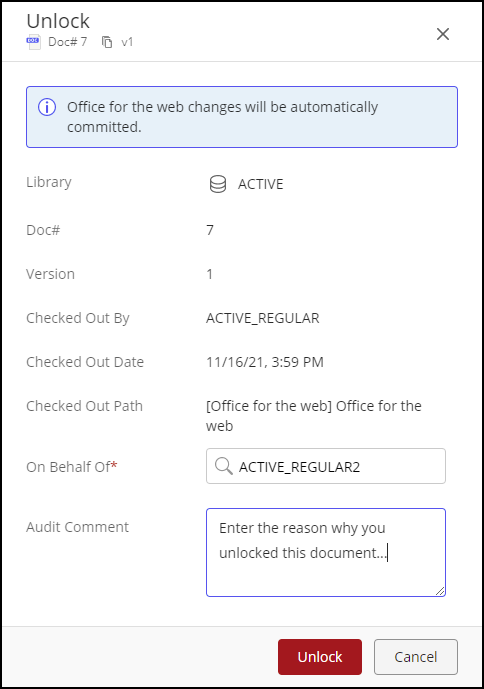
In On Behalf Of, enter the user who requested or authorized the document to be unlocked.
In Audit Comment, enter any information useful for auditing this unlock operation.
Select Unlock to unlock the document.
Checking effective access
To verify the access rights of a user for a selected document, use the Check Effective Access option. It evaluates all permissions (default security, access permission, group memberships, and role abilities).
It's available on the:
Ribbon bar: Select a document to see this option on the ribbon bar.
Kebab menu: Select
 next to each document to see this option.
Context menu: Right-click a document to see this option.
Use one of the preceding options to check the effective access of the document.
Right-click a document and select Check Effective Access.
Figure: Check Effective Access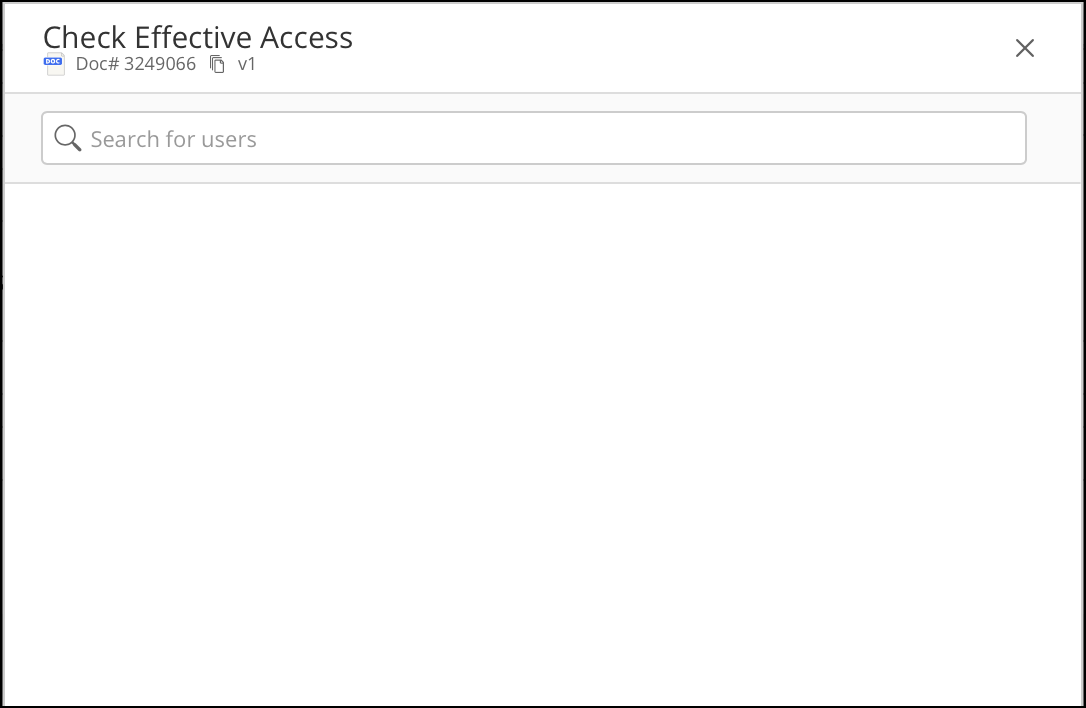
In the Check Effective Access dialog, enter a user name or ID. A suggestion list appears.
Select a user. The effective access of the selected user for the document is displayed.
Verifying security
To verify access permissions for the users and groups assigned in the ACL, use the Security option. It's available on the:
Ribbon bar: Select a document to see this option on the ribbon bar.
Kebab menu: Select
next to each document to see this option.Context menu: Right-click a document to see this option.
Right-click on a document and select Security.
Security details for the document are displayed. The following figure shows an example:Figure: Security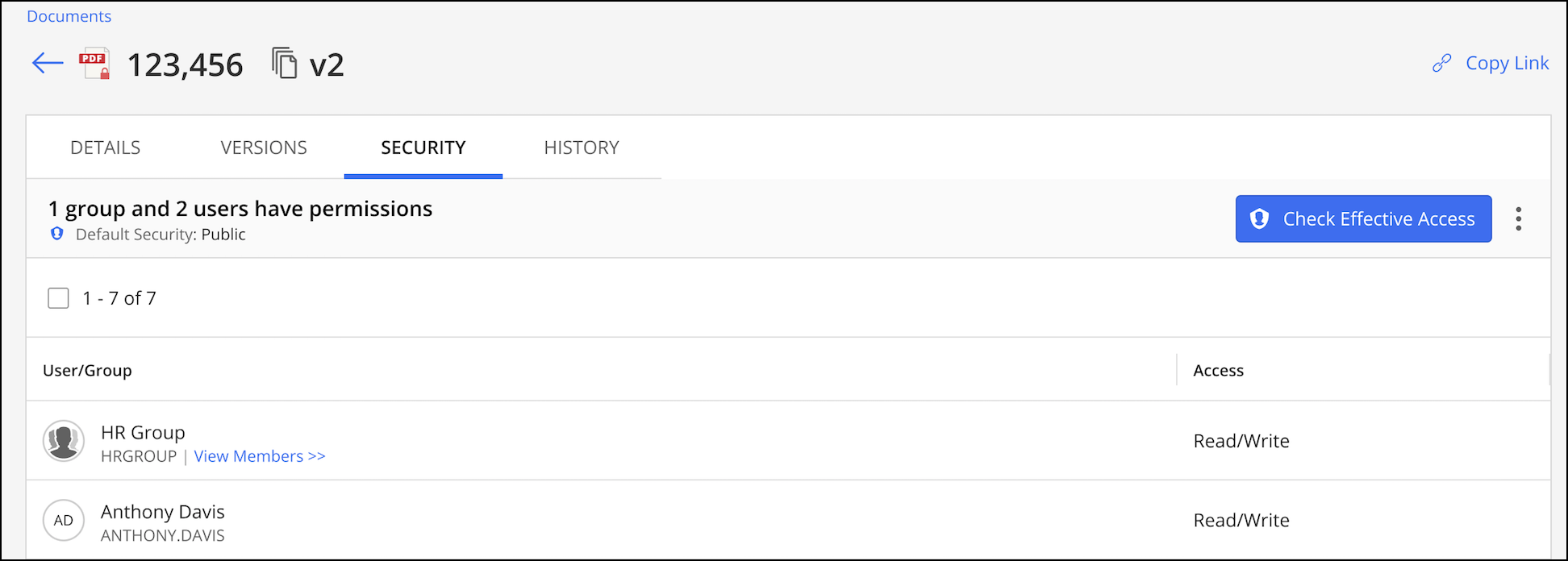
Viewing document versions
Use this feature to view the versions of a document. It's available on the:
Ribbon bar: Select a document to see this option on the ribbon bar.
Kebab menu: Select
next to each document to see this option.Context menu: Right-click a document to see this option.
Use one of the preceding options to view the document versions. On the Versions tab, the following fields are displayed in addition to the version details:
Author
Custom field 1
Custom field 2
Checked Out By
Checked Out Date
Last Edited By
Last Edited Date
Viewing document history
Use this option to see the history of a document. It's available on the:
Ribbon bar: Select a document to see this option on the ribbon bar.
Kebab menu: Select
next to each document to see this option.Context menu: Right-click a document to see this option.
Use one of the preceding options to view the document history. In the History tab, the following details are displayed:
Date
User
Activity
Application
Duration
Pages Printed
Location
Comments
Viewing document details
This option is available on the:
Ribbon bar: Select a document to see this option on the ribbon bar.
Kebab menu: Select
next to each document to see this option.Context menu: Right-click a document to see this option.
Clickable link: In the Doc #/Version column, select a document.
Use one of the preceding options to view the document details. You can see the following details:
Library
Doc#
Version
Author
Class_EN
Type
Operators
Locations
Copying document link
Use this option when you want to share the document link with a customer, partner, or others through email. It's available on the:
Ribbon bar: Select a document to see this option on the ribbon bar.
Kebab menu: Select
next to each document to see this option.Context menu: Right-click a document to see this option.
Use one of the preceding options to copy the link for the document to the clipboard.
Bulk security update
NOTE: To perform bulk security updates on documents, the user must be a member of the NRTADMIN group. For more information, refer to Creating an NRTADMIN User.
This section includes the following topics:
Edit user/group permissions
Documents are shown on the iManage Control Center Documents page after performing a search using one or more search criteria. The figure below shows the options available when a document is selected from the search results list.
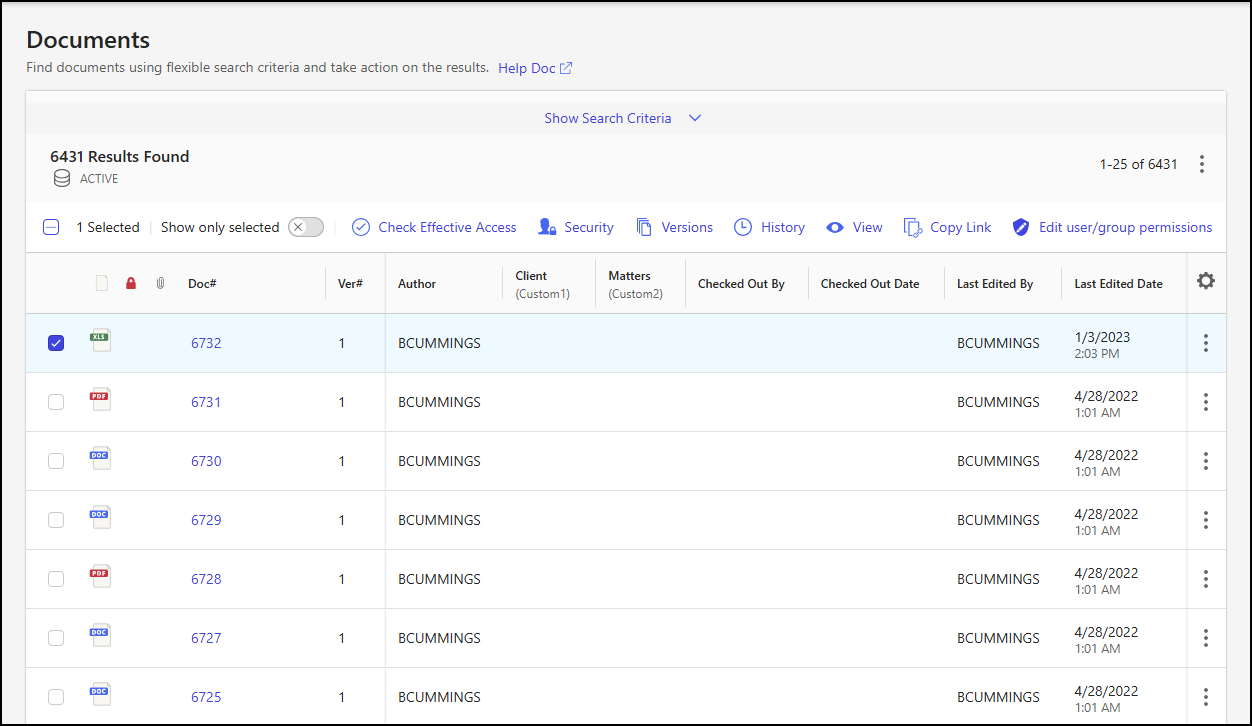
The Edit user/group permissions option lets you perform the following operations on one or more documents:
Add single or multiple users or groups, and define their access level to the selected documents.
Change the access level of existing users or groups who already have access to the selected documents, to another level of access.
Update the default security settings.
Update the security of documents referenced in multiple folders.
Update the security of all versions of documents, to which you have full access.
Follow these steps to update the security of documents:
On the Documents page, select one or more documents from the search results list.
On the right-click context menu, kebab, or toolbar menu, select Edit user/group permissions.
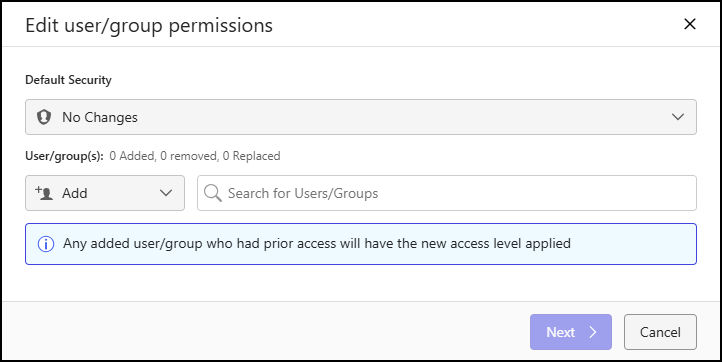
In the Edit user/group permissions dialog, to update the default security of the selected documents, select one of the following options from the Default Security drop-down list:
Public: All users can view the document and edit the content.
Private: Only the author can view and edit the content, unless other users are given specific permissions.
View: All users can view the document, but aren’t allowed to edit the content.
No changes: You want to add or remove users from the document(s) (Steps 4.a and 4.b), but you don't want to alter the default security settings on the document.
For the selected documents, you can add, remove, and replace users or groups, and these actions can be combined into a single operation.
To add a user or group, select Add from the drop-down list available next to the search box.
In the search box, enter the name of the user(s) or group(s) you want to add.
After adding user(s) or group(s), define their access level using the access level drop-down list. Choose from:
Full Access
Read/Write
Read Only
No Access
To remove a user or group, select Remove from the drop-down list available next to the search box.
In the search box, enter the name of the user or group you want to remove.
To replace a user or group with another user or group, select Replace from the drop-down list available next to the search box.
In the search box, enter the name of the user or group you want to replace.
After selecting a user or group, from the Replace drop-down list, select the user or group that you want to substitute for the one selected in the previous step.
Select Next. The Edit user/group permissions dialog displays a summary of the security changes and provides options for applying the changes to private items, document versions, and document locations.
Figure: Edit user/group permissions dialog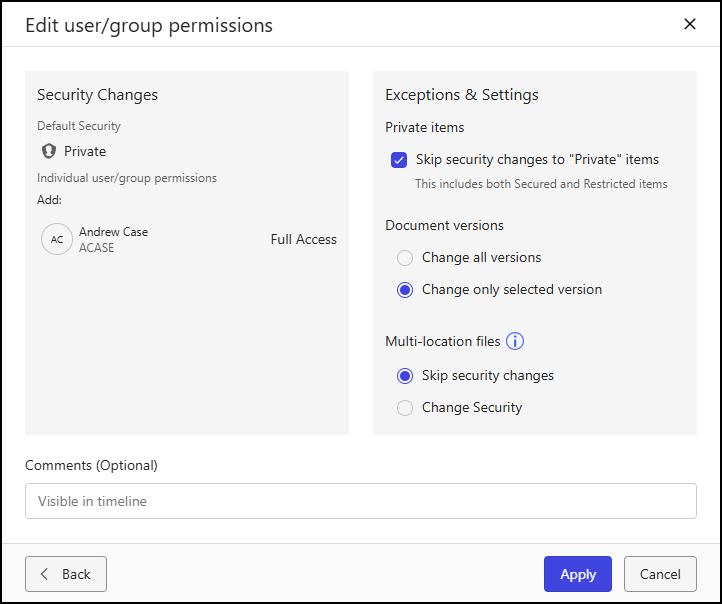
In the read-only Security Changes panel, review the default security setting and user/group access level assignments.
In the Exceptions & Settings panel, specify how the security changes will be applied to private items, document versions, and multi-location files. Refer to Document security options for a description of each option.
Select Apply.
The status of the Edit user/group permissions action is available in the Notifications panel, accessible through the bell icon.
Figure: Notifications panel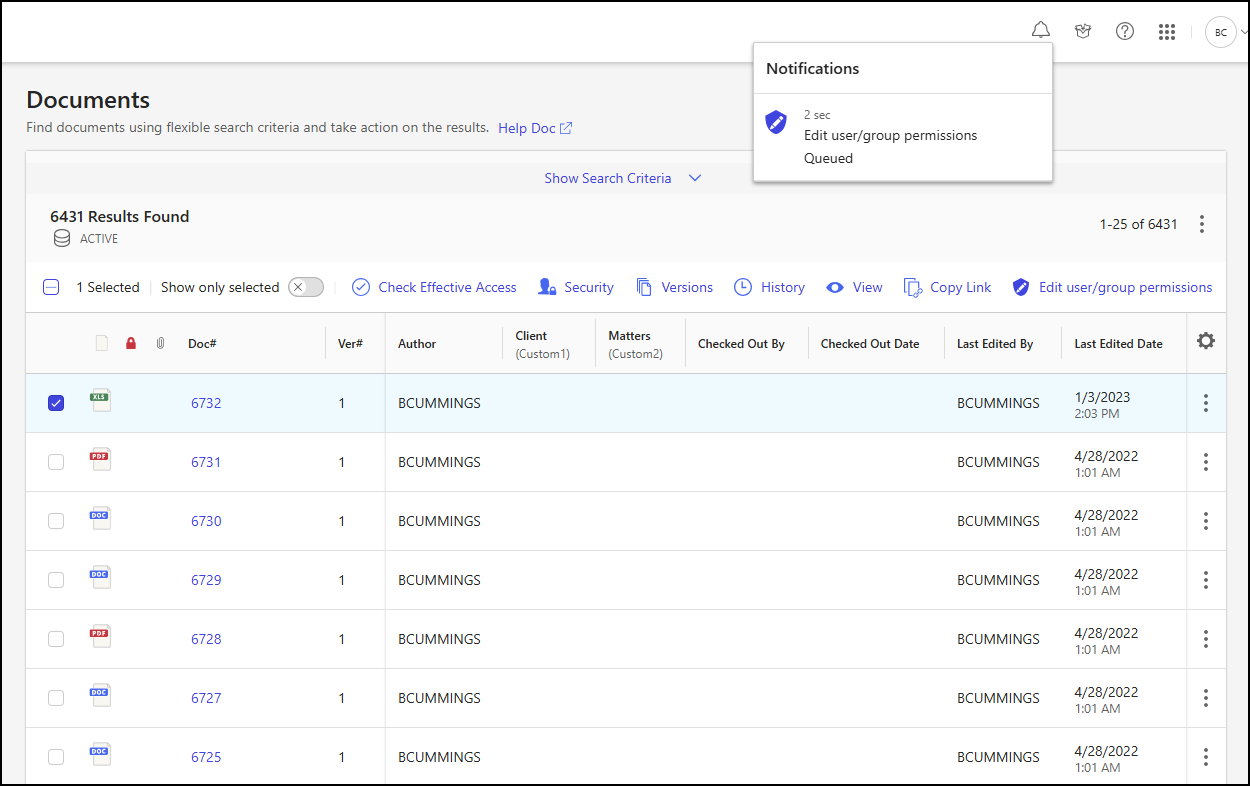
(Optional) To view the details of the Edit user/group permissions action, select the job in the Notifications panel to open the Report: Edit user/group permissions dialog. Action outcomes are described in Outcomes of bulk security update actions.
Figure: Report Edit user/group permissions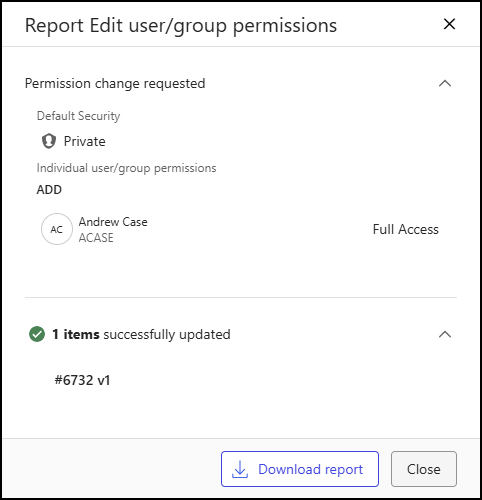
(Optional) To download a report containing the details of each item updated as part of an Edit user/group permissions action in .csv format, select Download Report. Permission changes requested as part of an Edit user/group permissions action are also listed in the beginning of the report. You can also view the properties of the updated items by selecting the document number in the Report: Edit user/group permissions dialog.
Figure: Edit user/group permissions report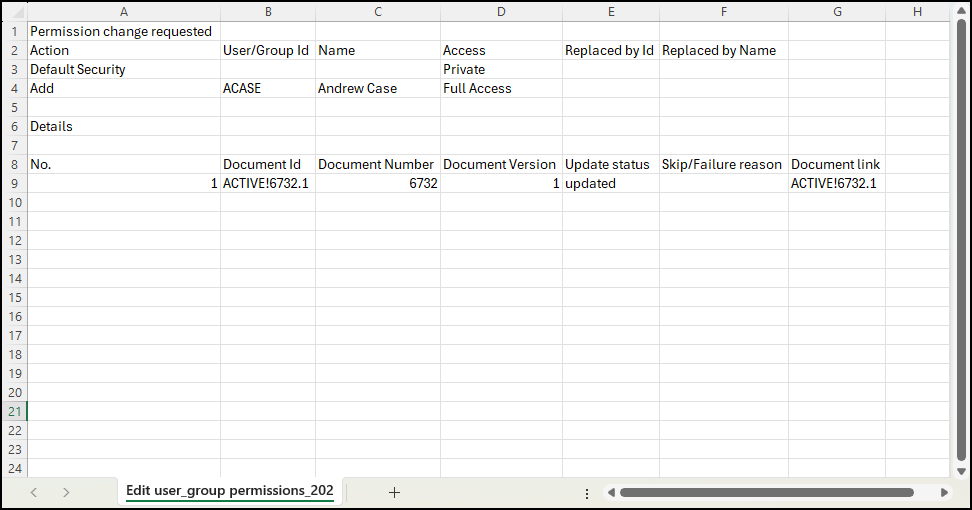
Document security options
Each option in the Exceptions & Settings section in the Edit user/group permissions dialog is explained in the table below.
Table: Document Exceptions & Settings options
Security tier | Options | Action |
|---|---|---|
Private items | Skip security changes to Private items | Selecting this option won't change the security settings of items whose default security is Private, whether they are secured or restricted. |
Document versions | Change all versions | Selecting this option updates the security of all versions of the documents to which you have Full Access rights. |
Change only selected version | Selecting this option updates the security of only the selected/specific version of the documents. | |
Multi-location files | Skip security changes | Selecting this option doesn't update the security of documents referenced in multiple locations. |
Change security | Selecting this option updates the security of documents referenced in multiple locations. |
Outcomes of bulk security update actions
When performing a bulk update action, the outcome of an individual item is described in the table below.
Table: Bulk update action outcomes
Status | Reason | Description |
|---|---|---|
Succeeded | Security changes requested | All security changes requested were successful for the document. |
Skipped | Nothing to update | Security changes requested are already present in the document. |
No record found |
| |
In use by other users | The document is in use by another user. | |
Insufficient permissions | You don't have permissions to change security (full access required). | |
Due to multiple locations settings | Documents referenced in multiple folders are skipped because Skip security changes is selected under Multi-location files. | |
Due to private item settings | Private documents are skipped because a skip option is selected under Private items. | |
Failed | Exception | Didn't update security due to an exception. |