The General tab on the Work 10 Web Client page is used to configure general iManage Work settings.
NOTE: To perform operations on the Web Client page, the user must be a member of the NRTADMIN group, or be assigned to a role with Tier 2 access to Control Center. For more information about the specific operations allowed, refer to Understanding tiers.
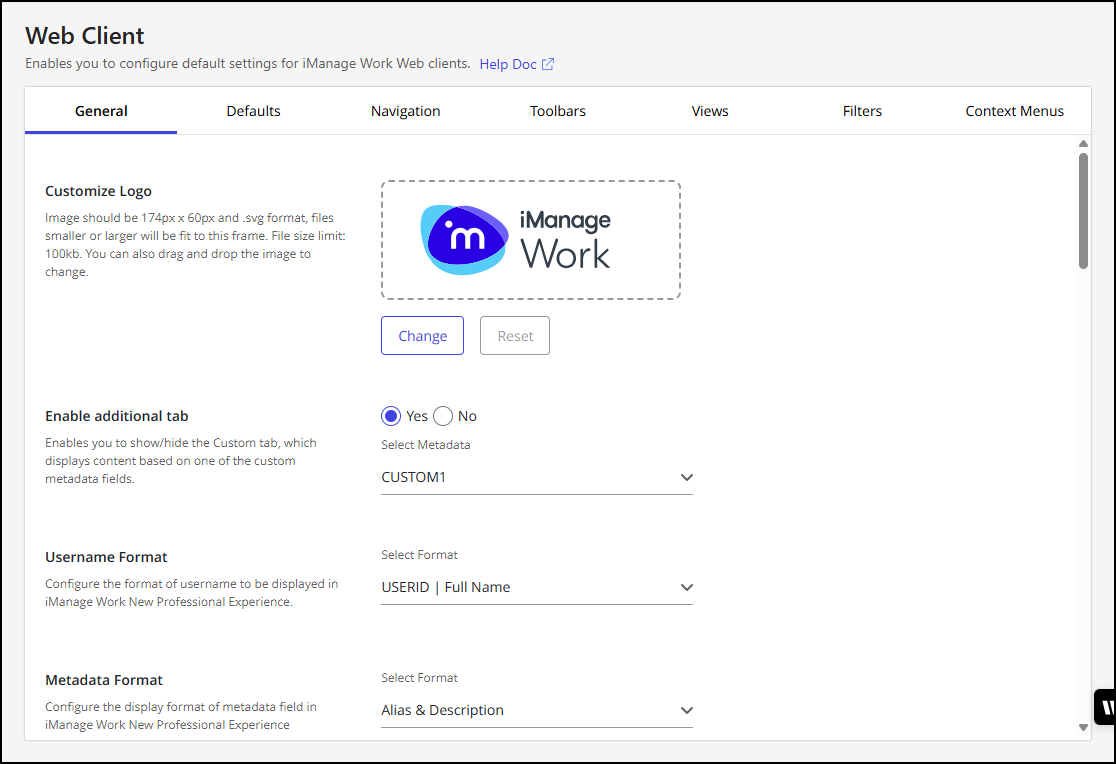
The following figure shows the top portion of the General tab.
To configure these settings in iManage Control Center, browse to Work Clients > Work 10 Web Client, and then select the General tab. Use the guidance in the following table to modify settings, and then select Save.
Table: General settings
Option | Steps/description |
|---|---|
Customize Logo | This option lets you customize or change the logo displayed in iManage Work. For details about customizing or changing the logo, refer to Customizing the logo. |
Enable additional tab | Enables and configures an additional tab on the iManage Work home page. By default, this setting is disabled. When enabled, the additional tab displays a list of clients based on the user's recent activity. It is populated using the Custom1 metadata field. You can also choose a different metadata field between Custom1-12 and Custom29-30. This setting is enforced over the legacy registry setting "Custom View Metadata Field". Select Yes to add an additional tab, then select the metadata from the drop-down list. Optionally, select METADATA > Captions, and update the captions for |
Username Format | Select the format of username to be displayed in iManage Work. |
Metadata Format | Select Alias & Description or Description Only or both as the format for custom metadata fields to be displayed in iManage Work. |
Lookup field dropdown limit | Configures the number of suggestions displayed in the drop-down list of iManage Work Web lookup fields. This option can be set to:
|
Allow users to perform bulk security updates | Allows iManage Work users to perform bulk security updates for documents, emails, workspaces, and folders. For additional information, refer to Enabling bulk security actions. |
New Folder in iManage File/Location Selection dialog | Allows you to show or hide the option to create a New Folder or choose a custom command to create a New Folder in the iManage File/Location Selection dialog. The default command for creating New Folder is iManage "New Folder" command. |
Enable static asset delivery via Microsoft Azure’s Content Delivery Network | Enabling this feature allows a faster and more responsive user experience in iManage Work Web by automatically loading the static content from the user's nearest Microsoft Azure content delivery network (CDN) point-of-presence (POP) location. Static assets are files required to run the application such as icons, images, HTML, JavaScript and CSS. Customer content stored within iManage Work is never placed on any CDN and will only ever be hosted from the data center to which it was uploaded. This setting is disabled by default. TIP: To test this setting before enabling it for all users, include the
|
Enable Work 10 Desktop for Windows Auto Updates App Banner | Select the Windows check box if you want your end-users to see the Enable Work 10 Desktop for Windows Auto Updates App Banner in the iManage Work application (Work Web client). By default, this check box isn't selected. Only those users who don't have iManage Work Desktop for Windows will see the banner. |
Enable Search Language Selection | Configures whether the language search selection option is visible for simple and advanced searches in iManage Work.
|
Enable web-based email sending | Disables the ability for users to send documents and links directly through the web client's email service for users who do not have iManage Work Desktop for Windows or iManage Work Desktop for Mac clients installed on their computer. This helps administrators safeguard their users from using a non-secure SMTP protocol to share documents and links externally.
|
Main Content Security Policy Header | Enhances security by applying Content Security Policy (CSP) to the entire Work Web application, protecting it against common scripting attacks, and preventing the application from being framed by malicious sites. This setting is supported by the following fields:
Figure: Main Content Security Policy Header 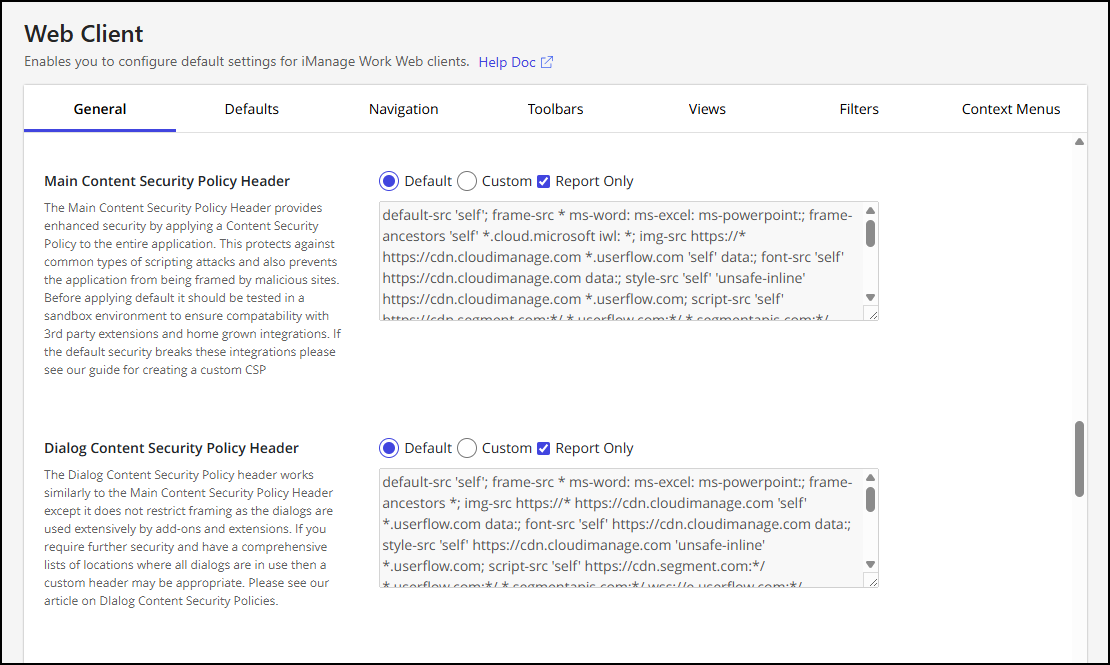 NOTE: For more information about configuring CSP headers, refer to Content Security Policy implementations in iManage Work Web. |
Dialog Content Security Policy Header | Offers enhanced security that’s similar to the Main Content Security Policy Header but doesn’t restrict framing, as dialogs are frequently used by add-ons and extensions. This setting is supported by the following fields:
Figure: Dialog Content Security Policy Header NOTE: For more information about configuring CSP headers, refer to Content Security Policy implementations in iManage Work Web. |
Enable open in Gmail | Enables the option to open Gmail emails, filed using the iManage Gmail extension, in the native Gmail application. When enabled (Yes), Gmail emails filed using the iManage Gmail extension are opened in the native Gmail application from the Open context menu in iManage Work. By default, this option is set to No (disabled). |
Save dialog security alert | Specifies if iManage Work users will receive a warning when saving a file to a folder, if the folder’s security differs from the file’s security settings.
|
Enable Global Folder Search | Specifies whether library-level (global) folder searches are enabled or disabled in the Work Web, Work Panel, and File Open Save As dialogs. With this setting, you can choose whether users are allowed to search for folders across the entire library or only within a specific workspace or folder. This option can be set to:
When this setting is set to No, the option to search for folders at the global level is unavailable, as shown in the following figure. Figure: Global folder search disabled 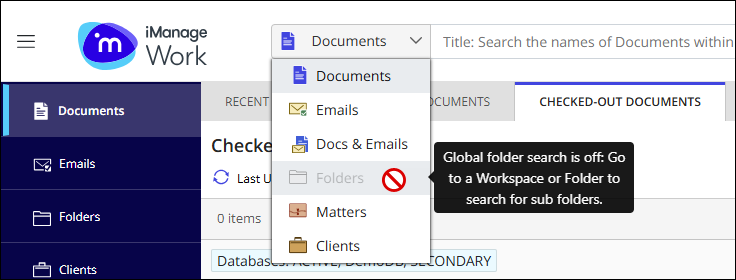 NOTES:
|
Enable idle timeout overlay | Specifies whether iManage Work Web will display a warning five minutes before a user’s idle session expires, prompting them to extend their session if needed. If the user’s session expires, an overlay masks the screen, ensuring that any sensitive content left unattended is hidden—reducing the risk of unauthorized access while maintaining a predictable session experience.
When this option is set to Yes, the Timeout sessions after drop-down list is shown, letting you configure how long a session may remain idle before users receive a timeout warning. The timeout value can be set to:
Figure: Enable idle timeout overlay setting 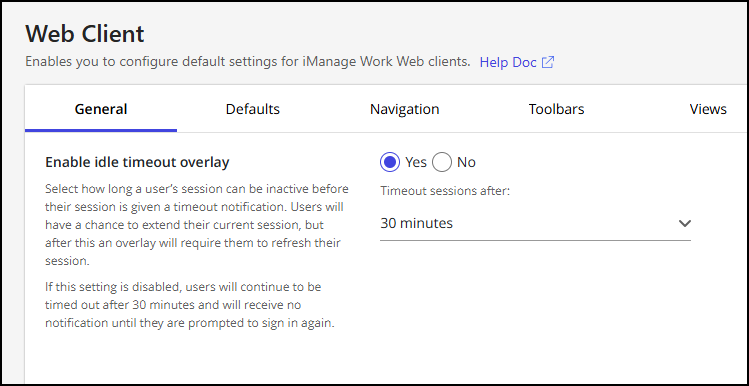 |
Enable iHelp | Configures on-demand help and contextual guidance for iManage Work Web users. Enabling iHelp provides the following user benefits:
Figure: Enable iHelp 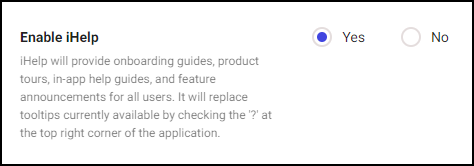 This option can be set to:
|
useiManage/iHelp integration | useiManage is a subscription-based solution that provides essential iManage content to users and admins when they need it, including:
This setting lets useiManage Premium subscribers integrate their useiManage subscription with iHelp, allowing users to engage directly with useiManage. Figure: useiManage/iHelp integration 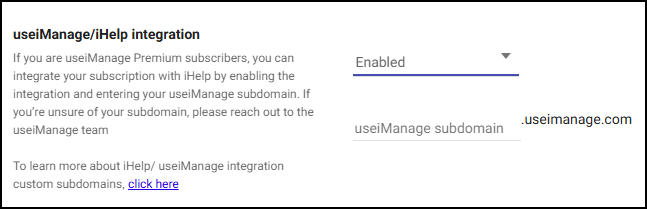 This option can be set to:
NOTES:
|
Enable “Coming Soon” for select groups | This option lets you give certain iManage Work Web users early access to upcoming features and fixes. You control which groups can preview new functionality before the next monthly service update. Because the preview environment uses live production data, any changes users make in this environment will be against the production data. This provides a practical and secure way for trusted users to preview enhancements, confirm issue fixes, and share valuable feedback—helping ensure smoother rollouts for everyone. We aim to make all enhancements detailed in each monthly Cloud Service Update article accessible for testing when the Cloud Service Update is published. Typically, Cloud Service Updates are published two weeks before the general rollout for all users. When you enable this setting, the Groups with “Coming Soon” access field is shown. You must specify one or more internal global groups whose members will have access to the Coming Soon option in iManage Work Web. NOTES:
After the Enable “Coming soon” for select groups setting is enabled and their group is included, a Coming Soon toggle is displayed to eligible users on their Work Web user menu. They can turn this option on or off at any time by selecting the option. The Coming Soon option won’t be displayed at all to users who aren’t members of the designated groups. An example of the Coming Soon toggle is shown in the following figure. Figure: Coming Soon toggle 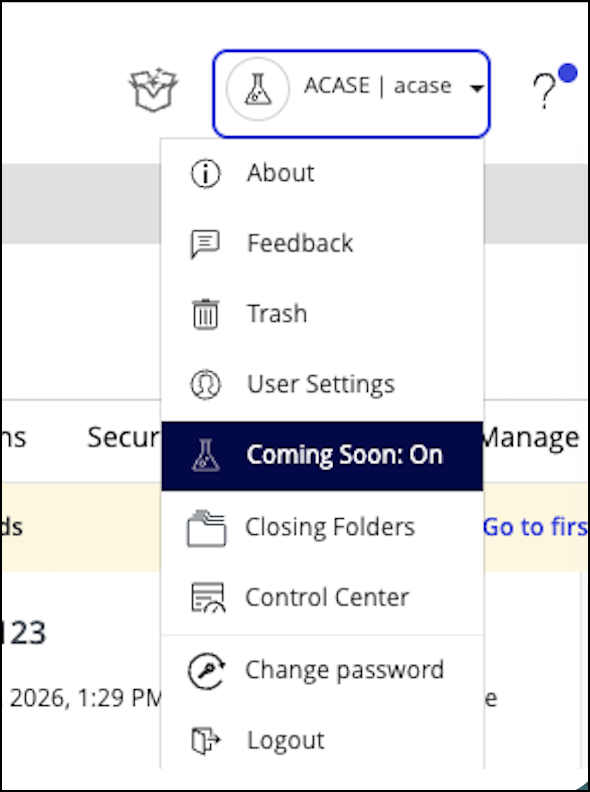 NOTE: When Coming Soon is On, the user icon to the left of the user name is replaced with the beaker icon. This lets the user know at a glance that they’re working in the Coming Soon environment. |
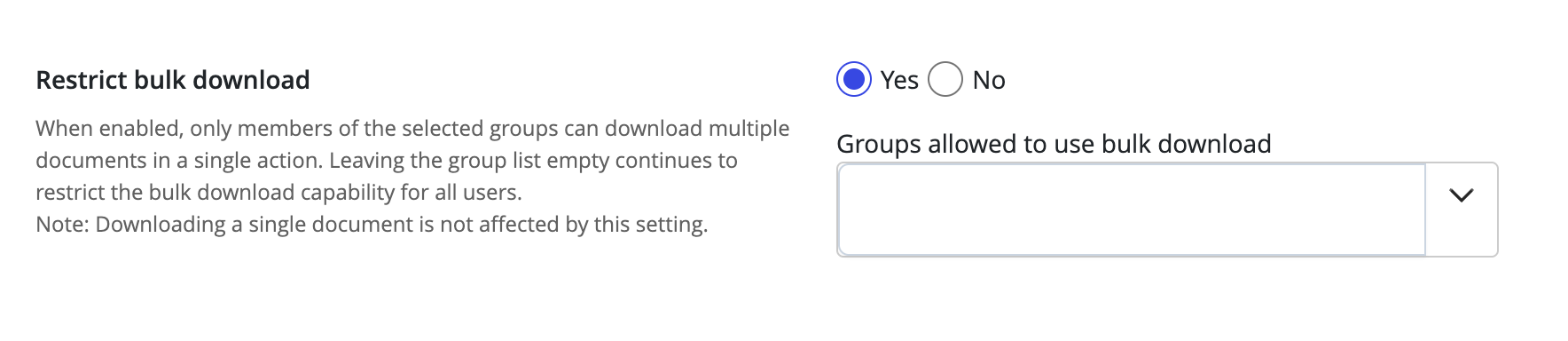
Restrict bulk download | Specifies whether the option to download multiple documents in a single action in iManage Work Web is limited to members of specific groups. This option can be set to:
|
Customizing the logo
This section describes how to customize or change the logo displayed in iManage Work. The logo appears in iManage Work at the following places:
Page headers (desktop view)
Left sidebar (mobile view)
Custom logo file requirements
The image must be in SVG format. You can't upload an image in any other format such as JPG, PNG, GIF and so on.
The image size should be 174px x 60px. If the size of your image doesn't match, it'll be scaled to 174px x 60 px automatically. However, the logo may appear distorted.
The SVG files exported from tools such as Adobe Illustrator or Sketch work properly without any additional effort. However, if the logo doesn't appear in the UI, open the image file in a text editor to view its
XMLformat. Verify that the <svg> element has bothxmlnsandxmlns:xlinkattributes set. If these attributes are missing, the logo may not render.
For example,<svg xmlns="http://www.w3.org/2000/svg" xmlns:xlink="http://www.w3.org/1999/xlink" … > …. </svg>
To change the logo:
In iManage Control Center, browse to Work Clients > Web Client., and then select the General tab.
On the General tab, locate the Customize Logo option and select Change.
Figure: Web Client General tabIn the file selection dialog, locate and select the new logo, and then select Open.
Select Save to apply the new logo.
NOTE: If you want to restore the default iManage Work logo, select Reset.
Enabling bulk security actions
The Allow users to perform bulk security updates setting allows iManage Work users to perform bulk security updates for documents, emails, workspaces, and folders. For more information about these capabilities, refer to:
Selecting multiple documents in a folder and aligning security to that of the folder
Updating folder security and applying changes to its children
NOTE: Bulk security updates applied by your users can be overwritten by the Refile Service. If you're using Refile Service to perform background security updates, we recommend you review the information in Considerations when using the Refile Service for security updates before activating this feature.
By default, these capabilities are turned off. To turn on these new capabilities for users:
Sign in to iManage Control Center and browse to Work Clients > Web Client > General.
Set Allow users to perform bulk security updates to Yes.
Select Save.
After turning on Allow users to perform bulk security updates, the following actions are available in the Context Menus tab within iManage Control Center.
NOTE: You must add these actions to the appropriate context menus in iManage Control Center. For instructions on adding these actions to the respective menus, refer to Context menus.
Table: Context Menus
Tab | Action | Description |
|---|---|---|
Documents | Edit user/group permissions | Allows user/group permissions to be updated for one or more documents. |
Match security to parent folder | Allows for the security of one or more documents to be aligned with its parent folder. | |
Emails | Edit user/group permissions | Allows user/group permissions to be updated for one or more emails. |
Match security to parent folder | Allows for the security of one or more emails to be aligned with its parent folder. | |
Matters | Apply security to contents | Allows for workspace security settings to be propagated to its children. |
Folders | Apply security to contents | Allows for folder security settings to be propagated to its children. |
In addition to the new Context Menus actions, the following workflows are enabled in iManage Work when the Allow users to perform bulk security updates option is set to Yes:
The option to “Apply security changes to children” when workspace security is changed.
The option to “Apply security changes to children” when folder security is changed.
The option to “Match security to destination” when a folder(s) is moved.
The option to “Match security to destination” when a document(s) is moved.