The Search Filtering page lets you block document keyword searches that contain specific terms, such as project codenames or categories of sensitive content. When a user’s search matches a rule, the search is never sent to the search index, and the user sees no results. Users aren’t notified that a search was blocked.
Search filtering applies to all iManage Work libraries in your environment.
NOTES:
To view or perform operations on the Search Filtering page, the user signed in to iManage Control Center must be assigned to a Global role with the Settings Management privilege. For more information, refer to Global privilege descriptions.
Search Filtering is available only if it’s enabled in your environment. After it’s enabled, you must also enable the Sensitive Search Terms feature in iManage Control Center. For more information, refer to Enable the Sensitive Search Terms feature. For more information or to request this feature, contact your iManage Customer Success Manager or iManage Cloud Support.
To view and manage search filtering rules, browse to Settings > Search Filtering.
This section includes the following topics:
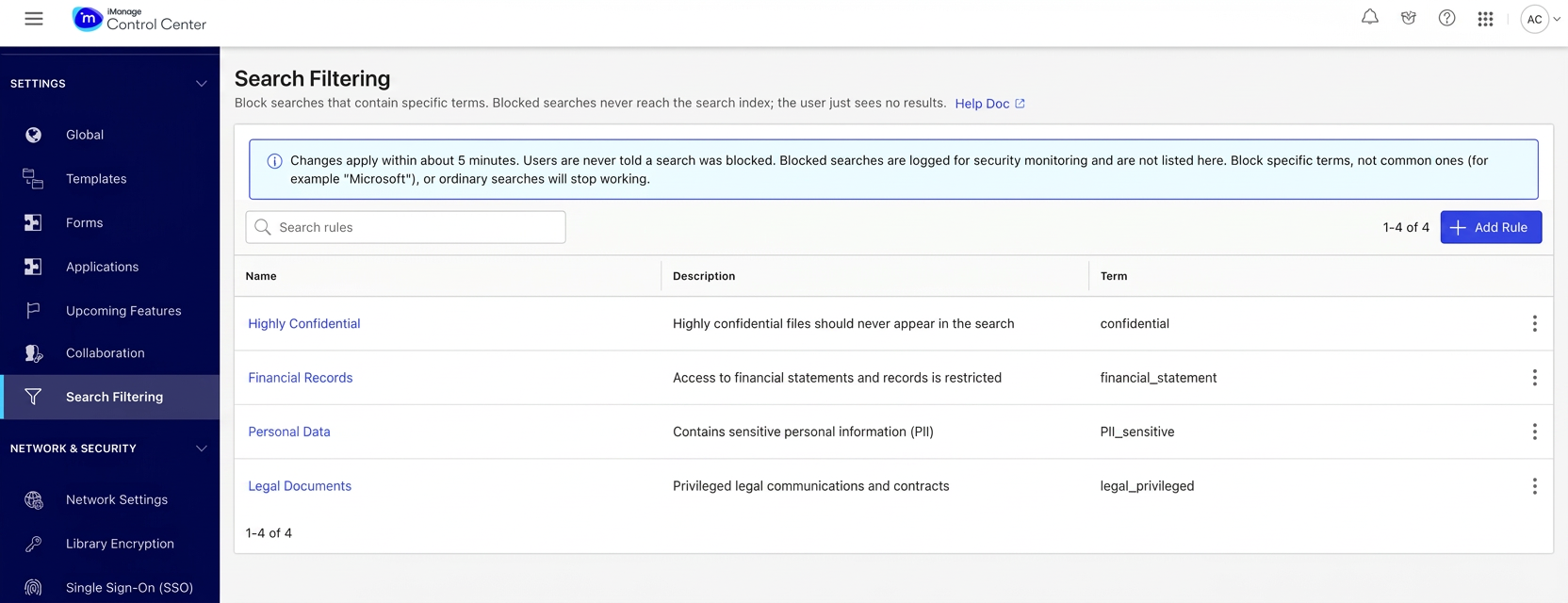
How search filtering works
Each rule specifies a term containing one or more words. A user’s search is blocked only when it requires all of the words in a term. The words can be displayed in any order and don’t need to be next to each other.
The following table shows which searches are blocked by a rule containing Internal use only.
Table: Search filtering examples
User search | Blocked |
|---|---|
internal use only | Yes |
only internal use | Yes |
internal AND use AND only | Yes |
“internal use only” | Yes |
use | No |
internal use | No |
internal OR use OR only | No |
Keep the following in mind when you create rules:
Matching is case-insensitive. Highly Confidential and highly confidential are treated the same.
Any character that isn’t a letter or digit separates words in both the term and the user’s search. Highly-confidential is treated as two words, highly and confidential.
Quotation marks aren’t needed in a term and are ignored if you add them. Quotation marks in a user search don’t change the result.
Matching is literal. There’s no stemming, translation, or synonym support. A rule for confidential doesn’t block confidentiality. Create a separate rule for each word form you want to block.
There’s no translation. A rule in English doesn’t block the equivalent term in another language. If users in your organization search in more than one language, create an equivalent rule for each language. For example, to block
confidentialfor English, German, and French users, create rules for confidential, vertraulich, and confidentiel.Letters and digits from all languages are supported.
Each alternative in a search that uses OR is evaluated separately. For the term project nightfall:
(project OR plan) and nightfall is blocked.
project OR nightfall is not blocked.
Negated words (NOT) aren’t considered. For the term falcon project, the search falcon NOT project isn’t blocked.
Search filtering applies to every keyword search field, whether the user searches for a single field or all fields. If a user enters a term that matches a rule in the Title, Subject, Comments, Title/Comments, Anywhere, or Body field, the search is blocked. This applies to document and email searches. Filters such as author, date, document number, and other metadata fields aren’t checked. Workspace, client, and folder searches aren’t affected.
Changes to rules take effect within approximately five minutes.
CAUTIONS:
Avoid broad or common terms. Words such as Microsoft, contract, or email are displayed in many everyday searches, and blocking them stops normal searches from working for everyone. Use specific terms.
Don’t include sensitive information in a rule name. Rule names are displayed in logs and reports. Avoid client names, project codenames, and personal data in the Name field, and put the sensitive words only in the Term field.
Example terms
The following are examples of terms you might block:
Highly confidential
Internal use only
Structure
Strategy
ZIP
SSN
Logging
Blocked searches are logged for security monitoring with the customer ID, library ID, and rule name. The search text and the term aren’t logged because they may be sensitive. Blocked searches aren’t displayed on the Search Filtering page.
Enable Sensitive Search Terms feature
Search Filtering is available after you enable the Sensitive Search Terms feature.
Go to Settings > Upcoming Features.
Select Sensitive Search Terms.
Next to Status, select Edit. The Edit Status: Sensitive Search Terms dialog is displayed.
Set Feature status to Enabled.
Select Save. The status is updated to Enabled.
Figure: Edit Status dialog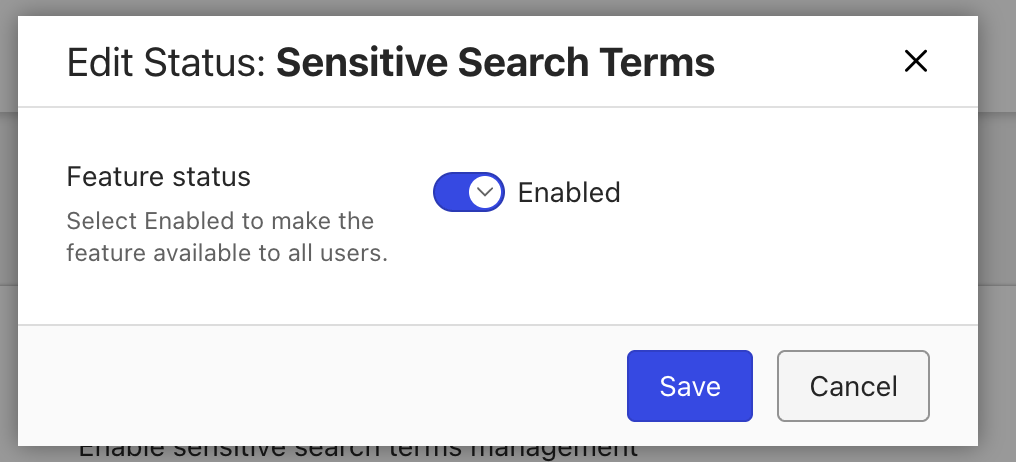
To enable the feature, you must be assigned to a Global Management role that has the Upcoming Feature Management privilege. For more information, refer to Upcoming Features.
Add a rule
In iManage Control Center, browse to Settings > Search Filtering.
Select Add Rule.
In the Add search filtering rule dialog, enter the rule details.
Figure: Add search filtering rule dialog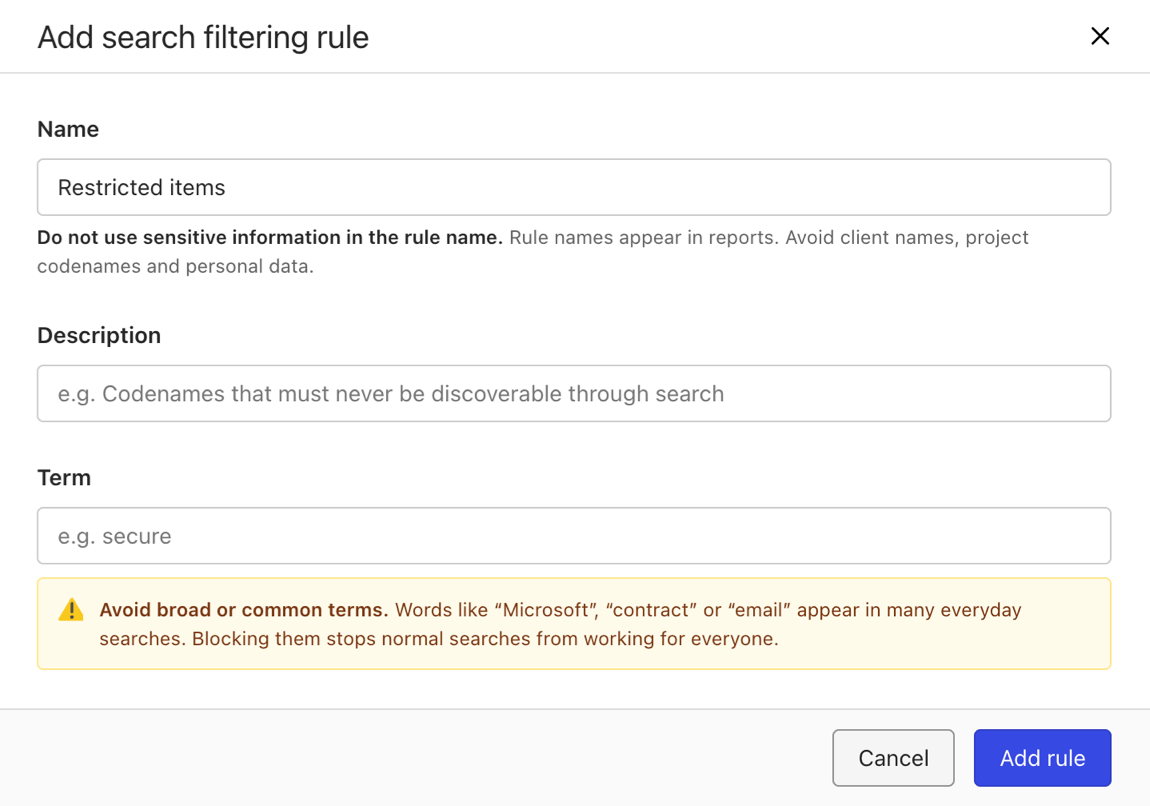
For more information, refer to Table: Search filtering rule settings.
Select Add rule. The rule is displayed in the list and takes effect within approximately five minutes.
The following table describes the search filtering rule settings.
Table: Search filtering rule settings
Field | Description |
|---|---|
Name | A descriptive name that identifies the rule. The name must be unique; if it duplicates an existing rule name, enter a different name before saving. Don’t include sensitive information. |
Description (optional) | A description that explains why the rule was created—for example, “Block keyword searches containing the internal project codename.” |
Term | The words that must all be present in a search for it to be blocked. For more information, refer to How search filtering works. |
Example rule
The following table shows an example rule.
Table: Example search filtering rule
Field | Example |
|---|---|
Name | Highly Confidential |
Description | Highly confidential files should never be displayed in the search. |
Term | confidential |
With this rule, a search for confidential or Confidential memo is blocked, and a search for confidentiality or memo is allowed.
Find a rule
Browse to Settings > Search Filtering.
In the Search rules field, enter all or part of the rule name. The list is filtered as you enter text.
Figure: Search rules field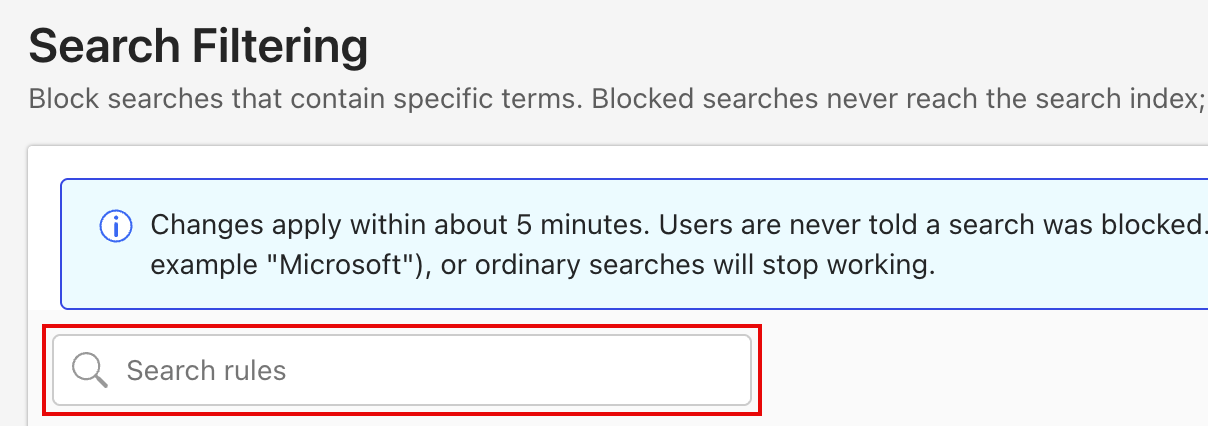
NOTE: This search locates configured rules. It doesn’t test whether a user’s search would be blocked.
Edit a rule
Browse to Settings > Search Filtering and locate the rule.
Select the ⋮ icon next to the rule, and then select Edit.
Update the fields in the Edit search filtering rule dialog and select Save rule.
The updated values are displayed in the list, and the updated rule takes effect within approximately five minutes.
Figure: Edit search filtering rule dialog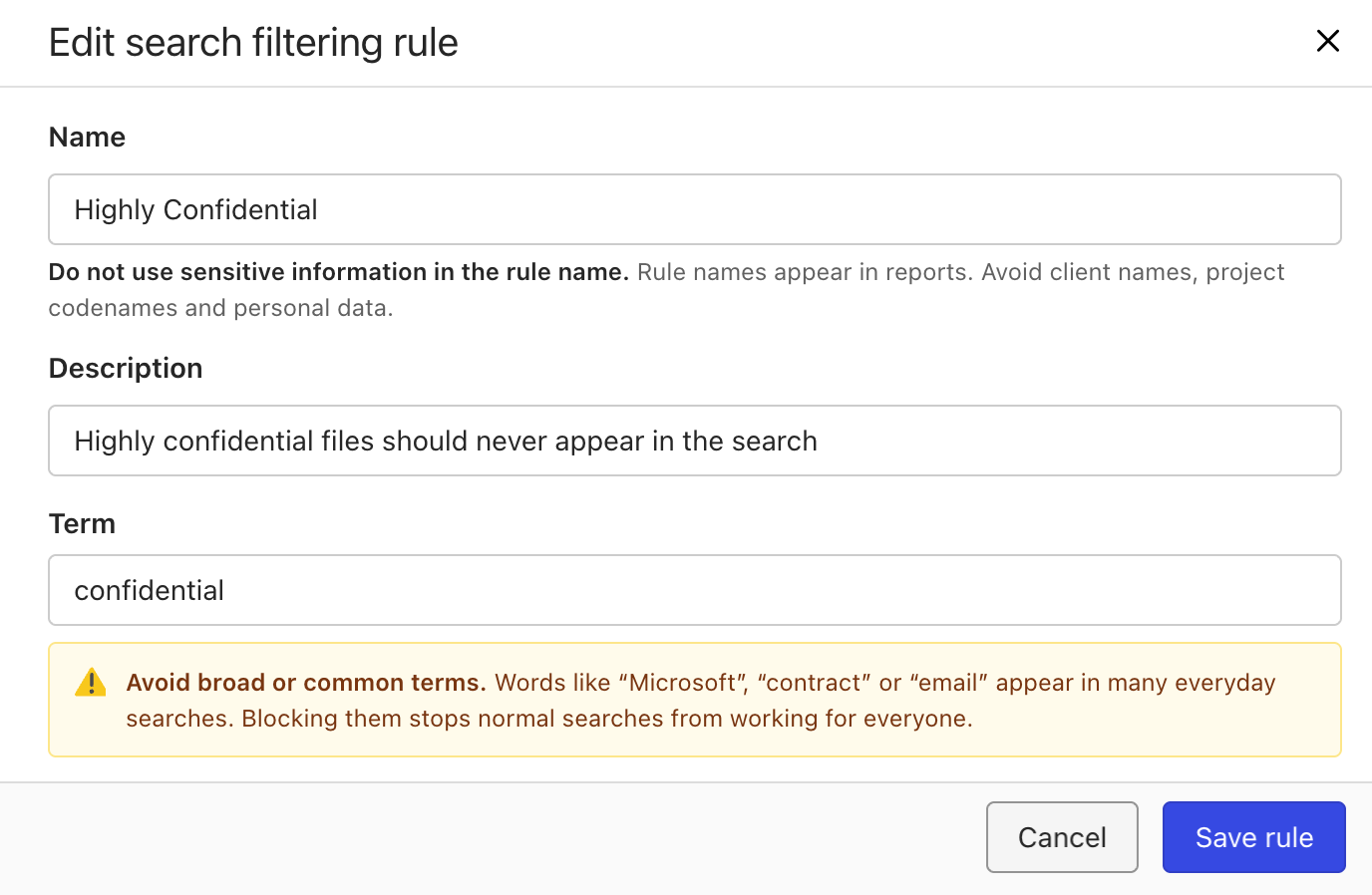
Delete a rule
Browse to Settings > Search Filtering and locate the rule.
Select the ⋮ icon next to the rule, and then select Delete.
In the Delete <rule name> dialog, select Delete.
Figure: Delete rule dialog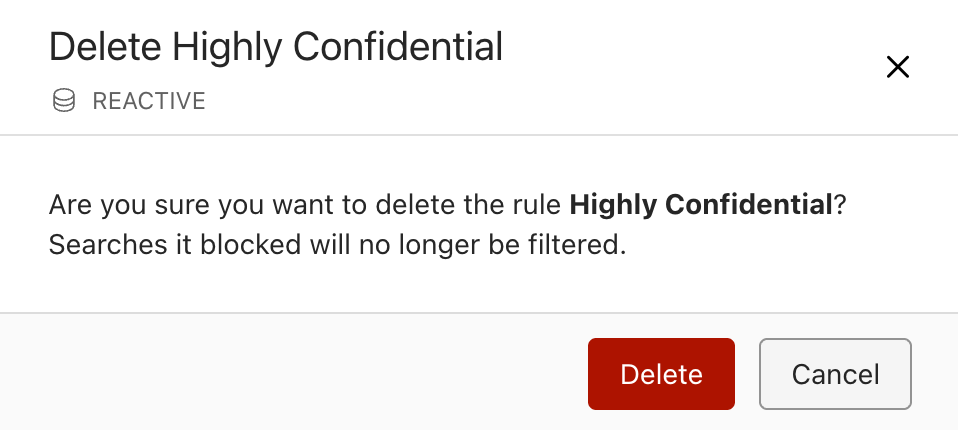
The rule is removed from the list, and searches that matched it are no longer blocked after approximately five minutes.