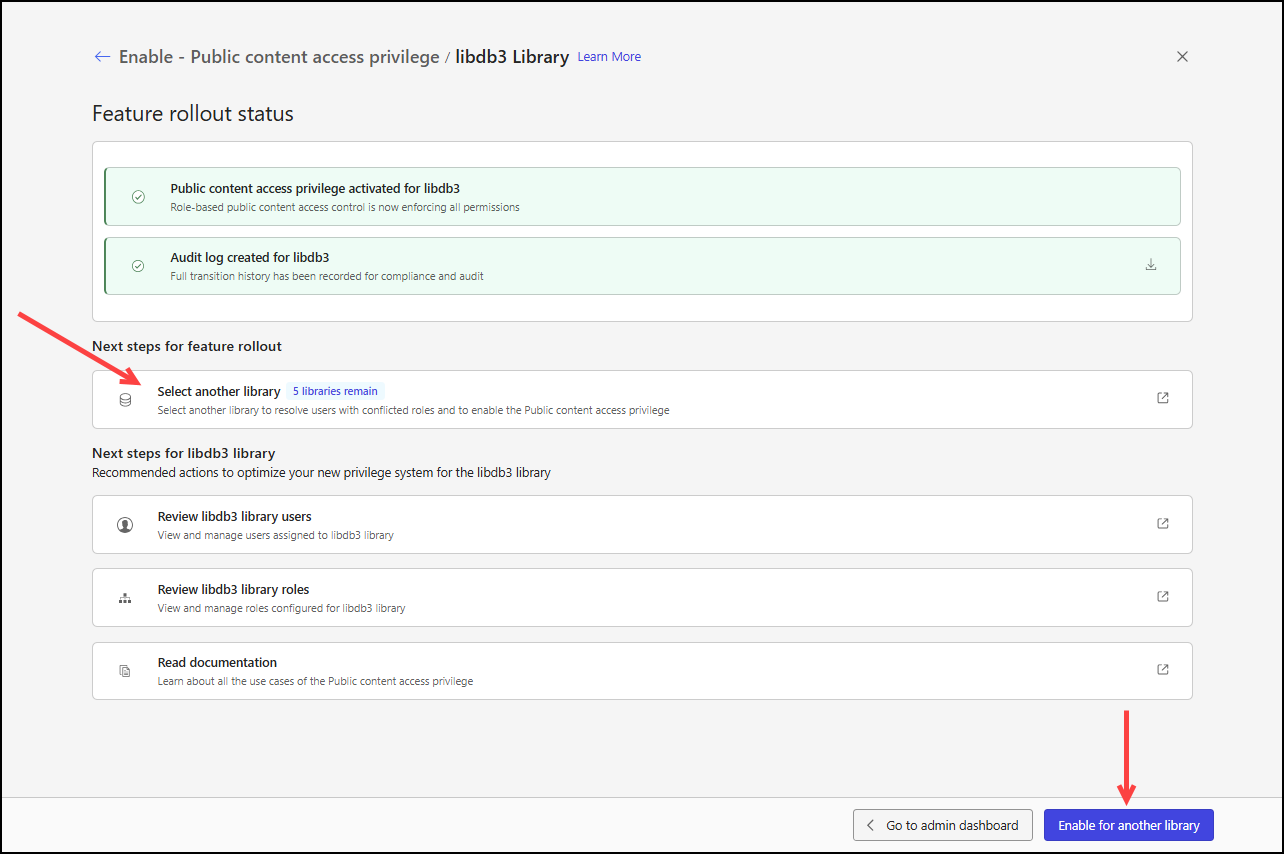
There are several methods available for selecting a library for the rollout process:
From the Library-level public content access privilege banner
From the Rollout public content access privilege page
From the Enable - Public content access privilege page
Library-level public content access privilege banner
An example of the expanded version of the Library-level public content access privilege banner is shown in the following figure.
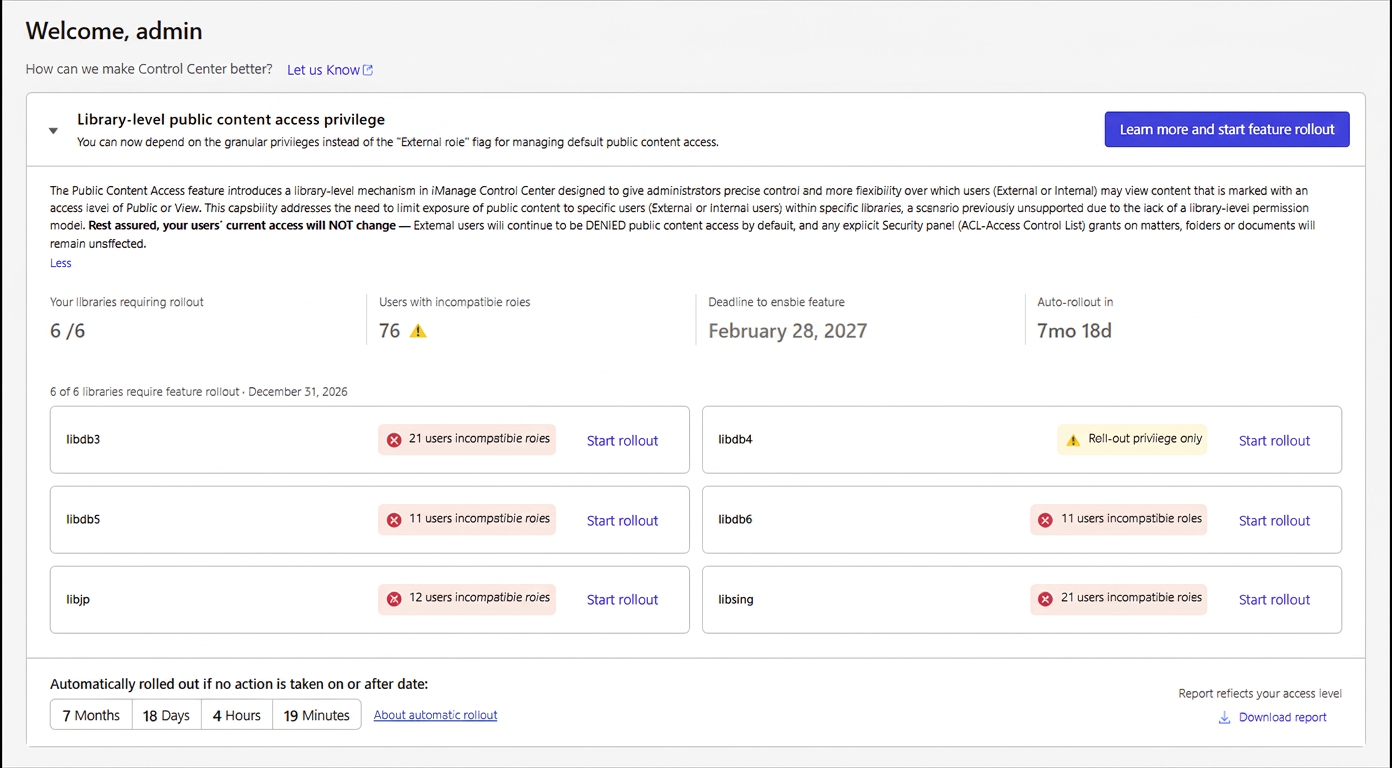
To select a library from this banner:
Sign in to iManage Control Center and browse to either the dashboard or the Users or Roles page.
Expand the Library-level public content access privilege banner to see the libraries to which you have access.
NOTES:
The banner is expanded by default on the dashboard but collapsed on the Users and Roles pages.
You only have access to libraries where you’re assigned to the NRTADMIN group.
Choose a library with either the X users incompatible roles or Roll-out privilege only designation, and select Start rollout.
If the Resolve External users step displays, proceed to the section on Resolving incompatible roles for external users. This step is shown only if there are external users assigned to an internal role for the library.
If the Resolve Internal users step displays, proceed to the section on Resolving incompatible roles for internal users. This step is shown only if there are internal users assigned to an external role for the library.
If the Review roles and enable privilege step displays, proceed to the section on Reviewing roles and enabling the privilege. This step is shown if there are no external or internal users assigned to incompatible roles.
Rollout public content access privilege page
An example of the Rollout public content access privilege page is shown in the following figure.
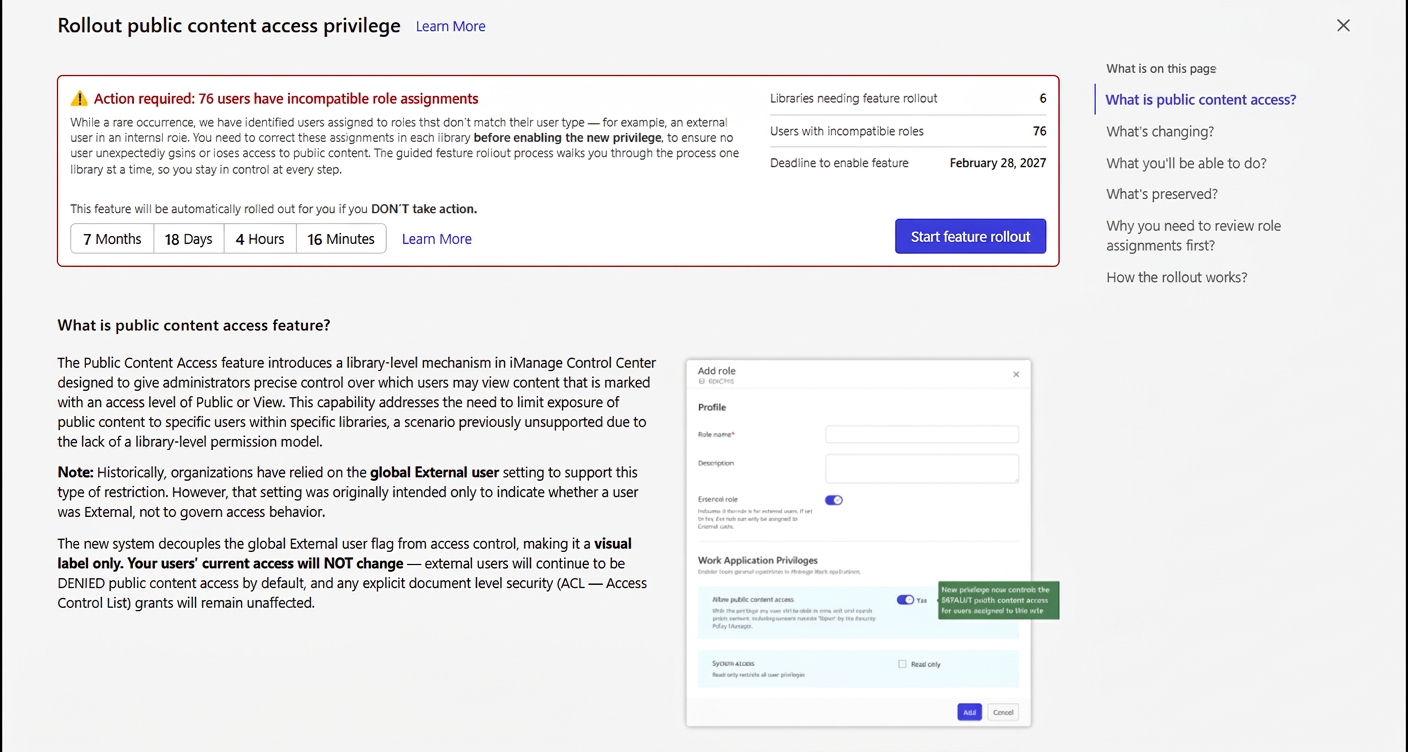
To select a library from the Rollout public content access privilege page:
Sign in to iManage Control Center and browse to either the dashboard or the Users or Roles page.
Expand the Library-level public content access privilege banner.
Select Learn more and start feature rollout.
On the Rollout public content access privilege page, select Start feature rollout.
On the Enable - Public content access privilege page, the Select Library pane displays with a tile for each library to which you have access. A library that requires feature rollout is selected by default.
For a description of this page, refer to the Sample Enable - Public content access privilege page section.
Choose a library with either the X users require review or No users to review. Enable privilege only designation, and select Next. Control passes to the next step shown in the rollout stepper:
If the Resolve External users step displays, proceed to the section on Resolving incompatible roles for external users. This step applies only if there are external users assigned to an internal role for the library.
If the Resolve Internal users step displays, proceed to the section on Resolving incompatible roles for internal users. This step applies only if there are internal users assigned to an external role for the library.
If the Review roles and enable privilege step displays, proceed to the section on Reviewing roles and enabling the privilege. This step applies if there are no external or internal users assigned to incompatible roles.
NOTE: If you don’t want to move to the next step shown in the rollout stepper, you can select Go to overview to return to the Rollout public content access privilege page.
Sample Enable - Public content access privilege page
An example of the Enable - Public content access privilege page is shown in the following figure.
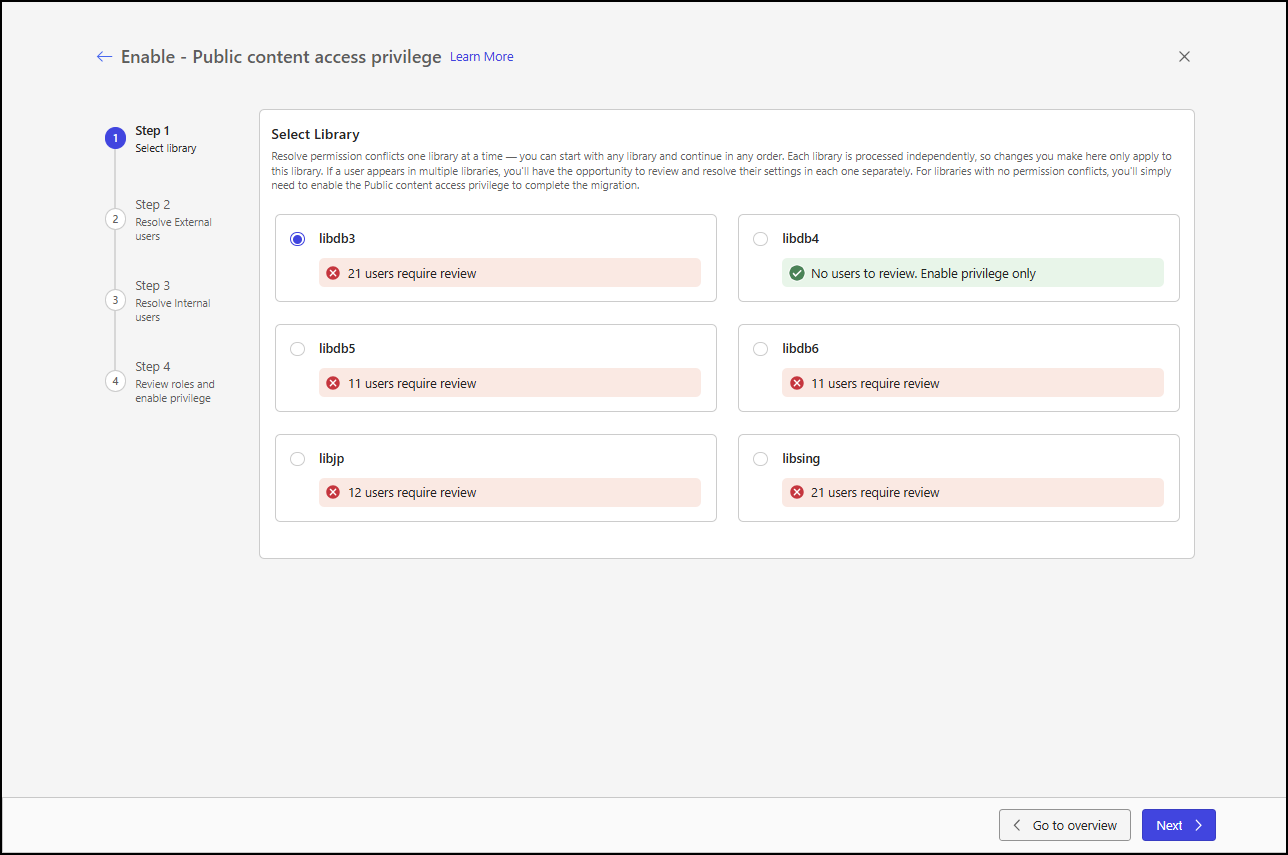
On this page, all libraries to which you have access are displayed, each showing one of the following states:
X users require review: Indicates that there are X internal and/or external users assigned incompatible roles for the library.
No users to review. Enable privilege only: Indicates that there are no internal and/or external users assigned incompatible roles for the library.
Migration completed: Indicates that there are no internal or external users assigned incompatible roles for the library, and the Allow public content access privilege is enabled.
Progress is shown in the rollout stepper on the left side of the page.
Select library: This step is always present in the rollout stepper. Use it to select a library for the feature rollout.
Resolve External users: This step is optional and is shown only if there are external users assigned to an internal role for the library.
Resolve Internal users: This step is optional and is shown only if there are internal users assigned to an external role for the library.
Review roles and enable privilege: This step is always present in the rollout stepper. Use it to review incompatible internal and external role assignments and to enable the public content access privilege after any incompatible role assignment issues are resolved.
Enable - Public content access privilege page
You can return to the Select library step from within the Enable - Public content access privilege page in the following ways:
By selecting Back to library on the following steps when they’re the second step in the feature rollout process:
Resolve External users
Resolve Internal users
Figure: Return to the Select library step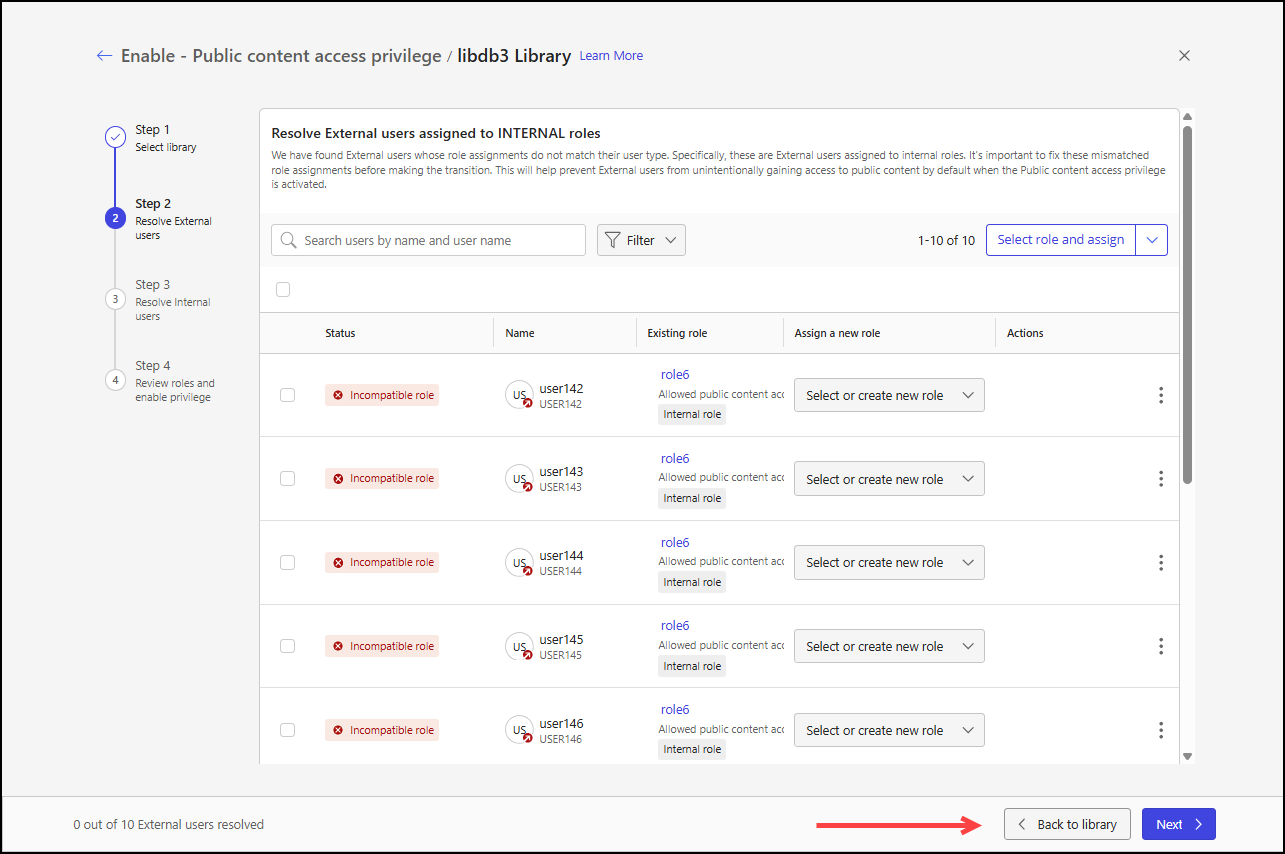
By selecting one of the following on the Review roles and enable privilege step:
Edit in the Select Library section
Back (this applies when the Review roles and enable privilege step is the second step in the feature rollout process)
Figure: Return to the Select library step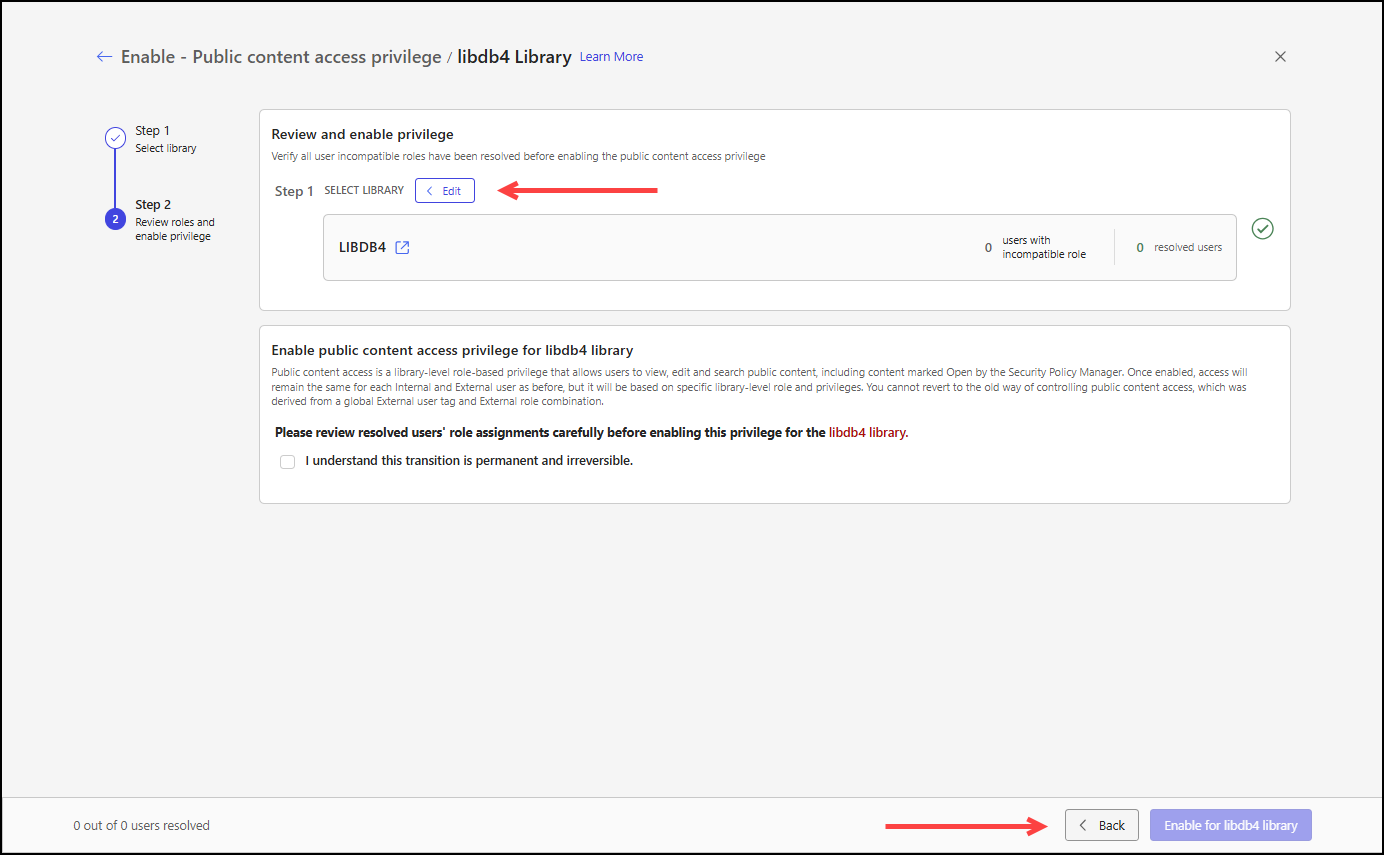
By selecting one of the following in the Feature rollout status section after the Public content access privilege has been enabled for a library:
Select another library
Enable for another library
Figure: Return to the Select library step