The Review roles and enable privilege step of the Enable - Public content access privilege page lets you check for any unresolved conflicts with either external or internal users in a library. When all conflicts are resolved, you can enable the Public content access privilege for the library, which completes the rollout process for that library. You can then start the rollout process for another library, continuing until all libraries are completed.
Because the rollout process lets you move between steps in any order, you can access the Review roles and enable privilege step even if there are still unresolved conflicts with external or internal users. However, you can’t complete this step if there are any unresolved conflicts with either external or internal users.
This section includes the following topics:
Reviewing user role assignments
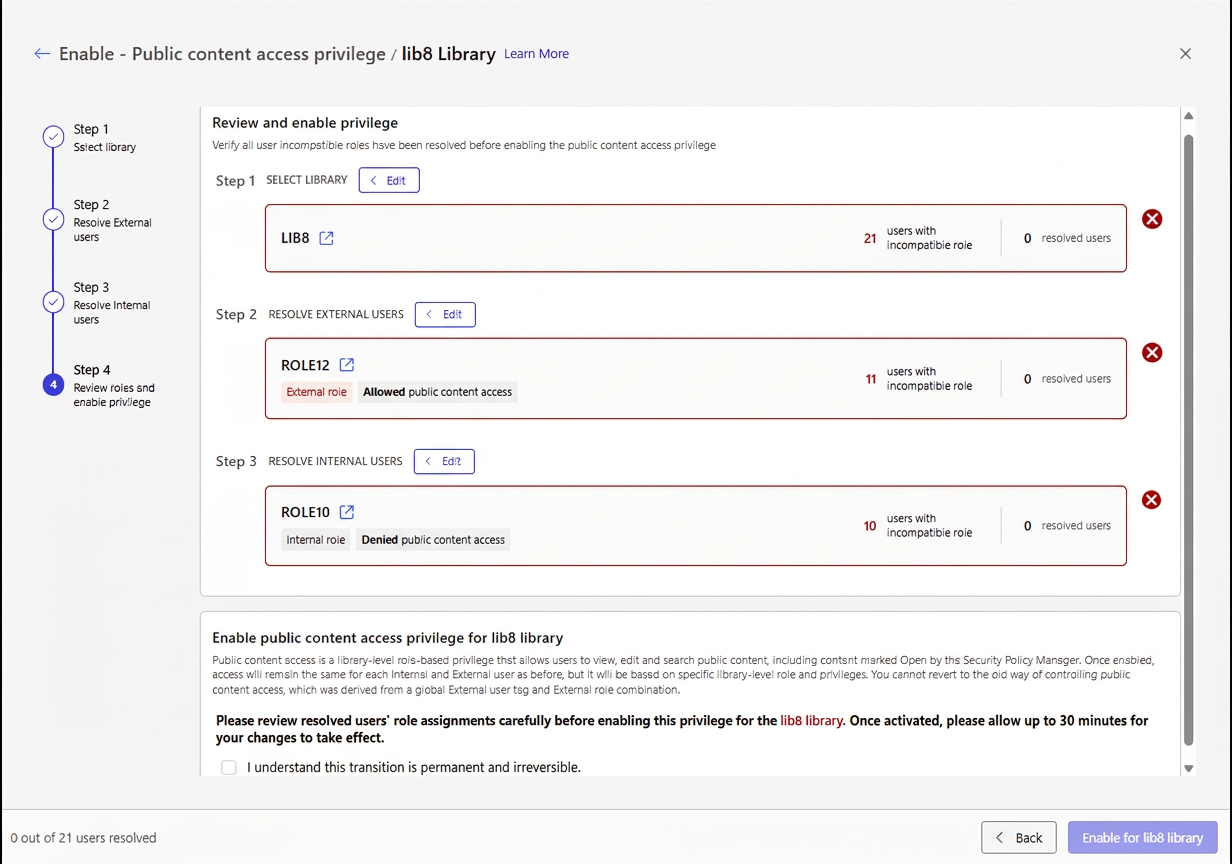
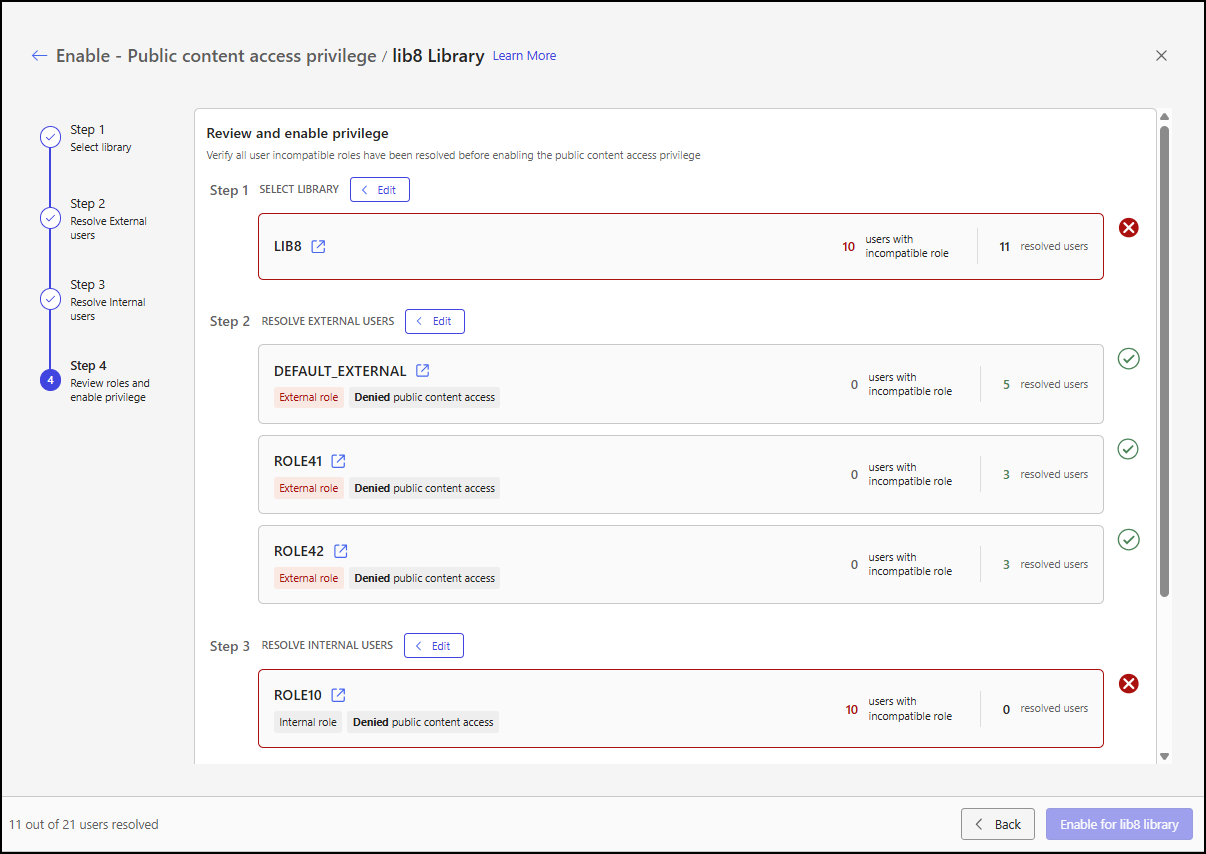
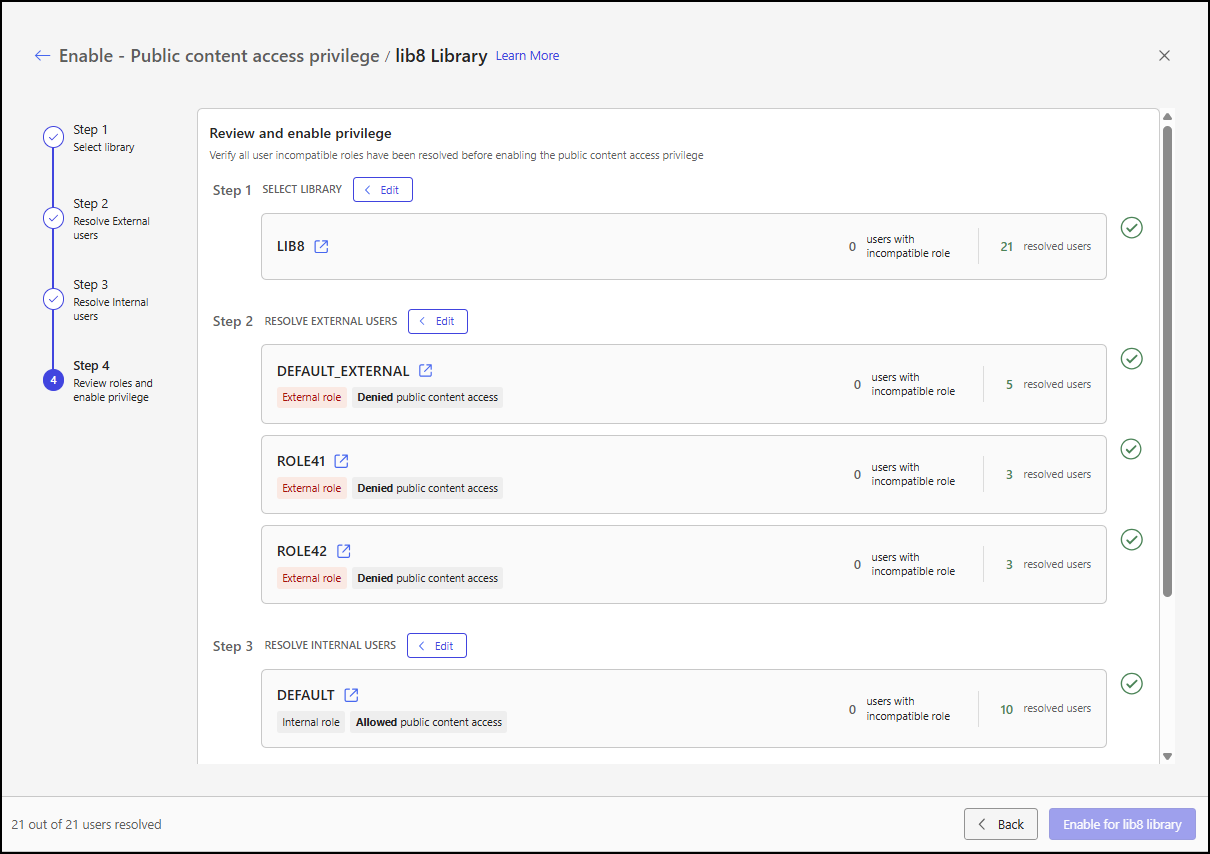
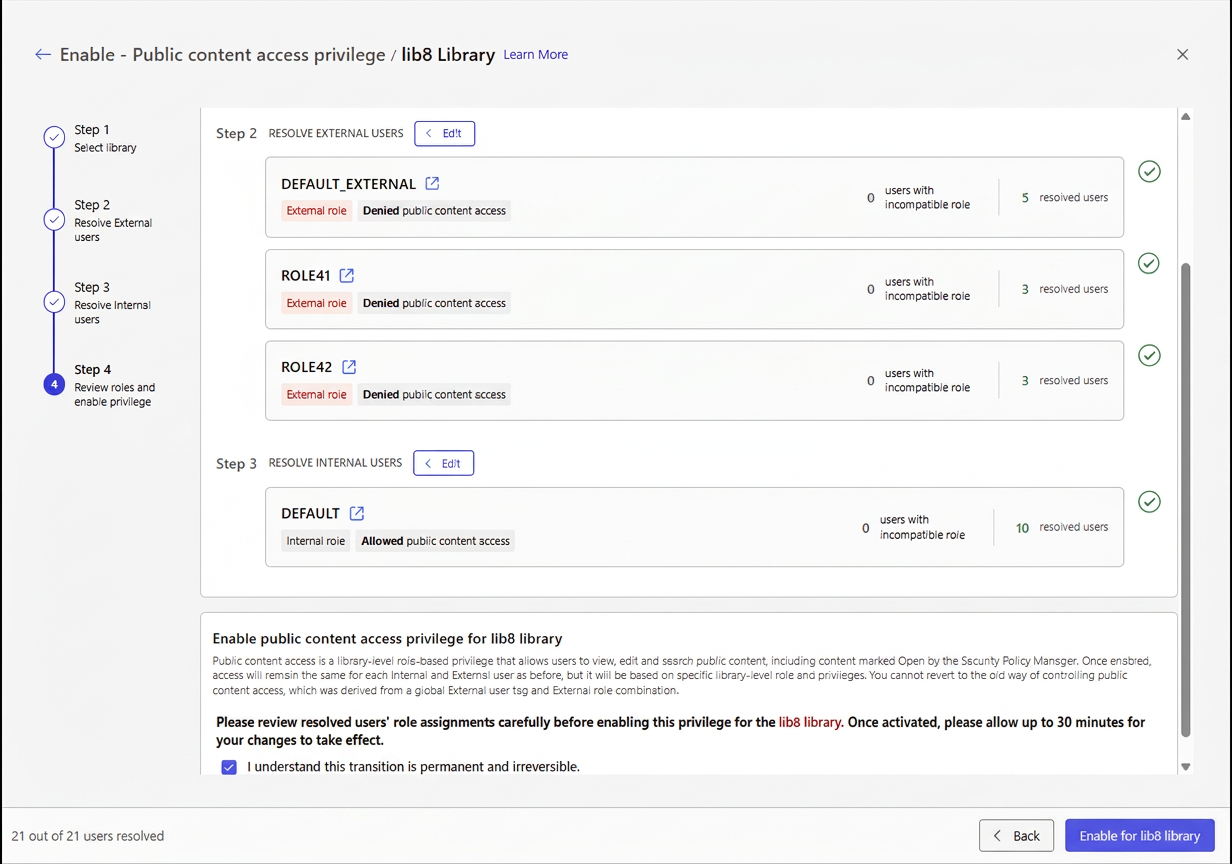
On the Review roles and enable privilege step, tiles display the status of the library and user role assignments. Three sample figures of this step are shown below for library lib8.
Figure 1: In this example, the library has unresolved conflicts for both external and internal users.
Figure 2: In this example, all conflicts for external users have been resolved, but conflicts for internal users still exist.
Figure 3: In this example, all conflicts have been resolved for both external and internal users. With no remaining unresolved conflicts, the library is ready for Public content access privilege to be enabled. To enable this privilege, refer to Enabling the Public content access privilege.
Viewing library and user sections
Details and actions are available for each step in the following sections:
Select library: This section includes a tile for the library selected for rollout.
Edit: Select Edit to return to the Select library step. This is useful if you want to start the rollout or view the status of another library.
Library name: The name of the library.
Users with incompatible role: The number of external and internal users in the library with an incompatible role assignment.
Resolved users: The number of users in the library who’ve had their incompatible role assignment resolved.
View affected users in a new tab: Select
 to view users in a new tab. Selecting opens the Users page in a new tab and shows all users in the library, including those with and without incompatible role assignments.
Resolve external users: This section includes a tile for each role that has external users with an incompatible role assignment.
Edit: Select Edit to return to the Resolve external users step. This is useful if there are any external users with an incompatible role assignment.
Role name: The name of a role.
Users with incompatible role: The number of external users assigned to the role with an incompatible role assignment.
Resolved users: The number of external users assigned to the role who’ve had their incompatible role assignment resolved.
View affected users in a new tab: Select
to view users in a new tab. Selecting opens the Users page in a new tab and shows all users in the library, including those with and without incompatible role assignments.
NOTE: The Resolve external users section is only present if the library still has incompatible role assignments or if incompatible role assignments have been resolved through the rollout process.
Resolve internal users: This section includes a tile for each role that has internal users with an incompatible role assignment.
Edit: Select Edit to return to the Resolve internal users step. This is useful if there are any internal users with an incompatible role assignment.
Role name: The name of a role.
Users with incompatible role: The number of internal users assigned to the role with an incompatible role assignment.
Resolved users: The number of internal users assigned to the role who’ve had their incompatible role assignment resolved.
View affected users in a new tab: Select
to view users in a new tab. Selecting opens the Users page in a new tab and shows all users in the library, including those with and without incompatible role assignments.
NOTE: The Resolve internal users section is only present if the library still has incompatible role assignments or if incompatible role assignments have been resolved through the rollout process.
Enabling the Public content access privilege
Public Content Access is a library-level, role-based privilege that lets users view, edit, and search public content, including content marked as Open by Security Policy Manager. Once enabled, each internal and external user retains their previous access, now governed by specific library-level roles and privileges.
IMPORTANT: After you transition a library to use the Allow public content access privilege, you can’t revert the library to use the former method that controlled public content access using a global external user tag and external role combination.
To enable the Public content access privilege for the library, select the I understand this transition is permanent and irreversible check box, and then select Enable for X library.
NOTES:
After you enable the Public content access privilege for a library, wait at least 15 minutes before you change the privileges of any role in that library.
Changes to the iManage Work Web user interface that reflect the privilege being turned on are coming soon.
Reviewing the feature rollout status
After you’ve enabled the Public content access privilege, the Feature rollout status page displays for the library.
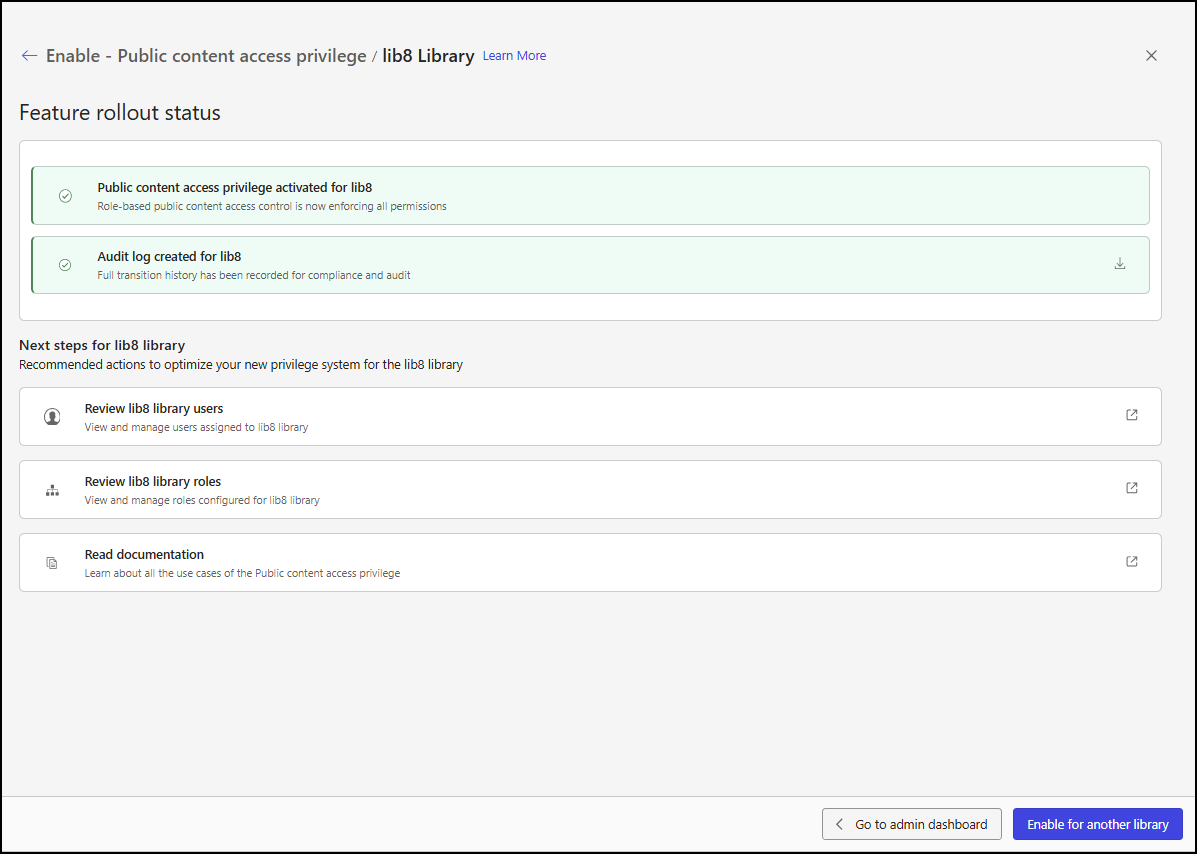
This page includes the following details and actions:
Public content access privilege activated for X: This tile provides confirmation that the Public content access privilege was activated for library X.
Audit log created for X: This tile informs you that an audit report was generated that includes the following details about users who had an incompatible role for library X:
User ID: The ID assigned to the user.
Full Name: The full name of the user.
Email: The email address of the user.
Sign in status: The sign-in status of the user, either TRUE or FALSE.
External: Whether the user is designated as an external user, either TRUE or FALSE.
Existing Role: The former role assigned to the user that was incompatible with their designation as an internal or external user.
New Role: The new role assigned to the user that is compatible with their designation as an internal or external user.
NOTE: The report is saved in CSV format with a file name like:
report.audit.<LibraryName>.access_public_content_privilege.csv
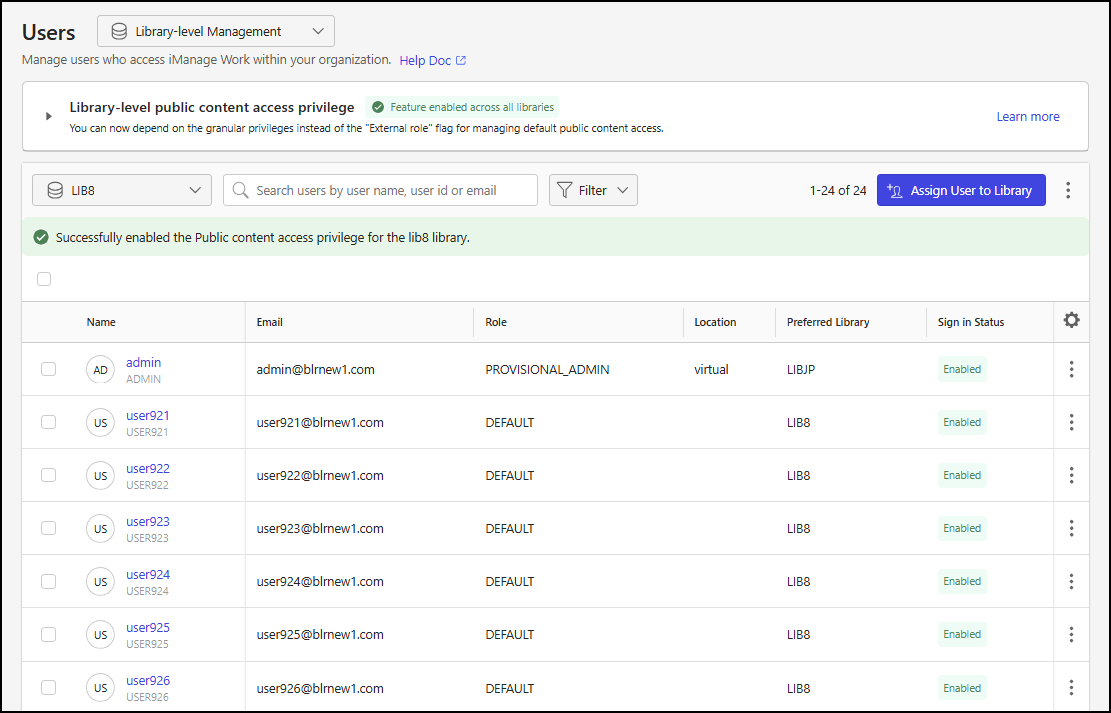
Review X library users: Select this tile to open the Users page in a new tab. This page shows that the Public content access privilege was successfully enabled for the library.
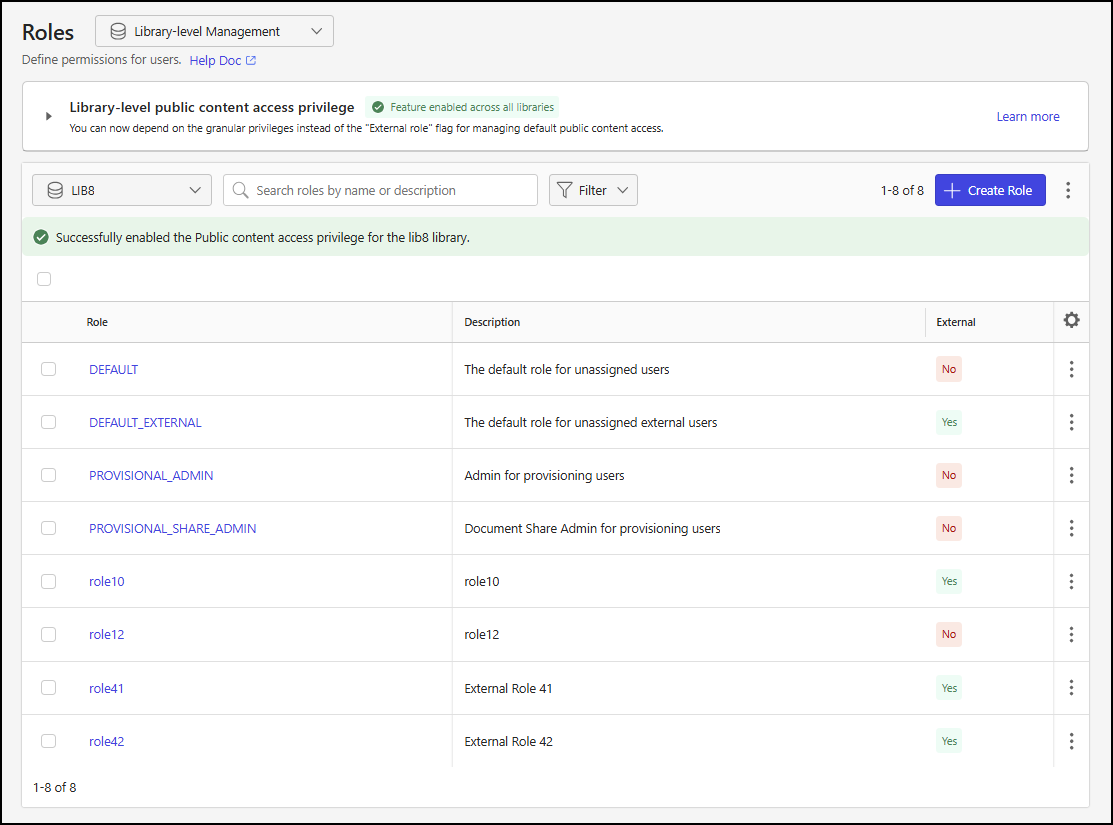
Review X library roles: Select this tile to open the Roles page in a new tab. This page shows that the Public content access privilege was successfully enabled for the library.
Go to admin dashboard: Select this to go to the Control Center Dashboard page, where you can review the status of all libraries and continue the rollout process for another library. For more information about the Dashboard, refer to Accessing the Public content access privilege banner.
Enable for another library: Select this button to go to the Select library step, at which you can review the status of all libraries and continue the rollout process for another library. For more information, refer to Selecting a library.
Confirming the feature rollout completion
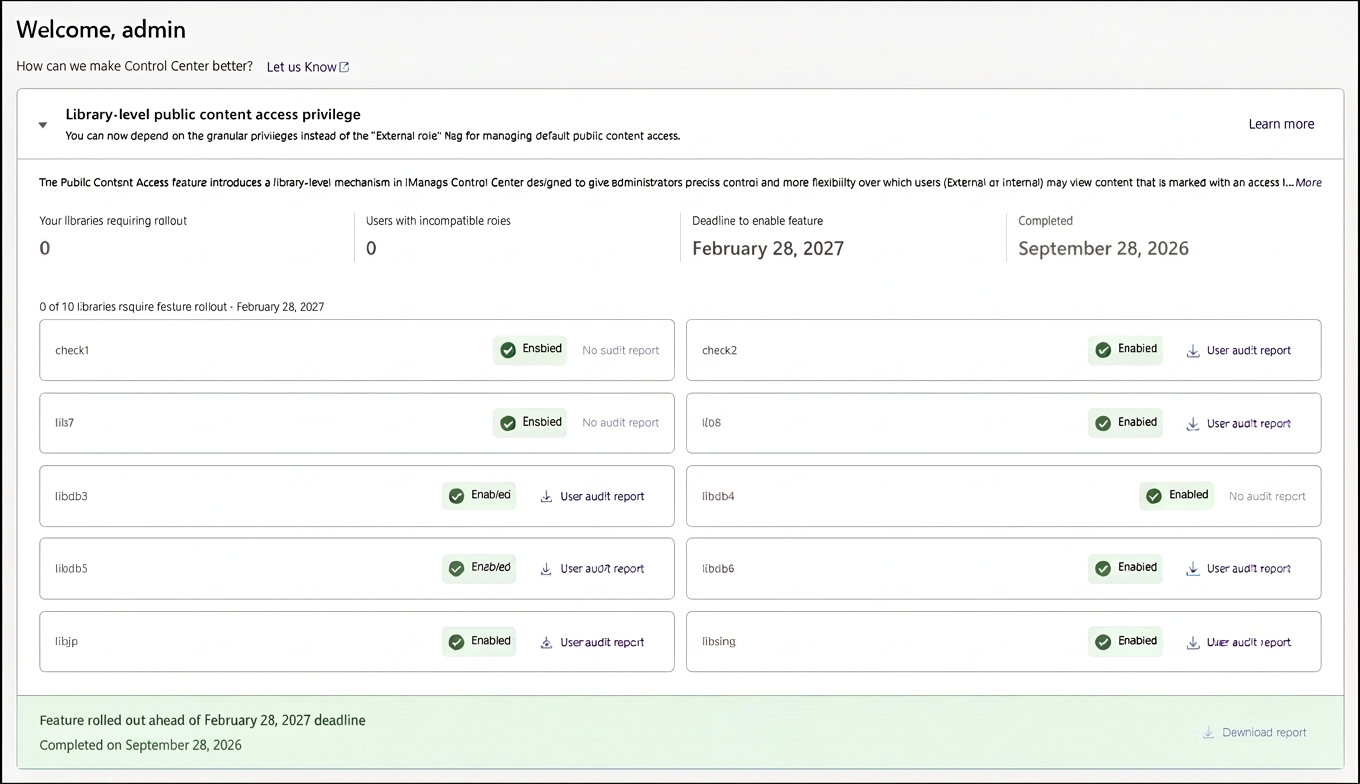
When the rollout process is completed for all libraries, completion is indicated in the Public content access privilege banner, as shown in the figure below.