You can apply a legal hold or multiple holds to workspaces, folders, or subfolders using any of the following methods:
NOTE: When you apply a legal hold to a workspace, the hold is applied to all folders and sub-folders in the workspace. However, any hold applied at sub-folder level won't impact the parent folder or the workspace.
If you remove hold from parent folder or workspace, the hold is also removed from the sub-folder or folders belonging to the parent folder or workspace.
Applying holds using the kebab menu from File Plan
On the File Plan page, browse to the workspaces, folders, or subfolders to which you want to apply a hold.
Select the
 icon next to the workspace, folder, or subfolders and select Apply Hold. Figure: Apply holds from File plan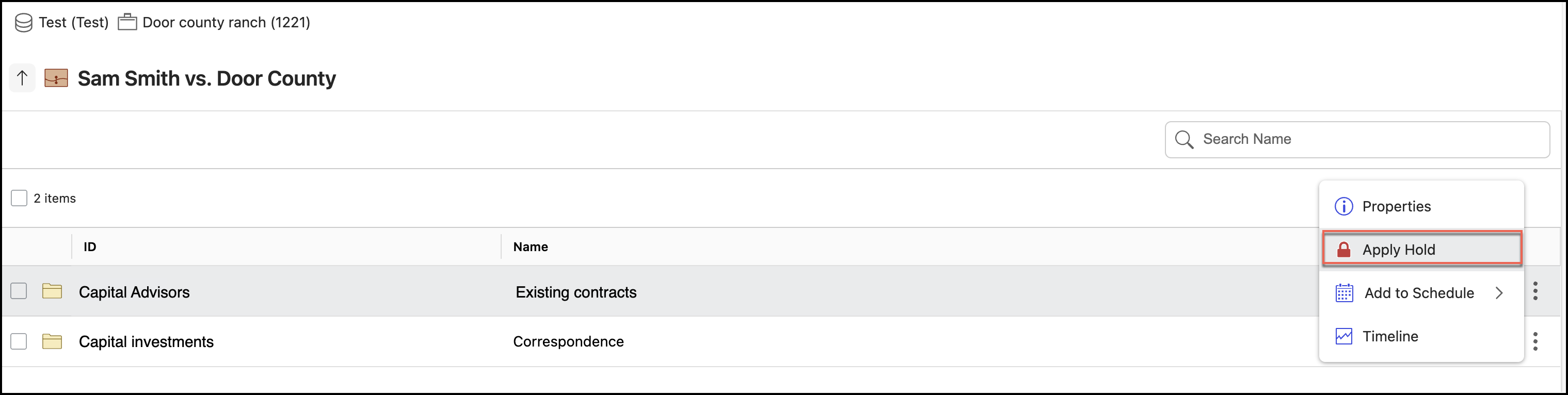
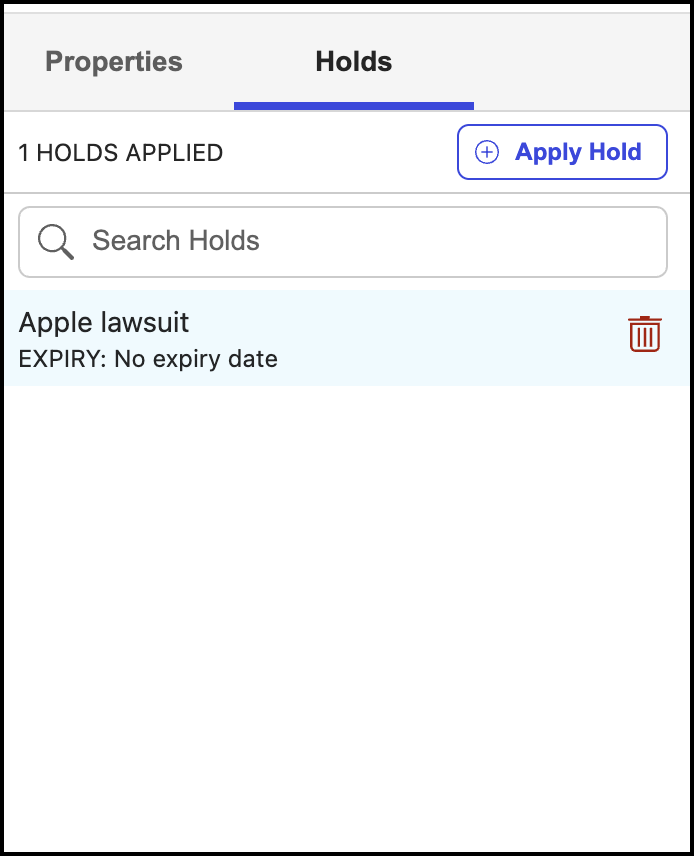
In the Apply Hold dialog, select the hold you want to apply and then select Apply. The selected hold is applied, and the Holds pane is displayed with the list of holds applied to the workspaces, folders, or subfolders.
Figure: Select a hold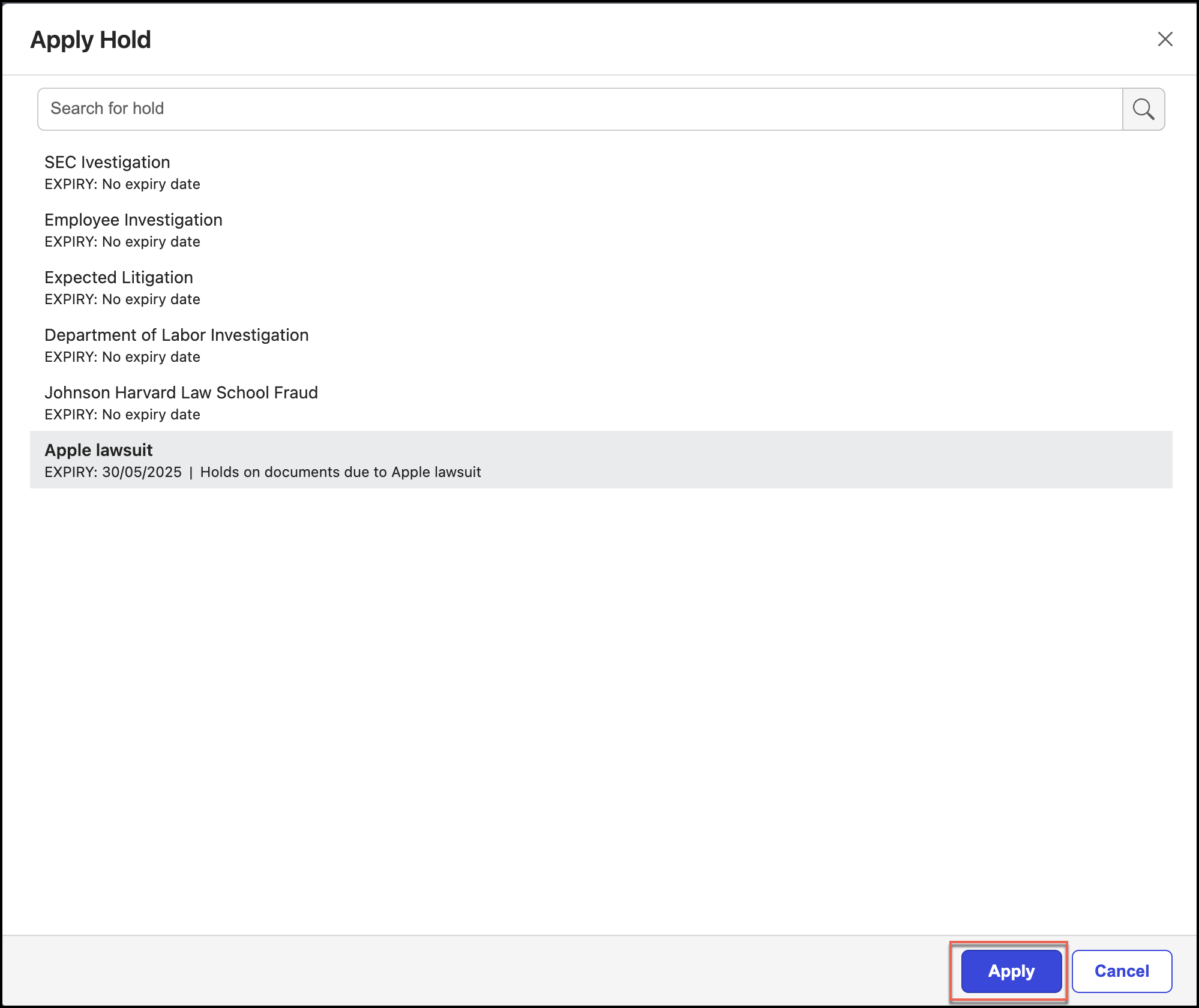
Repeat Steps 2–3 to apply another hold to the same workspace, folder, or subfolder.
Applying holds in bulk
You can apply a legal hold or legal holds to multiple workspaces or folders by doing the following:
On the File Plan page, browse to the workspaces, folders, or subfolders to which you want to apply a hold.
Select the check box available before the workspace, folder, or subfolders.
Figure: Apply holds to multiple workspaces or folders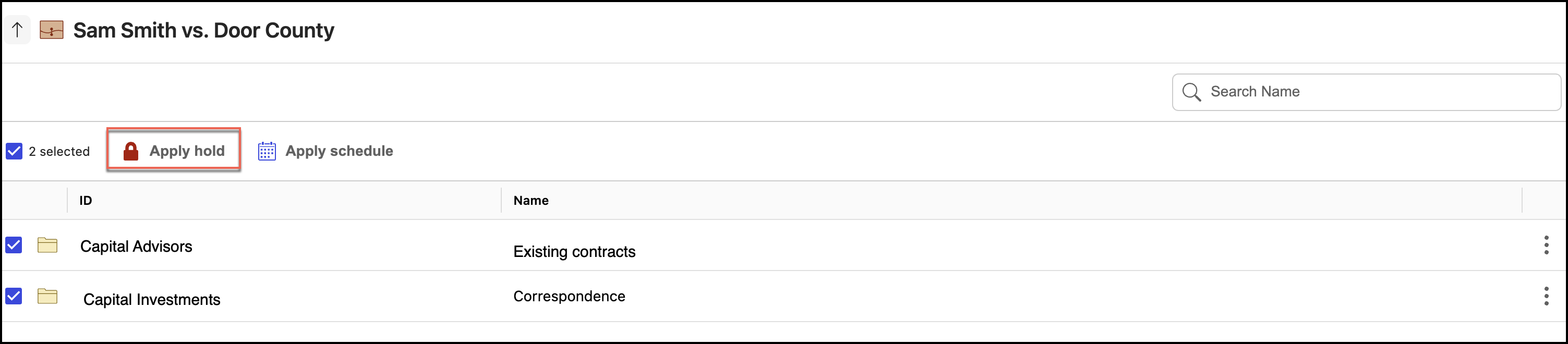
Alternatively, select the check box in the toolbar. All workspaces, folders, or subfolders are selected.
Figure: Select all workspaces at once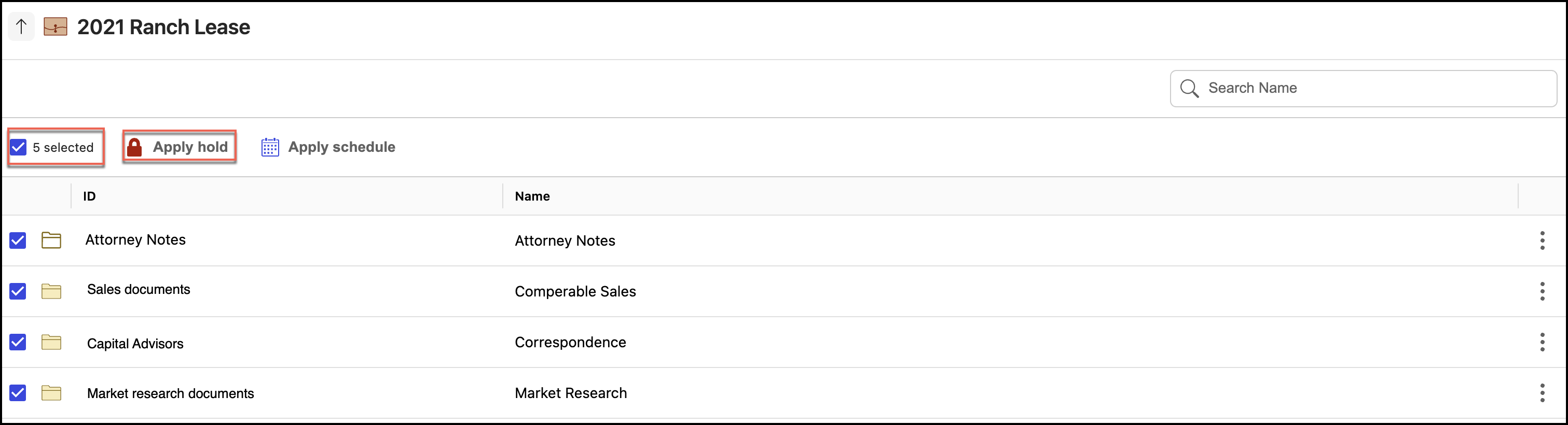
Select Apply hold.
In the Apply Hold dialog, select the hold you want to apply and then select Apply. The selected hold is applied to all the selected workspaces, folders, or subfolders.
Figure: Apply a holdRepeat Steps 3–4 to apply another hold to the selected workspaces, folders, or subfolders.
Applying holds from the Holds pane in File Plan
On the File Plan page, browse to the workspaces, folders, or subfolders to which you want to apply a hold.
Select the
icon next to the workspace, folder, or subfolders and select Properties.Figure: Select Properties
In the Properties panel that opens, select the Holds tab.
Figure: Select the Holds tab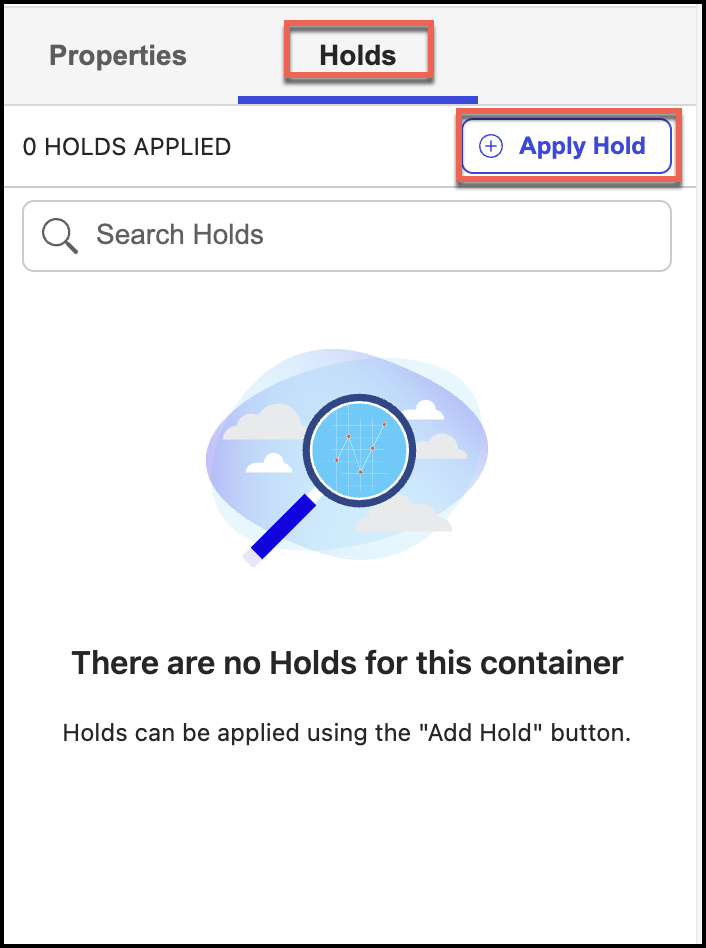
Select Apply Hold.
In the Apply Hold dialog, select the hold you want to apply and then select Apply. The selected hold is applied, and the Holds panel is displayed with the list of holds applied to the workspaces, folders, or subfolders.
Figure: Apply holdsThe hold is applied as shown in the following figure.
Figure: Holds applied