Edit events
In the left pane, under Retention, select Events.
Figure: Select Events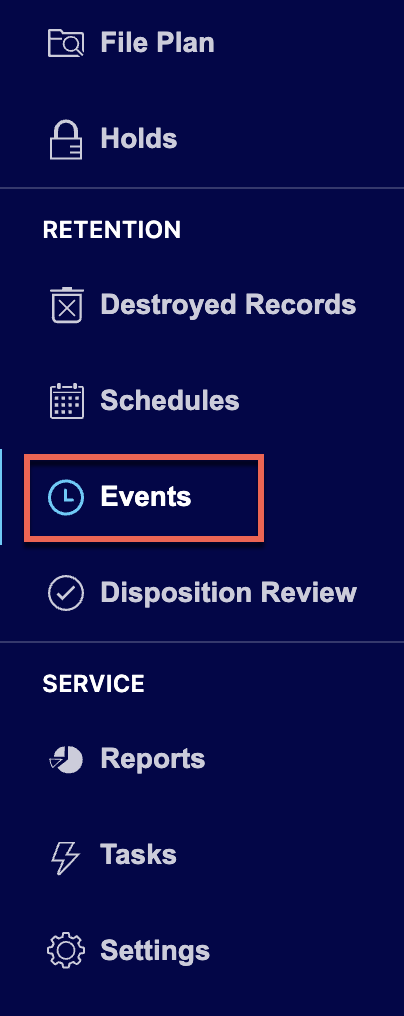
Select the
 icon for the event you want to edit and then select Edit. Figure: Edit an event
In the Edit Event dialog, make the necessary changes to the event.
Figure: Edit Event dialog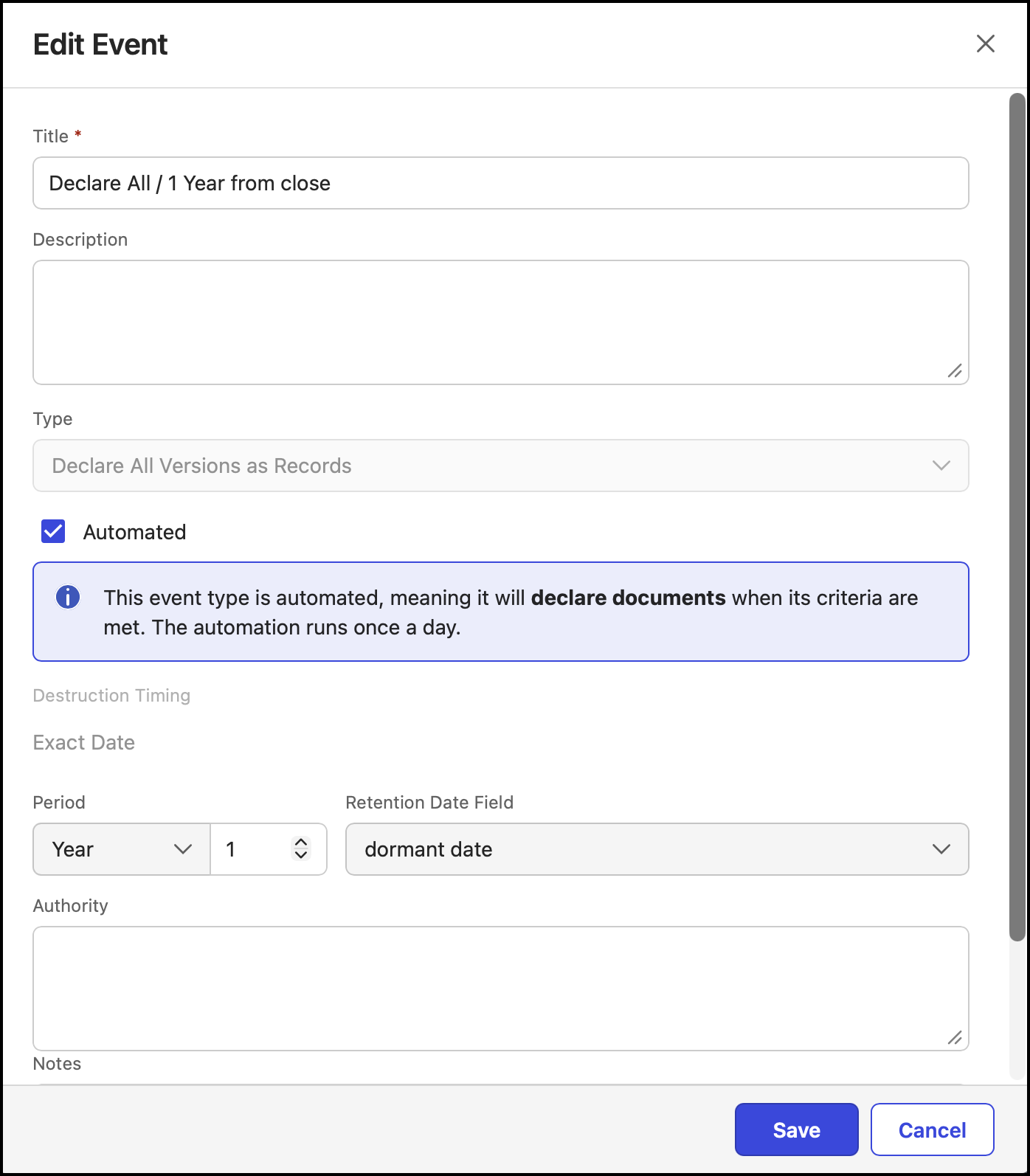
CAUTION: When records are destroyed, they're deleted from iManage Work at cloudimanage.com and can't be retrieved or restored.
Records aren't destroyed immediately when events to destroy records are created, or added to a schedule, or applied to workspaces, folders, or subfolders. Records are destroyed when tasks defined by these destroy events are manually or automatically executed.
NOTES:
Records Managers can’t change Type when modifying events. This restriction ensures tasks run exactly as configured. This restriction removes the risk where editing a task type could cause the displayed type to diverge from the type being run. To use a different type, create a new event.
When Records Managers select Automated, the note indicates that automation runs once a day, as shown in the following figure.
Figure: Note displayed when Automated is selected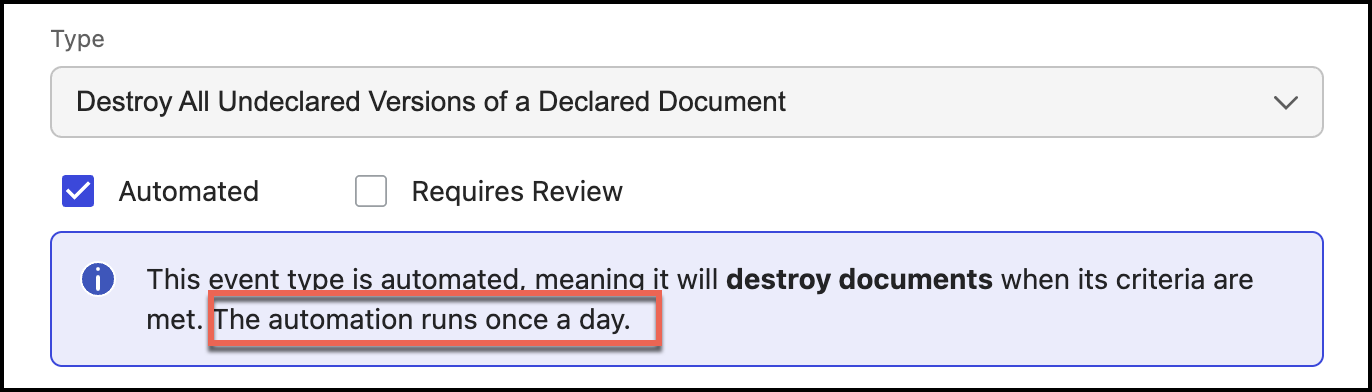
Select Save.
Delete events
In the left pane, under Retention, select Events.
Select the
icon for the event you want to delete and then select Delete. Figure: Delete an event
In the Delete Event dialog, select Confirm to delete the event. The event is deleted.
Figure: Confirm event deletion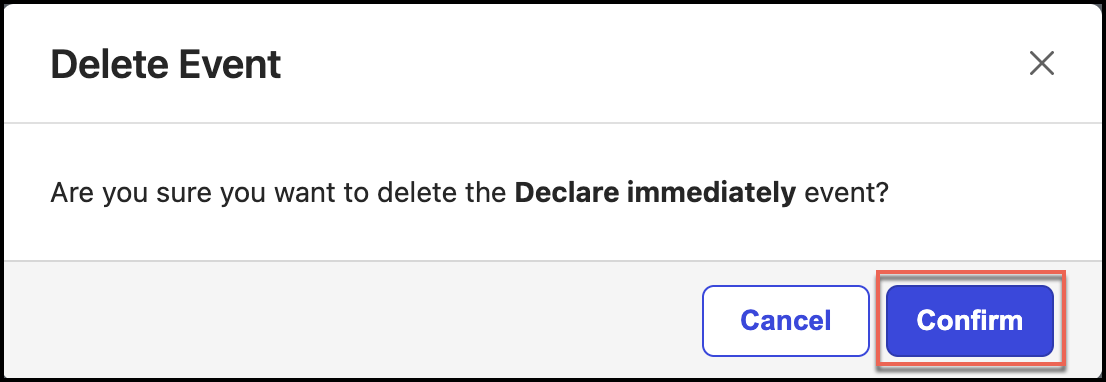
Although you can delete events that are included in one or more schedules, we recommend that you don’t delete events that are applied to schedules. This is because, after deleting events, any tasks that are In progress aren’t completed properly.
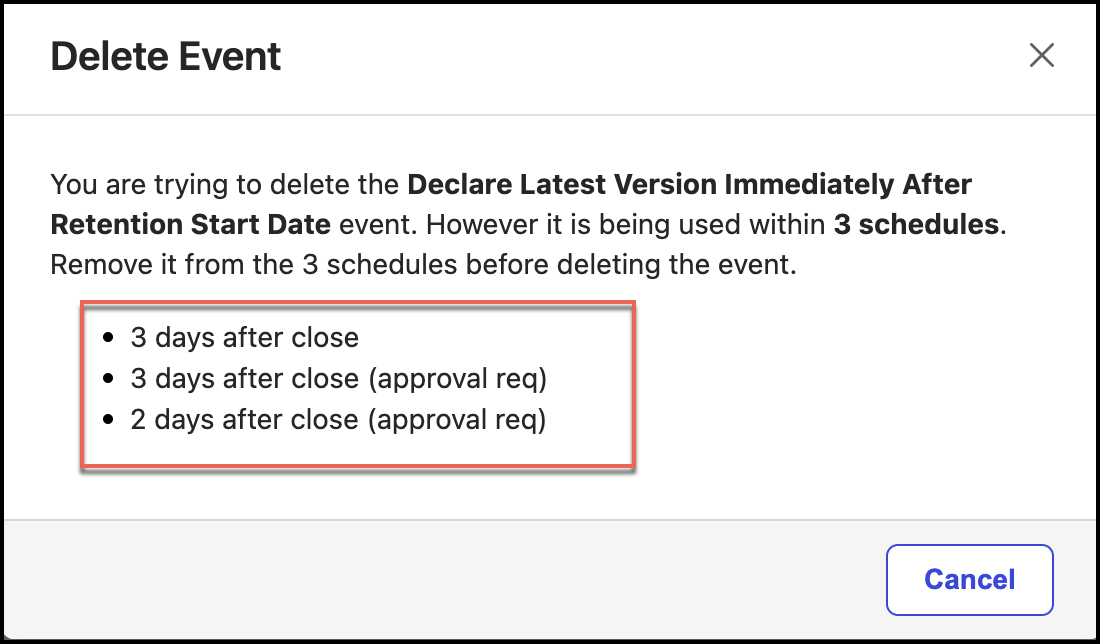
NOTE: If the event is added to a schedule, you can't delete the event and the following figure is displayed. In this case, remove the event from the schedule or schedules before deletion.