You can remove holds applied to a workspace, folder, or subfolder:
From the Holds page
To remove a legal hold or legal holds from a workspace, folder, or subfolder from the Holds page:
On the Holds page, select the
 icon next to an existing hold and then select Edit.
 In the Edit Hold dialog, in the Matters/Folders field, select the
 icon next to the workspace, folder, or subfolder.Figure: Delete holds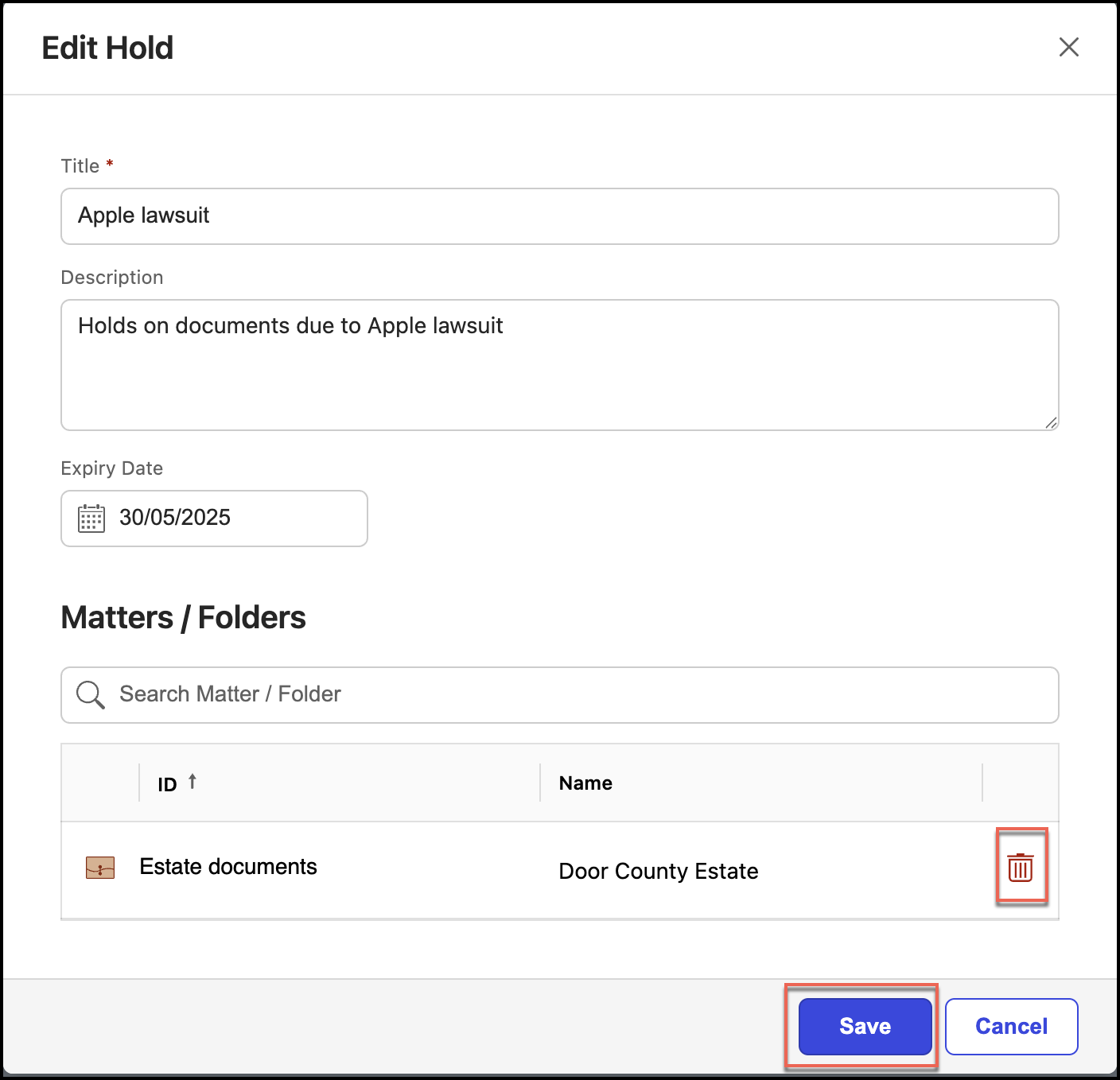
Select Save. The holds are removed from the selected workspaces, folders, or subfolders.
From the File Plan page
To remove legal holds from a workspace, folder, or subfolder from the File Plan page:
On the File Plan page, browse to the workspaces, folders, or subfolders to which you want to remove a hold.
Select the workspace name, folder name, or subfolder name displayed in the Name column to view the Properties panel.
Figure: Select Properties to view the panel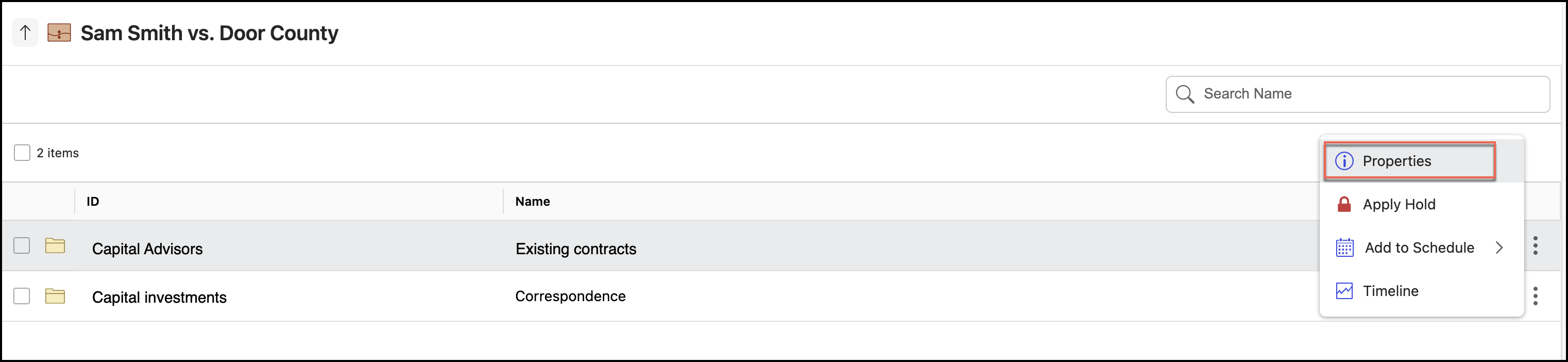
Select Holds to view the Holds panel.
Figure: Open Holds panel and delete hold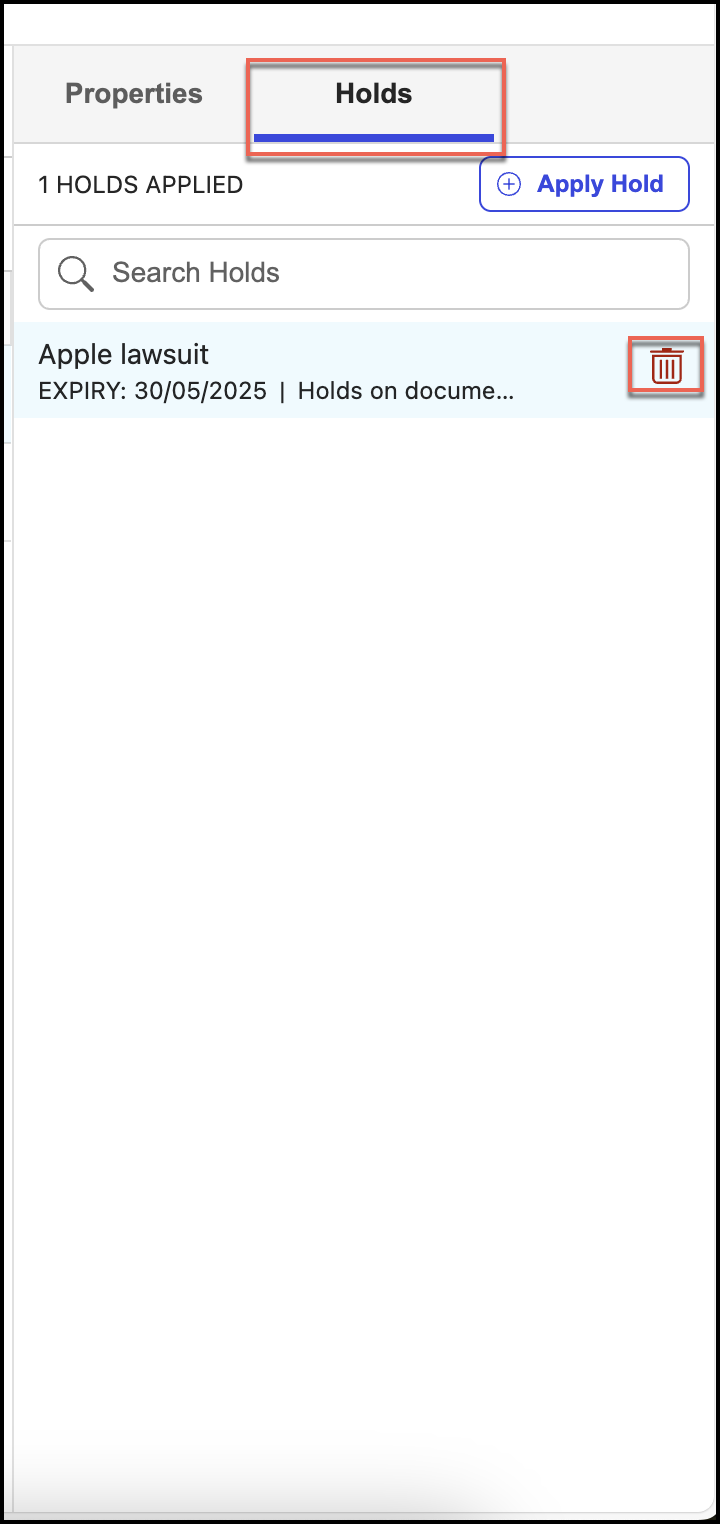
Select the
 icon next to the hold you want to remove.
 Select Yes to confirm the deletion.
Figure: Deleting holds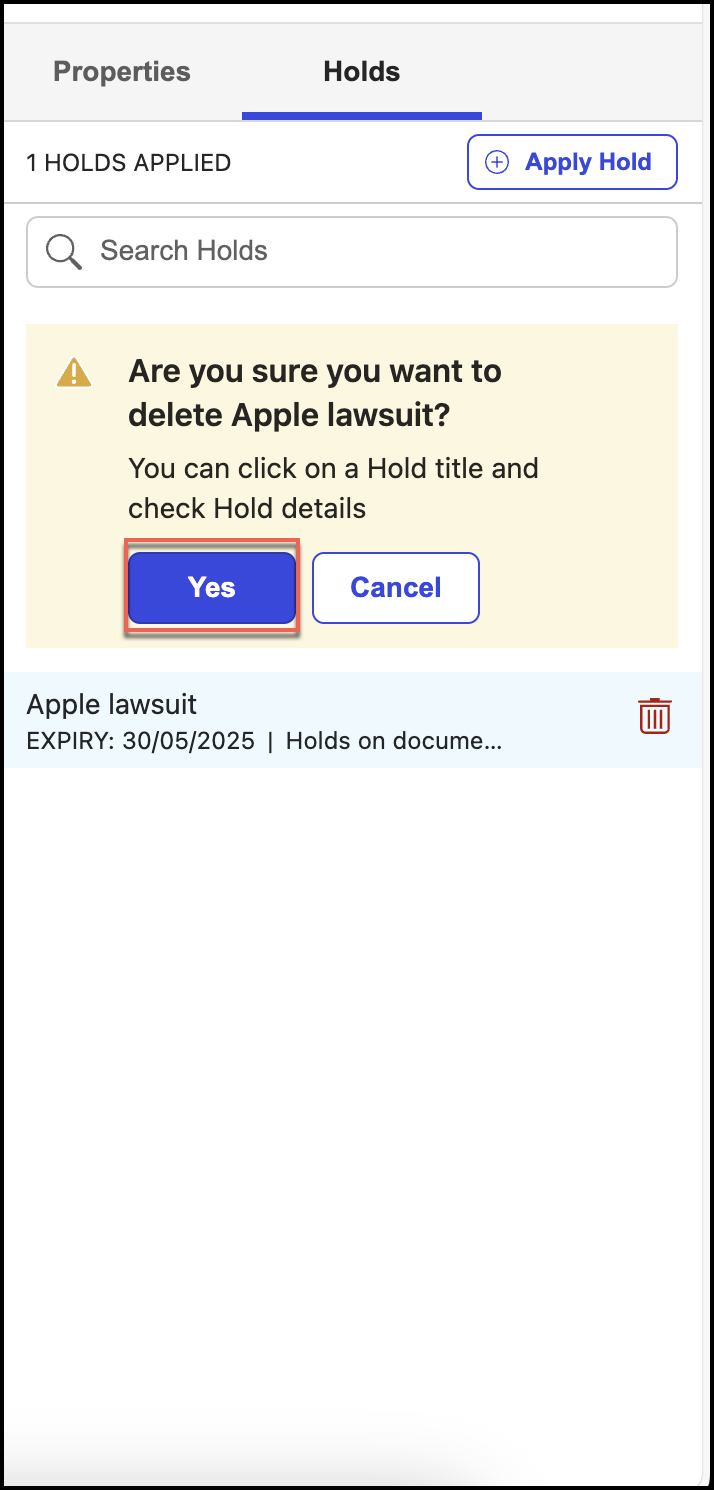
Repeat Steps 4–5 to remove another hold on the same workspace, folder, or subfolder.