After you create a Knowledge Collection, you can add documents and links, and create groups.
Add documents
In the content and settings dialog, select Content > Add to collection.
In the Add to Collection dialog, select the Knowledge tab.
Select all the applicable documents.
Optionally, you can apply filters using the facets on the left. If you modify the existing filters, you can save them as your default filters. For more information on how to use default filters, refer to User profiles and Default filters.
After you’ve selected all the required documents, select Add to collection.
You can copy this setting or share it using the following options:Copy link: Copies a shareable link to the current search or filter view.
Save search: Saves the current search criteria and filters for reuse.
Select Close.
NOTE: When adding documents to a collection, selections are specific to the current page and filter. If you change the filter or browse to another page before selecting Add to Collection, the page doesn't keep your selections and you'll need to select the documents again.
To add the selected documents, first select Add to Collection, and then change the Filter or move to another page.
You can also perform actions related to the search result tile using either the kebab menu  icon or the right-click context menu.
Table: Search result tile actions
Tasks | Descriptions |
|---|---|
Preview | Opens the document in the preview mode on the Preview page. |
Open |
|
Download | Save a copy of the selected version on your local device. |
Copy link | Copy the document URL and then share it with the concerned person through any of the communication tools. This is the link to the most recent version of the Knowledge document. |
Copy to Work | Lets you copy and save only Knowledge documents to your preferred active library. |
Versions | Opens the list of the document versions in the Versions panel. A document can have more than one version saved in the repository. iManage Insight+ provides you with the option to preview specific versions of a document using this option. |
Add to Collection | Add the document to the created Knowledge Collection. |
Add to Favorites | Marks the document as a favorite for quick access. |
Properties
| To view the document's properties in the Properties panel. |
Adding quick links
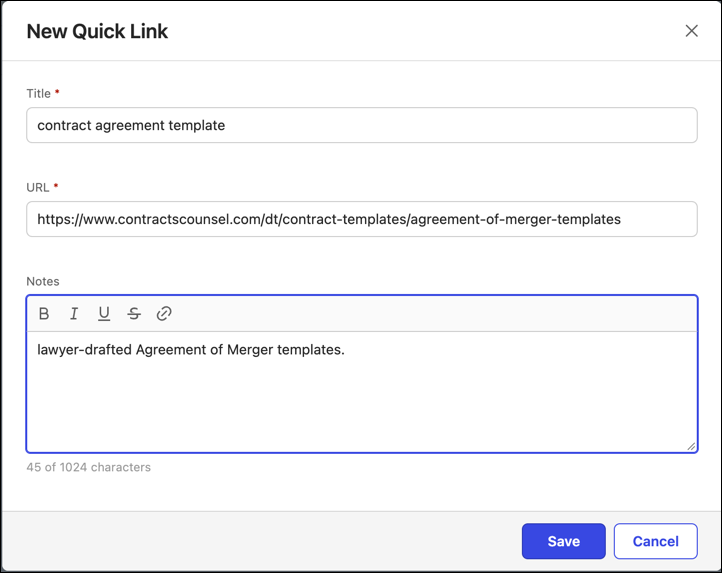
In the content and settings dialog, select Content > New quick link.
In the New Quick Link dialog, in the Title field, enter a name for the quick link.
This field is mandatory and if you leave it blank, the dialog displays a “Title is required” message.In the URL field, enter a valid URL—for example, starting with https://.
Optionally, in the Notes field, add description.
Select Save to create the quick link, or Cancel to discard.
Adding new groups
As an administrator, you can organize items within a created Knowledge Collection into groups with related documents, quick links, and sub-groups under a title. These Groups help users browse through a grouped collection that contains several items.
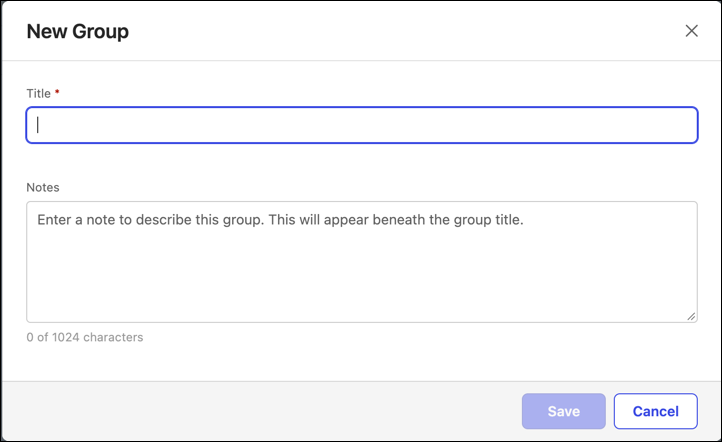
In the content and settings dialog, select Content > New group.
In the New Group dialog, enter Title for the group name. This field is mandatory.
Optionally, enter Notes to describe the group.
Select Save to save the group or select Cancel to discard.
NOTE:
Groups can be nested up to four levels.
After you create a group, you can move documents, quick links, or other groups into it using Move to group.
NOTE: You can add up to 200 items, including documents, quick links, and groups, to a Knowledge Collection.
Configure Settings tab
As an administrator, you can use the Settings tab to add metadata to a Knowledge Collection—for example, Jurisdiction, Practice area, and Industry.
This metadata applies to the entire collection, and not to individual items.
It determines whether the collection is displayed when a Default Filter is applied. The values set under Settings tab must match the filters.
In the content and settings dialog, select Settings.
Enter details for the following fields. The values for these fields are synced from the Properties set in iManage Admin. For more information, refer to Configuring properties to sync metadata values.
Table: Settings tab fields
Field | Description |
|---|---|
Description | These fields are usually populated automatically with the description entered when you created the Knowledge Collection. If not, enter a description stating the collection's purpose. |
Usage notes | Enter notes that help users with additional information. |
Library | Select the active Knowledge Library that the collection is associated with. |
Client | Consists of client name |
Last review date | Set the date the collection was last reviewed. Must be the current date or earlier. |
Next review date | Set the date by which the collection must next be reviewed. It can be set to a future date. |
Governing law | The system of law governing the collection. Would be multiple in cases of cross-border / global collections. Ex: United Kingdom |
Jurisdiction | Select the jurisdiction the collection applies to—for example, the UK. It lets users identify relevance and it must match a Default Filter value for that particular filter to surface the collection. |
Language | Captions are matched only in the UK English language. |
Practice area | Select the Practice area the collection applies to—for example, Merger portfolio. This lets users identify relevance. It must match a Default Filter value for that filter to surface the collection. |
Work type | A classification of the types of work that knowledge items within a collection might support. For example, Resolving, Investigation. |
Industry | The industry the collection relates to. For example, Technology. |
Type | The type of collection. For example, Permanent or Transitory. |
Topic | The topic to which the collection relates. For example, Brexit. |
Use Restriction | Denote whether a collection should be shared with other users or if it's practice group specific. |
Edit or remove an item in a Knowledge Collection
As an administrator, after you've added items to a Knowledge Collection, you can edit, reorder, move, or remove them anytime.
Edit an item
Select a Published or Unpublished Knowledge Collection and then select Edit. The Content tab opens automatically.
OR
Select a Draft State Knowledge Collection. Go to Step 2.Select the item you want to update. It opens for editing in place.
Update the content—for a quick link, its name, URL, or note, for a document, link, or group, its usage note (text, formatting, or embedded links).Select Save to keep your changes as a draft, or Publish to make them available to users.
NOTE: You can't edit the source document directly from within a collection, as the document is stored in the Knowledge Library. Within a collection, you can only update the document's usage note, change its group placement, or remove it from the collection.
Move, reorder, or remove items
Select a Published or Unpublished Knowledge Collection and then select Edit. The Content tab opens automatically.
OR
Select a Draft State Knowledge Collection.Select the checkbox next to each item you want to work on, or select the
icon.
If you select multiple items by checkbox, a toolbar is displayed above the list showing the number of items selected.Select one from the following list of actions you need to perform:
New group: This option displays only when you select the checkbox next to an existing group. Select this to add a sub-group. Enter Title, Notes (optional), and then select Save.
Move up: To reorder within the current level.
Move down: To reorder within the current level.
Move to: Select either of the following:
Move to top level: To move the item to the top level.
Move to group: To move the item into a group.
Remove: To remove it from the collection.
Select Save as Draft to save the updates as draft or select Publish to make them available to users.