As an administrator, you can create User profiles for a search experience to target any criteria.
NOTE: Users can only belong to one search experience profile group.
To create target criteria and User profiles for a search experience:
On the Insight+ Admin page, select General.
Next to User profiles, select Edit.
The User profiles dialog opens with the For search experiences tab selected by default. To create User profiles for landing pages instead, select the For landing pages tab.Select Create target.
You can create user profiles based on your organization’s Information Architecture and target any criteria, for example—Country or Office.Figure: User profile dialog to create target for search experience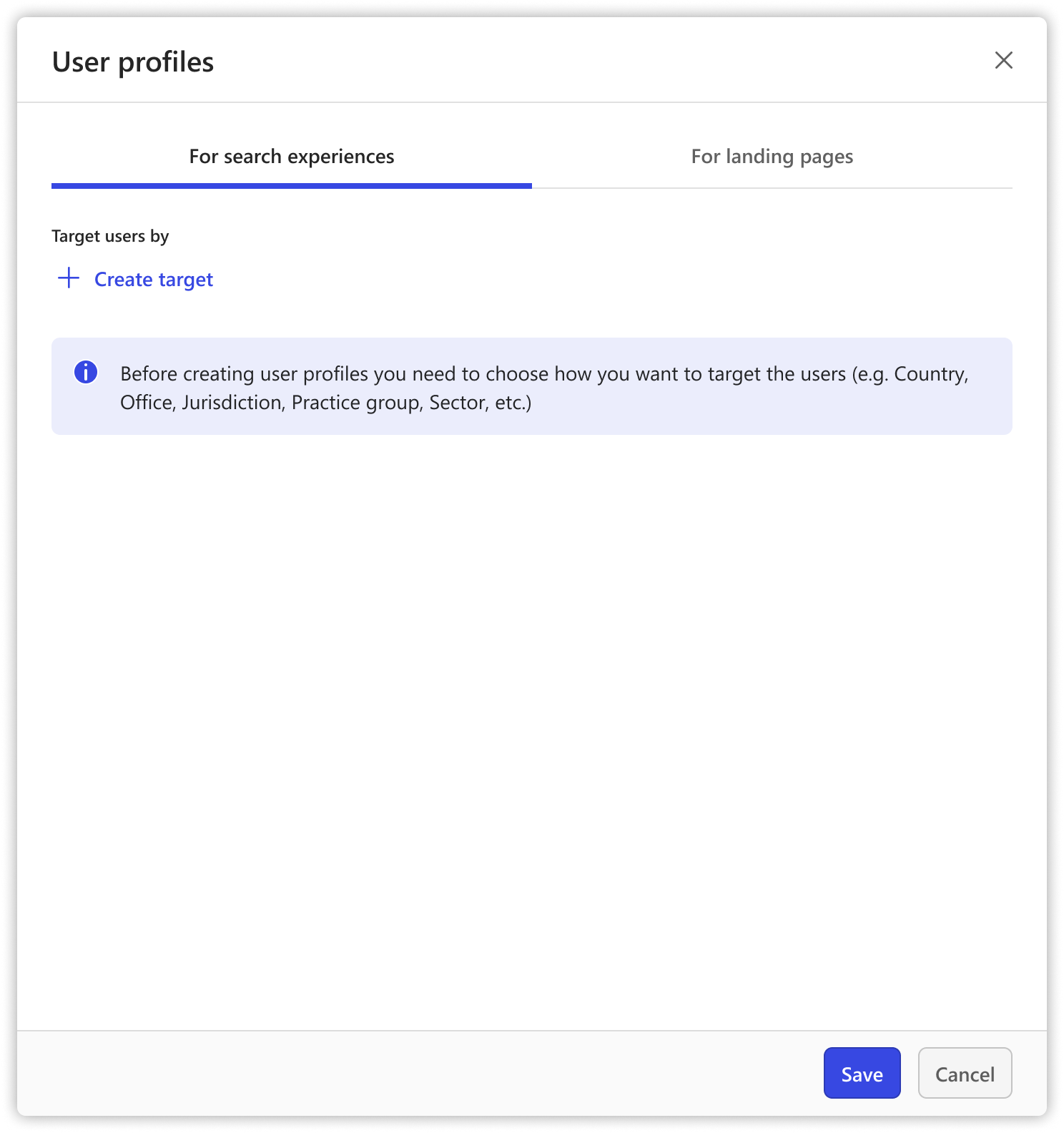
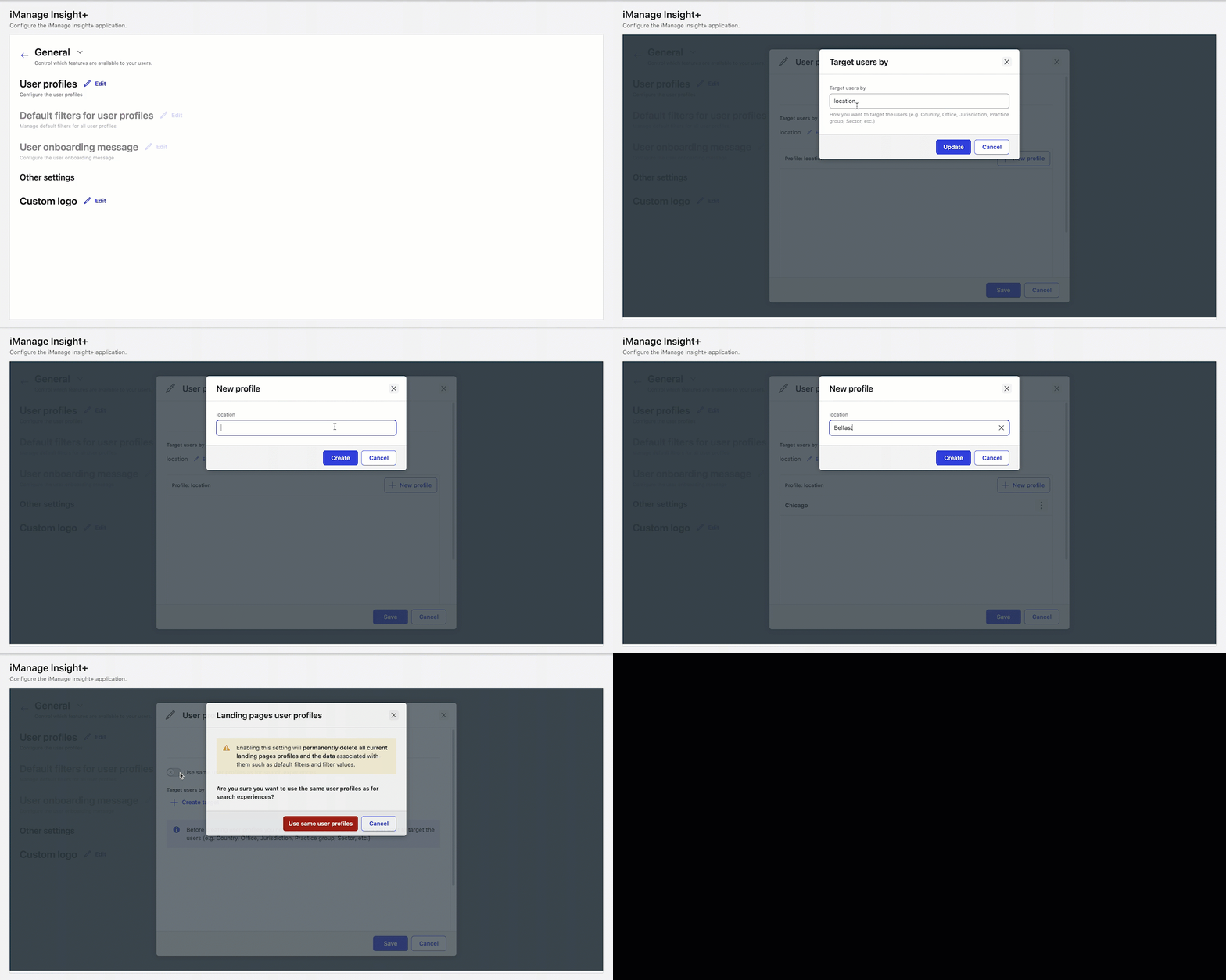
In the Target users by field, enter the target category.
Figure: Target users by field to enter target criteria
After your target category is created, select Save.
Now that you’ve selected your target, you can create your user profiles. These will be the relevant user groups based on your target. For example, if your target is location, your groups will be based on locations relevant to your users for example Detroit or Chicago.
In the table, select New profile.
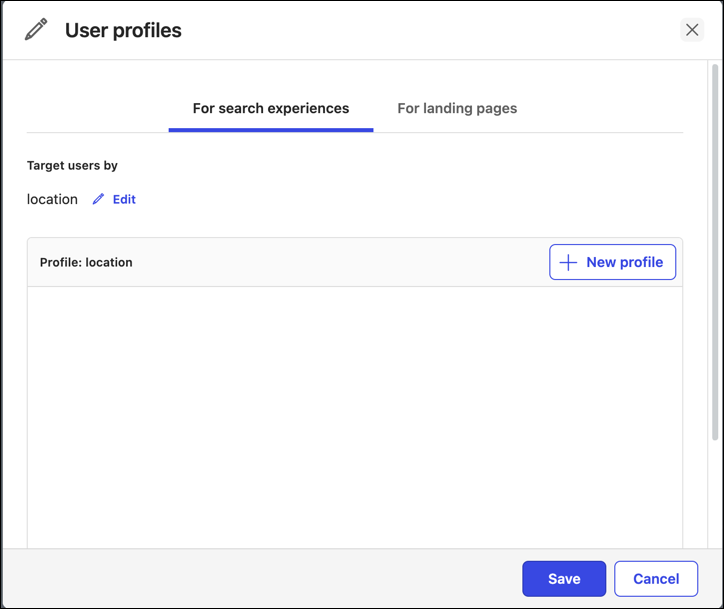
In the New Profile dialog, either:
Enter the profile details, for example, Detroit, and then select Create.
Select Cancel to go back.
Figure: New profile dialog
Repeat Steps 6–7 to create multiple user profiles.
After you’ve created all the required User profiles, select Save.
After the User profiles are created, the following message is displayed:
“Successfully updated user profiles”
NOTE: With User profiles created and saved, the administrator configuration for Default filters for user profiles and User onboarding message get activated within the General settings configuration menu.
For more information on configuring these, refer to set up Default filters and user onboarding message.
Edit a target
You can manage the created target by editing them as per requirement.
To edit a target:
Next to the created target, select Edit.
In the Target users by dialog, enter a new target category.
Select Save.
Edit and delete profiles
You can manage the created User profiles by editing or deleting them as per requirement. You can also change your target using the edit button, and then edit the profile names accordingly.
To edit a profile:
Select the kebab menu, and then select Edit.
In the Edit profile dialog, enter the updates and then select Save.
OR
To delete a profile:
CAUTION: If you select to delete a profile, you'll also delete all of the default filters for that profile and the users within that profile will be forced to choose a new profile in the Insight+ interface.
Select the kebab menu, and then select Delete.
In the Delete user profile dialog, a warning message is displayed:
“Deleting a user profile will permanently delete all data associated with the user profile such as default filter and filter values. The users who are subscribed to this profile will be asked to select a new profile on their next login”
Are you sure you want to delete this user profile?Select Delete, to confirm, or select Cancel to go back.