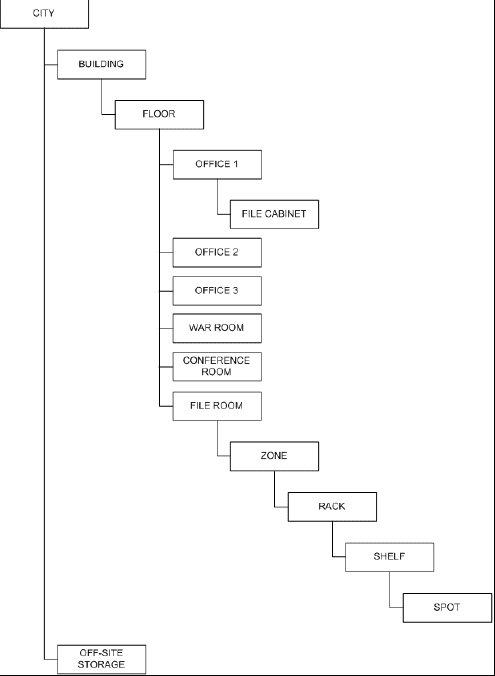
Locations provide a hierarchical representation of available locations for file parts and boxes in an organization. Locations play a key role in the circulation and auditing of file parts and boxes. The location hierarchy should be granular enough to locate information, but not complex to maintain.
NOTE:
For more information about requesting items from an off-site storage location, refer to Requesting delivery from an off-site location.
For more information about returning items to the off-site storage location, refer to Requesting item pick up to an off-site location.
The application tracks three locations—Office/Department, Home Location, and Current Location. The Office/Department is the location or group most responsible for the item. When an item isn't in circulation, it resides in its Home Location. When an item is circulated, the Current Location is updated to show its new location.
You can also assign specific delivery locations (offices, cubicles, and so on) to individual users. When a file part or box is requested, this location is automatically selected as the location where the item should be delivered. For more information on assigning a delivery location to a user, contact your application administrator.
Locations can also be made unavailable for assignment to file parts and other elements of the file plan. Disabling locations or other metadata that is managed with IRM Desktop Client for Records Managers requires customization. For example, the Application Designer would need to add the IS_ENABLED field to the Edit Location form. Metadata that is not enabled can't be used when creating or editing any references to it. It can only be used as search criteria to find previously created references.
NOTE:
For electronic records, the Home Location represents the iManage database in which the electronic content resides.
Default Home Location
When a new file part is created, the application applies a default Home Location in the following order:
User Locked Field: If the Home Location field is previously locked in the New File Part dialog, the locked value is applied to the file part.
NOTE:
To lock a field, type, press Ctrl + L. To unlock a field type, press Ctrl + U .
2. Parent File Part: If the file part has a parent file part, the Home Location defined for the parent file part is applied to the new file part. If this file part has no parent file part, or if the parent file part has no Home Location defined, then no Home Location is applied to the new file part.
3. Template: If the file part is created from a template, the Home Location defined in the template is applied to the new file part.
NOTE:
The Home Location field isn't included in the default New Template dialog. Contact your application administrator to add this field to the dialog.
4. Office/Department: If the file part or its parent matter has an Office/Department, the Home Location defined for this Office/Department is applied. When you create new locations, you have the option of defining the default Home Location.
In all the above cases, the default Home Location can be manually overridden.
Location types
The application uses location types to control where you can create new locations in the location hierarchy. Some of the default location types include Building, Office, Floor, and Conference Room. The controls defined for location types mimic the rules of the physical locations. For example, you can't create a new Building location within a Conference Room location.
Work Locations can also be added.
For more information about defining and managing location types, contact your application administrator.
NOTE:
You must have the Location Admin privilege to create, modify, and move locations, as well as update the location hierarchy.
This section includes the following topics: