Overview
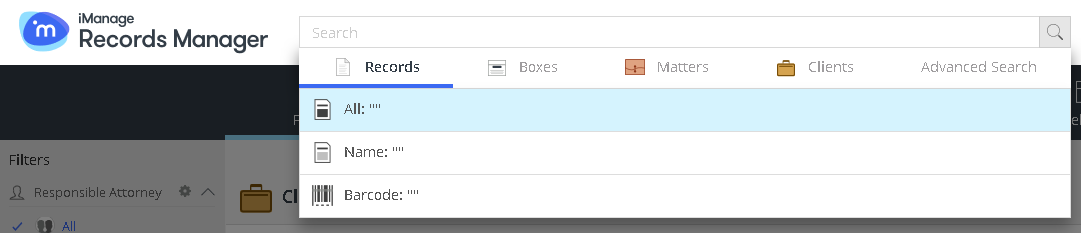
The search box provides the option to search for records, boxes, matters, and clients. To perform a search, select the search field, select the type of item you want to search for, apply the required search strings, and then select  to view the results. From the search results page, you can obtain further information about the items shown, perform actions as applicable, and navigate directly to the location of that item in the file plan.
Figure: Search box
You can perform a simple search or advanced search as required:
Simple searching
Select the search box in the header panel to open the search dialog. The default search tab is Records
 .
.To search for boxes, select
 .
.To search for matters (stand-alone web client only), select
 .
.To search clients (stand-alone web client only), select
 .
.
To perform a full-text search for a selected search tab (that is, Records, Boxes, Matters, or Clients), which encompasses all searchable parameters, including common fields including—for example, descriptions, comments, and instructions:
Select the row All, and type a search string in the search box.
Select
or press Enter. The results are displayed.
NOTE: This is the search bar's default search.
Alternatively, to search by Name or Barcode:
Under the selected search tab (that is, Records, Boxes, Matters, or Clients), enter a search term.
Select the relevant row (Name or Barcode) to perform a quick search within the items relating to that row only.
Select
or press Enter. The results are displayed.
To search for a combination of terms:
Search operators can be entered in the search bar—for example, an ID search type () and for barcode type (). Any text without an operator is treated as a full-text search. You can also add search parameters to the search by selecting the row.
Select
or press Enter. The results are displayed.
On the search results page, you can:
Select the name of any item that you want to browse to. When you hover over the item name, it's displayed with underline formatting. Select this item to proceed to the main page of the item (that is, the item's place within the file plan).
Select the line (but not the name) of the required item and then select
 to display the Properties, Holds, and Timeline tabs.
Select the line (but not the name) of the required item and then select the
 icon to open the context menu that contains options for the various tasks that you can perform. For more information about the type of search result item displayed, refer to Row actions in the corresponding section of this document.
You can add search results (of applicable items) to your Favorites for quick access.Sort the results with the available parameters.
NOTE: Search results have multiselect functionality, if more than one search result is displayed. For more information, refer to Multiselect in IRM Web Client.
Also refer to Quick Navigation in the IRM Web Client.
Advanced Search
The Advanced Search feature helps you define and execute a complex, multi-criteria search.
Select the search box, and then select Advanced Search.
From the drop-down lists, select the filters and scope. You can enter any combination of search criteria.
(Optional) Use the All option for a full-text search.Figure: Advanced search box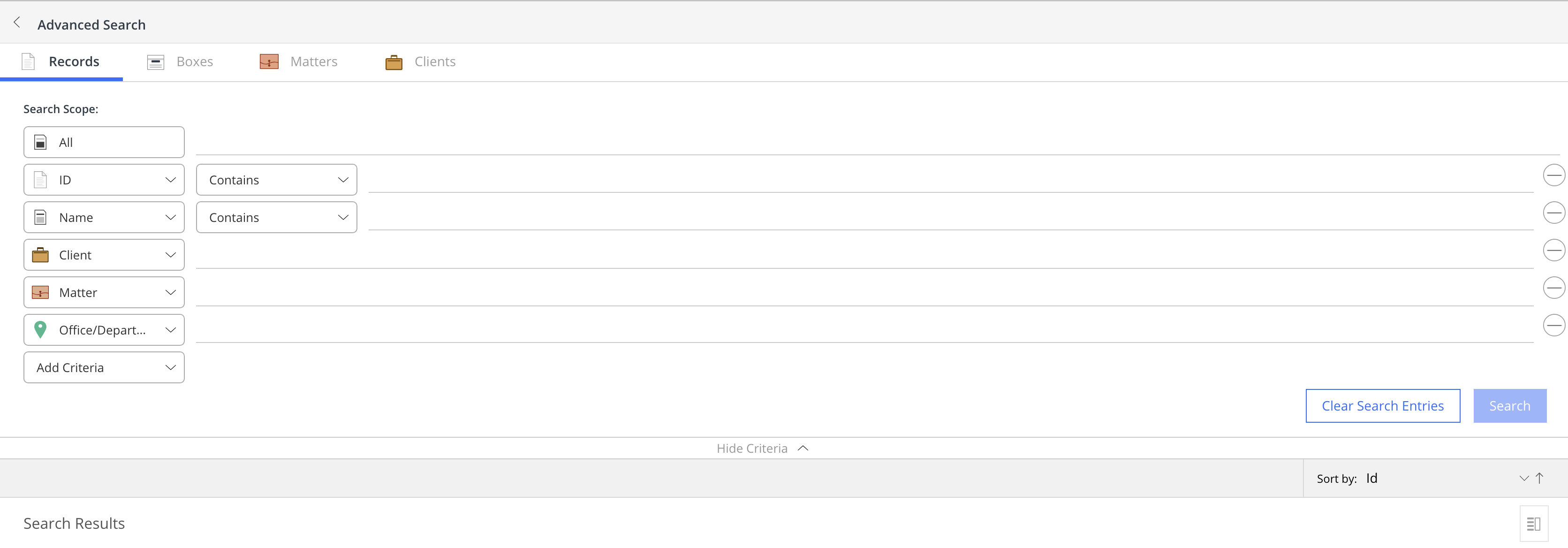
Note that the terminology of the items shown in the above figure may vary per your system configuration.Select Search or press Enter. The results are displayed.
You can do the following:To add more levels of search criteria, select Add Criteria.
Create a new group of criteria on the Add Criteria menu. Groups can be either for all or any of the criteria within the group, corresponding to an "and" search operation or an "or" search operation.
To remove a search criteria, select the icon next.
To return all drop-down lists to their default state and to clear all text boxes, select Clear Search Entries.
To display or hide all search criteria options, select Hide Criteria/Show Criteria.
In the advanced search results list, you can:
Filter the list. Filters available depend on the type of items returned by the search.
NOTE: Filters persist between searches.Select the name of any item that you want to browse to. When you hover over the item name, it's displayed with underline formatting. Select the item to proceed to the main page of the item (that is, the item's place within the file plan).
Select the line (but not the name) of an item and select
to display the Properties, Holds, and Timeline tabs for that item. Or, select  to return to the previous page.
Select the line (but not the name) of an item and select
to open the document context menu that contains options for the various tasks that you can perform on the item. Or, select to return to the previous page.
TIP: You can add search results (of applicable items) to your Favorites for quick access.
For more information about the type of search result item displayed, refer to Row actions in the corresponding section of this document.
NOTE: Advanced Search results have multiselect functionality, if more than one search result is displayed. For more information, refer to Multiselect in IRM Web Client.