Overview
IRM Web Client provides you the feature to select and perform actions on multiple items at once. This section details the aspects of this feature.
Multiselect availability
Multiselect is available on applicable pages of the IRM Web Client, as follows:
Under the File Plan header panel:
On pages of records that contain more than one selectable item
Under the Boxes header panel:
On all pages that contain more than one selectable item
Under the Requests header panel
Under the Checked Out header panel
Under the Label Queue header panel
Under the Disposition Eligibility header panel
Search results
Advanced Search results
Selecting and deselecting multiple items
Selecting and deselecting multiple items manually
Select an item in the list. There are two ways to do this:
Select the row of an item in the list.
Select the check box to the left of an item in the list.
Select additional items as required, using the process described in Step 1 above.
NOTE:
To multiselect multiple items in IRM Web Client on a device with a keyboard connected, you can press the "Shift" key on the keyboard when selecting a row. All items between the selected row and the previously-highlighted row (or if no row was selected, the top row) are inclusively selected.
To deselect:
Individual items: Select (to uncheck) the check box to the left of the item(s) you want to deselect.
All items:
Select Deselect, or
Select (to uncheck) the filled, blue check box at the upper left of the list.
The number of items that you've selected on that page is displayed in the multiselect option area at the upper left of the list. The text is in the “x of n items selected” format, where x is the number of items you've selected, and n is the total number of items available for selection on that page.
For example, if there are 8 items on a page and you've selected 1 item, the text displayed is “1 of 8 items selected”.
Selecting and deselecting all items on a page or across pages
To select all items on a page:
If no items are selected, select the uppermost check box on the left, which has the adjoining text “n items”. n represents the number of items available for selection on that page.
If one or more items are already selected, select
 , which is located in the upper-left corner of the list, with the adjoining text “x of n items selected”. x is the number of items you've selected, and n is the total number of items available for selection on that page.
To select all items across all pages:
After performing Step 1, a Select All option is displayed. Select this to select all items across all of the pages.
To deselect:
Individual items: Select (to uncheck) the check box to the left of the item(s) you want to deselect.
All items:
Select Deselect, or
Select (to uncheck) the filled, blue check box in the upper-left of the list.
Performing actions on multiple items
You can perform various actions on the items that you've selected using multiselect. The number and type of actions available for a given selection of items depends on the applicability of those actions to the items selected within that selection.
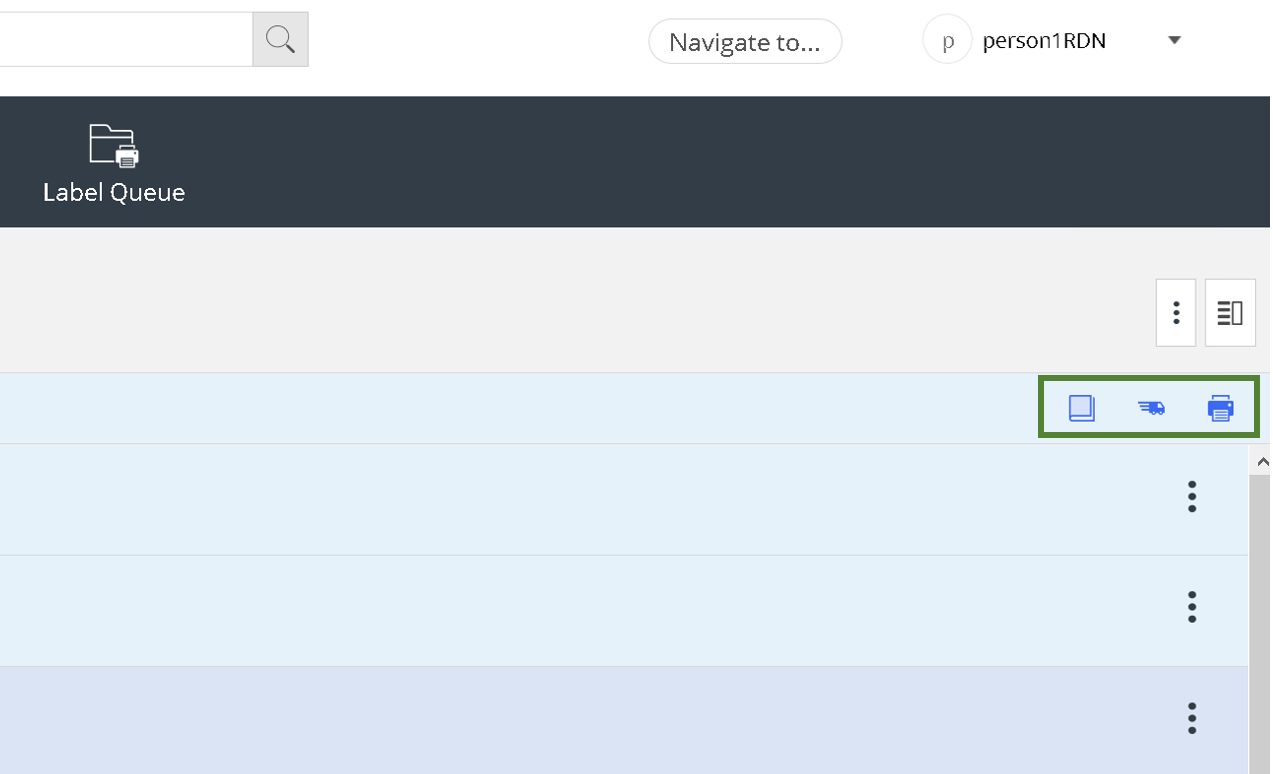
The actions available for a given selection appear in the multiselect actions section, located on the upper-right of the item list. Refer to the figure below.
Figure: Example of multiselect actions
When performing actions on multiple items or all items, a dialog showing the status of the actions being performed is displayed. This dialog also has the option to Dismiss (cancel) the action request, in the event—for example, of an inadvertent selection.
Reference list of actions available for multiselected items
Action Icon | Function | Details | Action Reference |
|---|---|---|---|
 | Add to My Favorites | Adds the selected items to the My Favorites list. | Refer to Favorites |
 | Approve | Sets approval status to Approved, for multiselected items with an Approval Status of Pending or Denied. | Refer to Disposition Eligibility |
 | Deny | Sets approval status to Denied, for multiselected items with an Approval Status of Pending or Approved. You must specify a reason for the denial. | Refer to Disposition Eligibility |
 | Reset | Sets approval status to Pending, for multiselected items with an Approval Status of Approved or Denied. | Refer to Disposition Eligibility |
 | Cancel Delivery Request | Cancel delivery request(s). | Refer to Working with Delivery Requests |
 | Delivery Request | Request delivery of physical record(s) to a location of your choosing. | Refer to Working with Delivery Requests |
 | Generate Box Detail Report | Generate a box detail report for the selected box(es) or for all boxes. If multiple report formats are available, the user is prompted to select one. | Refer to Boxes |
| Generate Label Report | Generate a label report for the selected box(es) or record(s), or for all or selected items in the Label Queue. If multiple report formats are available, the user is prompted to select one. | Refer to Label Queue |
 | Mark as Printed | Mark as Printed all or selected items in the Label Queue, or all or selected items in the selected report. | Refer to Label Queue |
 | Reassign | Reassign physical records or checked-out boxes to another user, specifying a new location. | |
 | Remove from My Favorites | Removes selected items from the My Favorites list. | Refer to Favorites |
| Reprint Box Label | Request that box label(s) be queued for reprinting. | Refer to Boxes |
| Reprint File Label | Request that physical record label(s) be queued for reprinting. | Refer to Label Queue |