The following Public Preview features are available for you to try out.
NOTE: To learn about Public Preview features in the iManage platform and how to turn them on, see Preview new features.
Microsoft 365 Home Page Widgets
See your day at a glance. Your Microsoft Teams meetings, conversations, and calendar appear on your iManage home page, next to the documents and workspaces you need.
The Microsoft Teams and Calendar home page widgets bring Microsoft 365 content into iManage. You can see your Microsoft Teams meetings, conversations, and calendar on your home page, next to your recent documents and workspaces. You don’t need to switch to another app.
Get ready for meetings faster. The Calendar widget includes Get Ready, which uses Ask iManage to help you prepare for a meeting. Get Ready reads the meeting details, such as the subject, the agenda in the invitation, and who’s attending, and finds the relevant documents in iManage. You can then prompt Ask iManage with follow-up questions in the same conversation.
For more information about enabling Microsoft 365 widgets in iManage, refer to Enable Microsoft 365 widgets.
Insight+
Your firm’s knowledge, right where you work. On the next-generation iManage platform, iManage Insight+ features such as Knowledge, Experts, and Context Search are available alongside your everyday work. You don’t need to switch to a separate tool to find the precedents, expertise, and insight your firm has already built.
NOTE: Access to this feature requires a subscription to iManage Insight+.
To learn more about iManage Insight+, refer to:
Getting started with iManage Insight+ (iManage Help Center account required)
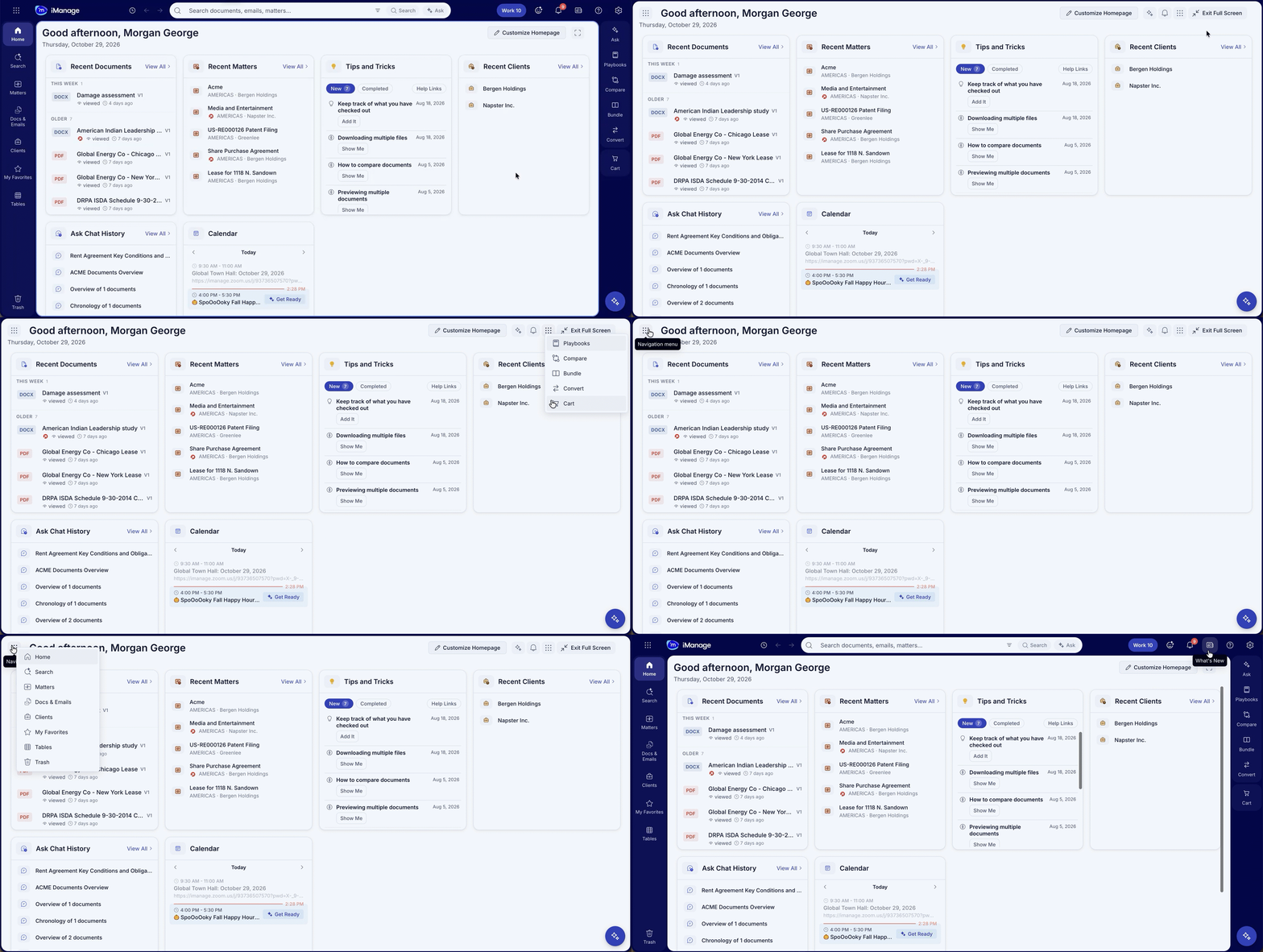
Full screen view
More room to work, fewer distractions. Full screen view hides the global header, the left navigation rail and tree, and the right action rail, so the list, preview, or page you’re working with fills the browser window. Navigation, Ask, Notifications, and the right rail actions stay available from menus in the page header. Full screen view stays on as you move between pages until you turn it off.
For more information about using full screen view, refer to View content in full screen.
Filter notifications
Focus on what needs your attention. Filter notifications by category or unread status, while your unread count and bulk actions still cover everything.
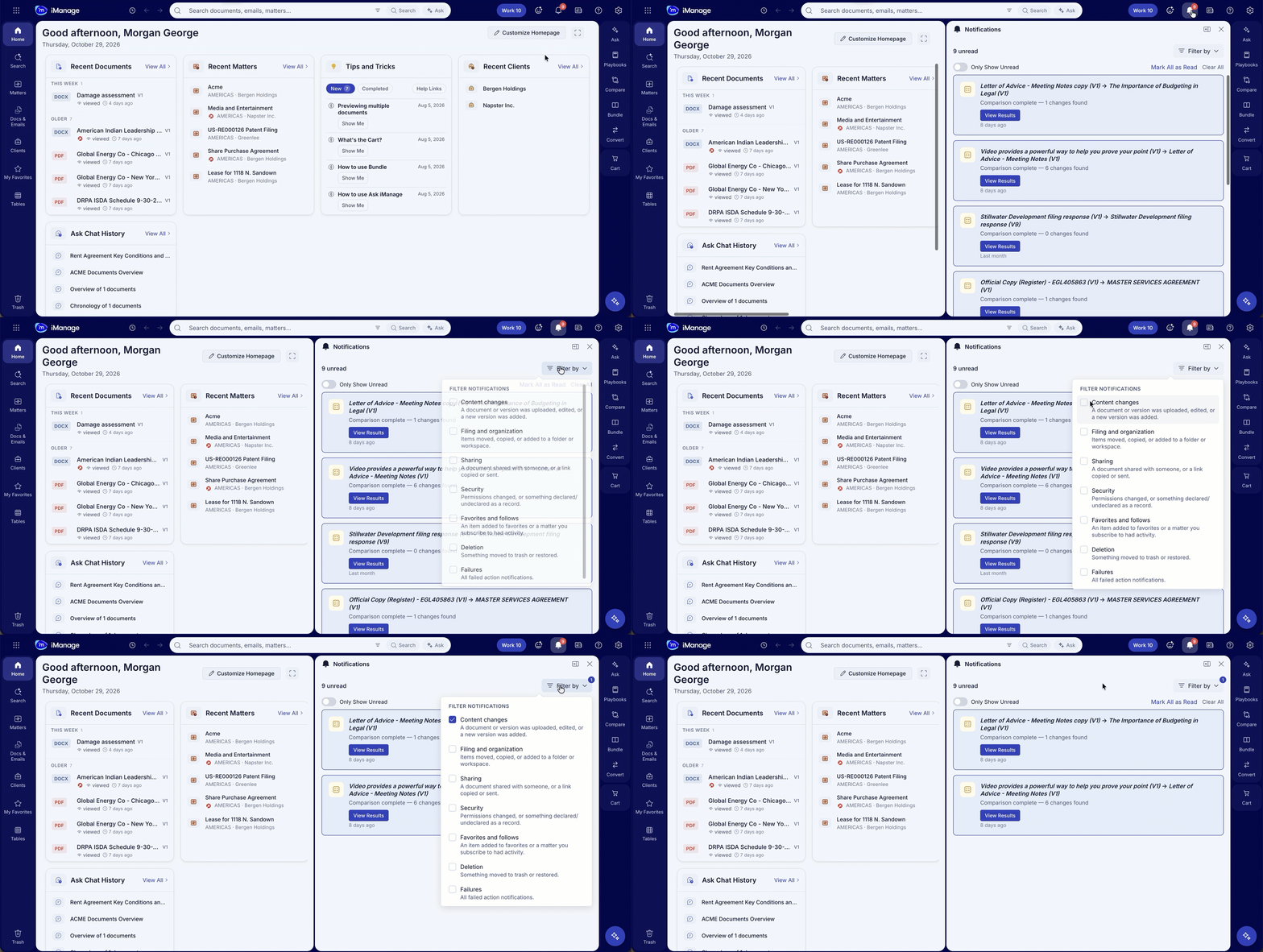
You can filter the Notifications panel by category, such as Content changes, Security, or Failures, and choose to show only unread notifications. Filters change only which notifications are listed, so the unread count, Mark all as read, and Clear all still apply to all your notifications.
For more information about filtering notifications, refer to Filter notifications.