This page only applies to Threat Manager on an iManage Cloud deployment.
In Configuration > Settings > System > Load Data, the Libraries section is where you connect iManage Work libraries to iManage Threat Manager to ingest data for threat monitoring. This page covers tasks specific to iManage Cloud deployments, including UI-driven library management and re-ingestion: Adding, editing, and removing libraries, setting ingestion start dates, and using Maintenance Mode to ensure proper setup.
NOTES:
For on-premises-specific information, refer to (On-premises) Configuring data ingestion.
For shared concepts including user and group processing, refer to Load Data > Libraries.
For instructions on how to easily identify your deployment type, refer to Identify your deployment type: iManage Cloud or on-premises.
In this section:
Task: Add an iManage Work library
You need the Configuration Manager role to complete this task.
To add an iManage Work library:
In Configuration > Settings > System > Load Data, go to the Libraries section and select Edit Libraries. The Edit Libraries dialog lists available iManage Work libraries.
Select the check box for each library you want to ingest data from.
Figure: Select the check box for each library you want to ingest data from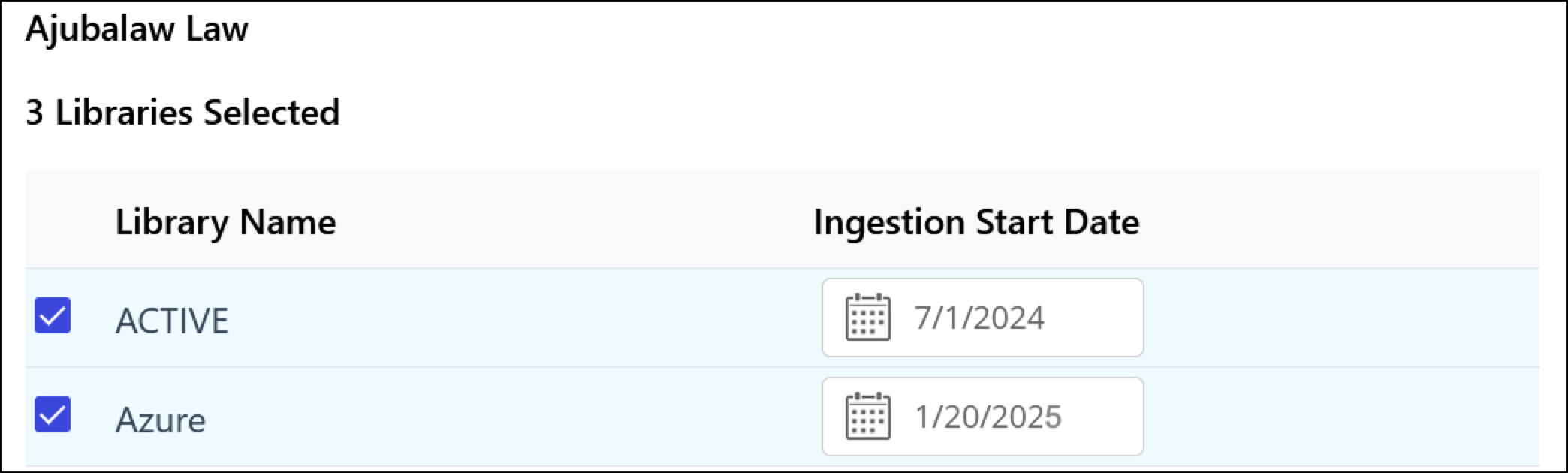
Set the Ingestion Start Date to determine how much historical data to ingest.
For libraries added to iManage Threat Manager version 10.3.6 or later, you can choose a date up to 13 months before the current date (for example, if the current date is March 25, 2025, the earliest date you can choose is February 25, 2024). This date is fixed after it’s saved. To change it, remove and re-add the library as explained in Library re-ingestion start dates.
NOTE: If you select the check box but don’t choose a date, the ingestion start date will default to 13 months before the current date.
Select Save.
Task: Edit an iManage Work library
After adding at least one library, you can edit its settings using the Edit Libraries dialog in the Libraries section of Configuration > Settings > System > Load Data.
Turn on Maintenance Mode to pause ingestion. In Configuration > Settings > System, go to the Maintenance section and set Maintenance to On, then enter notification email addresses, and select Turn On. (Refer to Turn on Maintenance Mode for more information).
NOTE: If you try to edit a library while it’s being ingested, an error will appear: “Library cannot be modified during ingestion.” To avoid this, wait until the ingestion process is finished before making changes.
In Configuration > Settings > System > Load Data, go to the Libraries section and select Edit Libraries. The Edit Libraries dialog opens.
Edit the library settings.
Select Save.
Set Maintenance Mode to Off to resume ingestion.
Task: Remove an iManage Work library
You need the Configuration Manager role to complete this task.
Before removing a library, you must turn on Maintenance Mode to pause data ingestion.
NOTE: You can’t delete the last remaining library from Threat Manager. To ensure continued monitoring, at least one must always remain connected.
Similarly, you can’t remove yourself from your last assigned library. At least one library assignment is required to maintain access. For example, if Threat Manager has 6 libraries and you are assigned to 3, you can’t remove all 3—at least one assignment must remain to maintain access.
To remove an iManage Work library:
Turn on Maintenance Mode to pause ingestion. In Configuration > Settings > System, go to the Maintenance section and set Maintenance to On, then enter notification email addresses, and select Turn On. (Refer to Turn on Maintenance Mode for more information).
NOTE: If you try to remove a library while it’s being ingested, an error will appear: “Library cannot be modified during ingestion.” To avoid this, wait until the ingestion process is finished before making changes.
In Configuration > Settings > System > Load Data, go to the Libraries section and select Edit Libraries. The Edit Libraries dialog opens.
Clear the check box for the library you want to remove. A confirmation prompt appears.

Select Save.
Verify the removal from the Libraries section in Configuration > Settings > System > Load Data section. A “This library is being removed…” message is displayed below the library name until it is removed from the list.
Set Maintenance Mode to Off to resume ingestion for other libraries.
Library re-ingestion start dates
The Ingestion Start Date determines how far back iManage Threat Manager will retrieve historical data when re-ingesting libraries. This date affects how much historical activity is included and depends on both the Threat Manager version and when the library was originally added:
If the library was added using iManage Threat Manager version 10.3.6 or later: You can select an Ingestion Start Date up to 13 months before the date the library was first added to Threat Manager.
If the library was added before version 10.3.6: You can select an Ingestion Start Date as far back as the ingestion start date that was set when the library was first added to Threat Manager; no 13-month limit applies.
After a library is added to iManage Threat Manager, you can’t edit its Ingestion Start Date. To set a different start date, you must remove the library and re-ingest it with the new date, as detailed in the following sections.
Re-ingesting libraries added to iManage Threat Manager version 10.3.6 or later
When re-ingesting libraries that were first added to iManage Threat Manager version 10.3.6 or later, you can select an Ingestion Start Date up to 13 months before the date the library was initially added. For example, if the library was first added on March 25, 2026, the earliest date you can choose for re-ingestion is February 25, 2025.
Example: On March 25, 2026, you add a new library and set the ingestion start date to January 1, 2026. Threat Manager records:
Ingestion start date: January 1, 2026 (your selection)
Earliest re-ingestion start date: February 25, 2025 (13 months before March 25, 2026, the date the library was first added to Threat Manager.)
NOTE: If you need to ingest historical data older than 13 months, contact iManage Cloud Support.
Re-ingesting libraries added before iManage Threat Manager 10.3.6
When re-ingesting libraries that were originally added to iManage Threat Manager versions earlier than 10.3.6, the range of historical data you can select from is determined by the Ingestion Start Date that was specified when the library was first added, not by a fixed 13-month window. You can choose an Ingestion Start Date as early as the originally specified start date.
Example: On March 15, 2023, you added a library with an Ingestion Start Date of March 15, 2023.
Ingestion start date: March 15, 2023 (your selected start date)
Earliest re-ingestion start date: March 15, 2023 (your selected start date)
NOTE: If you need to ingest historical data older than 13 months, contact iManage Cloud Support.