In Configuration > Settings > System > Load Data, the Data Loading Progress area is where iManage Threat Manager monitors data ingestion from your libraries and helps you identify any issues that may occur. Although many issues are automatically handled by the system, some require manual attention.
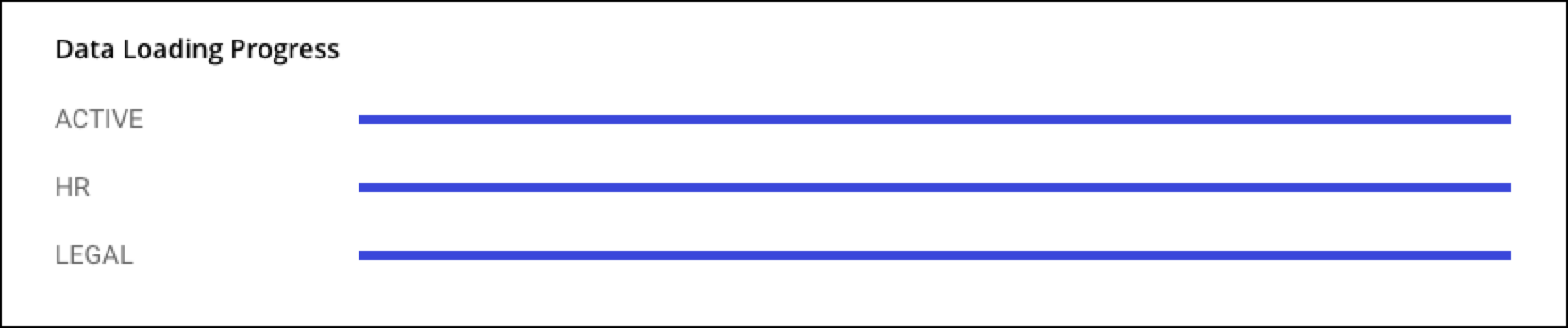
The Data Loading Progress area displays a progress bar for each library, showing its real-time ingestion status, both during initial and ongoing loading. When one or more libraries encounter an ingestion failure, a red notification appears above the section.
Common issues include:
A recently changed iManage Work database password
An updated server IP address or name
An unresponsive database server
In this section:
Task: Identify ingestion issues
Use this procedure to check for and review ingestion errors.
In Configuration > Settings > System > Load Data section, look for a red notification above the Data Loading Progress bar showing the number of errors.
Select View Unresolved Issues to open a detailed list of the issues.
Automatic error handling
When iManage Threat Manager encounters a temporary issue (such as a brief network interruption) it automatically retries the process at increasing intervals for up to 90 minutes. If the issue is resolved during this time, ingestion continues without interruption.
If the issue persists—for example, due to incorrect sign-in credentials or a server not responding—the system stops trying, marks the process as failed, and displays a red notification above the Data Loading Progress Bar.
NOTE: If you manually retry a failed process, the same 90-minute retry schedule applies. A failed retry doesn’t generate an immediate alert; a red notification appears only after the retry attempt completes.
Task: Resolve an ingestion issue
After identifying the issue, resolve it by updating the relevant settings. For example:
In Configuration > Settings > System, update library credentials or server information.
(On-premises) If the issue isn’t obvious, check the Logs tab for more details (go to Configuration > Settings > Logs).
You can also review Configuration > Settings > Status for additional information.
NOTE: (On-premises) For help downloading logs, refer to Configuration >Settings > Logs tab.
Task: Retry ingestion
After correcting the ingestion issue, use this procedure to resume data loading:
Select View Unresolved Issues to re-open the errors dialog.
Select Retry all processes to restart ingestion.
If the retry is successful, data loading resumes. If the retry fails, a notification is displayed, but only after the 90-minute retry window has passed.
To receive email alerts when ingestion fails or stops, refer to Load Data > Notifications.