Email alerts notify specific recipients about ingestion issues, including the reason for the failure (such as database connectivity problems) and the affected database name. You can also configure alerts to warn when when a library shows no new activity for a set period, which might indicate that Maintenance Mode was left on accidentally.
In this section:
Notification schedule
When email alerts for ingestion failures are enabled, they follow this schedule:
The first alert is sent at the start of the next hour after the failure occurs. For example, if a failure happens at 1:01 PM or 1:59 PM, the alert is sent at 2:00 PM.
Additional alerts are sent every 24 hours until the issue is resolved.
Task: Enable notifications for ingestion failure and inactivity
Use this procedure to configure email notifications for ingestion failures and library inactivity:
In Configurations > Settings > System > Load Data, scroll to the Notifications section and slide the toggle to On. The Notifications dialog opens.
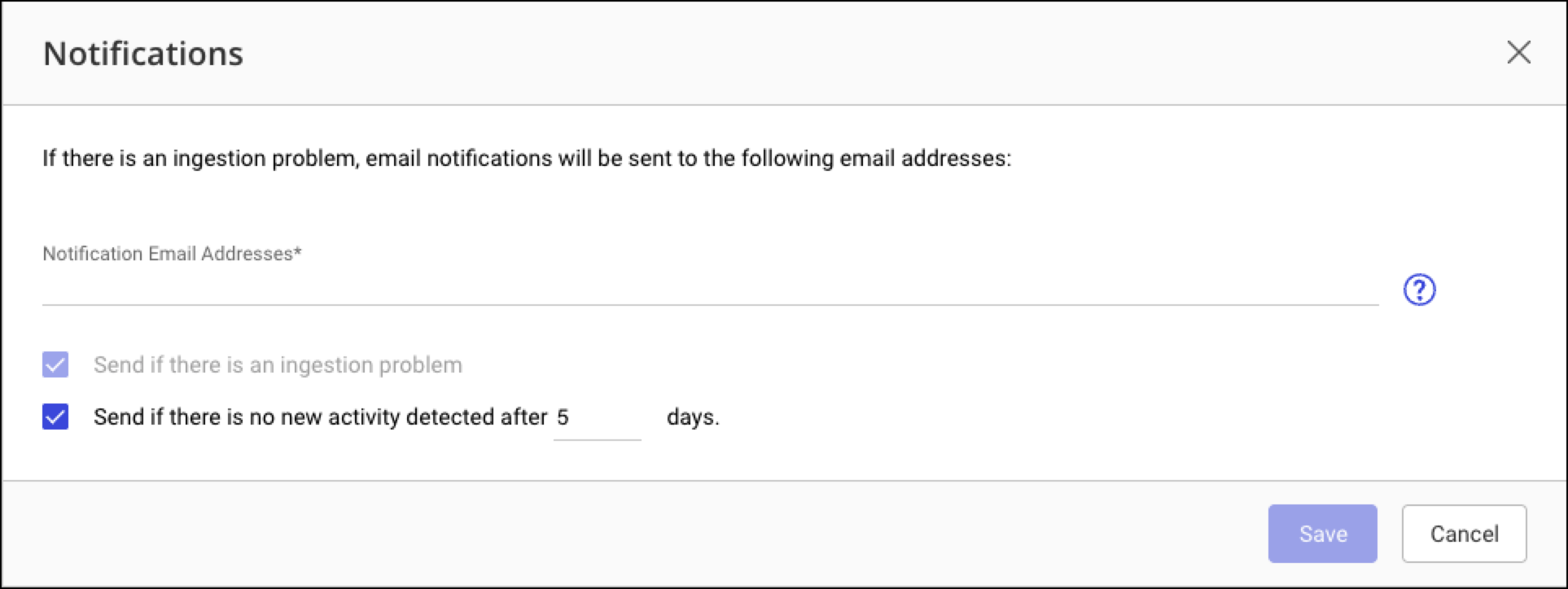
In the Notifications Email Addresses field, enter a comma-separated list of email addresses for notification recipients.
NOTE: This field is required. Email addresses outside iManage Work are also accepted. To configure the email server, refer to System > Mail Server configuration.
To receive alerts for inactivity, keep the Send if there is no new activity detected after (5) days check box selected (this is the default). Adjust the number of days using the arrows or text field if needed. To disable inactivity alerts, clear this check box.
NOTE: When inactivity is detected for the specified period, a red clock icon appears next to the library on the Status page.
Select Save. A message confirms that notifications are enabled.
Task: Disable notifications for ingestion failure and inactivity
Use this procedure to turn off all email notifications for ingestion failures and library inactivity:
In Configurations > Settings > System > Load Data, scroll to the Notifications section and slide the toggle to Off.
When a warning message appears, select Turn Off to confirm.
Task: Edit notifications for ingestion failure and inactivity
Use this procedure to update notification email addresses or adjust the inactivity threshold.
In Configurations > Settings > System > Load Data, scroll to the Notifications field and select Edit. The Notifications dialog opens.
Update the Notifications Email Addresses field with a comma-separated list of email addresses. Or use the arrows or text field to adjust the number of days in the Send if there is no new activity detected after field.
Select Save to apply the changes.