Application tokens (and corresponding secrets) allow iManage Threat Manager to validate which accounts can import and export data. You can use application tokens for:
Export Alert List: Exporting alert list data to an SIEM application
Import User Metadata: Importing additional user metadata
The Integrations Manager role is required to view and access this functionality.
IMPORTANT: If the user with the Integrations Manager role is made inactive in iManage Work, or if the role is removed from the user, all application tokens created by that user become inactive. The tokens are restored if the user is reactivated or the role is re-added.
In this section:
Task: Create an application token
You need the Integrations Manager role to complete this task.
In Configuration > Settings > System, under Application Tokens for Utility Access, select +New Token. The New Token dialog appears.
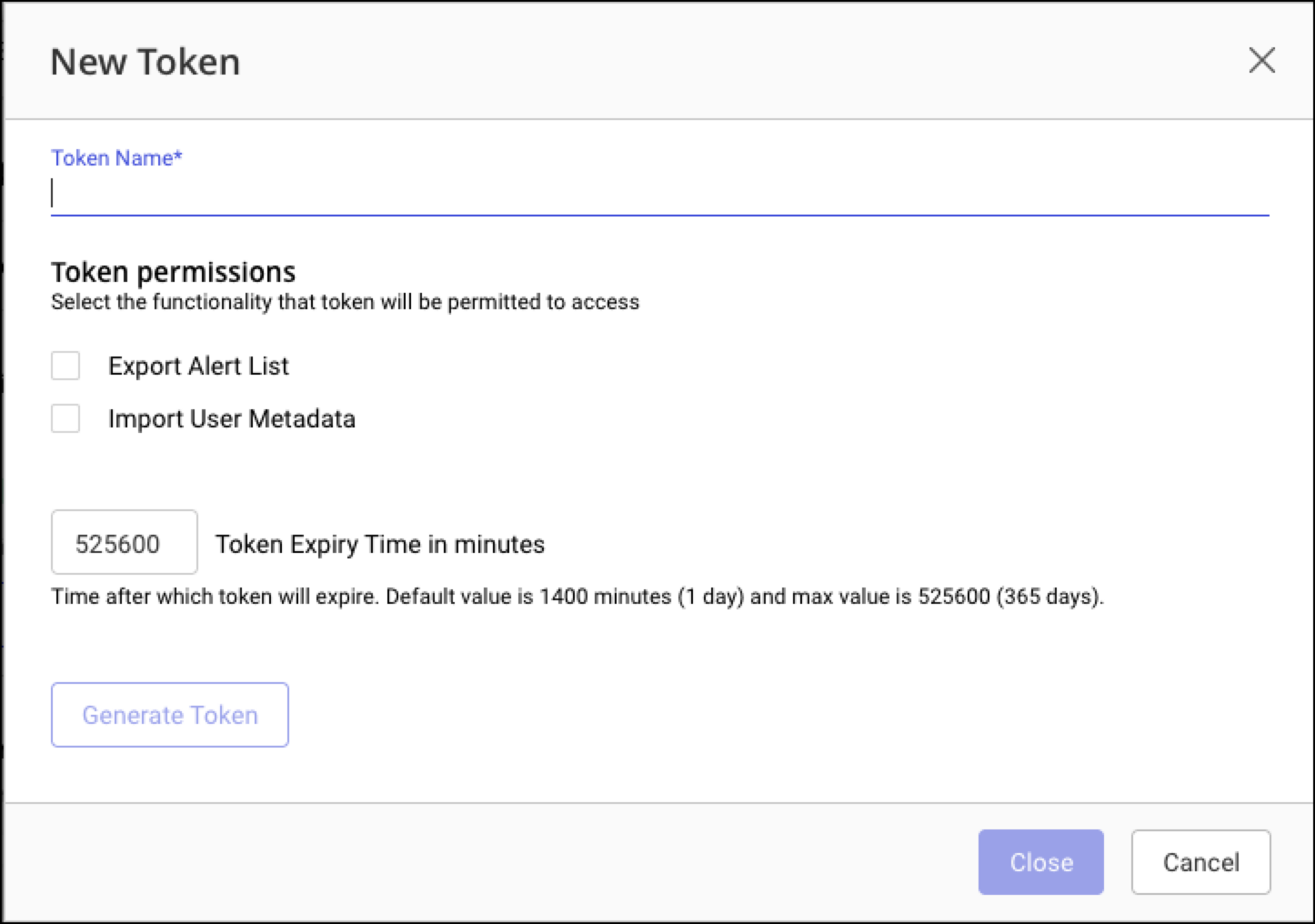
Enter a Token Name. This field is required.
Select the functionality the token will be used to access. You can select one or both options:
Export Alert List: for example for SIEM integration
Import User Metadata: for the User Metadata Importer Application
Specify the Token Expiry Time, in minutes. The default value is 1440 minutes (1 day). The maximum is 525600 minutes (365 days).
Select Generate Token. A success message is displayed, and the token and secret are generated.
Copy and save the token and secret. A Copy link is provided for each.
IMPORTANT: Save both the token and the secret before closing the New Token dialog. After you close the dialog, neither value is displayed again. If you lose either value, you'll need to generate a new application token and apply it to any of the services that use it.
Select Close. The token name appears in the token list.
Task: Edit an application token
You need the Integrations Manager role to complete this task.
You can edit the name, access, and expiry time of existing tokens.
In the token list, select Edit (
 ) on the row of the token you want to edit.
Edit the properties displayed.
Select Save. A success message appears. The token is updated.
Task: Remove an application token
You need the Integrations Manager role to complete this task.
You can remove individual tokens or all tokens at once. When an application token is removed, any services or external applications using it have their access revoked immediately. If you remove a token that is in use, you’ll need to generate a new token and apply it to any of the services you want to continue making it available for.
To remove a single token:
In the token list, select X Remove on the row of the token you want to remove. A warning message appears.
Select Remove to confirm.
To remove all tokens:
In the token list, select X Remove All. A warning message appears.
Select Remove to confirm.